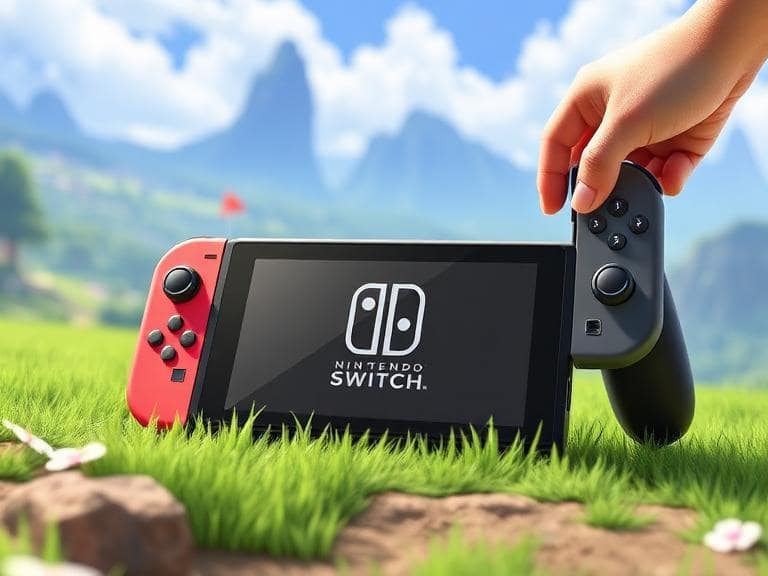
The Nintendo Switch has revolutionized portable gaming, but its battery life means you’ll often need to recharge on the go. Whether you’re traveling, at a friend’s house, or simply prefer not to lug around the bulky dock, knowing how to charge your console directly is essential. This comprehensive guide covers every reliable method to power up your Nintendo Switch family—including the original model, OLED, and Lite—using USB-C connections, ensuring you never miss a moment of playtime.
Direct charging bypasses the dock entirely, plugging straight into the console’s USB-C port on the bottom. This approach supports handheld mode, sleep mode, and even TV output with adapters, making it versatile for any scenario. With the right setup, you can achieve full charges in about three hours or maintain battery levels while gaming intensively.
Understanding Nintendo Switch Charging Fundamentals
All Nintendo Switch models share the same USB-C charging port and compatibility with the official HAC-002 AC adapter. This adapter delivers up to 39 watts through Power Delivery (PD) protocol, negotiating 5V at 1.5A for basic needs or 15V at 2.6A for maximum speed. The original Switch, OLED, and Lite all recharge fully in approximately three hours when powered off or in sleep mode, though active gameplay extends this time.
The OLED model offers slightly better efficiency due to its display technology, but charging specs remain identical across the lineup. The Lite, being dockless by design, relies solely on direct USB-C input. Understanding these basics prevents underpowered setups that lead to slow charging or overheating.
Key power thresholds include a minimum of 7.5 watts (5V/1.5A) to charge while playing lighter games, scaling up for demanding titles like open-world adventures. Always prioritize PD-compatible sources to match the console’s negotiation for optimal performance.
Method 1: Official Nintendo Switch AC Adapter – The Gold Standard
Step-by-Step Direct Connection
Start with the simplest and most reliable option: your included HAC-002 adapter.
- Unplug the adapter from the dock if attached.
- Locate the USB-C port on the bottom of your Switch console, between the Joy-Con rails.
- Insert the USB-C plug firmly into the console.
- Plug the AC adapter into a standard wall outlet.
- Power on the console or let it sleep; the battery icon in the top-left corner will show a lightning bolt indicating active charging.
This method provides the fastest charging speeds, fully replenishing the battery in around three hours during sleep mode. It’s ideal for home use without the dock and supports TV docking via separate HDMI adapters if needed.
For safety, ensure the outlet is stable and avoid extension cords that might reduce power delivery.
Method 2: Third-Party USB-C Wall Chargers
High-quality USB-C PD chargers from reputable brands like Anker or Belkin work seamlessly as alternatives. Look for outputs supporting at least 15W (5V/3A) or higher, with PD certification to match the Switch’s requirements.
Selecting and Using a Compatible Charger
Choose chargers rated 30W or above for balanced performance. Connect a USB-C to USB-C cable—avoid cheap cables lacking E-marker chips for higher wattage.
- Select a PD charger (e.g., 45W GaN models for compactness).
- Attach a quality USB-C cable to both the charger and console.
- Plug into the wall; the console will auto-negotiate power.
- Monitor the battery icon for the charging symbol.
These chargers charge faster than basic phone adapters and are perfect for travel. Tests show 30W units fully charge in under four hours even with light use.
Steer clear of non-PD chargers, as they default to slow 5V/2A rates, potentially failing to offset gameplay drain.
Method 3: Power Banks for Portable Charging
Power banks extend playtime indefinitely, crucial for long trips. Opt for models with USB-C PD output of 20,000mAh or more and at least 18W delivery.
Top Recommendations and Setup
Popular choices include Anker PowerCore series, known for reliability with Switch consoles.
- Acquire a PD-compatible power bank (e.g., Anker 737 or similar 24,000mAh units).
- Use a short, thick USB-C cable for efficiency.
- Connect to the console’s USB-C port.
- Press the bank’s power button; charging begins immediately.
- For extended sessions, alternate banks or recharge via solar if available.
A 20,000mAh bank can provide 8-10 hours of additional playtime, depending on game intensity. Always check the bank’s output specs to ensure it exceeds 7.5W minimum.
Pro tip: High-capacity banks like 30,000mAh models allow multi-day trips without outlets.
Method 4: Car and Travel Charging Solutions
USB-PD car chargers transform your vehicle into a mobile station. Dual-port models let you charge the Switch and phone simultaneously.
Installing and Using Car Chargers
- Insert the car charger into your 12V outlet.
- Connect USB-C cable from charger to Switch.
- Start the engine for full power; some work on accessory mode.
- Adjust brightness and frame rate to conserve battery.
Look for 30W+ automotive PD chargers to handle bumpy roads without disconnections. This method sustains 4-6 hours of play per full tank stop.
For airplanes, use certified PD adapters in seat outlets, confirming airline compatibility.
Method 5: Computer and Laptop USB Ports
Modern laptops with USB-C PD ports serve as convenient chargers. Desktop USB-A ports work slower but suffice for standby.
Step-by-Step PC Charging
- Use USB-C to USB-C for laptops (Thunderbolt/USB4 preferred).
- For desktops, USB-A to USB-C cable at 5V/2A.
- Plug in and verify charging icon.
- Avoid hubs without dedicated power.
Laptop charging matches wall speeds if 60W+ capable. This is great for LAN parties or work setups.
Enhancing Charging with Stands and Accessories
Adjustable charging stands elevate the console for ergonomic handheld use while plugged in. Official Nintendo stands or third-party PD passthrough models combine charging and kickstand functionality.
Connect the stand’s USB-C to your adapter or bank, then slot in the Switch. This prevents port strain and improves heat dissipation during long sessions.
Monitoring Charge Status and Full Capacity
The battery icon displays percentage and lightning bolt during charging. When full, the bolt vanishes, and percentage hits 100%.
In sleep mode, wake briefly to check. For precision, access System Settings > System > Battery to view detailed stats.
LED near the port glows green when charging, off when full—though subtle on darker models.
Troubleshooting Common Charging Problems
Issues like no charging icon or slow rates often stem from cables or sources. Here’s a detailed checklist:
- Incompatible Cable: Faulty or non-PD cables limit power. Replace with certified USB-C 3.0+ cables rated for 60W; test multiple to isolate issues, ensuring no frays or bends.
- Low-Power Source: Chargers under 7.5W won’t offset gameplay. Upgrade to 30W PD units; verify output labels and try official adapter to confirm.
- Overheating: High ambient temps or intensive games throttle charging. Cool the console in sleep mode for 15 minutes; avoid blankets or direct sun.
- Port Debris: Dust blocks connection. Gently clean with compressed air or toothpick; never insert metal objects to prevent shorts.
- Software Glitch: Rare firmware bugs halt charging. Restart via power button hold (12 seconds) or update in Settings; factory reset as last resort.
- Battery Degradation: After 300+ cycles, capacity drops. Monitor via settings; replace via Nintendo service if under 80% health.
- Faulty Adapter: Burnt smell or intermittent power signals failure. Use spares and contact support for warranty claims.
- Third-Party Dock Interference: Avoid if not charging directly; stick to console port for reliability.
Pro Tips for Optimal Switch Charging
- Enable Battery Saver: Auto-lowers brightness and caps frame rates, extending life by 20-30%; toggle in Quick Settings for instant gains during low-power charges.
- Charge in Sleep Mode: Fastest replenishment occurs here; plug in nightly to wake at 100%, preserving lithium-ion health over full discharges.
- Layer Accessories: Pair power banks with stands for desk setups; magnetic cables reduce wear on the port over thousands of insertions.
- Monitor Usage Patterns: Track via Nintendo Switch Online app; adjust for titles like Zelda (high drain) versus puzzles (low), optimizing bank sizes.
- Invest in GaN Tech: Gallium Nitride chargers are smaller, cooler, and more efficient; 45W models fit pockets yet outperform bulkier options.
- Cable Management: Short 1-2ft cables minimize voltage drop; coil extras neatly to avoid tangles in bags.
- Multi-Device Hubs: PD hubs charge Switch while connecting controllers; ideal for party play without draining hosts.
- Seasonal Adjustments: Cold weather slows charging; warm the console indoors before plugging in for consistent speeds.
Frequently Asked Questions
Can I use a phone charger for my Nintendo Switch?
Yes, if it’s USB-C PD rated at least 18W. Basic 5V/2A chargers work slowly for standby but may not charge during play.
Will charging while playing damage the battery?
No, modern lithium-ion management prevents overcharge; just use adequate power to avoid net drain.
How long does a full charge last on OLED versus original?
OLED and revised original both offer 4.5-9 hours; Lite matches at 3-7 hours, varying by game.
Is it safe to leave the Switch charging overnight?
Absolutely; it stops at 100% automatically, with built-in safeguards against overheat.
Do power banks charge faster than wall adapters?
No, walls are fastest; banks match if high-output but deplete their capacity over time.
Can I charge Joy-Cons without the console or dock?
Use a separate Joy-Con charging grip or stand; console attachment works anytime.
Conclusion
Mastering direct USB-C charging empowers uninterrupted Nintendo Switch gaming anywhere, from commutes to marathons. By leveraging official adapters, robust power banks, and PD chargers, you ensure quick, safe recharges across all models. Prioritize quality components, monitor status diligently, and apply pro tips to maximize longevity—your next adventure awaits fully powered.