
SmartUpWorld Portfolio Showcase
A filterable portfolio grid for WordPress with browser-style project cards. Show client websites and demos with an Elementor widget or a simple shortcode — with one-click demo content.
Version 1.0.0 Free Elementor ReadyDownload from WordPress.org
What Is SmartUpWorld Portfolio Showcase?
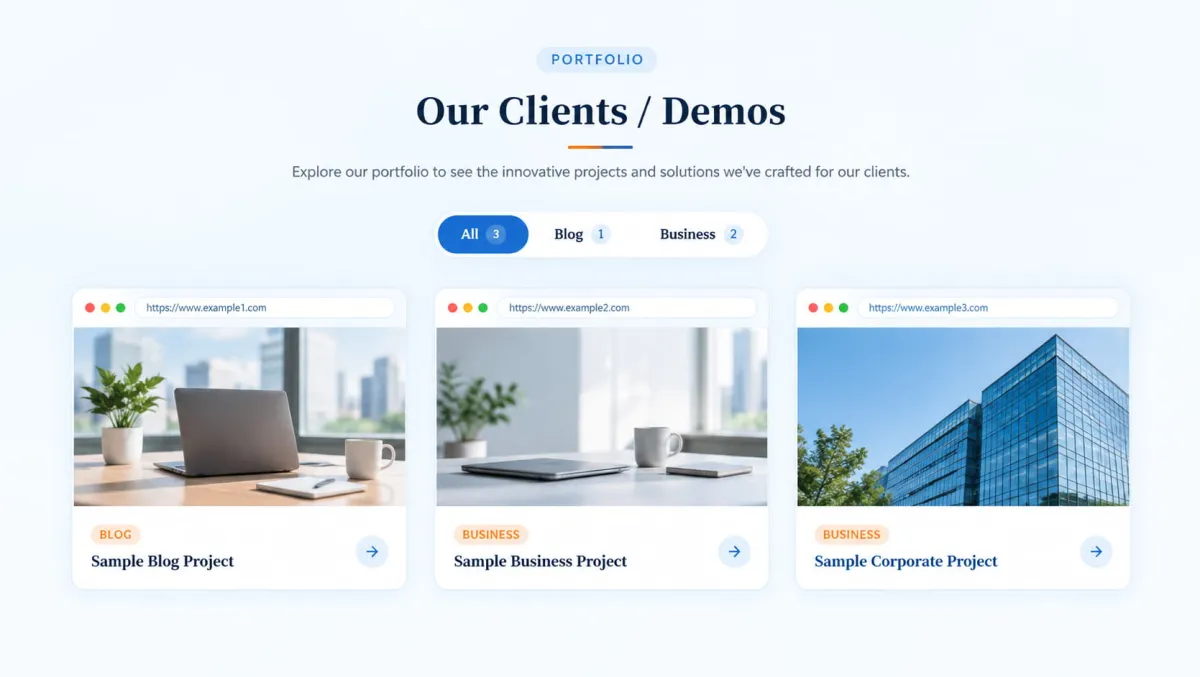
SmartUpWorld Portfolio Showcase turns your client websites, demos and case studies into a clean, filterable portfolio grid. Every project card looks like a small browser window with the site address, a screenshot, a category badge and a link to the live site — ideal for web design agencies, freelancers and developers.
Key features:
- Elementor widget “Portfolio Showcase” with content, layout, colour, spacing and typography controls
- Shortcode
[suw_portfolio]for the block editor, Classic editor, widgets and theme templates - Portfolio section in the dashboard — add projects with a title, screenshot, website URL and project type
- Filter tabs built from your project types, with optional counts
- Responsive grid — 1 to 4 columns per device, full-width background with a centred container
- Three sample projects appear until you publish your first project, so a new portfolio is never empty
- One-click demo import — and one-click delete — using images bundled with the plugin
- Schema.org structured data, responsive images and accessible filter buttons
- Lightweight: one small CSS file and one deferred script, loaded only where a portfolio appears
Installation
- Go to Plugins → Add New in your WordPress dashboard, search for SmartUpWorld Portfolio Showcase and click Install Now. Or download it from WordPress.org and upload the zip.
- Click Activate. A new Portfolio menu appears in the dashboard.
- Add the Portfolio Showcase Elementor widget or the
[suw_portfolio]shortcode to any page. Three sample projects show straight away. - Add your own projects under Portfolio → Add New Project, or import the demo under Portfolio → Docs & Demo.
Using the Elementor Widget
- Edit a page with Elementor.
- Search the widget panel for Portfolio Showcase (SmartUpWorld category) and drag it onto the page.
- The widget shows the projects from Portfolio in your dashboard automatically. To type projects straight into the widget instead, set Content → Projects → Source to Add projects here.
Widget Settings
| Panel | Settings |
|---|---|
| Content → Header | Eyebrow label, heading and its HTML tag, description. |
| Content → Projects | Source (Portfolio admin section or projects added in the widget), type filter, number of projects. |
| Content → Layout & Features | Columns per device, filter tabs, tab counts, “All” label, browser frame, full-width background, button text and link. |
| Style → Colours | Accent, accent light, button & badge, headings, body text, borders, background gradient. |
| Style → Cards & Spacing | Section padding, content width, card gap, corner radius, screenshot shape. |
| Style → Typography | Heading and card title fonts. |
Basic Shortcode
No Elementor? Paste this into any page, post or widget to show your portfolio with a heading:
[suw_portfolio heading="Our Work"]
All Shortcode Attributes
| Attribute | Default | Description |
|---|---|---|
eyebrow | — | Small pill label above the heading. Omit to hide. |
heading | — | Section heading. Omit to hide. |
heading_tag | h2 | h1, h2, h3, h4 or div. Card titles automatically use the next heading level down. |
subheading | — | Short description under the heading. |
type | — | Only show these project type slugs, comma-separated. Example: type="blog,business". |
limit | 0 | Maximum number of projects. 0 shows all. |
filter | yes | Show the filter tabs. Hidden automatically when there is only one type. |
counts | yes | Show the number of projects on each tab. |
all_label | All | Text of the first tab. |
browser | yes | Browser-window frame above each screenshot. |
full_width | yes | Background runs edge to edge (yes) or stays inside the content width (no). |
cta_text | — | Button text under the grid. Needs cta_url. |
cta_url | — | Button link, for example /contact/. |
Usage Examples
[suw_portfolio]
[suw_portfolio eyebrow="Portfolio" heading="Our Clients / Demos" subheading="Explore the websites we have designed and built for our clients."]
[suw_portfolio heading="Business Websites" type="business" limit="6"]
[suw_portfolio heading="Recent Work" cta_text="Start your project" cta_url="/contact/"]
[suw_portfolio filter="no" browser="no"]
[suw_portfolio heading="Portfolio" full_width="no"]
Adding Your Projects
- Go to Portfolio → Add New Project and enter the project name as the title.
- Paste the live site address into the Website URL box.
- Set a screenshot as the Project screenshot (featured image). About 1600 × 1000 px works best. Add descriptive alt text in the Media Library for better image SEO.
- Choose a Project Type such as Blog or Business. Each type becomes a filter tab.
- Use the Order field to control the order — lower numbers come first.
Sample Projects and Demo Content
Sample projects on a new install
Until you publish your first project, the portfolio shows three built-in sample projects — Sample Blog Project, Sample Business Project and Sample Corporate Project — so you can style the section right away. They are not saved in your database and disappear automatically once a real project is published. Logged-in editors see a short note about this; visitors do not.
Import the demo
Go to Portfolio → Docs & Demo → Demo content and click Import demo content. It creates the three sample projects as real, editable projects, adds their screenshots to the Media Library, creates the Blog and Business project types and a “Portfolio Demo” page. The screenshots ship with the plugin, so nothing is downloaded from other websites.
Delete the demo
When you are ready for your own work, open the same tab and click Delete demo content. It removes only what the import created — the projects, their images, the demo page and any project types left empty. Projects you added yourself are never touched.
SEO and Performance
- Real
<img>screenshots with alt text, width and height (no layout shift) and responsivesrcset. - Image loading is handled by WordPress core: images likely to be in view load first, the rest are lazy loaded.
- Correct heading hierarchy — card titles sit one level below the section heading.
- Schema.org
ItemListstructured data (JSON-LD) describing your projects. Turn it off with thesuwpf_schema_enabledfilter if your SEO plugin already covers it. - About 7 KB of CSS and 2 KB of deferred JavaScript with no jQuery, loaded only on pages that show a portfolio.
- Accessible filter buttons (
aria-pressed), keyboard-focusable cards and support for “reduce motion”.
Frequently Asked Questions
No. Elementor adds a drag-and-drop widget, but the [suw_portfolio] shortcode works in any editor.
They are built-in sample projects so a new portfolio is never blank. They disappear automatically once you publish your first project.
Open Portfolio → Docs & Demo → Demo content and click Delete demo content. Your own projects stay.
Create a project type under Portfolio → Project Types and assign it to at least one project.
Yes. In Elementor use Only these types; with the shortcode use type="blog,business".
Cards link to external client sites, and nofollow is the safe default for outbound links.
The demo content is removed. Projects you added yourself stay in the database, so reinstalling brings your portfolio back.
Changelog
- Initial release.
- Elementor widget and
[suw_portfolio]shortcode. - Portfolio admin section with project types and website URL.
- Built-in sample projects until the first project is published.
- One-click demo import and delete using bundled images.
- Schema.org ItemList structured data, responsive images and accessible filter tabs.