
SmartUpWorld Clinic Appointments
Online appointment booking for dental practices and clinics. Patients pick a free day and time in a live calendar, your team confirms, moves or declines each request, and everyone gets the right email at the right time — including reminders.
Version 1.0.0 Free No External Services WordPress 6.2+Download from WordPress.org
- Installation
- Booking form
- Managing appointments
- Hours & limits
- Emails & reminders
- Patient self-service
- Spam & privacy
- Developers
- FAQ
What Is SmartUpWorld Clinic Appointments?
SmartUpWorld Clinic Appointments is a free WordPress booking plugin built for dental practices, medical clinics and other appointment-based businesses. Patients book from your website in a few clicks; your front desk manages every request from one dashboard screen. It works with any theme and stores everything in your own WordPress database.
Key features:
- Live availability calendar — fully booked and closed days are marked, and the form offers the next free day in one click
- Two booking modes: requests your team confirms, or instant booking
- One-click Confirm, Confirm next free time, Decline (with a reason), Completed and No-show
- Opening hours with breaks, closed dates and blocked hours, maximum appointments per day and per treatment
- Treatment lengths, chairs (patients at the same time), gap between appointments, minimum notice and booking window
- Emails at every step — with arrival time and a calendar invitation (.ics) — plus automatic reminders
- Private patient link to view, cancel or pick a new time
- Overview, list, month calendar, phone and walk-in bookings, CSV export
- “Front Desk” user role that can manage appointments and nothing else
- Built-in spam protection, WordPress privacy export/erase and optional automatic data clean-up
- No external services — nothing is loaded from, or sent to, other servers
Installation
- Go to Plugins → Add New, search for SmartUpWorld Clinic Appointments and click Install Now. Or download it from WordPress.org and upload the zip.
- Click Activate. An Appointments menu appears in the dashboard, and a private Manage Appointment page is created for patient links.
- Open Appointments → Settings. Enter your practice details, opening hours, limits and treatments.
- Add the shortcode
[suwca_booking_form]to the page where patients book (for example “Book an Appointment”). - Install an SMTP plugin such as WP Mail SMTP so booking emails reach the inbox, then send yourself a test from Settings → Emails.
Adding the Booking Form
Paste this into any page, post or widget:
[suwca_booking_form]
Shortcodes
| Shortcode | Description |
|---|---|
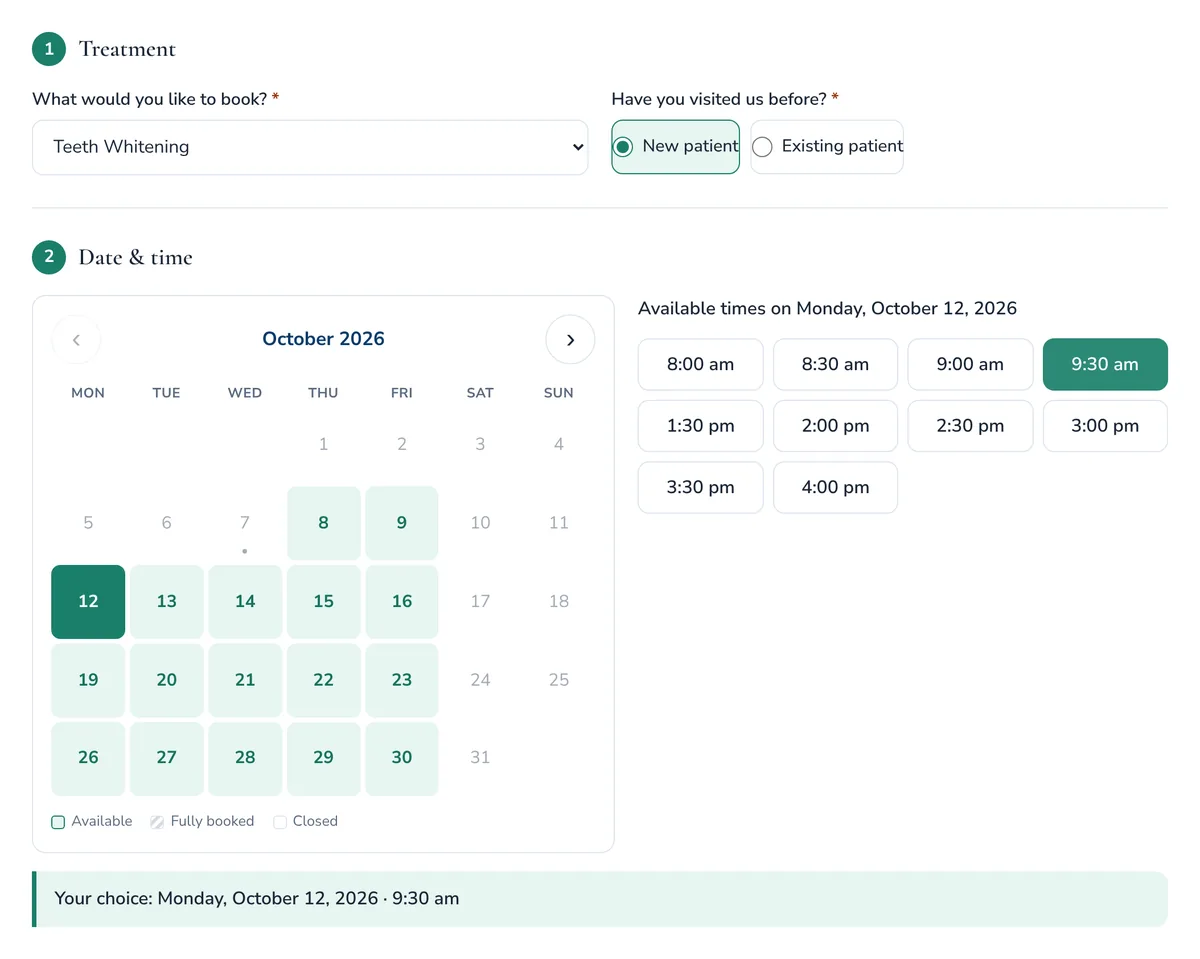
[suwca_booking_form] | The booking form: treatment, new or existing patient, calendar with free times, contact details and consent. |
[suwca_booking_form service="checkup"] | Same form with a treatment already selected. Use the treatment ID from Settings → Treatments. |
[suwca_manage_appointment] | The patient’s “manage my appointment” page. Already placed on the Manage Appointment page the plugin creates — you do not need to add it yourself. |
Pre-select a treatment from a link
Add ?service= to the booking page address with the treatment ID, slug or name. Handy for “Book this treatment” buttons on your service pages:
https://example.com/book-an-appointment/?service=teeth-whitening
How a patient books
- Chooses a treatment and says whether they are a new or existing patient (new patients can get extra time).
- Picks a day in the calendar. Free days are highlighted; full days are struck through and the form offers the next available day.
- Picks a time, enters name, phone and email and ticks the consent box.
- Sees a thank-you message with a reference number, and gets an email with a private link to view, change or cancel.
Managing Appointments
Everything lives under Appointments in the dashboard.
| Screen | What it does |
|---|---|
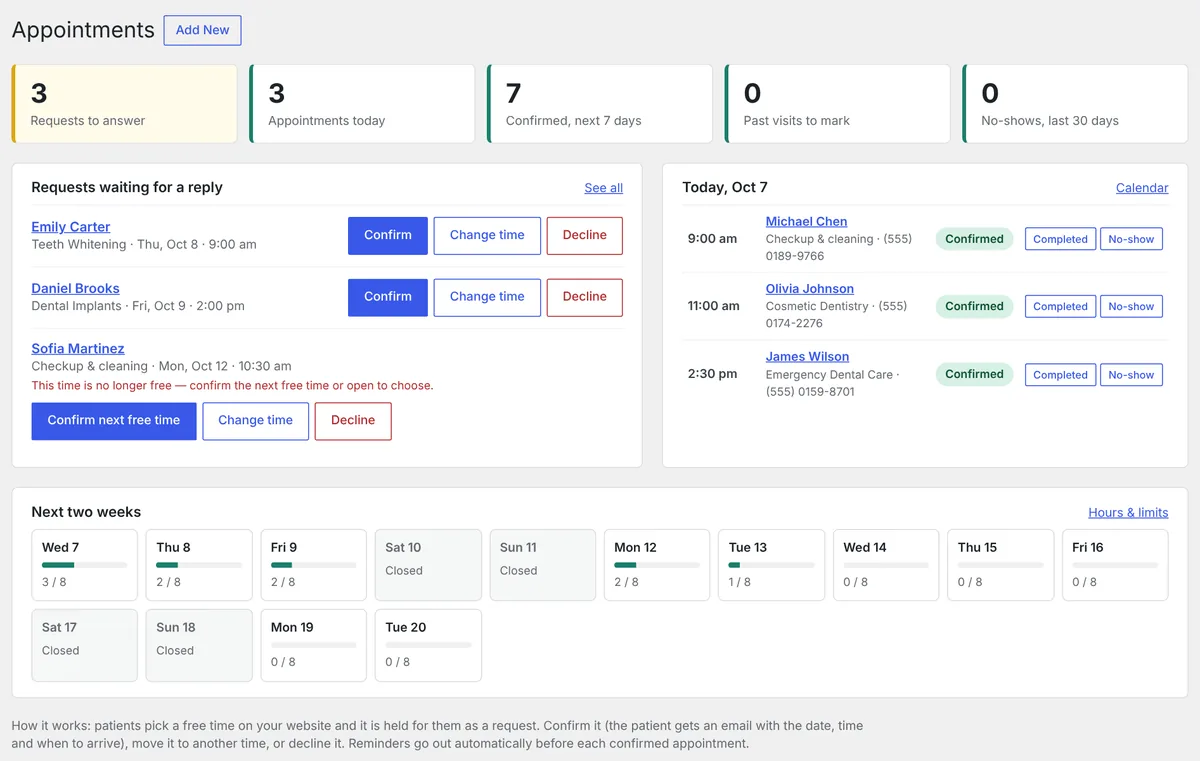
| Overview | Requests waiting for a reply with one-click buttons, today’s patients, past visits still to mark, no-shows and a two-week view of how full each day is. |
| All Appointments | Tabs (Upcoming, Requests, Today, Needs update, Completed, No-show, Cancelled, All), search by name, email, phone or reference, date and treatment filters, bulk actions and Export CSV. |
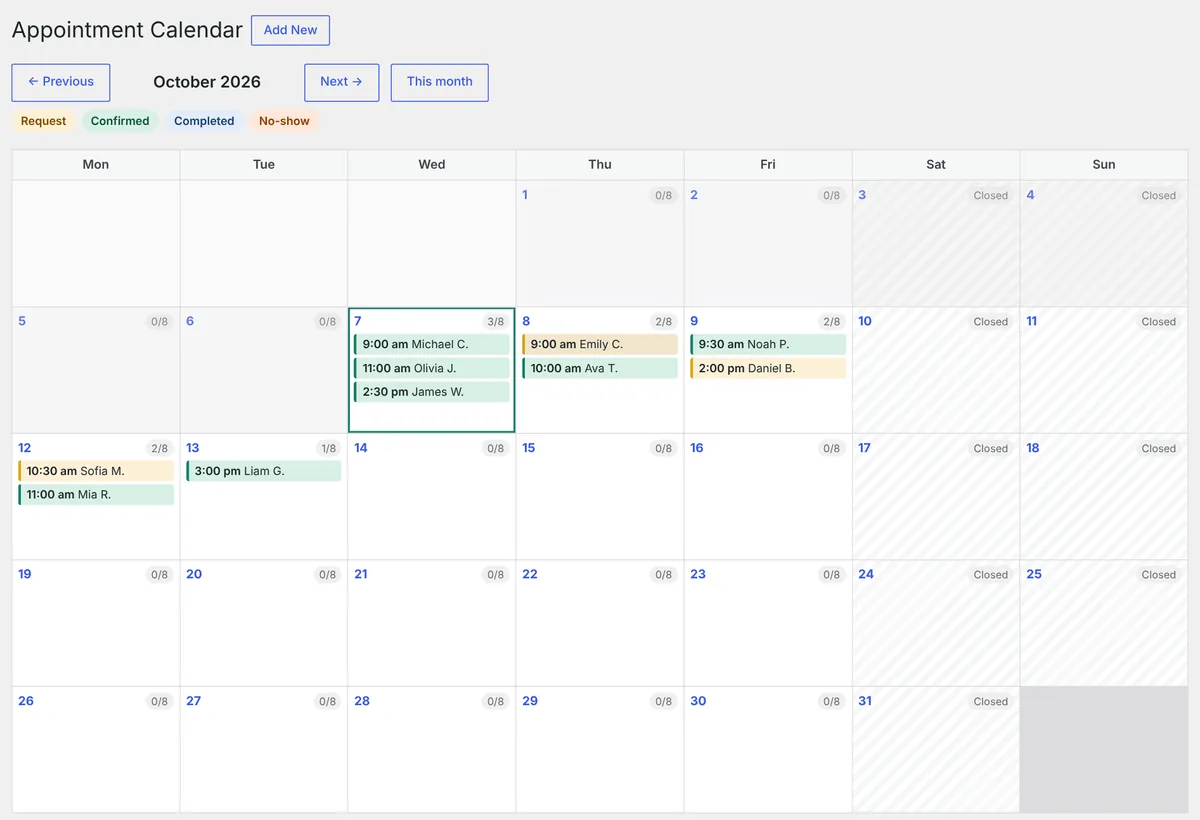
| Calendar | Month view of every appointment, colour-coded by status, with the daily count and closed days. |
| Add New | Phone and walk-in bookings. Find next free time fills in the first free slot; Allow double-booking overrides the limits when you need to squeeze someone in. |
| Settings | General, Booking rules & hours, Closed dates, Treatments and Emails. |
Appointment Statuses and Actions
| Action | Result | Patient email |
|---|---|---|
| Confirm | Request → Confirmed. | Confirmation with date, time, arrival time, address and calendar file. |
| Confirm next free time | Moves the request to the next free slot (the next day if today is full) and confirms it. | Confirmation with the new time. |
| Change time | Open the appointment, pick another date and time, save. | “Appointment moved” with an updated calendar file. |
| Decline | Request → Declined. You can type a reason. | Includes your reason and a link to book again. |
| Cancel | Confirmed → Cancelled. The time becomes free again. | Cancellation with a link to book again. |
| Completed / No-show | Marks a past visit. No-shows are counted on the Overview. | None (optional “after the visit” email for Completed). |
Every appointment keeps a history: who changed what and when, and every email sent — or not sent, if your email setup has a problem.
Front Desk role
Create a user with the Front Desk role for your receptionist. They see the Appointments menu only — no posts, pages, plugins or settings.
Opening Hours, Limits and Treatments
Booking rules & hours
| Setting | What it controls |
|---|---|
| Opening hours | Start and end time for each day, plus an optional break (e.g. lunch). Untick a day to close it. |
| Time slots every | Start times offered to patients: every 10, 15, 20, 30, 45 or 60 minutes. |
| Maximum appointments per day | When a day reaches this number it shows as fully booked and patients are offered the next free day. 0 = only opening hours count. |
| Patients at the same time | Number of chairs or dentists working in parallel. |
| Gap between appointments | Minutes kept free after each appointment for cleaning and notes. |
| Extra time for new patients | Minutes added when the patient says they are new. |
| Minimum notice | Hours. 24 stops same-day online bookings. Staff can always add appointments. |
| Book up to | How many days ahead patients can book. |
| Hold the time for requests | Recommended. A request keeps its time until you confirm or decline it, so two patients cannot ask for the same slot. |
Closed dates
Add holidays, vacations, training days or a few blocked hours. Leave the times empty to close the whole day. The reason you type (e.g. “Closed for Thanksgiving”) is shown to patients.
Treatments
Each treatment has a name, a length in minutes, an optional maximum per day (for example only 2 emergency visits a day) and a Bookable switch. Themes can supply their own treatment list — see Developers.
Emails and Reminders
Edit every email under Appointments → Settings → Emails. Each one can be switched off, and Save & send me a test sends a sample to you.
| Sent to | When | |
|---|---|---|
| Request received | Patient | Right after booking (request mode). |
| Appointment confirmed | Patient | When you confirm, or straight away in instant mode. Includes a calendar file. |
| Appointment moved | Patient | When you move a confirmed appointment. |
| Request declined | Patient | When you decline, with your reason. |
| Appointment cancelled | Patient | When the practice or the patient cancels. |
| Reminder | Patient | Automatically before each confirmed appointment (24 hours by default). |
| After the visit | Patient | Optional review request a few hours after a visit marked Completed. |
| New request / Patient changed / Patient cancelled | Practice | Alerts for your team, sent to the addresses in Settings → General. |
Placeholders
{first_name} {patient_name} {service} {date} {time} {end_time} {arrive_time} {reference} {note} {manage_link} {booking_link} {review_link} {practice_name} {practice_phone} {practice_address} — and more listed on the Emails tab.
Tip: reminders use WP-Cron, which runs when your site gets visits. On a quiet site ask your host for a server cron job that loads wp-cron.php every 15 minutes, so reminders go out on time. Install an SMTP plugin (e.g. WP Mail SMTP) so emails do not land in spam.
Patient Self-Service
Every patient email contains a private link to the Manage Appointment page. There the patient can:
- See the status, treatment, date, time, arrival time and address
- Add the appointment to their calendar
- Pick a new date and time (in request mode the new time goes back to your team to confirm)
- Cancel — the time becomes free for other patients and your team is emailed
Set how close to the appointment online changes are allowed under Settings → General → Online changes allowed until. After that, patients are asked to call. You can switch cancelling and rescheduling off completely. The Manage Appointment page is hidden from search engines and never cached.
Spam Protection and Privacy
Spam protection
- Hidden trap field and speed check that catch most bots
- Limit of 5 bookings per hour from one visitor
- One active request per email address per day
- Room for a CAPTCHA: your theme or another plugin can add one through the
suwca_booking_form_fieldsaction and thesuwca_validate_bookingfilter
Privacy
- Stores only name, email, phone, treatment, date and time, new or existing patient, and an optional message.
- The form asks patients not to include medical details. The plugin is not a HIPAA-compliant records system.
- Works with Tools → Export Personal Data and Erase Personal Data, and adds suggested text to your privacy policy guide.
- Optional automatic deletion of old appointments after a number of months.
- No external services: nothing is loaded from, or sent to, other servers.
For Developers
Filters
| Filter | Use it to |
|---|---|
suwca_services | Supply the treatment list from your theme. Return an array of id, name, duration, daily_limit, active. |
suwca_business_default | Fill practice name, email, phone or address from your theme when the settings are empty. |
suwca_default_schedule | Set the opening hours used on first activation. |
suwca_default_settings | Change any default setting. |
suwca_booking_url | Booking page used in emails. |
suwca_validate_booking | Extra checks before a booking is saved. Return true or an error message. |
suwca_email_templates, suwca_email | Add templates or change an email before it is sent. |
suwca_enqueue_assets | Load the form CSS/JS on a page that prints the form from a template. |
Actions
| Action | Fires |
|---|---|
suwca_booking_form_fields | At the end of the booking form — print extra fields such as a CAPTCHA. |
suwca_appointment_created | After an appointment is saved. Receives the ID. |
suwca_status_changed | After a status change. Receives the ID, new status and old status. |
suwca_notification_sent | After each email — the place to add SMS messages. |
suwca_settings_spam_protection | On the settings screen, to show an add-on’s status. |
The form also fires a suwca:booking-failed JavaScript event after a failed submit, so a CAPTCHA widget can reset itself.
Examples
add_filter( 'suwca_validate_booking', function ( $valid ) {
	if ( true !== $valid ) {
		return $valid;
	}
	return my_captcha_passed() ? true : 'Please complete the security check.';
} );add_action( 'suwca_status_changed', function ( $id, $status ) {
if ( 'confirmed' === $status ) {
$appointment = suwca_get_appointment( $id );
my_sms_send( $appointment->phone, 'Your appointment is confirmed.' );
}
}, 10, 2 );add_filter( 'suwca_services', function () {
return array(
array( 'id' => 'checkup', 'name' => 'Checkup', 'duration' => 45, 'daily_limit' => 0, 'active' => 1 ),
array( 'id' => 'emergency', 'name' => 'Emergency', 'duration' => 30, 'daily_limit' => 2, 'active' => 1 ),
);
} );Frequently Asked Questions
It shows as fully booked in the calendar and the form offers the next free day. In the dashboard, Confirm next free time moves a request to the next free slot and confirms it.
Yes. Choose Instant booking under Settings → General → Booking mode. Free times are then confirmed straight away.
WordPress sends email through your server, which many inboxes treat as spam — and local test sites cannot send at all. Install an SMTP plugin such as WP Mail SMTP. The appointment history shows whether each email was sent.
Yes. The form adapts to the width it is given and uses your theme’s fonts. Add the shortcode in the block editor, Classic editor, Elementor or any builder with a shortcode element.
Not in this version. The plugin focuses on booking and scheduling.
No. It stores only scheduling details and asks patients not to share medical information. Use a HIPAA-compliant service for health records and telehealth.
Your appointments and settings are kept, unless you tick Also delete all appointments and settings under Settings → General first.
Changelog
- Initial release: booking form with live availability, request and instant modes, staff overview, list, calendar, emails, reminders, patient self-service, Front Desk role and privacy tools.