

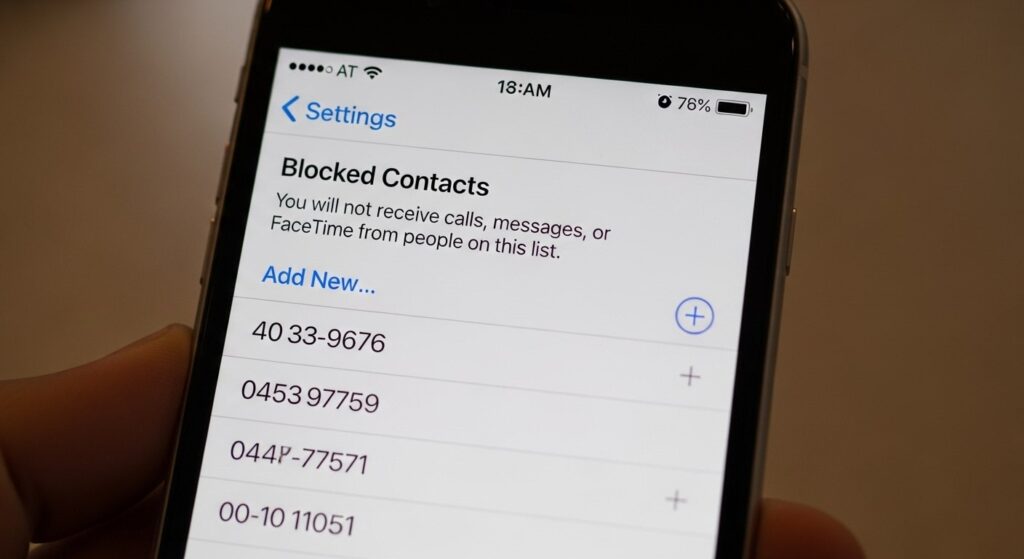
Blocking a number on iPhone stops unwanted calls, messages, and FaceTime requests in under ten seconds. If you updated to iOS 26 and the steps you used before no longer work, that is because Apple moved blocking to a new location and added a faster method most users have not found yet. This guide covers every way to block and unblock numbers on iPhone, what changed in iOS 26, how to block No Caller ID calls, how to hide your own number, and how to fix every known blocking problem including the confirmed iOS 26 auto-blocking bug.
What Changed in iOS 26 — Read This First
If you updated to iOS 26 and cannot find Block this Caller where it used to be, you are not alone. Apple made two major structural changes that affect every iPhone user who upgraded.
First, the blocked contacts list is no longer split across Phone, Messages, FaceTime, and Mail settings. Everything is now managed from one location: Settings → Privacy & Security → Blocked Contacts. Second, a new orange hand icon appears when you swipe left on a number in Recent Calls — this is the fastest way to block in iOS 26 and replaces the old tap-the-i-icon flow.
| Feature | Before iOS 26 | iOS 26 and Later |
|---|---|---|
| Blocked contacts list | Separate list in Phone, Messages, FaceTime, and Mail settings | One centralized list at Settings → Privacy & Security → Blocked Contacts |
| Block from Recent Calls | Tap i icon → scroll down → Block this Caller | Swipe left on number → tap orange hand icon OR tap i → scroll to bottom |
| Spam call handling | Manual blocking only | New Call Screening feature answers unknown calls automatically |
| Unknown caller filtering | Silence Unknown Callers (routes to voicemail) | Both Silence Unknown Callers AND Screen Unknown Senders available |
| Report and Block | Not available | Report spam to Apple and your carrier simultaneously while blocking |
How to Block a Number on iPhone
Method 1 — From Recent Calls (Fastest Method)
- Open the Phone app on your iPhone
- Tap Recents at the bottom of the screen
- Find the number you want to block and swipe left on it
- Tap the orange hand icon that appears
- Tap Block Contact to confirm
This is the quickest method in iOS 26. On iOS 18 and earlier, tap the i icon next to the number instead, scroll to the bottom of the contact screen, and tap Block this Caller.
Method 2 — From the Phone App (Classic Method)
- Open the Phone app and tap Recents
- If you do not see the i icon, tap the menu in the top right corner and switch to Classic view
- Tap the i icon next to the number you want to block
- Scroll all the way to the bottom of the contact screen
- Tap Block this Caller
- Tap Block Contact to confirm
Method 3 — From the Messages App
- Open the Messages app
- Tap the conversation with the number or contact you want to block
- Tap the contact name or number at the top of the screen
- Tap the Info i icon to open contact details
- Scroll down and tap Block this Caller
- Tap Block Contact to confirm
In iOS 26 the Messages app also shows a Report and Block option for unknown senders. This reports the number as spam to Apple and your carrier at the same time as blocking — useful for scam texts and phishing links.
Method 4 — From Settings (Works for Any Number)
- Open the Settings app
- Tap Privacy & Security (iOS 26) or tap Phone (iOS 18 and earlier)
- Tap Blocked Contacts
- Tap Add New to block a contact proactively
- Select a contact from your list — or type a phone number or email address manually
- Tap Block Contact to confirm
This is the most reliable method when Block this Caller is not appearing in the Phone app. It works for any number — the contact does not need to appear in your recent calls or message history. Type any number manually if it is not saved in your contacts.
Method 5 — From the FaceTime App
- Open the FaceTime app
- Find the number or contact in your call history
- Tap the Info i icon next to the contact or number
- Scroll down and tap Block this Caller
- Tap Block Contact to confirm
Method 6 — From the Mail App (Block Email Address)
- Open the Mail app
- Open an email from the sender you want to block
- Tap their name at the top of the email
- Tap View Contact Card
- Tap Block this Contact
- Tap Block this Contact again to confirm
Blocked emails go directly to the Trash folder and this block syncs across all your Apple devices automatically. Note that Mail blocking only affects Apple Mail — Gmail, Outlook, and other third-party mail apps maintain their own independent block lists.
Method 7 — How to Block No Caller ID and Anonymous Calls
Standard blocking requires a visible number. Anonymous callers and No Caller ID numbers cannot be added to the block list individually because there is no number to target. The correct approach is different.
Go to Settings → Phone → Silence Unknown Callers and toggle it on. This routes all calls from numbers not in your contacts, recent calls, or Siri suggestions directly to voicemail — including No Caller ID and unknown international numbers. On iOS 26, Call Screening under Settings → Phone adds a second layer by automatically answering unknown calls and asking the caller to state their name and reason for calling before the call ever rings through to you.
What Happens When You Block Someone on iPhone
| Communication Type | What Happens After Blocking |
|---|---|
| Phone calls | Calls go directly to voicemail. Your phone does not ring. Missed calls appear in Recents with no alert. |
| Voicemails from blocked numbers | Stored in a separate Blocked Messages folder — no notification sent. Auto-deleted after 30 days. |
| iMessages and SMS | Messages are not delivered. The sender does not know they are blocked. |
| FaceTime calls | Blocked — they cannot reach you via FaceTime |
| Email (if blocked via Mail) | Emails go directly to Trash |
| Notification to blocked person | None — they are never told they have been blocked |
| WhatsApp, Telegram, Signal | Not affected — iPhone blocking only covers built-in Apple apps |
One detail worth knowing: blocked callers can still leave voicemails. Blocking does not cut off all contact — it only silences notifications. Voicemails land in the Blocked Messages folder inside the Voicemail tab and are automatically deleted after 30 days with no alert. If you blocked a number by mistake, check that folder before the 30-day window closes.
To check whether a specific number has tried to reach you after being blocked, you can review the blocked callers list on your iPhone alongside the Blocked Messages folder in Voicemail.
How to Unblock a Number on iPhone
Method 1 — From Settings (Recommended)
- Open the Settings app
- Tap Privacy & Security (iOS 26) or Phone (iOS 18 and earlier)
- Tap Blocked Contacts
- Tap Edit in the top right corner
- Tap the red minus button next to the contact you want to unblock
- Tap Unblock to confirm
Method 2 — Swipe to Unblock
- Go to Settings → Privacy & Security → Blocked Contacts
- Swipe left on the contact you want to unblock
- Tap Unblock
Method 3 — From the Phone or Messages App
- Find the blocked contact in the Phone or Messages app
- Tap on their name or number to open their contact card
- Scroll to the bottom
- Tap Unblock this Contact
After unblocking, the person can immediately call, text, and FaceTime you again. They receive no notification that they were blocked or unblocked. Messages sent during the blocked period are gone permanently — unblocking only restores future communication.
Android users managing the same task will find the process works differently — see the full walkthrough for blocking phone numbers on Android for a direct comparison.
How to View Your Full Blocked List on iPhone
On iOS 26 open Settings, tap Privacy & Security, then tap Blocked Contacts. Every number, email address, and contact blocked across Phone, Messages, FaceTime, and Mail appears on this single screen. New blocks can be added and existing ones removed without opening any individual app.
On iOS 18 and earlier the blocked list is managed separately per app. Go to Settings → Phone → Blocked Contacts, Settings → Messages → Blocked Contacts, or Settings → FaceTime → Blocked Contacts. On iOS 18.2 and later the Settings hierarchy changed slightly — the path may be Settings → Apps → Phone → Blocked Contacts on some devices.
Reviewing the blocked list every few months takes under a minute and prevents the silent problem of a mistakenly blocked contact. The 30-day voicemail auto-delete in the Blocked Messages folder means anything important disappears without any warning — a quick periodic review is the only safeguard.
iPhone users who also schedule text messages on iPhone or manage communication preferences will find the Blocked Contacts screen sits alongside other messaging controls worth knowing about.
How to Hide Your Own Number When Calling
Blocking stops others from reaching you. The reverse — hiding your number when you call someone — is a separate feature that most guides skip. To block your caller ID on all outgoing calls, go to Settings → Phone → Show My Caller ID and toggle it off. Your number will appear as No Caller ID or Unknown on the recipient’s screen.
For a single call only, dial *67 immediately before the number — the full format is *67 followed directly by the phone number with no space. This hides your number for that call only without changing the permanent setting. Note that emergency services always see your real number regardless of this setting, and recipients with Silence Unknown Callers enabled may not receive the call at all.
iOS 26 Call Screening — The New Alternative to Blocking
iOS 26 introduced Call Screening as a proactive approach to unwanted calls. Instead of manually blocking individual numbers after the fact, Call Screening handles unknown callers automatically. When an unknown number calls, your iPhone answers and asks the caller to identify themselves and state why they are calling. Legitimate calls are passed through and your phone rings. Spam is silenced before it ever reaches you.
To enable Call Screening, open Settings, tap Phone, tap Call Screening, toggle it on, and choose your preference.
Call Screening and the block list solve different problems. Call Screening filters the unknown — numbers not in your contacts that may or may not be spam. The block list handles the known — specific numbers you want permanently prevented from reaching you. Using both together gives the strongest protection: Call Screening handles the daily stream of unknown callers while the block list stops specific known contacts regardless of whether they switch numbers.
Troubleshooting — Common Blocking Problems on iPhone
| Problem | Cause | Fix |
|---|---|---|
| Block this Caller option missing in iOS 26 | iOS 26 moved the option or UI bug on older iPhones (SE2, SE3) | Swipe left on number in Recents and tap orange hand icon. Or go to Settings → Privacy & Security → Blocked Contacts → Add New. Or switch Phone app to Classic view. |
| Blocked number still calling me | Spam callers use number spoofing — displayed number is fake | Enable Call Screening (Settings → Phone → Call Screening) or Silence Unknown Callers (Settings → Phone → Silence Unknown Callers) |
| Contact getting auto-blocked after iOS 26 update | Confirmed iOS 26 bug — no official fix yet | Turn off Focus sync: Settings → Focus → Share Across Devices (disable). Or move affected contacts from iCloud to a Google account temporarily. |
| Blocked number reappears after removing | iOS 26 iCloud sync bug | Settings → your name → iCloud → toggle off Contacts, restart iPhone, toggle iCloud Contacts back on |
| Blocked numbers not syncing across iPhone and Mac | iOS 26 sync change — known issue | Turn off Focus sync across devices. Manage blocks separately on each device until Apple issues a fix. |
| Blocked caller still leaving voicemails | By design — Apple allows blocked callers to leave voicemails | Check Voicemail → Blocked Messages folder. Voicemails auto-delete after 30 days. Enable Silence Unknown Callers for stricter filtering. |
| No Block Contact button visible | Business sender with no visible phone number | Settings → Privacy & Security → Blocked Contacts → Add New and type the number manually |
| Unblocked someone but not receiving their messages | Block not fully cleared — iCloud sync issue | Restart iPhone. Sign out of iCloud and back in. Check Settings → Messages → Blocked Contacts separately. |
| Dual SIM or eSIM — block not working on one line | Each SIM line maintains a separate block list | Check Settings → Phone → Blocked Contacts for each line. Block the number on both lines separately. |
| Number not blocked but calls going to voicemail | Silence Unknown Callers active, Do Not Disturb on, or carrier spam filter | Check Settings → Phone → Silence Unknown Callers. Check Focus settings. Contact carrier about their spam filter routing. |
Silence Unknown Callers — When to Use It Instead of Blocking
Blocking individual numbers works well for known contacts you want permanently silenced. For general spam protection, Silence Unknown Callers is more practical — spam callers change numbers constantly and individual blocks cannot keep pace.
To enable it, open Settings, tap Phone, tap Silence Unknown Callers, and toggle it on. All calls from numbers not in your contacts, recent calls, or Siri suggestions go directly to voicemail. Saved contacts are never affected. One important caveat: if you call emergency services, this feature automatically turns off for 24 hours so first responders can reach you back.
The limitation of Silence Unknown Callers is the same as its strength. Blocking everyone outside your contacts also silences delivery drivers, doctors’ offices, bank fraud departments, and legitimate calls from unknown numbers. Use it during high-spam periods or when privacy is a priority rather than as a permanent setting if you regularly receive important calls from new numbers.
Users who also manage how notifications interact with calls and Focus modes should understand time-sensitive notifications on iPhone — those settings directly affect which contacts can bypass call filtering.
Third-Party Call Blocking Apps
For stronger spam protection beyond what iPhone offers natively, several App Store apps use Apple’s CallKit framework to identify and block numbers before your phone rings. These apps draw on large community-reported databases updated continuously — giving them visibility into emerging spam patterns that device-level blocking alone cannot match.
| App | Price | Best For |
|---|---|---|
| Hiya | Free (premium plan available) | Spam identification and caller ID |
| Truecaller | Free (premium plan available) | Caller ID and spam blocking with large community database |
| Robokiller | Paid subscription | Aggressive spam call blocking with answer bots |
| Nomorobo | Paid subscription | Robocall blocking for both mobile and landline |
After installing any of these apps go to Settings → Phone → Call Blocking & Identification to enable them. Always download from the App Store and review the privacy policy before granting contacts access — these apps need to see incoming call data to function, and legitimate apps from this list are transparent about how that data is handled.
Users who want to document harassment or spam call logs — for example to screenshot evidence — can use the tools covered in the guide to taking screenshots and screen recordings on iPhone.
Frequently Asked Questions
How do I block a phone number on iPhone?
Open the Phone app, tap Recents, and swipe left on the number you want to block. Tap the orange hand icon, then tap Block Contact to confirm. On iOS 18 and earlier, tap the i icon next to the number, scroll to the bottom, and tap Block this Caller. You can also block any number manually by going to Settings → Privacy & Security → Blocked Contacts → Add New and typing the number directly.
How do I block a number on iOS?
On iOS 26, the fastest method is swiping left on the number in Phone → Recents and tapping the orange hand icon. The centralized block list lives at Settings → Privacy & Security → Blocked Contacts. On iOS 18 and earlier, go to Settings → Phone → Blocked Contacts and tap Add New, or use the i icon in Recent Calls to access Block this Caller from any number’s detail screen.
How do I block unwanted calls on iPhone?
For specific numbers, add them to your blocked contacts list via Settings → Privacy & Security → Blocked Contacts. For general spam and unknown callers, enable Silence Unknown Callers under Settings → Phone — this routes all calls from numbers not in your contacts directly to voicemail. On iOS 26, Call Screening under Settings → Phone adds automatic screening of unknown callers before they ever ring through to you.
How do I block someone on my iPhone?
Open the Phone app, find the contact in Recents, swipe left, and tap the orange hand icon (iOS 26) or tap the i icon and scroll to Block this Caller (iOS 18 and earlier). You can also block from Messages, FaceTime, or Mail using the same contact info screen. All blocks are stored in one list at Settings → Privacy & Security → Blocked Contacts in iOS 26.
Does blocking someone on iPhone notify them?
No — the blocked person is never notified. Their calls go to voicemail, their messages are not delivered, and they receive no alert of any kind. They may eventually suspect something if calls consistently go unanswered, but the system gives them no direct confirmation that they have been blocked.
Does blocking on iPhone also block WhatsApp and other apps?
No — iPhone blocking only affects Apple’s built-in apps: Phone calls, SMS, iMessage, and FaceTime. WhatsApp, Telegram, Signal, Facebook Messenger, and other third-party apps are not affected. Each app maintains its own independent block list that must be managed separately within that app.
Can a blocked caller still leave a voicemail?
Yes — Apple allows blocked callers to leave voicemails, but you receive no notification. Voicemails from blocked numbers are stored in a separate Blocked Messages folder inside the Voicemail tab and are automatically deleted after 30 days. Check this folder periodically if there is any chance a number was blocked by mistake.
Where is Blocked Contacts in iOS 26?
In iOS 26, Blocked Contacts moved to Settings → Privacy & Security → Blocked Contacts. This centralized location replaced the separate blocked lists that previously existed inside the Phone, Messages, FaceTime, and Mail apps. All blocks from any app now appear in this single list.
Why is my iPhone blocking contacts automatically after iOS 26?
This is a confirmed iOS 26 bug. Turn off iCloud Contacts sync temporarily — Settings → your name → iCloud → toggle off Contacts — restart your iPhone, then turn iCloud Contacts back on. If it continues, disable Focus sync at Settings → Focus → Share Across Devices. Apple has acknowledged the issue but has not released a patch as of 2026.
Is there a way to temporarily block someone on iPhone?
There is no native temporary block feature. The closest workaround is a custom Focus mode that excludes specific contacts from breaking through. Go to Settings → Focus → Do Not Disturb and customize which contacts are allowed to bypass the filter. The number can still reach you when Focus is off, giving you effective temporary control without a permanent block list entry.

Loading comments…