

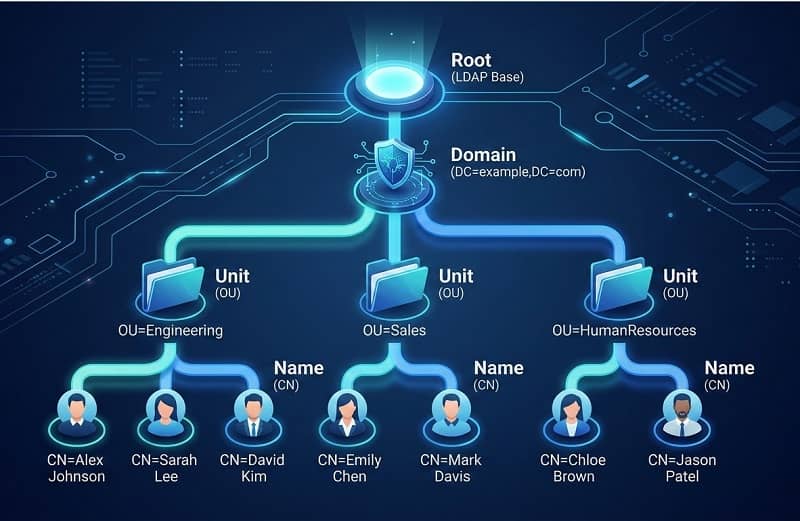
If you have ever set up Active Directory authentication, configured an LDAP-connected application, or tried to debug a failing directory bind, you have seen strings like this:
CN=John Smith,OU=Engineering,DC=company,DC=com
That is a Distinguished Name — the full address of an object in an LDAP directory. Every part means something specific. CN, OU, and DC are the three core attribute abbreviations that together tell the directory server exactly where an object lives and what it is called. Get any one of them wrong and your search returns nothing, your application bind fails, or your authentication breaks entirely.
I have worked with LDAP-connected systems extensively — integrating applications with corporate Active Directory, configuring Linux server authentication, and debugging directory connectivity issues on production environments. The same confusion around these three attributes comes up every time someone is new to directory services. This guide explains each one clearly, shows how they combine into real search queries, and gives you the filter patterns you will actually use.
Quick Answer: CN, OU, and DC at a Glance
| Attribute | Full Name | What It Represents | Position in DN | Example |
|---|---|---|---|---|
| DC | Domain Component | DNS domain segment | Rightmost | DC=company,DC=com |
| OU | Organizational Unit | Container / folder | Middle | OU=Engineering |
| CN | Common Name | The object’s name | Leftmost | CN=John Smith |
Together they form the Distinguished Name — the unique path to any object in the directory tree, read from most specific (left) to least specific (right).
What Is a Distinguished Name?
Before diving into each attribute, it helps to understand what a Distinguished Name actually is. In LDAP, every object — a user, a group, a computer, a printer — has a unique address called a Distinguished Name (DN). Think of it like a file path on a server: it tells you exactly where the object lives in the directory hierarchy.
The directory structure in LDAP works as a tree. Objects sit inside containers, containers sit inside organizational units, and everything roots at the domain level. The DN traces that full path.
A typical Distinguished Name looks like this:
CN=Alice Wong,OU=IT,OU=Staff,DC=corp,DC=example,DC=com
Reading right to left: the domain is corp.example.com, inside it there is a Staff container, inside that an IT container, and inside that is the user Alice Wong. Each comma-separated piece is a component. Now let us look at each one.
DC — Domain Component
DC is always the rightmost part of a Distinguished Name. It represents the DNS domain name of your directory, broken into individual segments at each dot.
The domain company.com becomes:
DC=company,DC=com
The domain corp.internal.company.com becomes:
DC=corp,DC=internal,DC=company,DC=com
DC components define the naming context — the root partition of the directory. Every LDAP search starts somewhere within this namespace. When you configure a base DN for a search, you are almost always starting at the DC level or somewhere below it.
In Active Directory, DC values map directly to your domain and forest structure. Child domains add additional DC components to the left. So if your company has a European subdomain at eu.company.com, objects in that domain have DC=eu,DC=company,DC=com at their root.
Performance tip: Specify a narrow DC base whenever possible. Searching from the forest root when you only need objects from one domain partition adds unnecessary overhead — especially in large multi-domain environments.
OU — Organizational Unit
OUs are containers. They sit inside the DC namespace and hold the actual objects — users, computers, groups, and other nested OUs. In a Distinguished Name, OU components appear between the DC values on the right and the CN value on the left.
CN=John Smith,OU=Engineering,OU=Staff,DC=company,DC=com
OUs serve two main purposes. First, they organize objects so administrators can manage them efficiently — similar to folders in a file system. Second, in Active Directory specifically, OUs are the units to which Group Policy Objects are linked. The OU an object sits in directly controls what policies apply to it.
When you write LDAP filters for user authentication or add a user to a group via directory tools, specifying the correct OU as your base DN is critical. A search scoped to the wrong OU either returns no results or returns far more objects than you expect.
OU Nesting and Search Scope
OUs can be nested inside other OUs. This nesting interacts with the three LDAP search scopes:
- Base — searches only the exact DN you specify, nothing else
- One-level — searches immediate children of the base DN only
- Subtree — searches the base DN and all descendants, regardless of nesting depth
For most application authentication scenarios, subtree scope from a high-level OU is the right choice. It catches users regardless of which sub-OU they are in. For administrative scripts that need precision, one-level scope against a specific OU avoids processing objects in unrelated containers.
CN — Common Name
CN is the name of the specific object — always the leftmost, most specific component of the Distinguished Name.
CN=John Smith,OU=Engineering,DC=company,DC=com
For user accounts, CN is typically the full display name. For groups, it is the group name. For computers, it is usually the machine hostname. For service accounts, it is whatever descriptive label was assigned at creation.
Important distinction: CN is not the same as the username. In Active Directory, the username is the sAMAccountName attribute (e.g. jsmith). In OpenLDAP, it is the uid attribute. The CN is the display name. When you search for a user to authenticate, you search by sAMAccountName or uid, not CN. Searching by CN works but is unreliable because CN values are not guaranteed unique across the entire directory.
CN for Service Accounts and Groups
Service accounts often have CN values that differ from their login names. For example:
CN=SVC-AppPool-Prod,OU=ServiceAccounts,DC=company,DC=com
The CN is descriptive for administrators. The actual login name used in bind operations may be shorter. When troubleshooting application connectivity, always verify you are using the full correct DN — not just guessing from the CN value.
How CN, OU, and DC Combine: Real Examples
| Object | Distinguished Name |
|---|---|
| User in IT department | CN=Alice Wong,OU=IT,OU=Staff,DC=corp,DC=example,DC=com |
| Security group | CN=VPN-Users,OU=Groups,DC=corp,DC=example,DC=com |
| Computer in London office | CN=LON-WS-042,OU=Workstations,OU=London,DC=corp,DC=example,DC=com |
| Service account | CN=SVC-WebApp,OU=ServiceAccounts,DC=corp,DC=example,DC=com |
| Nested OU path | CN=Dev-India,OU=Development,OU=Engineering,DC=corp,DC=example,DC=com |
All four objects share the same DC values — same domain. OU values differ based on where each object type is organized. CN is unique within its immediate parent container.
Writing LDAP Search Filters
LDAP search filters use a prefix notation enclosed in parentheses. The basic structure is:
(attribute=value)
Filters combine with logical operators:
- & — AND (all conditions must match)
- | — OR (any condition must match)
- ! — NOT (condition must not match)
These are the filter patterns I use most often when running queries against LDAP-connected systems:
Find a specific user by username (Active Directory)
(&(objectClass=user)(sAMAccountName=jsmith))
Base DN: DC=company,DC=com | Scope: Subtree
Find all users in a specific OU
(objectClass=user)
Base DN: OU=Engineering,DC=company,DC=com | Scope: Subtree
By scoping the base DN to the Engineering OU, the filter only needs to match object class. The OU restriction is handled entirely by the search base.
Find enabled users only
(&(objectClass=user)(!(userAccountControl:1.2.840.113556.1.4.803:=2)))
This uses a bitwise extensible match filter to exclude accounts where the ACCOUNTDISABLE flag (bit value 2) is set in Active Directory.
Find members of a specific group
(&(objectClass=user)(memberOf=CN=VPN-Users,OU=Groups,DC=company,DC=com))
The memberOf value must be the full DN of the group — not just the group name. Using only the CN here is one of the most common mistakes and always returns zero results.
Wildcard search by CN
(&(objectClass=user)(cn=John*))
The asterisk is a wildcard. Returns all user objects whose CN starts with “John”. Avoid leading wildcards like *smith — they cannot use indexes and are significantly slower.
Practical Example: Configuring LDAP Authentication for a Web Application
Here is a complete real-world configuration. Domain is corp.example.com, users are spread across department OUs under OU=Staff, service account is at CN=SVC-WebApp,OU=ServiceAccounts,DC=corp,DC=example,DC=com.
LDAP Server:    ldap://dc01.corp.example.com:389
Bind DN:        CN=SVC-WebApp,OU=ServiceAccounts,DC=corp,DC=example,DC=com
Bind Password:  [service account password]
Base DN:        OU=Staff,DC=corp,DC=example,DC=com
Search Filter:  (&(objectClass=user)(sAMAccountName=%s))
Search Scope:   Subtree
The %s placeholder gets replaced by the submitted username. The application binds with the service account, searches for the user’s full DN, then attempts a second bind using that DN and the submitted password. Successful second bind means authenticated.
To restrict access to members of a specific group, add a memberOf condition:
(&(objectClass=user)(sAMAccountName=%s)(memberOf=CN=WebApp-Users,OU=Groups,DC=corp,DC=example,DC=com))
Only users who are both found by username and are members of the WebApp-Users group will authenticate. I use this exact pattern when connecting web applications to SSH-accessible Linux servers running SSSD or PAM-LDAP.
Common Mistakes and How to Fix Them
| Mistake | Symptom | Fix |
|---|---|---|
| Wrong DC values | Bind fails immediately | Match DC exactly to your DNS domain name |
| Wrong OU in base DN | Search returns no results | Use subtree scope from a higher OU, or verify exact path |
| Searching users by CN instead of sAMAccountName | Returns wrong users or none | Search by sAMAccountName or uid attribute |
| Partial DN in memberOf filter | Group membership search returns nothing | Use the full DN of the group including all OU and DC components |
| Leading wildcard in filter | Extremely slow queries | Use trailing wildcards or exact match where possible |
| Incorrect bind DN format | Authentication error on connect | Always use the full DN — username alone will not work |
Other LDAP Attributes You Will Encounter
CN, OU, and DC are the most common, but LDAP uses other attribute abbreviations you will see in real directory configurations:
| Attribute | Full Name | Common Use |
|---|---|---|
| sAMAccountName | Security Account Manager Name | Windows login username (AD only) |
| uid | User Identifier | Linux/OpenLDAP login username |
| User email address | ||
| memberOf | Member Of | Groups the user belongs to |
| userAccountControl | User Account Control | Account status flags (enabled, disabled, locked) |
| distinguishedName | Distinguished Name | Full DN of the object |
LDAP vs LDAPS
Standard LDAP on port 389 transmits all data including passwords in plaintext. In any production environment, use LDAPS (LDAP over SSL, port 636) or StartTLS to encrypt the connection. The DN and filter syntax is identical — only the connection method and port change. Most LDAP libraries handle this with a single config flag.
Summary
CN, OU, and DC are the three building blocks of every LDAP Distinguished Name. DC defines the domain namespace at the root. OU creates the container hierarchy within that namespace. CN identifies the specific object at the end of the path. Together they form a unique address for every object in the directory — and understanding how to read and write them correctly is the foundation of working with any LDAP-based system, whether that is Active Directory, OpenLDAP, or any other directory service.
Once this structure clicks, reading Distinguished Names becomes second nature, and debugging LDAP connectivity issues goes from guesswork to a fast, systematic process.
