

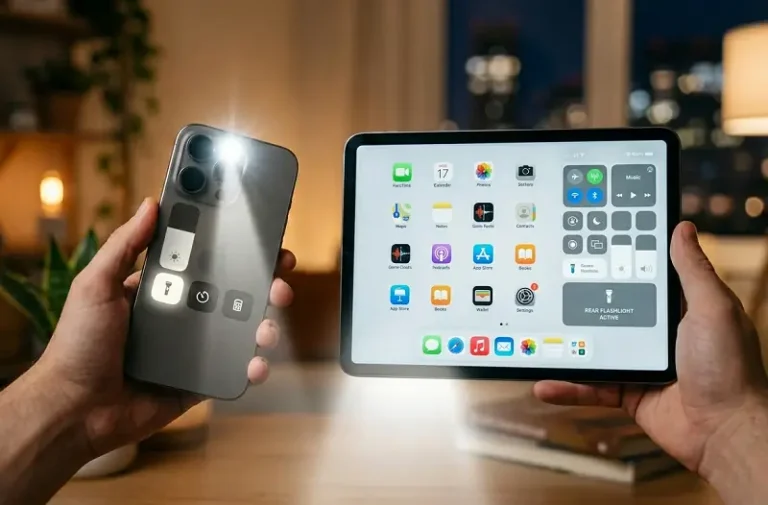
The iPhone flashlight is one of the most-used features on the device — and for good reason. Apple has built multiple ways to turn it on, adjust its brightness, and control it without ever unlocking your phone. Whether you have the latest iPhone 16 Pro or an older model with a Home button, this guide covers every method available in iOS 18 and later.
How the iPhone Flashlight Works
The flashlight on iPhone uses the same LED flash built into the rear camera system. It produces a steady, bright white light rather than the strobe effect used during photos and videos. Every iPhone since the iPhone 4 includes this hardware, so the feature works on all current and most older models. The iPad Pro also includes a rear flash that doubles as a flashlight, accessible through the same Control Center interface.
Since iOS 18, Apple has expanded flashlight controls significantly — particularly for iPhone 14 Pro models and later, which gain beam-width adjustment through the Dynamic Island. Understanding all available methods ensures you can access the light quickly regardless of what your hands are doing or whether your screen is locked.
Method 1: Control Center (Works on All iPhones)
Control Center is the fastest and most universal way to toggle the iPhone flashlight. The gesture to open it depends on your model.
On iPhones with Face ID (iPhone X and later, including all iPhone 16 models): Swipe down from the upper-right corner of the screen. The battery and signal indicators sit in this corner — swiping down from that area opens Control Center instantly.
On iPhones with a Home button (iPhone SE, iPhone 8, and earlier): Swipe up from the bottom edge of the screen to open Control Center.
Once Control Center is open, tap the flashlight icon — it looks like a small torch or beam of light. The icon highlights with a white background when active. Tap it again to turn the flashlight off.
Method 2: Lock Screen Shortcut (No Unlock Required)
On iPhones with Face ID running iOS 16 and later, a flashlight button appears in the lower-left corner of the Lock Screen. This is one of the fastest access points available since it requires no swipe gesture — just wake the screen and press.
Press and hold the Lock Screen flashlight icon until the haptic engine gives a brief vibration. The flashlight activates immediately. A short press alone will not trigger it — the press-and-hold is intentional, preventing accidental activation when the phone is in a pocket or bag.
To turn the flashlight off from the Lock Screen, press and hold the same icon again.
Starting with iOS 18, this Lock Screen button is fully customizable. Long-press the Lock Screen wallpaper, tap Customize, then tap the flashlight button to replace it with a different control — such as a Translate shortcut, Stopwatch, or any third-party app. If the button is missing entirely, this customization menu is where to restore it.
Method 3: Siri Voice Command
Siri can toggle the flashlight without any interaction with the screen — useful when carrying groceries, working on a car, or doing anything that keeps hands busy.
Activate Siri using any of these methods: say “Siri” or “Hey Siri” (depending on your settings), or press and hold the Side button on Face ID models, or press and hold the Home button on older models.
Then say any of the following:
- “Turn on the flashlight”
- “Turn off the flashlight”
- “Turn on my flashlight”
- “Flashlight on”
Siri responds instantly and does not require the iPhone to be unlocked first, as long as Siri on Lock Screen is enabled in Settings. To verify, go to Settings → Siri → Allow Siri When Locked.
There is also a lesser-known alternative: Vocal Shortcuts in the Accessibility menu allow custom words — not Siri commands — to trigger actions including the flashlight. Harry Potter fans have popularized setting “Lumos” to turn the light on and “Nox” to turn it off. This works while the phone is unlocked but requires Siri for Lock Screen access. To set it up: go to Settings → Accessibility → Vocal Shortcuts → Add Shortcut, record the word, and assign the flashlight action.
Method 4: Action Button (iPhone 15 Pro and Later)
The Action button — the small customizable button on the left side of iPhone 15 Pro, iPhone 15 Pro Max, and all iPhone 16 models — can be configured to toggle the flashlight with a single press and hold.
To set it up: go to Settings → Action Button, then swipe through the available actions until the Flashlight icon appears. Once selected, pressing and holding the Action button from anywhere — including the Lock Screen — turns the flashlight on or off instantly.
This method is particularly useful in situations requiring one-handed operation or when wearing gloves, since it does not require any screen interaction. Keep in mind that assigning the flashlight to the Action button replaces any existing assignment — such as Silent Mode, Camera, or Focus — so this works best for users who primarily use the button for lighting.
Method 5: Back Tap (iPhone 8 and Later, iOS 14+)
Back Tap is an accessibility feature that uses the iPhone’s built-in accelerometer to detect deliberate taps on the back of the device and assign them to system actions, including the flashlight.
To configure it: go to Settings → Accessibility → Touch → Back Tap. Choose either Double Tap or Triple Tap. Scroll through the available actions and select Flashlight. A blue checkmark confirms the assignment. Exit Settings and the feature is immediately active.
From that point, a double or triple tap on the back of the iPhone — depending on the setting chosen — toggles the flashlight without touching the screen or pressing any button. The feature works reliably when the phone is lying on a flat surface or held in hand, though very light or very fast taps may not register. A firm, deliberate tap with one finger works best. Back Tap also functions through most cases, as the accelerometer detects physical motion rather than screen contact. For users who frequently need flashlight access hands-free, this is one of the most convenient setups available.
Method 6: Dynamic Island Brightness Control (iPhone 14 Pro and Later)
iPhone 14 Pro and all later Pro models include hardware support for adjustable flashlight beam width — a feature exclusive to the adaptive dual-LED True Tone flash used in Pro camera systems.
Once the flashlight is active, tap the Dynamic Island at the top of the screen. A flashlight control card expands from the Dynamic Island. Touch and hold the light icon inside this card, then drag left or right to narrow or widen the beam. Drag up or down to increase or decrease brightness.
Narrowing the beam creates a focused spotlight effect useful for illuminating small areas at a distance. Widening the beam creates a flood-light effect for broad area coverage. Non-Pro iPhones do not have the adaptive flash hardware required for beam-width control, though they can still adjust brightness through the Control Center method below.
How to Adjust Flashlight Brightness
On any iPhone, including non-Pro models, the flashlight brightness is adjustable through Control Center. Open Control Center, then press and hold — do not just tap — the flashlight icon. A vertical brightness slider appears on screen. Drag up to increase brightness, drag down to reduce it. Apple typically shows four distinct brightness levels, with the lowest level significantly extending battery life during extended use.
Reducing flashlight brightness is worth doing when maximum output is not needed. The LED in the camera system draws meaningful power and generates heat when running at full brightness for extended periods. Keeping brightness moderate helps preserve iPhone battery health during long use sessions.
How to Add the Flashlight to Control Center
If the flashlight icon does not appear in Control Center, it needs to be added manually. Go to Settings → Control Center. Scroll down to find Flashlight under More Controls. Tap the green plus icon next to it to add it to the Included Controls list. The flashlight icon will now appear in Control Center every time it is opened.
In iOS 16 and later, Control Center icons can be rearranged by long-pressing any icon in the editing view. Dragging the flashlight icon to a corner position ensures the fastest possible tap access.
Using the Camera to Turn Off the Flashlight
One overlooked method — useful specifically for turning the flashlight off — works on any iPhone with a Lock Screen camera shortcut. When the flashlight is active, swipe left on the Lock Screen as if opening the camera, then immediately release before the camera fully opens. The iPhone detects the camera swipe and automatically disables the flashlight to prevent both systems from activating the LED simultaneously. This requires no extra gestures or button presses once you get the timing right.
Flashlight Troubleshooting
Why is the flashlight icon grayed out?
The flashlight icon appears grayed out and non-tappable when the iPhone camera is actively in use, when a low-power video recording session has locked the LED, or in rare cases when the device is overheating. Close the Camera app completely, wait a moment for the device to cool if it feels warm, then attempt to turn the flashlight on again through Control Center.
Why did my flashlight icon disappear from the Lock Screen?
In iOS 18, the Lock Screen flashlight button can be removed through customization. Long-press the Lock Screen, tap Customize, then tap the area where the flashlight button should appear to reassign it. If the option is not shown, select the bottom-left control slot and add Flashlight from the controls list. Changes to iPhone notification and Lock Screen controls in iOS 18 have caught many users off guard.
Why is the flashlight not turning on at all?
If the flashlight fails to respond through any method, restart the iPhone first — a soft restart resolves most temporary software issues affecting the LED flash. If the problem persists after a restart, check whether the rear camera flash works during photos. If the flash also fails in the Camera app, the hardware LED may need service. Apple’s diagnostic tool at support.apple.com can confirm whether the issue is software or hardware before booking a Genius Bar appointment.
Does using the flashlight drain battery quickly?
Yes. The LED flash is one of the more power-intensive hardware components on an iPhone. Continuous use at full brightness can drain a fully charged iPhone significantly within an hour. If battery life is a concern during extended flashlight use, reduce brightness to the lowest effective level. Users who frequently rely on the flashlight outdoors may also want to monitor their iPhone battery percentage to avoid unexpected shutdowns.
Can I use the flashlight while taking a photo?
No. The LED flash cannot operate as a flashlight and a camera flash simultaneously. Opening the Camera app while the flashlight is active will automatically turn the flashlight off. The same hardware component serves both purposes, so only one can be active at any given time.
Does the flashlight work on iPad?
The flashlight feature is available on iPad Pro models that include a rear LED flash. Not all iPad models have a flash — only certain iPad Pro configurations include one. On supported models, the Control Center flashlight icon functions identically to iPhone. Older iPad models and standard iPad models without a rear flash do not have this feature at all.
Pro Tips for Getting the Most from the iPhone Flashlight
For users who need the flashlight frequently, configuring Back Tap or the Action button provides the fastest and most consistent access — neither requires unlocking the phone or navigating any menu. Back Tap works on a wider range of devices, while the Action button provides a dedicated physical control on supported models.
When using the flashlight in a dark environment, dropping to the lowest brightness setting is often sufficient and noticeably more comfortable for nearby people. The lowest setting also reduces heat buildup during extended use, which matters for long sessions on campgrounds, job sites, or power outages.
Siri’s voice command remains underutilized for this purpose. In situations where both hands are occupied — holding tools, cooking, or carrying items — a simple voice trigger activates the light without any physical interaction. This approach is also practical for users who experience difficulty with fine motor control, since the iPhone accessibility features including Back Tap and Vocal Shortcuts are designed precisely for this use case.
Finally, if the flashlight turns on accidentally in a pocket or bag — a common complaint — iOS 18’s customized Lock Screen button requires a deliberate press-and-hold rather than a simple tap, which prevents most accidental activations. Switching from a tap-to-activate Lock Screen button to Control Center as the primary access method also reduces pocket activations.
Summary
The iPhone flashlight offers more flexibility than most users realize. Control Center works on every iPhone and iPad Pro with a flash. The Lock Screen shortcut is the fastest single-handed option on Face ID models. Siri handles hands-free activation. The Action button and Back Tap provide dedicated hardware shortcuts for users who need constant, reliable access. Brightness adjustment through Control Center or the Dynamic Island gives fine control over light output and battery consumption.
Apple continues adding layers of control with each iOS release — iOS 18 in particular expanded Lock Screen customization significantly. Taking a few minutes to configure the method that fits the way the phone is used daily makes a small but practical difference every time the lights go out.


