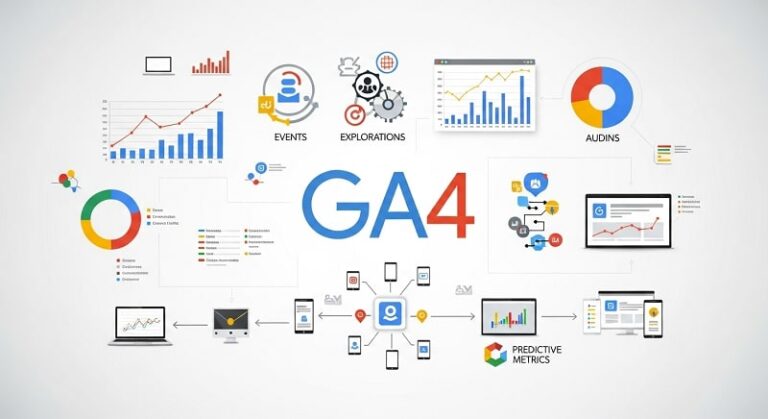
In the modern digital landscape, data is the cornerstone of every successful online venture. Whether you are running a small personal blog, a growing e-commerce store, or a large-scale corporate website, understanding how users interact with your content is vital. Google Analytics 4, the latest evolution of Google’s tracking platform, offers an unprecedented level of insight into user behavior, conversion paths, and audience demographics. Transitioning to or starting fresh with this platform allows website owners to move beyond simple pageview metrics and dive deep into the customer journey across multiple platforms and devices. This comprehensive guide is designed to take you from the basic concepts of web tracking to advanced implementation strategies, ensuring your website is fully optimized for growth through actionable data.
Google Analytics 4 differs significantly from its predecessor, Universal Analytics, by focusing on events rather than sessions. This shift reflects the changing nature of the internet, where users often jump between mobile apps and desktop browsers. By treating every interaction—such as a click, a scroll, or a video view—as an event, the platform provides a more granular view of engagement. Understanding this fundamental change is the first step toward mastering the tool. Implementing it correctly requires a blend of technical setup and strategic planning to ensure that the data you collect aligns with your specific business goals, such as increasing sales, generating leads, or boosting reader retention.
The importance of accurate data collection cannot be overstated. Without a properly configured analytics setup, you may find yourself making critical business decisions based on incomplete or misleading information. A well-implemented Google Analytics 4 property serves as a single source of truth, helping you identify which marketing channels are driving the most value and which areas of your website are causing users to drop off. Throughout this guide, we will explore the essential steps to integrate the platform with your site, configure advanced tracking features, and interpret the resulting data to refine your digital strategy and achieve long-term success.
The Evolution and Architecture of Google Analytics 4
To effectively use Google Analytics 4, it is helpful to understand why the platform was redesigned from the ground up. Universal Analytics was built for a web dominated by desktop browsing and independent sessions. However, as mobile usage skyrocketed and privacy regulations like GDPR and CCPA changed how data is collected, the old model became outdated. Google Analytics 4 was developed to be privacy-centric by design, utilizing machine learning to fill in data gaps where cookies might be blocked and offering a unified tracking model that works for both websites and mobile applications simultaneously. This “cross-platform” capability is one of its most powerful features, allowing for a holistic view of the user experience.
The core architecture of the platform revolves around the Event-Driven Data Model. In previous versions, the “session” was the primary unit of measurement, but this often failed to capture the complexity of modern user behavior. In the new model, everything is an event. This includes the first time a user visits your site, when they start a session, or when they perform a specific action like clicking a “Download” button. Each event can have associated parameters, which are extra bits of information that provide context to the action. For example, a “purchase” event might include parameters for the item name, the price, and the currency used, allowing for highly detailed reporting without needing complex custom code for every single metric.
Another significant architectural shift is the introduction of Enhanced Measurement. This feature allows website owners to track common interactions automatically without having to manually add tracking code to every element. When enabled, the platform can track file downloads, outbound link clicks, site searches, and video engagement right out of the box. This lowers the barrier to entry for beginners while providing a robust foundation for advanced users to build upon. By understanding these structural changes, you can better appreciate the flexibility and power that the new system offers for monitoring and improving your digital presence.
Initial Setup and Property Configuration
The journey to data-driven insights begins with the creation of a Google Analytics 4 property. If you are already using a Google account, you can access the interface through the official Google Analytics website. The setup process involves defining your account name, property name, and reporting time zone. It is crucial to set the correct time zone and currency at this stage, as these settings dictate how your data is displayed in reports. Once the property is created, the next step is to set up a Data Stream. A data stream is the source of information from your website or app. For a standard website, you will select the “Web” stream option and enter your site’s URL and a descriptive name.
After creating the data stream, you will be provided with a Measurement ID (typically starting with “G-“). This ID is the unique identifier that connects your website’s activity to your specific analytics property. During this phase, you should also review the Enhanced Measurement settings. By default, most options are enabled, but it is wise to verify that they align with your tracking needs. For instance, if your site relies heavily on PDF resources, ensuring that “File downloads” is active will provide immediate value. Taking the time to configure these basic settings correctly ensures that your data collection starts on a clean and organized foundation.
One of the most important but often overlooked steps in the initial configuration is the Data Retention setting. By default, Google Analytics 4 may set user and event data retention to only two months. For most businesses, this is insufficient for long-term trend analysis or year-over-year comparisons. You should navigate to the “Data Settings” menu and increase the retention period to 14 months. This ensures that you have access to historical data when performing advanced explorations later on. Additionally, you should define your internal traffic by filtering out your own IP address and those of your team members. This prevents your own visits from skewing the results and ensures that you are analyzing the behavior of real customers and visitors.
Integrating Google Analytics 4 with Your Website
There are several methods to integrate the tracking code with your website, depending on your technical expertise and the platform you are using. The most straightforward method for many is using a WordPress Plugin or a dedicated integration tool provided by your CMS. Popular options like Site Kit by Google or MonsterInsights allow you to simply paste your Measurement ID or connect your Google account to automatically insert the necessary scripts. This method is ideal for those who want a “set it and forget it” approach and do not want to touch any underlying code. However, it is essential to ensure that the plugin is regularly updated to maintain compatibility with the latest tracking standards.
For more advanced users or those who want maximum control over their tracking setup, Google Tag Manager is the recommended path. This tool acts as a container for all your website tags, including those for Google Analytics, Facebook Pixel, and Google Ads. By installing the Tag Manager script on your site once, you can then manage all other tracking tags through a central web interface without ever having to edit your site’s code again. Within Tag Manager, you would create a “Google Tag” and input your Measurement ID, then set it to fire on all pages. This method is highly scalable and allows for the easy implementation of complex custom event tracking as your site grows.
If you prefer a manual installation, you can add the Global Site Tag (gtag.js) directly into the <head> section of your website’s HTML. This involves copying the code snippet provided in your Data Stream details and pasting it onto every page of your site. While this method removes the need for additional plugins or third-party tools, it requires a basic understanding of HTML and access to your site’s template files. Regardless of the method chosen, it is vital to verify the installation using the “Real-Time” report in the Google Analytics interface. By visiting your site in a separate window and checking the report, you can confirm that your activity is being captured in real-time.
Implementing Custom Events and Conversions
While standard tracking covers the basics, the true power of Google Analytics 4 lies in Custom Event Tracking. Every business has unique goals, and tracking specific user actions that lead to those goals is essential. For example, if you offer a free consultation, you should track clicks on the “Book Now” button as a specific event. This is often done using Google Tag Manager, where you can create triggers based on click classes, IDs, or page URLs. By naming these events clearly—such as consultation_button_click—you make your reports much easier to read and analyze for yourself and your stakeholders.
Once you have events flowing into your property, you must designate the most important ones as Conversions (now referred to as “Key Events” in some interface updates). Not every click is equal; a newsletter sign-up or a completed purchase is far more valuable than a simple page view. By marking these specific events as conversions, you enable the platform to calculate conversion rates and attribute those successes to specific marketing channels. This allows you to see exactly which social media posts, email campaigns, or search terms are generating actual revenue or leads, enabling a more effective allocation of your marketing budget.
Advanced users should also explore Parameters to add more context to their events. If you have a blog with multiple categories, you can send a category parameter with every page_view event. This allows you to group your data and see which topics are most popular among your audience. Similarly, for e-commerce sites, sending parameters like item_id, price, and quantity with a purchase event is mandatory for accurate revenue tracking. Utilizing these detailed data points transforms your analytics from a simple visitor counter into a sophisticated business intelligence tool that can drive meaningful improvements to your user experience.
Advanced Analytics Features: Audiences and Explorations
Understanding your audience on a deeper level is key to personalization and targeted marketing. Google Analytics 4 allows you to create Custom Audiences based on specific behaviors or demographics. For instance, you could create an audience of “High-Value Users” who have visited your site more than five times and spent over $100. Once defined, these audiences can be used in the “Explorations” section of the platform to see how their behavior differs from the average visitor. Furthermore, if your analytics property is linked to Google Ads, these audiences can be imported for remarketing campaigns, allowing you to show tailored ads to people who have already shown interest in your products.
The Explorations module is a significant upgrade over the standard reports found in previous versions. It provides a blank canvas where you can use drag-and-drop techniques to perform deep-dive analysis. You can create “Path Explorations” to see the exact sequence of pages a user visits before making a purchase, or use “Funnel Explorations” to identify exactly where users are dropping off in a multi-step process like a checkout or a sign-up form. These visualizations make it much easier to spot friction points in your user journey and develop hypotheses for A/B testing and site optimization.
Machine learning is woven throughout these advanced features, offering Predictive Metrics. For businesses with enough data, the platform can predict which users are likely to churn (stop visiting) and which are likely to make a purchase in the next seven days. This proactive insight allows you to take action before a customer is lost, such as sending a targeted discount code or a “we miss you” email. By leveraging these sophisticated tools, you move beyond looking at what happened in the past and start making data-backed predictions about future user behavior, giving your business a significant competitive advantage.
Essential Reporting and Data Interpretation
Navigating the various reports in Google Analytics 4 can be overwhelming at first, but focusing on a few key areas will provide the most value. The Acquisition Report is your primary tool for understanding where your traffic is coming from. It breaks down your visitors by “Session Source/Medium,” showing you the performance of organic search, direct traffic, referrals from other sites, and paid advertising. By analyzing the engagement rate and conversion rate of each source, you can determine which channels are worth further investment and which are underperforming. This is vital for maintaining a healthy and diverse traffic profile.
The Engagement Report focuses on what users do once they arrive. It includes metrics like average engagement time, which is more useful than the old “bounce rate” because it measures how long someone was actually interacting with your content. You can see which pages are the most viewed and which ones have the highest “stickiness.” If you notice that a particular blog post has a very high engagement time but a low conversion rate, it might be an indication that you need to add a clearer call-to-action to that page to guide users toward the next step in their journey.
Finally, the Retention Report helps you understand how often users return to your site. High-quality content and a good user experience naturally lead to higher retention. By examining the “User Retention by Cohort” graph, you can see if changes you made to your site on a specific date had a positive impact on bringing people back. Interpretation is an ongoing process; it involves looking for patterns over time rather than reacting to daily fluctuations. Regularly reviewing these reports allows you to stay in tune with your audience’s needs and respond quickly to changing market conditions or technical issues on your site.
Best Practices for Data Privacy and Accuracy
In an era of increasing privacy awareness, maintaining the trust of your visitors is paramount. Google Analytics 4 includes several features to help you comply with privacy regulations. IP Anonymization is now a built-in feature, meaning the platform automatically masks user IP addresses to protect their identity. Additionally, you should implement a robust cookie consent banner on your website that allows users to opt-in or opt-out of tracking. By using “Consent Mode,” you can signal to Google Analytics how to handle tracking tags based on the user’s choice, ensuring that you only collect data from those who have given explicit permission.
To ensure data accuracy, it is important to perform regular Data Audits. This involves checking for “referral exclusion” issues, where payment gateways or your own subdomains might be incorrectly identified as the source of a conversion. You should also verify that your cross-domain tracking is set up correctly if your customer journey spans across multiple URLs (e.g., from your main site to a separate booking engine). Misconfigured tracking can lead to “double-counting” of users or fragmented data, making it impossible to see the full picture of your marketing effectiveness.
Another best practice is to use UTM Parameters for all your outbound marketing links. By appending specific tags to the end of URLs in your emails, social media posts, and ad campaigns, you can tell Google Analytics exactly which specific link a user clicked. This level of detail is much more precise than the default referral data and allows you to track the performance of individual campaigns with surgical precision. Consistent naming conventions for your UTM tags are essential; otherwise, your reports will become cluttered with dozens of variations of the same source name, making analysis difficult and time-consuming.
Pro Tips for Advanced Google Analytics Users
- Enable BigQuery Export: Unlike previous versions, Google Analytics 4 offers a free connection to BigQuery, Google’s cloud data warehouse. This allows you to export your raw data for advanced analysis using SQL, enabling you to combine your web data with other business data sources like CRM systems or offline sales records.
- Utilize Custom Insights: You can set up custom alerts that notify you via email when there is a significant change in your data. For example, you can create an alert to trigger if your daily conversions drop by more than 20%, allowing you to catch and fix technical issues or marketing campaign failures immediately.
- Master the DebugView: When setting up new events, use the DebugView within the Admin panel. This tool provides a live feed of the events being sent from your specific device, making it much easier to troubleshoot issues with triggers and parameters before they go live for all users.
- Link Search Console: Integrating Google Search Console with your analytics property provides a wealth of data about how your site is performing in organic search. You can see which keywords are driving clicks and how those users behave once they reach your site, bridging the gap between SEO and on-site engagement.
- Explore User-ID Tracking: For sites with a login system, implementing User-ID tracking allows you to connect sessions from the same user across different devices. This provides a truly unified view of the customer journey, showing you how someone might discover your site on mobile and eventually convert on a desktop.
Frequently Asked Questions
Is Google Analytics 4 free to use?
Yes, Google Analytics 4 offers a very robust free version that is suitable for the vast majority of small to medium-sized businesses. There is a premium version called Google Analytics 360 designed for very large enterprises with massive data volumes, but the core features and tracking capabilities are available to everyone at no cost.
Can I keep my old Universal Analytics data?
Universal Analytics has been discontinued, and Google has stopped processing new data for those properties. While you can still access your historical data for a limited time, you cannot “merge” it directly into a Google Analytics 4 property. It is recommended to export your important historical reports as PDFs or CSV files for long-term record-keeping.
How long does it take for data to show up in reports?
While the “Real-Time” report shows activity almost instantly, most standard reports can take between 24 to 48 hours to fully process and display all data. For high-traffic sites, this processing time is usually on the shorter end, but you should always account for a slight delay when analyzing recent campaign performance.
What is the difference between a session and an event?
A session is a group of user interactions that take place within a given timeframe (usually ending after 30 minutes of inactivity). An event is a single, specific interaction, such as a page view, a click, or a form submission. GA4 focuses on events because they provide more detail about exactly what a user is doing during their visit.
Do I need to know how to code to use GA4?
Basic setup can be done without any coding knowledge by using plugins or Google Tag Manager. However, as you move into advanced custom tracking, having a basic understanding of HTML and JavaScript can be very helpful. Many online resources and templates are available to help non-coders implement even complex tracking setups.
Conclusion
Successfully integrating and utilizing Google Analytics 4 is a transformative step for any website owner. By moving from a session-based mindset to an event-driven approach, you gain a significantly clearer understanding of the modern user journey. From the initial configuration of data streams to the sophisticated use of the Explorations module and machine learning insights, this platform provides the tools necessary to turn raw data into strategic action. Implementing best practices around privacy and data accuracy ensures that your insights are both ethical and reliable, forming a solid foundation for all your digital marketing efforts. As you continue to explore the depths of the platform, remember that the goal is not just to collect data, but to use that data to improve the user experience, optimize your content, and ultimately drive the growth of your online presence. Continuous learning and regular auditing of your analytics setup will ensure that you remain ahead of the curve in an increasingly data-centric world.

Full-stack developer at Scylla Technologies (USA), working remotely from Bangladesh. Adobe Certified Magento Developer.