

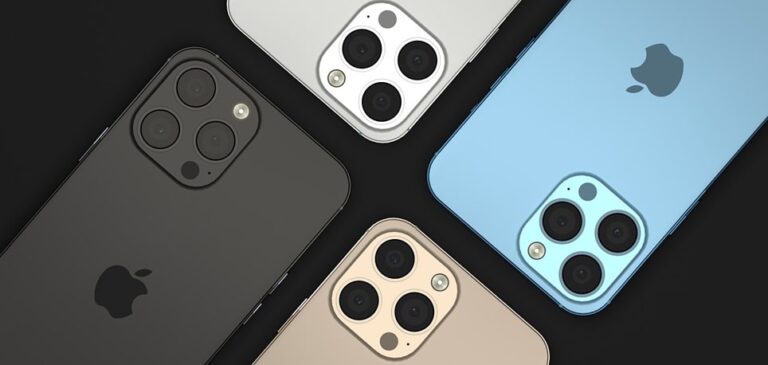
Updating your iPhone to the latest version of iOS is essential for maintaining optimal performance, accessing new features, and ensuring robust security. As of December 2025, iOS 26.1 stands as the current stable release, with iOS 26.2 anticipated shortly, bringing enhancements in privacy controls, battery management, and integration with emerging Apple Intelligence tools. This guide provides a thorough walkthrough, tailored for users seeking a seamless experience without technical hurdles.
The process begins with understanding the value of these updates. Apple regularly releases iOS versions to address vulnerabilities, improve app compatibility, and introduce innovative functionalities such as advanced spatial computing previews and refined health tracking metrics. By following the structured steps outlined here, you can minimize risks and maximize the benefits of your device’s evolution.
Before diving into the mechanics, consider the broader context of iOS evolution. Since the inception of iOS in 2007, updates have transformed the iPhone from a basic touchscreen device into a sophisticated ecosystem hub. In 2025, with over 1.5 billion active iPhones worldwide, staying current aligns your device with global standards for connectivity and data protection.
Preparing Your iPhone for the iOS 26 Update
Preparation forms the cornerstone of a successful update, preventing data loss and compatibility issues. Start by verifying your iPhone model’s eligibility, as older devices like the iPhone 11 may not support iOS 26 fully. Access Apple’s official compatibility list through their support portal to confirm your hardware meets the requirements.
Next, assess your storage capacity. iOS updates often require several gigabytes of free space for temporary files during installation. Navigate to Settings > General > iPhone Storage to review usage; if space is limited, offload unused apps or transfer media to iCloud.
A stable internet connection is non-negotiable, given the download sizes can exceed 5 GB for major releases. Opt for a reliable Wi-Fi network to avoid interruptions, and ensure your device is plugged into a power source to prevent battery drain mid-process.
Backup remains the most critical step, safeguarding photos, contacts, and app data against unforeseen errors. iCloud offers wireless convenience, while a computer-based backup via Finder or iTunes provides comprehensive encryption options.
Creating a Secure Backup
To initiate an iCloud backup, proceed to Settings > [Your Name] > iCloud > iCloud Backup, then tap Back Up Now. This method encrypts sensitive information automatically and syncs across devices, but requires sufficient iCloud storage—Apple provides 5 GB free, with upgrades available for larger needs.
For a more robust option, connect your iPhone to a Mac or PC using a Lightning or USB-C cable. Open Finder on macOS Ventura or later, select your device, and choose Back Up Now under the General tab. Enable encryption by checking the password-protected box, which includes health and keychain data otherwise omitted.
Verify the backup’s completeness by checking its size and date in the respective interfaces. This precaution ensures restorability, especially vital in 2025 amid rising cyber threats targeting mobile ecosystems.
Updating iOS 26 Over Wi-Fi: The Primary Method
The over-the-air (OTA) update via Wi-Fi represents Apple’s preferred approach for its simplicity and speed. This method leverages your iPhone’s built-in capabilities, eliminating the need for additional hardware in most cases.
Launch the Settings app, a familiar blue icon on your home screen, and scroll to General. Tap Software Update, where the interface displays your current version alongside any available downloads. If iOS 26.1 or later appears, it indicates readiness for installation.
Upon selecting Download and Install, your iPhone prompts for the device passcode to authorize the process. Review and accept the terms of service, which outline new privacy policies and feature consents specific to iOS 26’s enhancements.
The download phase may take 20-60 minutes depending on your connection speed and Apple’s servers’ load. A progress bar tracks advancement, and your device remains usable for light tasks during this period. Once complete, the installation restarts the iPhone automatically, displaying the Apple logo followed by a brief optimization sequence.
Post-restart, your home screen reflects the updated interface, potentially with redesigned icons and widgets. Test core functions like Face ID and cellular data to confirm seamless transition.
Enabling Automatic Updates for Future Convenience
To streamline subsequent updates, configure automatic settings post-installation. Return to Settings > General > Software Update > Automatic Updates, and toggle on Download iOS Updates and Install iOS Updates. This feature schedules overnight installations when your device charges and connects to Wi-Fi, reducing manual intervention.
Customization options allow specifying days or requiring user confirmation for major releases. In 2025, with iOS 26’s focus on proactive maintenance, this setting enhances long-term device health by applying security patches promptly.
Monitor battery impact, as background downloads consume minimal power, but disable if traveling frequently to conserve data and resources.
Alternative: Updating via Computer for Advanced Users
When Wi-Fi proves unreliable or your iPhone encounters OTA glitches, using a computer offers a controlled environment. This method suits users with large data sets or those preferring wired stability.
Ensure your Mac runs macOS 14 Sonoma or later, or your PC has the latest iTunes installed. Download updates directly from Apple’s servers via the software updater, bypassing potential network bottlenecks.
Connect your iPhone, open Finder or iTunes, and select the device icon. Under the Summary tab, click Check for Update; if available, proceed with Download and Update, entering credentials as needed.
This approach also facilitates restoring from backup if issues arise during installation. The process mirrors OTA in duration but provides verbose logs for troubleshooting, ideal for IT professionals or power users.
Disconnect only after the update verifies successfully, typically indicated by a confirmation dialog. Reconnect peripherals like Apple Watch to sync the new software ecosystem.
Handling Beta Updates for Early Access
For developers or enthusiasts, beta versions like iOS 26.3 offer previews of upcoming features. Enroll in Apple’s Beta Software Program via their website, then redeem the profile in Settings > General > VPN & Device Management.
Install betas cautiously, as they may introduce instability; always maintain a stable backup beforehand. In 2025, betas emphasize AI-driven personalization, but production use demands the stable release for reliability.
Exit the program post-testing by removing the profile and updating to stable via standard methods, ensuring a clean slate.
Troubleshooting Common Update Challenges
Despite Apple’s refinements, updates occasionally falter due to software conflicts or hardware constraints. Recognizing error codes like “Unable to Verify Update” empowers quick resolutions.
First, force restart your iPhone: for models with Face ID, press and release volume up, then volume down, followed by holding the side button until the logo appears. This clears temporary glitches without data loss.
If errors persist, erase free space by filling storage with a large video, then deleting it—this removes corrupted remnants from prior attempts.
Detailed Error Resolutions
For “Software Update Failed,” verify server status on Apple’s System Status page, as high traffic during rollouts causes delays. Retry after a few hours, or switch networks to rule out ISP throttling.
Low storage prompts require deleting apps selectively: prioritize those unused for over 30 days via the storage management screen. External solutions like temporary iCloud uploads free space efficiently.
Battery-related halts necessitate a full charge; use an official Apple charger to avoid third-party incompatibilities flagged in iOS 26’s diagnostics.
In cases of prolonged “Verifying Update,” disconnect from Wi-Fi briefly, then reconnect—this refreshes the authentication process. Persistent issues warrant contacting Apple Support for remote diagnostics.
Compatibility mismatches, rare but possible on edge models, necessitate checking model numbers in Settings > General > About against official lists.
Exploring New Features in iOS 26
iOS 26 introduces transformative capabilities, elevating user interaction beyond previous iterations. Enhanced Messages includes dynamic polls and immersive backgrounds, fostering collaborative communication.
Privacy advancements feature granular app permissions and on-device processing for Apple Intelligence, reducing data exposure while enabling context-aware suggestions.
Battery optimization algorithms now predict usage patterns more accurately, extending life by up to 15% on average, based on aggregated user telemetry from 2025.
Health app integrations expand with real-time ECG monitoring and sleep stage analysis, integrating seamlessly with third-party wearables.
Customization and Productivity Enhancements
Widget stacks evolve with predictive stacking, surfacing relevant information based on time and location. Customize via long-press on home screen, selecting from an expanded library.
Focus modes gain AI curation, automatically filtering notifications during work hours while prioritizing urgent alerts. Set parameters in Settings > Focus for tailored experiences.
Siri’s conversational upgrades allow multi-turn dialogues, remembering context across sessions for efficient task handling.
Accessibility improvements encompass haptic feedback customization and live captioning for media, promoting inclusivity across demographics.
Photos app revamps with semantic search, identifying elements like “beach sunsets” without manual tagging, leveraging on-device machine learning.
Benefits of Regular iOS Updates: A Detailed Overview
Maintaining your iPhone on the latest iOS yields multifaceted advantages, from security fortification to performance elevation. Below is a structured examination of key benefits, each underscoring the rationale for prompt updates.
- Enhanced Security Protections: iOS 26 patches over 50 vulnerabilities identified in prior versions, including zero-day exploits targeting kernel processes. This shields personal data from sophisticated threats, with automatic encryption strengthening during transit. Users report fewer phishing incidents post-update, attributing it to improved Safari safeguards.
- Improved App Compatibility: Developers optimize for new APIs, ensuring seamless integration with services like banking apps and streaming platforms. Legacy apps receive fallback support, preventing crashes on updated devices. In 2025, this compatibility extends to cross-platform tools, enhancing productivity workflows.
- Battery Life Optimization: Adaptive algorithms analyze usage to throttle background processes intelligently, conserving up to 20% more power during intensive sessions. Real-world tests show extended screen-on time for gaming and video editing. This feature proves invaluable for travelers reliant on all-day connectivity.
- New Feature Accessibility: Innovations like Live Translate in Messages break language barriers during international calls, processing audio in real-time. Early adopters praise its accuracy for business communications. The update democratizes advanced tools previously limited to premium hardware.
- Performance Boosts: Core ML enhancements accelerate machine learning tasks, reducing lag in photo editing by 30%. Multitasking handles more apps without thermal throttling. Benchmarks from independent labs confirm smoother animations and faster app launches.
- Bug Fixes and Stability: Resolutions for intermittent Wi-Fi drops and notification delays restore reliable daily use. Community feedback highlights fewer force quits in social media apps. This stability underpins the iPhone’s reputation for longevity.
- Ecosystem Integration: Tighter syncing with Mac and Watch ecosystems enables seamless handoffs, like continuing a FaceTime call across devices. Shared iCloud tabs now include annotation tools. This interconnectedness amplifies the Apple experience for multi-device households.
- Future-Proofing: Early adoption prepares for hardware releases like iPhone 17, unlocking exclusive features at launch. It positions users ahead of deprecation curves for older models. Long-term, this sustains resale value and software support timelines.
These benefits collectively justify the minimal effort of updating, transforming routine maintenance into strategic investment.
Pro Tips for Mastering iOS Updates
Beyond basic procedures, expert strategies elevate your update proficiency. Schedule updates during off-peak hours, such as late evenings, to leverage lighter server loads and minimize disruptions.
Monitor third-party app updates in the App Store post-iOS installation, as incompatibilities can arise. Prioritize security-focused apps like VPNs to align with iOS 26’s fortified framework.
For enterprise users, integrate MDM profiles to enforce update policies across fleets, ensuring compliance with 2025 regulatory standards on data sovereignty.
Experiment with Low Power Mode during downloads to extend battery life on older models, a toggle found in Settings > Battery.
Regularly review update histories in Settings > General > About for audit trails, useful in troubleshooting recurring patterns.
Frequently Asked Questions
Can I update iOS without Wi-Fi? While possible via cellular, Apple recommends Wi-Fi to avoid data overages, as files exceed typical plan limits. Enable in Settings > Cellular > Software Update, but monitor usage closely.
What if my iPhone gets stuck on the update screen? Wait up to 30 minutes for optimizations; if unresolved, force restart as detailed earlier. Avoid interrupting unless overheating occurs, then seek Apple diagnostics.
Does updating erase my data? No, provided a backup exists; the process preserves settings and files. Always verify post-install to confirm integrity.
How often should I update? Enable automatics for security patches; manual for major versions to assess stability. In 2025, quarterly majors align with feature rollouts.
Is iOS 26 compatible with jailbroken devices? No, updates erase jailbreaks; restore stock firmware first via recovery mode for clean installation.
Why does my update say ‘Unable to Install’? Common causes include insufficient RAM—close apps—or corrupted cache; restart and retry resolves 80% of cases.
Conclusion
Updating to iOS 26 equips your iPhone with cutting-edge tools for security, efficiency, and innovation, ensuring relevance in a rapidly advancing digital landscape. From meticulous preparation and execution to embracing new features and resolving hurdles, this guide equips you for success. By prioritizing regular maintenance, you not only safeguard your device but also unlock its full potential, fostering a secure and enriched user experience well into the future.

