

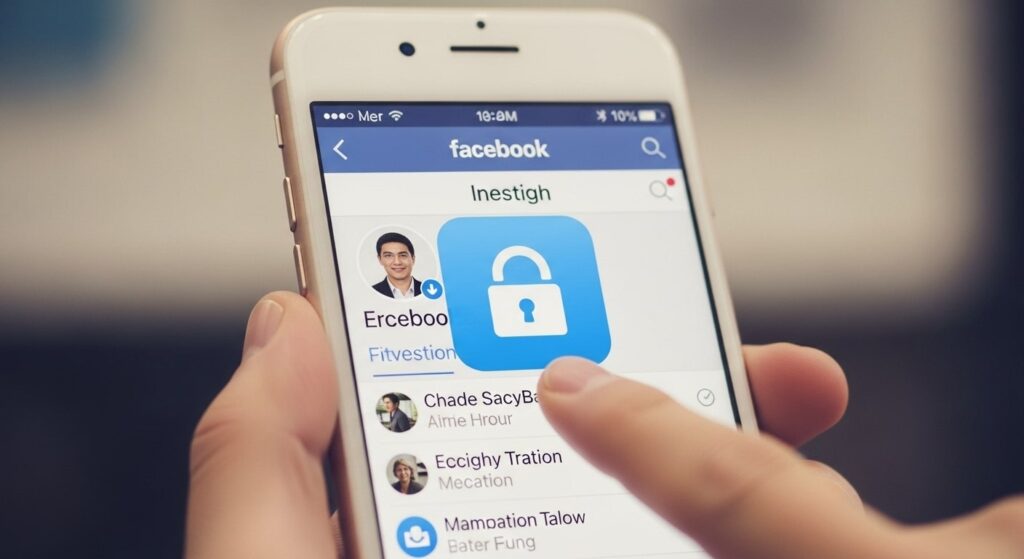
Introduction: Securing Your Digital Footprint
Your Facebook profile is a digital record of your life, from your photos and memories to your personal information and connections. Keeping this information secure is more important than ever. For iPhone users, Facebook offers a powerful privacy feature called Profile Lock. This guide will walk you through the process of activating this feature, ensuring that your content is only visible to your friends. We’ll also cover what to do if the feature isn’t available to you and how to enhance your privacy even further using manual settings.
By locking your profile, you create a virtual shield that significantly limits what non-friends can see. This provides a crucial defense against unwanted attention, data scrapers, and potential identity theft. This feature is particularly useful for individuals who want to maintain a strict boundary between their public and private lives. It’s a quick and efficient way to take control of your digital presence and ensure a safer social media experience.
Locking Your Profile (Step-by-Step Instructions)
Step 1: Navigate to Your Profile
First, open the Facebook app on your iPhone and make sure you are logged into the account you want to lock. From your main feed, tap on your profile picture at the bottom-right corner of the screen. This will take you directly to your profile page, which is the central hub for all your profile settings. You can also tap the three horizontal lines (≡) at the bottom-right and then tap on your name at the top of the menu that appears.
Step 2: Find the Lock Profile Option
Once you are on your profile page, look for the three horizontal dots (•••) located right beside the “Edit Profile” and “Add to Story” buttons. Tap this menu button. A list of your profile settings will appear. If the feature is available in your region, you will see a “Lock Profile” option. This is the main gateway to instantly securing your profile.
Step 3: Confirm and Activate the Lock
After you tap “Lock Profile,” a new screen will appear. This screen will provide a brief overview of what happens when you lock your profile, such as how only friends will be able to see your content. To proceed, simply tap the “Lock Your Profile” button at the bottom of the screen. A confirmation message will pop up, and a small lock badge will appear on your profile to indicate that the feature is now active.
What to Do If the Lock Option Is Not Available
Manual Privacy Settings as an Alternative
The Profile Lock feature is not universally available and may be limited to certain regions or accounts. If you don’t see the option, don’t worry—you can achieve a similar level of privacy by manually adjusting your settings. While this method requires a few more steps, it provides you with granular control over every aspect of your privacy.
To begin, navigate to Settings & Privacy > Settings > Audience and Visibility. Here, you can manually change who can see your future and past posts. Set your future posts to “Friends” only, and use the “Limit Past Posts” tool to convert all your previous public posts to be visible only to your friends. This is a crucial first step for securing your entire content history.
Another key area to focus on is your “About” information. You can manually edit each section—such as your work, education, and hometown—and set the audience to “Friends” or “Only me.” This prevents data scrapers and unwanted individuals from collecting your personal details. This comprehensive, manual approach is a powerful and reliable alternative to the automatic Profile Lock.
If you are unable to find the lock option, it may be because your profile is in Professional Mode. This mode is designed for creators and public figures, making the account public by default. To check and turn off this mode, go to your profile, tap the three-dot menu, and look for “Turn off Professional Mode.” Once you have deactivated it, the “Lock Profile” option may become available to you.
Understanding the Benefits of a Locked Profile
What Happens to Your Content?
When your profile is locked, it automatically applies a set of protective rules that a public profile does not have. This includes limiting who can see your full-size profile picture and cover photo. Non-friends will only see a small, unexpandable thumbnail of your profile photo, which provides a simple yet effective barrier against image misuse. All posts you have ever made, regardless of their original privacy settings, will be hidden from the public and made visible only to your confirmed friends. This is an important detail that is often overlooked and provides a great deal of security.
The feature also automatically enables Profile and Tagging Review, giving you complete control over what appears on your timeline. This means that if a friend tags you in a post, you will be notified and can approve or deny it before it becomes visible to your friends. This is a powerful tool for maintaining your personal brand and ensures that you have the final say on the content associated with your name.
The lock also applies to other aspects of your profile, such as your “About” section. Only five basic details—your name, gender, profile picture, cover photo, and hometown—will remain visible to the public. All other sensitive information, such as your birthday, relationships, and contact details, will be hidden. This comprehensive approach ensures that your profile is fully shielded from anyone who is not in your immediate network of friends.
Frequently Asked Questions and Additional Security Tips
You might have some questions about how the lock feature works. The most common question is whether people can still send you friend requests. The answer is yes, they can. However, they will not be able to see your full profile unless you accept their request. Another common question is whether you can still post publicly. With a locked profile, all your posts are automatically set to “Friends” only. To make a public post, you would first need to unlock your profile.
To enhance your privacy even further, here are some essential tips to follow on your iPhone:
- Use Two-Factor Authentication (2FA): This adds a critical layer of security by requiring a second form of verification, such as a code from your phone, to log in. This makes it significantly harder for unauthorized users to access your account.
- Review Your “Off-Facebook” Activity: Facebook tracks your activity on other websites and apps. You can view and clear this data by going to Settings & Privacy > Settings > Off-Facebook Activity. This helps to limit the amount of data being collected about you.
- Be Selective with Friend Requests: Only accept requests from people you genuinely know. A locked profile helps with this by preventing random strangers from seeing your content, but it’s always best to manually vet who you add to your network.
- Turn Off Public Search: You can prevent search engines like Google from linking to your profile. This option is available in your privacy settings and is a great way to limit your discoverability to a wider audience.
- Adjust Messenger Privacy: The lock feature doesn’t apply to Messenger. Go to Messenger’s privacy settings to control who can send you messages and how message requests are handled.
The Facebook Profile Lock feature on iPhone is a simple yet powerful tool for anyone serious about their digital privacy. It provides an all-in-one solution that secures your content, photos, and personal information from the public. While it may not be available in all regions, the manual privacy settings offer a robust alternative that provides the same level of protection. By following the steps in this tutorial and implementing additional security tips, you can take control of your online presence and ensure a safer, more private experience on Facebook.
