

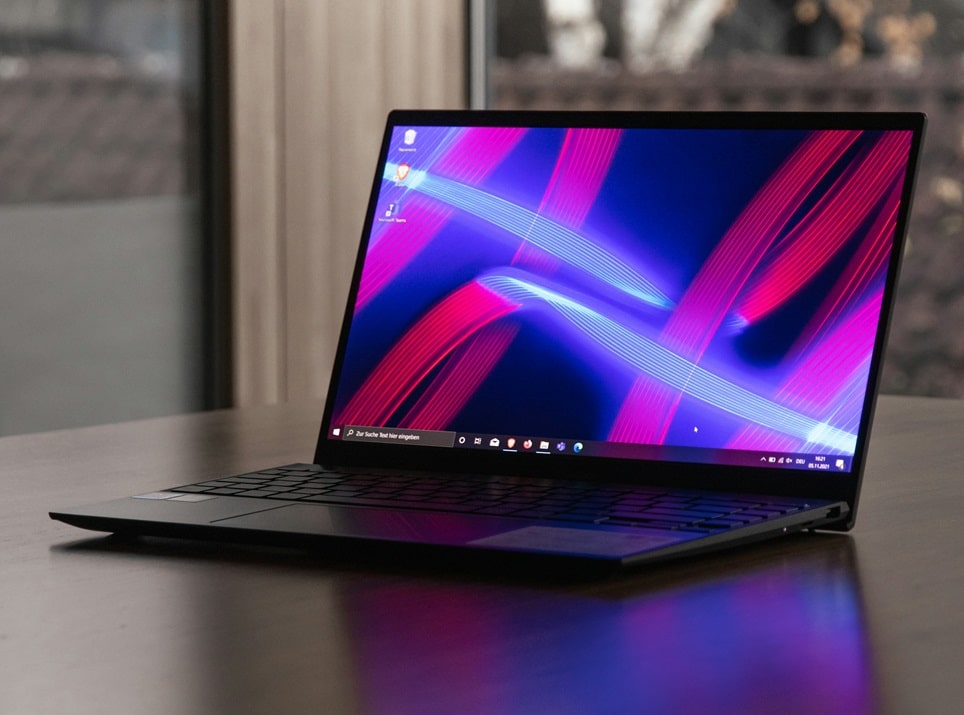
Live wallpapers into a dynamic, visually engaging experience. Unlike static images, live wallpapers can display animations, videos, or even interactive elements, making your workspace feel more alive and personalized. While Windows 11 still lacks built-in support for live wallpapers, a variety of third-party apps make it easy to achieve this effect—without sacrificing system performance.
In this guide, you’ll learn how to download, install, and optimize the best live wallpaper apps for Windows 11. We’ll cover everything from free and open-source options to premium tools, along with tips to ensure smooth performance and minimal resource usage. Whether you want a serene nature scene, a futuristic animation, or a custom video as your background, this guide has you covered.
Why Use Live Wallpapers on Windows 11?
Live wallpapers offer several advantages over traditional static backgrounds:
- Enhanced Aesthetics: Dynamic backgrounds can make your desktop feel more modern and immersive. Whether it’s a gentle ocean wave, a futuristic cityscape, or a real-time weather animation, live wallpapers add depth and personality to your workspace.
- Personalization: With live wallpapers, you can set videos, GIFs, or even web-based animations as your background. This level of customization is perfect for gamers, creatives, and anyone who wants a unique desktop experience.
- Mood Boost: Studies suggest that dynamic visuals can reduce stress and improve focus. A calming nature scene or a motivational animation can make your computer time more enjoyable.
- Showcase Your Style: From minimalist abstract designs to high-energy gaming themes, live wallpapers let you express your personality and interests.
- Interactive Elements: Some apps support wallpapers that react to your mouse movements or system events, adding an extra layer of interactivity to your desktop.
However, it’s important to choose the right app and settings to avoid unnecessary strain on your PC’s resources. Below, we’ll walk you through the best options and how to use them effectively.
Top Live Wallpaper Apps for Windows 11 in 2026
Not all live wallpaper apps are created equal. Some are lightweight and free, while others offer advanced features at a cost. Here are the best options available in 2026:
1.
Lively Wallpaper is widely regarded as the best free live wallpaper app for Windows 11. It’s open-source, lightweight, and supports a wide range of file types, including videos, GIFs, and even web pages. The app is regularly updated and optimized for performance, making it a top choice for both casual users and enthusiasts.
- Supports: MP4, WebM, GIF, and HTML-based wallpapers.
- Features: Multi-monitor support, customizable playback settings, and the ability to pause wallpapers when running full-screen applications.
- Performance: Uses hardware acceleration (GPU) to render wallpapers, reducing CPU usage. Automatically pauses when you’re not on the desktop to save resources.
- Where to Get It: Available on the Microsoft Store and GitHub.
2. Wallpaper Engine (Paid, \$3.99)
Wallpaper Engine is a premium option with a vast library of user-created wallpapers, including animated, interactive, and even 3D backgrounds. It’s highly customizable and integrates with Steam Workshop for easy access to thousands of community-created designs.
- Supports: Videos, GIFs, interactive wallpapers, and even games as backgrounds.
- Features: Advanced customization, support for multiple monitors, and a built-in editor for creating your own wallpapers.
- Performance: Optimized for gaming PCs, with options to limit FPS and reduce resource usage.
- Where to Get It: Steam.
3. Desktop Live Wallpapers (Free with Paid Upgrades)
This app offers a mix of free and premium live wallpapers, with a focus on high-quality animations and 4K videos. It’s user-friendly and includes a built-in library of backgrounds, so you don’t need to source your own files.
- Supports: MP4, WebM, and GIF files.
- Features: Multiple monitor support, customizable playback speed, and a curated collection of wallpapers.
- Performance: Lightweight, with options to adjust quality and performance settings.
- Where to Get It: Microsoft Store.
4.
MyLiveWallpapers provides a large selection of free and premium live wallpapers, including nature scenes, abstract animations, and themed collections. The app is easy to use and offers regular updates with new content.
- Supports: MP4, WebM, and GIF files.
- Features: Daily wallpaper updates, multi-monitor support, and a simple interface.
- Performance: Optimized for low resource usage, with options to pause wallpapers during gameplay or full-screen apps.
- Where to Get It: Official Website.
5.
RainWallpaper is another popular choice, known for its smooth animations and low system impact. It supports a variety of file types and includes a built-in library of wallpapers.
- Supports: MP4, WebM, GIF, and even YouTube videos (with a plugin).
- Features: Multi-monitor support, customizable playback settings, and a built-in wallpaper downloader.
- Performance: Uses hardware acceleration and allows you to set performance profiles for different scenarios (e.g., gaming vs. work).
- Where to Get It: Official Website.
How to Install and Set Up Live Wallpapers on Windows 11
Now that you know the best apps, let’s walk through the process of installing and setting up live wallpapers on your Windows 11 PC.
Step 1: Choose and Download an App
Select one of the apps listed above based on your needs. For this guide, we’ll use Lively Wallpaper as an example, but the process is similar for other apps.
- Visit the Microsoft Store or the app’s official website.
- Click Download or Get to install the app.
- Once installed, open the app from the Start menu.
Step 2: Select a Wallpaper
Most live wallpaper apps come with a built-in library of wallpapers. Here’s how to choose one in Lively Wallpaper:
- Open Lively Wallpaper.
- Browse the available wallpapers in the Library tab. You can filter by category (e.g., Nature, Abstract, Gaming).
- Click on a wallpaper to preview it.
- If you want to use your own video or GIF, click Add Wallpaper and select the file from your PC.
Step 3: Apply the Wallpaper
- Once you’ve selected a wallpaper, click Apply or Set as Wallpaper.
- The app will ask for permission to run in the background. Click Allow.
- Your live wallpaper will now be active! You can adjust settings like playback speed, volume (for wallpapers with audio), and display options.
Step 4: Customize Settings for Performance
To ensure your live wallpaper doesn’t slow down your PC, adjust the following settings:
- Pause on Fullscreen: Enable this option to pause the wallpaper when you’re running games or full-screen apps.
- Hardware Acceleration: Enable this to use your GPU for rendering, reducing CPU usage.
- FPS Limit: Set a lower FPS (e.g., 30 FPS) if you’re concerned about performance.
- Battery Mode: If you’re on a laptop, enable battery-saving mode to pause the wallpaper when unplugged.
Pro Tips for the Best Live Wallpaper Experience
- : For the best visual experience, use 4K or high-bitrate videos. Avoid overly compressed files, as they can look pixelated.
- : Choose a wallpaper that complements your Windows 11 theme and icon colors for a cohesive look.
- Test Performance: If your PC feels sluggish, try lowering the resolution or FPS of the wallpaper. Most apps allow you to adjust these settings.
- Use Multiple Monitors: If you have a multi-monitor setup, select an app that supports spanning wallpapers across screens or setting different wallpapers for each monitor.
- Create Your Own: Some apps, like Wallpaper Engine, allow you to create custom wallpapers using videos, GIFs, or even HTML/CSS.
- Backup Your Wallpapers: If you’ve downloaded or created custom wallpapers, back them up to avoid losing them during app updates or reinstalls.
- Check for Updates: Live wallpaper apps frequently release updates with new features and optimizations. Keep your app up to date for the best experience.
- : For advanced users, combine live wallpapers with Rainmeter skins for a fully customized desktop.
Frequently Asked Questions
1.
Most modern live wallpaper apps are optimized to use minimal resources, especially if you enable hardware acceleration and pause the wallpaper during full-screen tasks. However, if you’re using a low-end PC, you may notice a slight performance impact. In that case, try lowering the resolution or FPS of the wallpaper.
2.
Yes! Most live wallpaper apps support MP4, WebM, and GIF files. Simply add your video to the app’s library and set it as your wallpaper. For best results, use videos with a resolution that matches your screen.
3.
Stick to reputable apps from the Microsoft Store or official websites to avoid malware. Always download wallpapers from trusted sources, and avoid pirated or cracked versions of paid apps.
4.
Yes, but be mindful of battery life. Most apps offer a battery-saving mode that pauses the wallpaper when your laptop is unplugged.
5. Why does my live wallpaper stop working?
If your live wallpaper stops unexpectedly, check the following:
- The app may have crashed. Restart it from the system tray.
- Windows updates or driver updates can sometimes interfere. Try reinstalling the app.
- Some apps require admin privileges to run properly. Right-click the app and select Run as Administrator.
6.
Yes! Apps like Lively Wallpaper and Wallpaper Engine support multi-monitor setups. You can span a single wallpaper across all screens or set different wallpapers for each monitor.
7.
Absolutely. Lively Wallpaper and Desktop Live Wallpapers both offer free versions with a good selection of wallpapers. Paid apps like Wallpaper Engine provide more features and a larger library, but free options are great for most users.
8. How do I remove a live wallpaper?
To switch back to a static wallpaper:
- Open the live wallpaper app.
- Select None or Default Wallpaper.
- Alternatively, right-click your desktop, select Personalize, and choose a static wallpaper from Windows settings.
Troubleshooting Common Issues
If your live wallpaper isn’t playing, try these steps:
- Restart the app from the system tray.
- Check if the app has the necessary permissions to run in the background.
- Reinstall the app if the issue persists.
If your live wallpaper is causing high resource usage:
- Lower the resolution or FPS of the wallpaper.
- Enable hardware acceleration in the app settings.
- Pause the wallpaper when running resource-intensive tasks.
Issue: Audio Playing from Wallpaper
Some live wallpapers include audio. To mute it:
- Open the app settings and look for an audio toggle.
- If the app doesn’t have this option, mute the specific application in Windows Volume Mixer.
Conclusion
Live wallpapers are a fantastic way to personalize your Windows 11 desktop and make your PC feel more dynamic. With the right app and settings, you can enjoy stunning animations without sacrificing performance. Whether you prefer free options like Lively Wallpaper or premium tools like Wallpaper Engine, there’s a solution for every user.
Start by choosing an app that fits your needs, then experiment with different wallpapers and settings to create a desktop experience that’s uniquely yours. With the tips and tricks in this guide, you’ll be able to enjoy live wallpapers smoothly and efficiently.
Now that you’re equipped with everything you need, it’s time to bring your Windows 11 desktop to life!

Loading comments…