

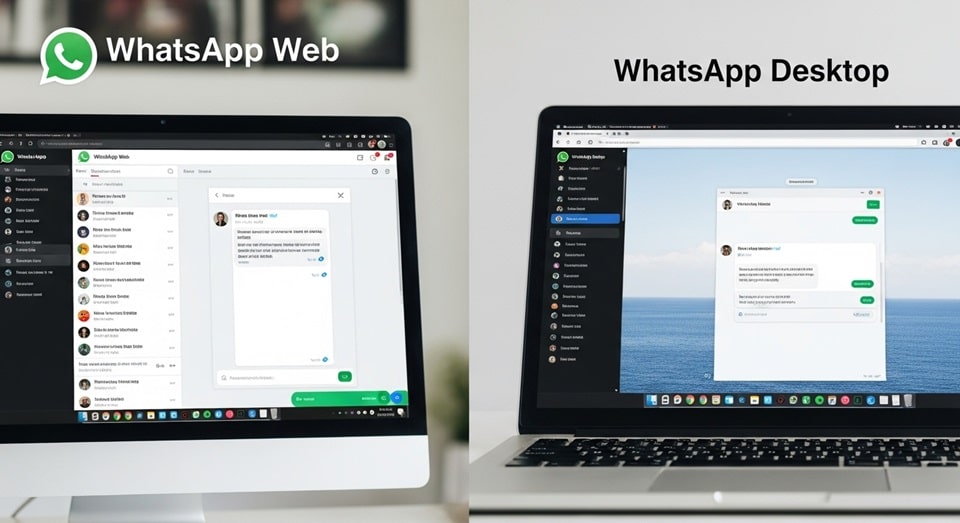
In a world where seamless communication is paramount, WhatsApp has evolved far beyond a simple mobile messaging app. The introduction and continuous improvement of WhatsApp Web and Desktop have made it a powerful multi-platform tool, allowing users to stay connected from their computer without constantly checking their phone. This shift from a mobile-only experience to a truly multi-device ecosystem has revolutionized how people use the service for both personal and professional communication. Whether you’re a student collaborating on a project, a professional managing client conversations, or just someone who prefers typing on a full-sized keyboard, understanding how to effectively use these desktop versions is a game-changer.
The core benefit lies in the ability to access all your chats, photos, videos, and contacts on a larger screen, integrating your messaging workflow directly into your daily computer use. This guide will walk you through the differences, setup processes, and key features of both the web and desktop versions, ensuring you can choose the best option for your needs and get the most out of your WhatsApp experience. The convenience of having your conversations at your fingertips, regardless of the device you’re on, has become a core expectation for modern communication platforms.
For a long time, the biggest limitation of using WhatsApp on a computer was its dependence on the phone. The desktop version was essentially a mirror of your phone, requiring the phone to be connected to the internet and nearby to function. However, the introduction of the multi-device beta and its subsequent full rollout has fundamentally changed this dynamic.
Now, you can link up to four devices to your main account, and they will work independently of your phone’s internet connection. This means you can leave your phone at home and still send and receive messages from your computer. This has been a monumental step forward for the platform, providing a level of freedom and flexibility that was previously unavailable. While there may be some minor limitations, such as not being able to view older chat history on newly linked devices, the overall experience is much more stable and reliable. This new architecture ensures that you can continue your conversations without interruption, even if your phone runs out of battery or loses its connection, which is an invaluable feature for professionals and anyone who needs to be constantly connected. The move to true multi-device support has positioned WhatsApp as a more robust and professional communication tool.
The two main ways to use WhatsApp on your computer are through WhatsApp Web and the WhatsApp Desktop app. While they offer similar core functionalities—sending and receiving messages, sharing files, and managing chats—they are distinct in their implementation and features. WhatsApp Web is a browser-based client that you can access from any modern web browser simply by visiting web.whatsapp.com.
It requires no installation, making it highly portable and accessible from any computer. The Desktop app, on the other hand, is a standalone application that you download and install on your Windows or macOS computer. The primary advantage of the desktop app is that it is often more integrated with the operating system, offering features like native desktop notifications and the ability to use keyboard shortcuts more efficiently. Both methods use the same secure “Linked Devices” system to connect to your phone. Understanding these differences is the first step to choosing the right platform for your daily communication needs. While WhatsApp Web is a quick and easy solution for temporary use, the Desktop app provides a more seamless and integrated experience for regular use on a personal computer. Both options are free and offer a great way to extend your WhatsApp experience beyond your phone.
Getting Started with WhatsApp Web: The QR Code Method
Using WhatsApp Web is a straightforward process that relies on a simple QR code scan to link your phone and computer. The first step is to open your preferred web browser, such as Chrome, Firefox, or Edge, and navigate to the official WhatsApp Web website. Once the page loads, you will see a unique QR code on the screen. This QR code is the key to linking your account. Next, open the WhatsApp application on your phone. On an Android phone, tap the three vertical dots in the top-right corner, then select “Linked devices.” On an iPhone, go to Settings and then tap “Linked Devices.” From there, tap “Link a Device.” Your phone’s camera will open, and you can now point it at the QR code on your computer screen. The connection happens almost instantly, and your chats will begin to sync to the browser window. The entire process takes less than a minute and is designed to be as user-friendly as possible, making it easy for anyone to get started. The simplicity of this method is what makes WhatsApp Web such a popular choice for quick, on-the-go access to your messages, as it doesn’t require any downloads or installations.
The beauty of WhatsApp Web is its accessibility. You can log in from virtually any computer with a modern browser, whether it’s a public library computer, a friend’s laptop, or a work machine. This is particularly useful for professionals who need to respond to messages while working on a desktop or for students collaborating on a project. Once logged in, you can send and receive messages, share files from your computer, and even view and download media from your chats. The interface is clean and familiar, mirroring the design of the mobile app to ensure a smooth transition.
However, it is crucial to remember to log out of WhatsApp Web after you are done, especially if you are on a shared or public computer. You can do this by clicking the three-dot menu in the web interface and selecting “Log out.” You can also manage your active sessions from your phone in the “Linked Devices” section, where you can see all the devices currently logged into your account and log them out remotely if needed. This level of control provides a layer of security and peace of mind when using WhatsApp on a variety of devices, which is a key benefit of the new multi-device system.
While WhatsApp Web is incredibly convenient, it’s important to be aware of a few nuances. For instance, while most features are available, some, like making voice or video calls, may have limited functionality compared to the mobile app or the desktop app. Additionally, while the new multi-device system allows for an independent connection, your chat history might not be fully synced immediately.
The most recent messages will appear quickly, but it can take some time for older conversations to populate, especially in large group chats. This is something the WhatsApp team is constantly working to improve, but it’s a detail worth noting. The web version is also subject to browser limitations, which can sometimes impact performance or the availability of certain features. For example, while you can share files, the process might be slightly different than on the desktop app. Overall, for most day-to-day communication, WhatsApp Web is an excellent and highly functional solution that provides a seamless bridge between your mobile and desktop worlds. For more information on WhatsApp features, you can visit the CNN website.
Setting Up the WhatsApp Desktop App
For a more permanent and integrated experience on your computer, the WhatsApp Desktop app is the ideal choice. Unlike the web version, the desktop app is a native application that is installed directly on your Windows or macOS operating system. To get started, you will need to download the app from the official WhatsApp website or from your computer’s app store, such as the Microsoft Store or the Mac App Store.
Once the download is complete, follow the installation prompts. After the installation, you will be presented with the same QR code that you see on WhatsApp Web. The process of linking your account is identical: simply open the WhatsApp app on your phone, go to “Linked Devices,” tap “Link a Device,” and scan the QR code on your computer screen. This one-time setup provides a much more stable and reliable connection, as it is not dependent on a browser tab being open. It also often syncs more of your chat history than the web version, providing a more complete and consistent experience from the get-go. This is especially useful for users who need to access old messages for work or reference.
The primary benefit of using the desktop app is its deeper integration with your computer’s operating system. This translates to a more fluid and responsive user experience. For example, the desktop app can send native notifications that appear directly on your desktop, even when the app is minimized. This ensures you never miss an important message, as the notifications are not tied to a browser tab. The app also supports system-level keyboard shortcuts, which can significantly speed up your workflow.
You can use familiar shortcuts to start new chats, mute conversations, or switch between different windows. Furthermore, the desktop app can take advantage of your computer’s hardware, providing a more stable and high-quality experience for voice and video calls. The app is also more secure, as it can often use biometric authentication or a PIN code to unlock, providing an extra layer of protection on a shared computer. The desktop app is the superior choice for anyone who uses WhatsApp as a core part of their daily routine, whether for work or personal communication, as it offers a more streamlined and efficient experience. The enhanced security features of the app are particularly appealing for those who handle sensitive information or want to protect their privacy in a multi-user environment. For further information, you can visit the USA Today website.
The main differences between the web and desktop versions come down to convenience versus performance and integration. WhatsApp Web is the ultimate quick-access tool. It’s great for checking a message on a machine that isn’t your own or for a single, temporary use. It’s light, fast to set up, and leaves no lasting footprint on the computer after you log out. However, if you use WhatsApp every day on the same computer, the desktop app is the clear winner. Its performance is often faster, and it provides a more robust and native experience that feels more like a part of your computer’s operating system.
The desktop app is also designed to be a more stable platform, so you’re less likely to encounter connectivity issues or other hiccups that can sometimes affect browser-based applications. The choice between the two really depends on your usage habits. A good analogy is comparing a temporary web-based document editor to a full-featured desktop office suite; one is great for quick edits, while the other is built for heavy-duty, consistent use. The desktop app is for those who want to make WhatsApp a core part of their daily workflow, while the web version is perfect for those who only need it occasionally. You can read more about this on the BBC news section.
Here is a detailed comparison of the key features of both WhatsApp Web and the WhatsApp Desktop app to help you decide which one is right for you. While both platforms have evolved to offer similar core functionalities, the subtle differences in their design and implementation can have a big impact on your overall experience. The multi-device support has largely closed the gap in functionality between the two, but the desktop app still maintains a slight edge in terms of performance and integration.
The key is to think about how you use your computer and what your primary needs are. If you are a casual user, the convenience of the web version is likely all you need. If you are a power user or a professional, the added features and stability of the desktop app will be well worth the installation. The right tool for you is the one that best fits your workflow and helps you stay connected and productive. This comparison is not about declaring a winner but about providing you with the information you need to make the best choice for yourself. Understanding the nuances of each platform is essential to getting the most out of your WhatsApp experience.
- Installation: WhatsApp Web requires no installation, as it runs entirely in your web browser. The WhatsApp Desktop app must be downloaded and installed on your computer’s operating system (Windows or macOS). This makes WhatsApp Web more portable and accessible from any computer, while the Desktop app provides a more permanent and dedicated solution.
- Login Process: Both platforms use the same “Linked Devices” QR code scan method to link your phone. However, the Desktop app may require an initial setup and linking process, while the web version is just a quick scan and go. Once linked, the new multi-device support keeps you logged in on both platforms.
- Notifications: The WhatsApp Desktop app provides native desktop notifications that appear directly on your screen, even when the app is minimized. WhatsApp Web notifications are tied to your browser and may not be as prominent or reliable, especially if you have multiple tabs open. This makes the Desktop app superior for users who want to stay on top of messages.
- Performance: The Desktop app is generally faster and more responsive than the web version. Because it’s a native application, it can take advantage of your computer’s resources more efficiently, leading to a smoother user experience, especially during video calls or when handling large files. The web version’s performance can sometimes be affected by your browser’s performance and other open tabs.
- Security: While both platforms are end-to-end encrypted, the Desktop app can offer an extra layer of security with system-level features like biometric authentication or a PIN code to unlock the app. This is a crucial feature for anyone who shares their computer with others or wants to ensure their messages are kept private.
- Voice and Video Calls: The Desktop app provides a more stable and feature-rich experience for voice and video calls. While the web version may have some limitations, the native app is built to leverage your computer’s microphone and camera for a higher quality calling experience, making it the better option for business calls or staying in touch with family.
- Keyboard Shortcuts: The Desktop app supports a wider range of system-level keyboard shortcuts, which can help you navigate chats, start new conversations, and perform other actions more quickly. While the web version also has shortcuts, they are often less intuitive and more limited than the ones available on the native app. This is a huge time-saver for power users who spend a lot of time on the app.
One of the most powerful aspects of using WhatsApp on your computer is the ability to seamlessly share files. The process is intuitive and efficient, allowing you to drag and drop documents, images, and other media directly into your chats. This is a massive advantage over the mobile app, where you have to navigate through your phone’s file system, which can be cumbersome and time-consuming. For professionals, this means you can quickly share a presentation, a PDF, or a spreadsheet with a colleague or client without ever leaving your computer. For students, it means you can share lecture notes or a research paper with your study group in seconds.
The ability to access and share your computer’s files directly from within WhatsApp is a huge productivity boost that makes both the web and desktop versions incredibly useful. It transforms WhatsApp from a simple messaging tool into a powerful collaboration platform that can be used for a wide range of tasks, from sharing work documents to sending photos of your vacation to your family. The file-sharing functionality is a core feature that bridges the gap between your mobile and desktop worlds, making the whole experience more seamless and efficient. This is a game-changer for anyone who uses their computer for work or school, as it eliminates the need to constantly switch between devices to send and receive files.
The Linked Devices feature is the cornerstone of the modern WhatsApp experience on your computer. This feature allows you to manage all the devices that are connected to your account. On your phone, you can go to the “Linked Devices” section to see a list of all the active sessions, including your computer’s browser or desktop app. From here, you can easily log out of any device with a single tap, which is a great way to secure your account if you ever forget to log out on a public or shared computer.
The system is designed to be highly secure, with every message and call still protected by end-to-end encryption. Even when you are using WhatsApp on your computer, your messages are encrypted and only accessible to you and the person you are communicating with. The multi-device support is a testament to the platform’s commitment to both convenience and privacy, and it is a feature that has been highly anticipated by users for years. It provides a level of freedom and security that was previously unavailable, and it has made WhatsApp a more versatile and powerful tool for communication, regardless of the device you are on. The ability to manage all your linked devices from one central location on your phone is a huge advantage.
For those who use WhatsApp for business or professional purposes, the ability to use the app on a computer is a crucial advantage. It allows for faster typing, easier file sharing, and more efficient multitasking. You can keep a chat window open on your screen and respond to messages in real-time while working on other tasks, such as writing an email or creating a presentation. This kind of integration is essential for productivity and can save a significant amount of time and effort. For example, a salesperson can use the desktop app to quickly respond to customer inquiries while keeping their contact list and product information easily accessible on their computer.
A team leader can manage a large group chat and share important documents with their team without having to switch back and forth between their phone and computer. The desktop versions of WhatsApp have transformed the app from a personal messaging tool into a professional communication platform, and this has been a major factor in its continued growth and success. The ability to use a full keyboard and screen for communication is a huge advantage that cannot be overstated, and it is a key reason why so many people are now using WhatsApp on their computers for a wide range of purposes, from professional to personal. The ease of use and efficiency of the desktop versions have made them a go-to for many professionals.
In conclusion, both WhatsApp Web and the WhatsApp Desktop app provide excellent ways to extend your messaging experience from your phone to your computer. The choice between the two ultimately comes down to your personal needs and preferences. If you need a quick, no-install solution for occasional use, WhatsApp Web is a perfect choice. If you are a regular user who wants a more integrated, stable, and feature-rich experience, the Desktop app is the superior option. Regardless of your choice, both platforms offer the same secure, end-to-end encrypted messaging, and the new multi-device support has made them more reliable and functional than ever before.
By understanding how to effectively use both the web and desktop versions, you can unlock a new level of productivity and convenience in your daily communication. It’s a testament to how far the platform has come, and it shows that WhatsApp is committed to providing a seamless experience for its users, no matter what device they are on. The ability to have a single conversation thread that follows you from your phone to your computer and back again is a core part of the modern communication experience, and WhatsApp has nailed it. It is a powerful example of how a simple mobile app can evolve into a robust and versatile platform that caters to a wide range of user needs. The future of communication is multi-platform, and WhatsApp is leading the way.
The process of setting up and using WhatsApp on your computer has been streamlined to be as simple and secure as possible. The QR code method is a genius solution that allows for a quick and secure link without the need for usernames or passwords. This not only makes the process easier but also adds a layer of security, as you have to physically scan the code with your phone to log in. The new multi-device system, which allows you to use WhatsApp on your computer even when your phone is offline, has removed the last major barrier to widespread adoption of the desktop versions.
This makes WhatsApp a viable alternative to other desktop messaging apps and has solidified its place as a top-tier communication platform. The convenience of having all of your chats and contacts available on a larger screen with a full keyboard is a huge benefit that cannot be overstated. It is a simple but powerful change that has a big impact on the daily lives of millions of users, and it is a great example of how a simple feature can transform a product and make it a staple in the digital world. The ease of use and security of these features are a testament to the WhatsApp team’s commitment to a seamless user experience. The process is a simple one, but the results are incredibly powerful and make the entire experience of using WhatsApp that much better.
