

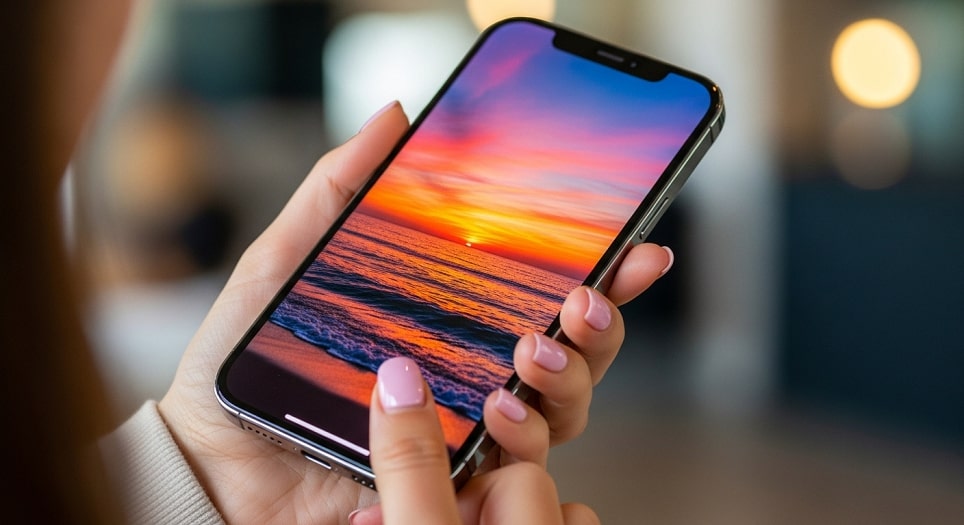
Personalizing an iPhone begins with visuals, and nothing shapes the everyday experience more immediately than the wallpaper you see each time you unlock your device. Apple has steadily expanded wallpaper customization options across iOS versions, transforming what was once a simple background image into a layered system of Lock Screen widgets, dynamic effects, Focus modes, and personalized Home Screen aesthetics. Understanding how these features work together allows users to fully control the look and feel of their iPhone without third-party tools.
This guide provides a comprehensive, step-by-step explanation of how to change, customize, and optimize wallpapers on an iPhone. It covers native iOS features, image preparation tips, Live Photos, depth effects, Focus-based wallpaper switching, and troubleshooting common issues. The instructions apply to modern iOS versions while noting variations where behavior may differ slightly across devices.
Whether you prefer minimal design, dynamic motion, or productivity-focused layouts, mastering wallpaper customization gives you greater control over how your iPhone looks and functions throughout the day.
Understanding iPhone Wallpaper Types
Before changing a wallpaper, it is important to understand how iOS categorizes and uses different background types. Wallpapers are no longer limited to a single static image applied universally across the device. Instead, Apple separates them into distinct layers that serve different purposes.
Lock Screen Wallpaper
The Lock Screen wallpaper appears when the iPhone is locked or when it wakes from sleep. In recent iOS versions, this screen supports widgets, depth effects, font customization, and Live Photo animations. It is designed to balance visual appeal with glanceable information.
Home Screen Wallpaper
The Home Screen wallpaper sits behind app icons and widgets. Unlike the Lock Screen, it prioritizes clarity and contrast to ensure icons remain legible. Apple allows the Home Screen wallpaper to differ from the Lock Screen image or match it exactly.
Dynamic and Live Wallpapers
Dynamic wallpapers use subtle motion effects that respond to device movement, while Live wallpapers animate briefly when pressed on the Lock Screen. These options require compatible hardware and settings but add a sense of depth and interactivity.
How to Change Wallpaper Using iPhone Settings
The Settings app remains the most reliable way to change wallpapers because it provides full access to all customization features. This method works consistently across iOS versions and devices.
Step-by-Step Instructions
Begin by opening the Settings app on your iPhone. Scroll down and tap Wallpaper, then select Add New Wallpaper. This opens the wallpaper gallery, where you can choose from Apple’s curated collections or your own photos.
Select an image or style, then customize it using available tools such as zoom, filters, widgets, and depth effects. When finished, tap Add and choose whether to set it as a Lock Screen, Home Screen, or both.
Choosing Between Apple Wallpapers and Personal Photos
Apple wallpapers are optimized for screen resolution and system effects, making them ideal for users who want a polished look with minimal setup. Personal photos allow for deeper emotional connection and personalization but may require cropping or adjustment for best results.
Setting Different Wallpapers for Lock Screen and Home Screen
iOS allows complete separation between Lock Screen and Home Screen wallpapers, enabling users to balance aesthetics and usability.
After selecting a wallpaper, iOS prompts you to assign it. Choosing Customize Home Screen allows you to apply a different image or a blurred version of the Lock Screen wallpaper. This helps maintain icon visibility while preserving visual cohesion.
Many users prefer detailed or portrait-style images on the Lock Screen and simpler, high-contrast images on the Home Screen. This approach reduces visual clutter and improves app recognition.
Using Photos App to Set a Wallpaper
Another quick method for changing wallpaper involves using the Photos app directly. This approach is ideal when browsing images and deciding spontaneously to use one as a background.
Steps to Apply from Photos
Open the Photos app and select an image. Tap the Share icon, then choose Use as Wallpaper. You will be redirected to the wallpaper editor, where you can adjust positioning and effects before applying it.
While convenient, this method offers fewer customization options compared to the Settings app, particularly for Lock Screen widgets and font styles.
Creating and Customizing Lock Screen Widgets
Modern iOS versions integrate widgets directly into the Lock Screen, transforming it into a functional dashboard.
When customizing a Lock Screen wallpaper, tap the widget area beneath the clock or above the date. You can add widgets for weather, battery status, calendar events, fitness metrics, and more. These widgets update dynamically and adapt to Focus modes.
Choosing widgets that match your daily routine reduces the need to unlock the phone repeatedly, improving efficiency and battery usage.
Using Focus Modes to Change Wallpapers Automatically
One of the most powerful wallpaper features in iOS is its integration with Focus modes. Focus allows different wallpapers to appear based on time, location, or activity.
For example, a work Focus can display a neutral wallpaper with productivity widgets, while a personal Focus shows a family photo and leisure-related apps. Each Focus can have its own Lock Screen and Home Screen combination.
To set this up, open Settings, tap Focus, select a Focus mode, and customize its associated screens.
Best Practices for Choosing the Perfect Wallpaper
Selecting the right wallpaper goes beyond personal taste. Practical considerations ensure the wallpaper enhances usability rather than distracting from it.
- Resolution and Orientation: Choose images that match your iPhone’s screen resolution and portrait orientation to avoid blurring or cropping issues. High-resolution images maintain sharpness across widgets and icons.
- Contrast and Readability: Wallpapers with moderate contrast improve text and icon visibility. Avoid overly bright or busy backgrounds that compete with interface elements.
- Color Psychology: Cooler tones promote calm and focus, while warmer colors add energy. Selecting colors aligned with your routine can subtly influence mood.
- Minimalism for Productivity: Simple wallpapers reduce cognitive load, especially for work-focused Home Screens. Minimal designs help apps stand out clearly.
- Personal Meaning: Photos with emotional value increase satisfaction and engagement. Balance sentiment with clarity for the best experience.
- Battery Considerations: Dark wallpapers on OLED iPhones can contribute to reduced power usage, especially when combined with Dark Mode.
Troubleshooting Common Wallpaper Issues
Occasionally, users encounter problems when changing or displaying wallpapers. Understanding common issues helps resolve them quickly.
If wallpapers appear blurry, ensure the image resolution matches the device and disable excessive zoom. If Live wallpapers do not animate, check that Live Photos are enabled and that Low Power Mode is turned off.
For widgets not updating, restarting the device or re-adding the widget often resolves synchronization issues.
Pro Tips for Advanced iPhone Wallpaper Customization
Experienced users can take wallpaper customization further with thoughtful refinements.
Use photo editing tools to add subtle gradients that improve widget contrast. Pair wallpapers with matching app icon styles for a cohesive aesthetic. Periodically rotate wallpapers seasonally or monthly to keep the interface feeling fresh without constant adjustments.
Backing up favorite wallpapers in a dedicated album ensures easy access when switching devices or restoring settings.
Frequently Asked Questions
Can I use different wallpapers on multiple iPhones with the same Apple ID?
Yes. Wallpapers are device-specific settings and do not automatically sync across devices, even when using the same Apple ID.
Do wallpapers affect iPhone performance?
Static wallpapers have no noticeable impact on performance. Live and Dynamic wallpapers may use slightly more resources but remain optimized for modern hardware.
Why does my wallpaper dim automatically?
iOS may dim wallpapers due to Dark Mode, Reduce White Point, or Focus settings. Adjust display settings to control brightness behavior.
Conclusion
Changing and customizing your iPhone wallpaper is more than a cosmetic adjustment; it is a way to tailor the device to your lifestyle, workflow, and personal preferences. With support for Lock Screen widgets, Focus-based automation, Live Photos, and high-resolution imagery, iOS offers a robust set of tools for meaningful personalization.
By understanding how wallpaper types work, using best practices for image selection, and leveraging advanced features like Focus modes, users can create an iPhone experience that feels both visually appealing and functionally efficient. Mastery of these tools ensures your device not only looks the way you want but also supports how you use it every day.
