

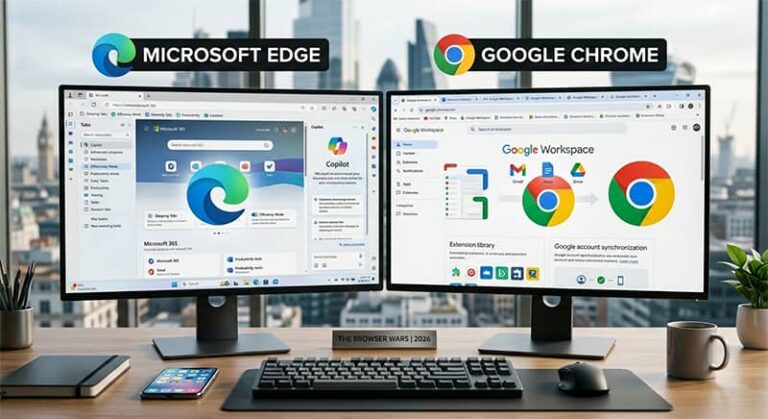
Both Microsoft Edge and Google Chrome are built on the same Chromium engine, run on the same platforms, and support the same extension library. On the surface, choosing between them feels like it should not matter. For power users who spend six to ten hours a day inside a browser — juggling tabs, research workflows, productivity tools, and resource-heavy web applications — the differences between these two browsers have real consequences on speed, battery life, RAM consumption, and daily workflow.
This guide breaks down every dimension that matters to a demanding user: raw performance benchmarks, memory efficiency, AI feature depth, privacy controls, extension ecosystem, and cross-platform behavior. The goal is not to declare one universally better — it is to help you make the right call for your specific setup and working style.
The Shared Foundation: What Both Browsers Have in Common
Before comparing differences, it is worth being precise about the shared base. Both Edge and Chrome use the open-source Chromium rendering engine, which means they render web pages through identical logic. JavaScript execution, CSS interpretation, and web compatibility are virtually indistinguishable between the two. Any website that works in Chrome works in Edge, and vice versa. Both browsers also support the full Chrome Web Store extension library. Edge adds a second source — the Microsoft Add-ons store — but Chrome extensions install and run on Edge without modification.
This shared foundation matters because it eliminates a category of concern that dominated browser debates a decade ago: compatibility. You will not find sites that break on one but not the other. The real competition happens in the layer built on top of Chromium — how each company has chosen to optimize memory, integrate AI, handle privacy, and serve their respective ecosystem.
Both browsers are also free, available on Windows, macOS, iOS, Android, and Linux, and receive security updates on a similar cadence. Edge does not run on ChromeOS natively, though it can be installed via the Linux container. Chrome settings and Edge settings share a similar structure, which means switching between the two does not require relearning how to configure your browser.
Performance and Speed: Benchmarks vs. Real-World Use
In standardized benchmark tests — Speedometer 3.0, JetStream 2, and MotionMark — Chrome and Edge consistently trade positions with no decisive winner. Chrome tends to score marginally higher in raw JavaScript execution benchmarks on certain hardware configurations. Edge frequently matches or ties Chrome in page rendering benchmarks, particularly on Windows machines where Microsoft’s OS-level optimizations apply.
The more meaningful performance difference for power users is not peak speed — it is sustained efficiency under load. When you have fifteen to twenty tabs open, several with active video or complex web applications running, the two browsers behave very differently.
Edge’s Sleeping Tabs feature automatically places inactive tabs into a low-resource state, releasing the memory and CPU those tabs were consuming without closing them. When you return to a sleeping tab, it reloads in under a second in most cases. Independent testing with ten heavy tabs open consistently shows Edge consuming between 790MB and 870MB of RAM, while Chrome under equivalent conditions uses between 950MB and 1.4GB. For users on machines with 8GB of RAM, that gap is the difference between a smooth session and a browser that makes every other application sluggish.
Chrome’s Memory Saver feature, introduced as Google’s answer to Sleeping Tabs, works on a similar principle but is less aggressive. Users running Chrome with heavy tab counts on lower-spec laptops will notice more system strain. On high-end machines with 16GB or more of RAM, the difference is less significant, and Chrome’s raw speed in the foreground tab becomes the primary variable.
For battery life, Edge holds a consistent advantage on Windows laptops. Edge can directly communicate with Windows’ power management subsystem, reducing background wake-ups and leveraging hardware acceleration more efficiently than Chrome’s platform-agnostic approach allows. On macOS, Chrome and Edge perform more similarly, though Safari remains the gold standard for battery efficiency on Apple hardware.
AI Features: Edge Copilot vs. Chrome Gemini
AI integration has become one of the primary battlegrounds for browser development, and this is the area where Edge and Chrome have diverged most sharply in their approaches.
Microsoft Edge has built Copilot deeply into the browser UI. The Copilot sidebar is accessible from any page without opening a new tab or switching applications. It can summarize the current page, answer questions about the content you are reading, compare information across tabs, draft emails or documents using context from your browsing session, and help organize research into structured notes. The Journeys and Collections features let power users build persistent, annotated research threads across multiple sessions. Edge is also introducing on-device AI features for certain tasks, which process data locally rather than sending it to a remote server.
Google’s Gemini integration in Chrome takes a different approach. Rather than embedding a sidebar assistant into the browser shell, Google routes AI through the search interface and Google Workspace. If you use Gmail, Google Docs, and Google Search as your primary productivity stack, Gemini’s assistance is woven into each of those surfaces. Chrome’s AI summarization and tab organization features are available but require navigating through Google’s product layer rather than a persistent browser sidebar.
For power users who work primarily within Microsoft 365 — Word, Excel, Outlook, Teams — Edge’s Copilot integration creates a workflow advantage that is difficult to replicate in Chrome. For users whose work lives inside Google Workspace, the reverse is true. The AI features in both browsers are most powerful when they connect to the ecosystem you already use every day.
Privacy and Security: A More Nuanced Picture Than You Expect
Neither Chrome nor Edge is a privacy browser by the standards of tools like Brave, Firefox, or Tor. Both collect telemetry data by default, and both are made by companies with significant stakes in advertising and user data. The question for power users is which browser gives you more practical control over what gets collected and shared.
Edge includes three built-in tracking prevention levels — Basic, Balanced, and Strict — accessible without installing any extension. Balanced mode, which is the default, blocks trackers from sites you have not visited while allowing trackers on sites you use regularly to prevent functionality breakage. Strict mode blocks significantly more, with some sites breaking as a result. Chrome’s tracking protection is less granular out of the box, relying more on its Privacy Sandbox initiative and third-party extensions like uBlock Origin to fill the gap.
On the security side, Edge uses Microsoft Defender SmartScreen for malicious site detection. Security testing has shown SmartScreen blocking over 97% of phishing attempts and socially engineered malware attempts in independent evaluations, outperforming the baseline Chromium protection that Chrome relies on. Edge also includes an Enhanced Security mode that disables Just-In-Time JavaScript compilation on unfamiliar sites, reducing the attack surface for zero-day exploits at the cost of marginally slower page execution on those sites.
Chrome uses Google Safe Browsing, which is updated extremely frequently and is the industry standard for real-time malicious URL detection. For most users, the practical security difference between the two is small. The more meaningful privacy distinction is in data collection: Google’s business model is built on advertising revenue tied to user behavior data, while Microsoft’s is more diversified into enterprise software and cloud services. Edge’s data collection is not minimal, but it is less central to Microsoft’s core revenue stream than Chrome’s is to Google’s.
Extensions: Chrome Web Store vs. Edge’s Dual Access
Chrome’s extension library remains the largest in any browser ecosystem, with over 150,000 extensions available in the Chrome Web Store. Every major productivity tool, developer utility, password manager, and workflow automation extension was built for Chrome first. The library’s depth is a genuine competitive advantage for power users who rely on specific extensions to function.
Edge closes this gap in a practical way: it supports installation from both the Chrome Web Store and the Microsoft Edge Add-ons store. In daily use, this means Edge users can install any Chrome extension without modification. The Microsoft Add-ons store adds a smaller curated collection, but the Chrome library coverage makes Edge extension access effectively equivalent to Chrome’s for the vast majority of use cases.
The one meaningful remaining difference is that some enterprise and developer extensions are explicitly tested and supported only for Chrome, particularly in corporate environments where IT departments specify browser requirements. Power users in these environments may find that certain internal tools or enterprise web applications are certified only for Chrome. This is a legacy compatibility consideration rather than a technical limitation, but it is worth verifying before switching in a work context.
For personal productivity, both browsers give you identical notification control, extension management, and developer tools access. Chrome’s DevTools and Edge’s Developer Tools are both derived from the same Chromium codebase and offer comparable capability for web development work.
Cross-Platform Sync: Google Account vs. Microsoft Account
Both browsers sync bookmarks, passwords, browsing history, extensions, and settings across devices when you are signed in to the associated account. The practical difference is which account you are already using and what devices you own.
Chrome’s sync is tied to your Google Account and is the most seamless option if you use Android, Chromebooks, or Gmail as your primary email. Bookmarks, saved passwords, and open tabs appear instantly on any device where you sign in to Chrome with the same Google Account. The integration is so tight that for heavy Android users, switching away from Chrome creates visible friction — saved passwords no longer autofill in other Android apps, and Google’s password manager stops working outside the Chrome environment.
Edge’s sync ties to your Microsoft Account, which is the natural choice for Windows users who already use Outlook, OneDrive, or Microsoft 365. Edge’s sync is comprehensive and reliable, and the vertical tab view that syncs across devices is a feature that has no equivalent in Chrome without an extension. On iOS and Android, Edge is a capable browser but holds a much smaller user base than Chrome — around 0.1% mobile market share versus Chrome’s 63% — which means some mobile-specific features receive less development attention.
For users who work across Windows and Android, Chrome’s sync ecosystem is the more cohesive experience. For users primarily on Windows with some macOS, Edge’s sync and the native Windows integration provide a tighter end-to-end workflow. Understanding how to manage saved passwords in Chrome is worth knowing regardless of which browser you land on, since both use similar password management approaches.
Productivity Features Built Directly Into Each Browser
Edge ships with a set of productivity tools embedded into the browser shell that Chrome does not include by default. Vertical tabs, Collections for research organization, a built-in PDF editor with annotation and signing support, a screenshot tool with markup capabilities, and an Immersive Reader mode for distraction-free reading are all present without any extension installation. For power users who prefer a lean, low-extension setup, Edge’s built-in toolkit is meaningfully deeper than Chrome’s.
Chrome takes the opposite philosophy: keep the browser minimal and let extensions handle specialization. This approach works well for users who prefer precise control over which features are active and do not want features they do not use consuming browser resources. The Chrome extension ecosystem provides equivalents for every built-in Edge feature, but it requires deliberate extension curation to replicate what Edge offers natively.
Edge also includes a Shopping mode that automatically surfaces coupons and price comparison data when you visit retail sites. For users who do not shop online frequently, this is easy to ignore. For frequent online shoppers, it is a genuinely useful feature that Chrome requires a third-party extension to replicate. Edge’s Sidebar can also host web apps and tools alongside your main browsing window, which reduces the need to switch between tabs for reference material.
One area where Chrome maintains a clear lead is developer tooling. Chrome DevTools has a longer history, more extensive documentation, and is more commonly referenced in web development communities. Edge DevTools are functionally equivalent for most tasks, but the documentation ecosystem, community resources, and tool integrations favor Chrome for professional web development work. If you regularly clear browser cache and run performance profiles during development work, both browsers support these workflows equally through their respective developer panels.
Market Share and Ecosystem Reality
Chrome holds approximately 66% of the global desktop browser market. Edge holds around 8% on desktop and just 0.1% on mobile. These numbers matter for power users in a specific way: the size of Chrome’s user base drives how web applications are tested and how extensions are developed. When a company ships a web app, it is tested thoroughly in Chrome first. When an extension developer runs into a conflict, Chrome’s larger install base means the fix comes faster. This is a soft advantage that does not show up in benchmarks but surfaces in daily use.
The practical implication is that switching to Edge from Chrome will not cause problems for the vast majority of web applications and services. Both browsers are Chromium-based, and site compatibility is not a real concern. The edge cases where Chrome’s market dominance matters are in enterprise environments where IT teams certify specific browser versions, in web development workflows where Chrome DevTools are the standard reference point, and in cases where a specific extension has not been updated to handle Edge’s implementation correctly.
Which Browser Should Power Users Choose?
The answer depends on your ecosystem and working style, not on which browser is objectively superior.
Choose Edge if you are on Windows with 8GB or less of RAM and regularly keep more than ten tabs open. The memory efficiency is meaningful at that spec level. Choose Edge if you use Microsoft 365 as your primary productivity suite — the Copilot integration, OneDrive sync, and Teams connectivity make Edge the more cohesive environment. Choose Edge if you want built-in tracking prevention, PDF editing, and Immersive Reader without managing extensions.
Choose Chrome if your work lives inside Google services — Gmail, Google Docs, Google Drive, and YouTube. The integration between Chrome and Google’s ecosystem is seamless in a way that Edge cannot fully replicate. Choose Chrome if you are doing professional web development work where DevTools documentation and community support are part of your workflow. Choose Chrome if you use Android as your primary mobile device and need frictionless cross-device sync.
Both browsers are genuinely capable tools. The power user who has never seriously tested the alternative browser would likely be surprised by how little disruption a switch causes in practice. Running both in parallel — Chrome for Google-integrated tasks and Edge for Windows-native productivity work — is also a reasonable approach that many professional users settle on. You can also use incognito mode in Chrome or Edge’s InPrivate browsing for sessions where you want neither browser’s history or profile data active.
Frequently Asked Questions
Is Edge faster than Chrome?
In raw JavaScript benchmarks, Chrome often scores marginally higher. In real-world use with many tabs open, Edge is generally faster because its Sleeping Tabs and Efficiency Mode features manage RAM more aggressively than Chrome’s equivalent Memory Saver. On Windows laptops, Edge’s OS-level integration also makes it more battery-efficient under typical workloads.
Can Edge use Chrome extensions?
Yes. Edge supports the full Chrome Web Store library. You can install any Chrome extension in Edge directly, and it will run without modification. Edge also has its own separate Add-ons store with additional extensions, giving users two sources for browser extensions rather than one.
Which browser is better for privacy?
Between Chrome and Edge, Edge offers more built-in privacy control through its three-tier tracking prevention system and Enhanced Security mode. Neither browser should be considered a privacy-focused tool by the standards of Brave, Firefox, or Tor. For serious privacy requirements, those alternatives are the better choice.
Does switching from Chrome to Edge mean losing bookmarks and history?
No. Edge includes an import tool during setup and under Settings that pulls bookmarks, saved passwords, browsing history, and settings directly from Chrome with a few clicks. The process takes under two minutes and transfers everything accurately.
Is Microsoft Edge safe to use?
Yes. Edge is one of the most secure mainstream browsers available, using Microsoft Defender SmartScreen for threat detection and offering Enhanced Security mode for additional protection. It receives regular security updates on a similar cadence to Chrome. Independently tested SmartScreen performance at blocking phishing and malware is among the best of any browser currently available.
Which browser uses less RAM?
Edge consistently uses less RAM than Chrome under equivalent conditions, particularly with many tabs open. The difference is most significant on machines with 8GB or less of RAM. Edge’s Sleeping Tabs feature is more aggressive than Chrome’s Memory Saver, which is the primary reason for the gap. On machines with 16GB or more of RAM, the practical impact of this difference is minimal.
Should I use Chrome or Edge on a Windows PC?
Edge has a genuine home-field advantage on Windows due to OS-level integration with power management, Microsoft Defender, and Windows-specific hardware acceleration. If you are primarily a Windows user without a strong investment in Google’s ecosystem, Edge is worth using as your default. If you rely on Android for mobile, use Google Workspace at work, or have built your workflow around Chrome extensions over several years, Chrome is the more coherent choice.
