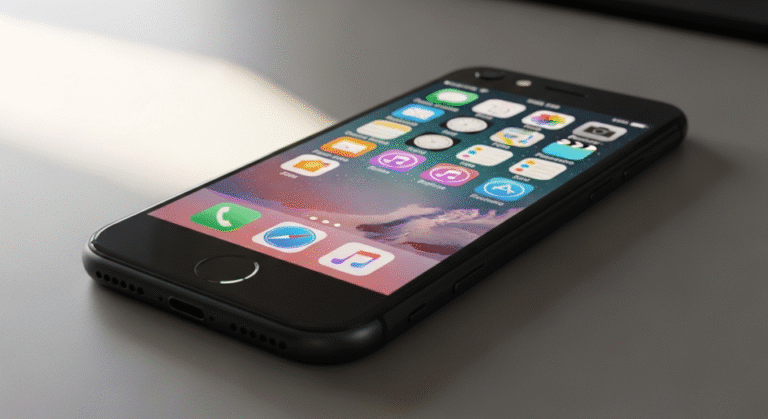
The question of whether an iPhone is locked or unlocked is one of the most critical factors for mobile users today. An unlocked iPhone represents ultimate freedom in the telecommunications world, allowing you to switch between service providers at will, use local SIM cards while traveling internationally to avoid exorbitant roaming fees, and significantly increasing the resale value of your device. When a smartphone is “locked,” it is electronically tethered to a specific carrier’s network, meaning it will refuse to recognize or activate with a SIM card from a competing provider. This restriction is typically implemented by carriers who sell devices on installment plans or subsidized contracts to ensure the customer remains with their service until the hardware is fully paid for. Understanding the status of your device is essential before you attempt to sell it, travel abroad, or switch to a more affordable data plan.
Determining the lock status of an iPhone has become significantly easier with recent updates to the iOS operating system, but there are still nuances that users must understand. In the past, users often had to rely on shady third-party websites or call customer support lines and wait on hold for long periods just to get a simple answer. Today, Apple has integrated transparency features directly into the software, making it possible to verify your status in seconds. However, technical glitches, refurbished device histories, and complex carrier policies can sometimes cloud the process. This guide provides an exhaustive look at every verified method to check your iPhone’s lock status, ensuring you have the information needed to navigate the mobile landscape with confidence.
Before diving into the “how-to” aspects, it is important to distinguish between a “carrier lock” and other types of locks, such as the Activation Lock or a simple passcode lock. An Activation Lock is a security feature tied to Find My and your Apple ID, preventing anyone else from using the device if it is lost or stolen. A carrier lock, on the other hand, is purely a network restriction. Even if you have full access to your phone and your Apple ID is signed in, the device may still be locked to a provider like AT&T, Verizon, or T-Mobile. This distinction is vital because clearing an Activation Lock requires your password, while clearing a carrier lock requires meeting specific financial or contractual obligations with your service provider.
Modern iPhones, particularly those running iOS 14 and later, offer the most direct path to this information. As we explore the various methods available, we will cover the built-in settings menu, the physical SIM swap test, and the use of IMEI diagnostic tools. We will also examine the specific unlocking policies of the major American carriers to help you understand why your phone might be locked and what steps you can take to liberate it. Whether you are preparing for a trip to Europe, selling your old device on the secondary market, or simply curious about your tech, the following sections provide the most comprehensive resource available for checking iPhone unlock status.
Checking Unlock Status Directly in iOS Settings
The most convenient and official way to check if your iPhone is unlocked is through the Settings application. Apple introduced a specific field in iOS 14 that explicitly states whether there are any carrier restrictions on the device. This feature was a major win for consumer transparency, as it removed the guesswork previously associated with network locks. To find this information, navigate to Settings, then tap on General, and finally select About. Within this menu, you will see a variety of technical details about your device, including the model name, serial number, and software version.
Scroll down through the About page until you find the section labeled Carrier Lock. If your iPhone is fully unlocked and ready to be used with any provider, you will see the phrase No SIM restrictions displayed next to this entry. This is the gold standard of status messages; it confirms that the device’s internal database has been updated on Apple’s activation servers to permit any valid SIM card. If you see this message, you can proceed with confidence that your phone will work with any compatible carrier worldwide, provided the hardware supports the network bands used in that region.
Conversely, if your iPhone is still tethered to a specific provider, the Carrier Lock section will likely display the name of the carrier it is locked to, or it may simply say SIM locked. In some instances, clicking on this entry will provide further details or a link to the carrier’s support page. It is important to note that even if you have finished paying for your device, the status might still say “SIM locked” because the carrier does not always automatically send the unlock command to Apple’s servers. In such cases, the software check serves as a necessary first step to identify that further action is required from your service provider.
It is worth mentioning that for older devices running versions of iOS prior to 14.0, this specific menu item does not exist. If you are using an iPhone 6 or an older model that cannot be updated to modern software, you will need to rely on the physical SIM card test or IMEI verification methods described later in this guide. For the vast majority of users with modern hardware, however, the Settings menu remains the quickest and most reliable indicator of network status, provided the phone has an active internet connection to verify its status with Apple’s servers.
The Physical SIM Card Swap Test
While the Settings menu is highly reliable, the most “real-world” way to verify an unlock is the physical SIM card test. This method is foolproof because it tests the actual functionality of the cellular modem against the device’s internal security policies. To perform this test, you will need two SIM cards from two different carriers. For example, if your current service is through Verizon, you will need a SIM card from AT&T, T-Mobile, or a regional carrier. The second SIM card does not need to have an active data plan; it only needs to be a valid, physical SIM that can register with a network.
Start by powering off your iPhone to ensure a clean handshake with the new network. Use a SIM ejector tool or a small paperclip to open the SIM tray, usually located on the right side of the device. Remove your current SIM card and insert the card from the different carrier. Push the tray back in and power the device back on. Once the phone boots up, observe the top corners of the screen where the signal bars are located. If the iPhone is unlocked, it will search for a signal and eventually display the name of the new carrier or show active signal bars. You can further verify this by attempting to make a phone call or browsing a webpage if the test SIM has data.
If the iPhone is locked, the experience will be very different. Almost immediately after the device powers on, a screen will likely appear stating SIM Not Supported or Activation Required. This message indicates that while the hardware detected a SIM card, the software policy prevents it from authenticating with a non-approved network. The phone will remain in a limited state, often preventing you from accessing the home screen until the original SIM is reinserted or the device is unlocked. This is the ultimate confirmation of a carrier lock and serves as definitive proof that the device is restricted.
With the rise of eSIM technology in newer iPhone models (iPhone XS and later), the SIM swap test has evolved. You can now perform a similar check without a physical card by attempting to add a secondary cellular plan via a QR code from a different provider. If the device is locked, the iOS software will block the addition of the new eSIM profile and display a notification regarding carrier restrictions. Because modern iPhones (specifically the iPhone 14 and 15 series in the United States) no longer feature physical SIM slots, mastering the eSIM verification process is essential for users of the latest Apple hardware.
Using the IMEI Number for Verification
Every iPhone has a unique 15-digit identification code known as the IMEI (International Mobile Equipment Identity). This number acts like a digital fingerprint, and it is recorded in global databases along with the device’s manufacturing details and lock status. Checking your status via IMEI is particularly useful if you are buying a used phone and cannot access the Settings menu or do not have a spare SIM card. You can find your IMEI by dialing *#06# in the Phone app, or by looking at the Settings > General > About menu. On some older models, the IMEI is even engraved on the back of the device or on the SIM tray itself.
Once you have the IMEI, you can use various online tools to check the lock status. However, a word of caution is necessary: many “free” IMEI checkers found via search engines are unreliable, filled with invasive advertisements, or are designed to capture your data. For the most accurate results, it is often better to use a paid, reputable diagnostic service or, even better, use the trade-in portals of major carriers. For instance, if you go to the “Bring Your Own Device” (BYOD) page of a carrier like T-Mobile or Verizon and enter your IMEI to see if it is compatible, their system will often run a check and tell you if the device is currently locked to another network.
There are also official Apple-authorized service providers who can look up the “Next Tether Policy” using your IMEI. This internal Apple data point tells the technician exactly which carrier the phone is currently assigned to and whether the unlock command has been processed. While average consumers don’t have direct access to Apple’s Global Service Exchange (GSX) database, many reputable third-party repair shops can provide a “GSX Report” for a small fee. This report is the most detailed document you can obtain, showing the initial activation date, the original carrier, and the current lock status.
Understanding the IMEI is also crucial for identifying if a phone has been blacklisted. A blacklist status is different from a carrier lock; it means the device has been reported as lost or stolen, or there is an unpaid balance on the account associated with the device. A blacklisted phone will not work on any carrier, even if it is technically “unlocked.” When performing an IMEI check, always ensure you are looking for both the lock status and the “clean” status of the ID to ensure the phone is fully functional and legal to use.
Carrier-Specific Unlock Policies
If you discover that your iPhone is locked, the next step is understanding how to unlock it. Every major carrier has a specific set of criteria that must be met before they will release the device. Generally, these requirements focus on the financial standing of the account and the duration of the service. Because an iPhone is an expensive piece of hardware, carriers use the lock as collateral. Knowing the specific rules for your provider can save you hours of frustration when requesting a status change.
- AT&T Unlock Requirements: The device must have been active on an AT&T account for at least 60 days if on a standard plan, or 6 months if on a prepaid plan. Most importantly, the device must be fully paid off, and the account associated with it must be in good standing with no past-due balances. AT&T provides a dedicated online portal where users can submit an unlock request using their IMEI without needing to speak to a representative.
- Verizon Automatic Unlocking: Verizon has one of the most consumer-friendly policies due to an agreement with the FCC. Any iPhone purchased from Verizon is automatically unlocked 60 days after purchase, regardless of whether it is fully paid off or still on a payment plan. This “60-day rule” applies to both postpaid and prepaid customers, making Verizon iPhones highly desirable on the used market.
- T-Mobile Usage Criteria: T-Mobile requires the device to have been active on their network for at least 40 days. For those on installment plans, the device must be paid in full before an unlock is granted. T-Mobile also has a limit on the number of devices you can unlock per year (typically two per line), and the account must not be flagged for fraudulent activity.
- Sprint (Now T-Mobile) Legacy Rules: Since the merger, Sprint customers generally follow T-Mobile’s guidelines. However, older Sprint devices may require specific technical updates to function on other networks. If you have an older Sprint iPhone, it is best to contact T-Mobile support directly to ensure the “domestic SIM unlock” has been triggered in their legacy systems.
- Prepaid Carriers (Boost, Cricket, Metro): Discount carriers often have stricter rules to compensate for the heavily subsidized prices of their phones. It is common for these providers to require 12 months of continuous active service before they will allow an iPhone to be unlocked. If you are buying a used iPhone that originated from a prepaid brand, be very careful to verify that it has met these lengthy service requirements.
Once you meet these requirements, you must contact the carrier to request the unlock. Unlike Android devices, which often use an “Unlock App,” iPhones are unlocked via Apple’s servers. Once the carrier approves your request, they notify Apple. The next time your iPhone connects to the internet (via Wi-Fi or cellular), it receives a “policy update” that removes the restriction. In some cases, you may need to back up and restore your iPhone through a computer to force this update, though this is becoming less common with modern iOS versions.
Why the Unlock Status Matters
The implications of having an unlocked iPhone extend far beyond just being able to switch carriers. For international travelers, an unlocked phone is a vital tool for cost management. International roaming charges from domestic carriers can range from $10 a day to several dollars per megabyte of data. With an unlocked iPhone, a traveler can land in a new country, purchase a local SIM card at the airport for $20, and have a month’s worth of data at local rates. This flexibility is impossible with a locked device, which would reject the foreign SIM card immediately.
Furthermore, the resale value of an unlocked iPhone is significantly higher than that of a locked one. When you list a phone on platforms like eBay, Swappa, or Back Market, “Unlocked” is the most filtered-for attribute. An unlocked iPhone 13, for example, might sell for $50 to $100 more than an AT&T-locked version of the same model. This is because the buyer is not restricted to a specific network, making the device “future-proof” for whatever carrier they choose to use. If you are planning to upgrade your phone every two years, ensuring your current device is unlocked before selling it is one of the easiest ways to recoup your investment.
There is also a technical benefit to unlocking. Some carriers use different network technologies (GSM vs. CDMA). While modern iPhones (from the iPhone 8 and newer) are largely “universal” and contain hardware that supports both technologies, a carrier lock prevents the software from accessing those capabilities. Unlocking the phone allows the internal modem to utilize its full range of supported frequencies. This is especially important as carriers phase out older 3G and 4G networks in favor of specialized 5G bands. An unlocked device ensures you can access the best possible speeds on whatever network you happen to be using at the moment.
Finally, unlocking is a matter of digital ownership. When you pay hundreds or even over a thousand dollars for a piece of technology, having it restricted by a third party feels counterintuitive. In the United States, the Unlocking Consumer Choice and Wireless Competition Act made it legal for consumers to unlock their devices once their contracts are fulfilled. By ensuring your phone is unlocked, you are exercising your legal right to full ownership of your hardware, providing you with the agility to respond to better deals, better coverage, or better customer service from competing providers.
The Pro Tips for iPhone Unlocking
When dealing with carrier locks, there are several “pro-level” strategies that can help you navigate difficult situations. Many users assume that if a carrier says “no,” they are stuck forever, but that isn’t always the case. Understanding the nuances of the “No SIM Restrictions” label and how Apple’s activation servers work can give you an edge when troubleshooting or purchasing a pre-owned device.
- Check the “Next Tether” Policy: If you are buying a used phone and the seller claims it is unlocked, but your SIM doesn’t work, ask for a GSX report. This report shows the “Next Tether Policy,” which is the definitive word on what carrier the phone will lock to if it is restored. Sometimes a phone appears unlocked but is actually set to “Reseller Flex Policy,” which means it will lock to the first SIM card inserted into it.
- Use the Apple Support App: Instead of calling your carrier, you can sometimes use the Apple Support app to run a remote diagnostic. While they cannot unlock the phone for you (only the carrier can), the Apple technicians can confirm with 100% certainty if their servers see the device as locked or unlocked, which helps you identify if the carrier is telling you the truth.
- Military Personnel Exceptions: If you are a member of the armed forces and have orders for international deployment, almost every carrier is legally required to unlock your device even if it is not fully paid off. You will need to provide a copy of your deployment orders, but this is a powerful “fast-track” to an unlocked device that many people overlook.
- The “Backup and Restore” Trick: If your carrier has confirmed the unlock but your phone still shows “SIM Locked” in Settings, do not panic. Connect the iPhone to a Mac or PC, perform a full encrypted backup, and then click “Restore iPhone.” During the setup process, after the phone reaches the “Activating your iPhone” screen, you will often see a message saying “Congratulations, your iPhone is unlocked.”
- Verify the iCloud Status Simultaneously: An unlocked phone is useless if it has an Activation Lock. Before finalizing any purchase, always ensure the “Find My” feature is turned off and the previous owner has signed out. An unlocked phone with an iCloud lock is essentially a collection of spare parts, as there is no legal way for a consumer to bypass Apple’s security servers.
- Beware of RSIM and Interposers: Some unscrupulous sellers use “RSIM” or “Turbo SIM” chips—tiny pieces of hardware that sit under the SIM card to “trick” the phone into thinking it is unlocked. These are temporary software exploits that often break with iOS updates. Always check the SIM tray for any extra thin chips or stickers; a true unlock is server-side and requires no extra hardware.
Frequently Asked Questions
Does a factory reset unlock an iPhone?
No, a factory reset does not unlock an iPhone from its carrier. The carrier lock is tied to the device’s unique IMEI number on Apple’s activation servers. When a phone is reset, it contacts Apple’s servers during the initial setup to check its “activation policy.” If the policy says the phone is locked to AT&T, it will remain locked to AT&T regardless of how many times you wipe the data. Only the carrier can request a change to this server-side policy.
Can I unlock an iPhone that is blacklisted?
Technically, a carrier might be able to remove a network lock on a blacklisted phone, but the phone will still not work. A blacklist (often for being reported lost or stolen) is a separate database that tells all carriers to refuse service to that IMEI. While an “unlocked” blacklisted phone might technically accept a SIM card from another carrier without showing a “SIM Not Supported” error, it will never actually connect to a cellular tower for calls or data.
How long does the unlocking process take?
The timeframe varies by carrier. Once you submit a request and it is approved, AT&T and T-Mobile usually process the request within 24 to 72 hours. Verizon is automatic after 60 days. Once the carrier notifies Apple, the change is almost instantaneous on the server, but it might take a few hours for your specific device to “ping” the server and update its internal status. Turning the phone off and on or toggling Airplane Mode can help speed this up.
Is it legal to use third-party unlocking services?
While it is not “illegal” for you to try, many third-party unlocking websites are scams or use temporary “whitelisting” exploits that can be reversed by Apple. In the past, some services had “insiders” at carrier offices who would illegally process unlocks, but carriers have cracked down on this. It is always safer, cheaper, and more permanent to go through the official carrier channels. If a service asks for a high fee and promises an unlock for a phone that isn’t paid off, proceed with extreme caution.
Why does my iPhone say “No SIM” instead of “SIM Locked”?
The “No SIM” message simply means there is no physical card in the slot and no active eSIM profile. This does not tell you whether the phone is locked or unlocked. To see the lock status without a SIM card, you must check the Carrier Lock section in Settings > General > About. Even without a SIM, an unlocked phone will display “No SIM restrictions” in that menu.
Conclusion
Determining whether your iPhone is unlocked is a straightforward process that provides essential information for any smartphone owner. By utilizing the built-in Settings menu, performing a physical SIM swap test, or verifying your IMEI through official channels, you can quickly identify any network restrictions tied to your device. An unlocked iPhone offers unparalleled flexibility, higher resale value, and the ability to avoid expensive roaming charges during international travel. While carriers use locks to protect their financial interests during contract periods, the path to unlocking is clearly defined by law and corporate policy once your obligations are met. Always remember to check both the carrier lock status and the iCloud activation status to ensure your device is fully functional. With the knowledge provided in this guide, you can confidently manage your mobile hardware and ensure you are never tethered to a network against your will.