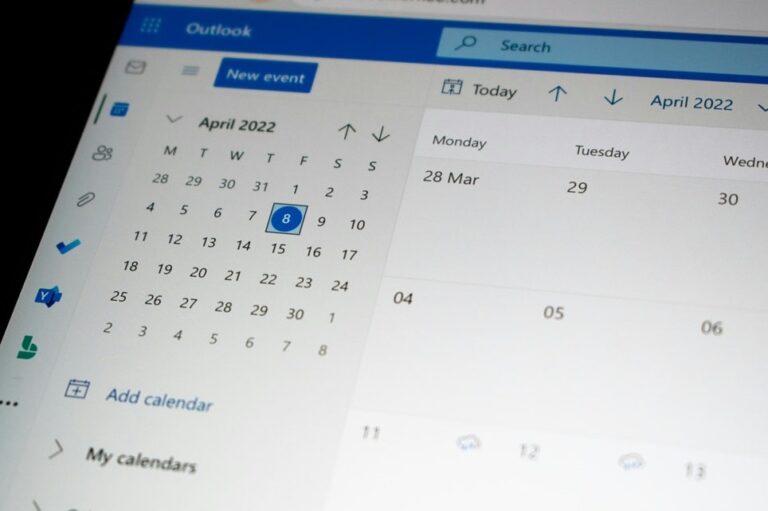
Understanding Outlook Calendar Sharing in 2025
Microsoft Outlook remains one of the most widely used digital calendar platforms for organizations and individuals worldwide. The ability to share calendars effectively transforms how teams coordinate meetings, manage schedules, and maintain transparency across professional and personal commitments. Calendar sharing in Outlook has evolved significantly, offering multiple methods to control visibility and access levels while maintaining security and privacy.
Whether you need to coordinate with colleagues inside your organization, share availability with external clients, or maintain family schedules, Outlook provides flexible sharing options across desktop applications, web interfaces, and mobile devices. Understanding the various sharing methods and permission levels ensures you maintain the right balance between collaboration and privacy while keeping everyone informed about your availability.
Different Methods for Sharing Outlook Calendars
Outlook offers several distinct approaches for calendar sharing, each designed for specific scenarios and user needs. The primary methods include direct sharing with specific individuals, publishing calendars for broader access, and utilizing delegate permissions for administrative support. Each method provides different levels of control and functionality.
Direct Calendar Sharing with Specific People
The most common approach involves sharing your calendar directly with selected individuals by entering their email addresses. This method works seamlessly within the same organization using Microsoft 365 or Exchange environments. When you share directly with someone, they receive an email invitation to access your calendar, and once accepted, your calendar appears in their Outlook calendar list alongside their own calendars.
Direct sharing provides granular control over what each recipient can see and do with your calendar. You can assign different permission levels to different people, allowing your manager full visibility while restricting external clients to seeing only your availability. This flexibility makes direct sharing ideal for team collaboration, client coordination, and maintaining multiple calendar relationships with varying access requirements.
Publishing Calendars for External Access
When you need to share calendar information with people outside your organization or those who don’t use Outlook, publishing your calendar creates a public link or subscription file. This method generates two types of links: an HTML link that allows anyone to view your calendar in a web browser, and an ICS link that enables recipients to subscribe to your calendar using applications like Google Calendar or Apple Calendar.
Published calendars update periodically based on the recipient’s calendar application settings. For Outlook.com users, synchronization typically occurs approximately every three hours, while other calendar services may sync less frequently. Published calendars cannot be edited by recipients regardless of the sharing link used, making this method suitable for one-way information sharing where you want to broadcast your availability without allowing modifications.
Sharing Outlook Calendar on Desktop Windows
The desktop version of Outlook for Windows provides the most comprehensive calendar sharing features with multiple access points and configuration options. Understanding the step-by-step process ensures you correctly configure sharing permissions and avoid common mistakes that could expose sensitive information or prevent proper access.
Step-by-Step Desktop Sharing Process
To share your calendar using Outlook desktop on Windows, first launch Microsoft Outlook and click the Calendar icon in the bottom-left navigation pane to switch to calendar view. Once in calendar view, locate the calendar you want to share in the left sidebar under your calendars list. If you maintain multiple calendars for different purposes such as work, personal, or project-specific calendars, ensure you select the correct one before proceeding.
Right-click on the selected calendar name and choose either Share Calendar from the context menu or click the Share Calendar button in the Home tab of the ribbon at the top of the window. A sharing dialog box will appear where you can enter the email addresses of people you want to share with. Type the recipient’s name or email address in the provided field. If the person exists in your contacts or organization’s address book, Outlook will suggest their name as you type.
After adding recipients, select the permission level from the dropdown menu next to each person’s name. Outlook offers several predefined permission levels ranging from view-only access to full editing capabilities. Once you’ve configured all recipients and their permissions, click the Share button to send calendar sharing invitations. Recipients will receive an email notification with an option to accept and add your calendar to their Outlook view.
Alternative Desktop Sharing Method
Outlook desktop also provides access to calendar sharing through the Calendar Properties dialog. To use this method, right-click your calendar in the navigation pane and select Properties. In the Calendar Properties window, click the Permissions tab to see a detailed list of everyone who currently has access to your calendar and their specific permission levels.
This view provides more granular control over permissions and allows you to add multiple users simultaneously. Click the Add button to open your address book, select one or more recipients, and click OK. You can then assign each person a permission level from the dropdown menu. The Properties method is particularly useful when you need to review all existing permissions, remove outdated access, or configure custom permission combinations that go beyond the simplified sharing options.
Sharing Outlook Calendar Through Outlook Web
Outlook on the web provides a streamlined browser-based interface for calendar sharing that works identically whether you’re using a Windows PC, Mac, or Linux computer. This platform-independent approach makes it ideal for users who work across multiple operating systems or prefer not to install desktop applications.
Web-Based Sharing Instructions
Begin by navigating to outlook.office.com or outlook.com and signing in with your Microsoft account credentials. Click the Calendar icon in the left navigation panel to switch from your inbox to calendar view. In the calendar interface, locate your calendars list on the left side of the screen under the My Calendars heading. Multiple calendars will be listed here if you’ve created separate calendars for different purposes.
Right-click on the calendar you want to share and select Sharing and Permissions from the context menu that appears. A sharing dialog will open where you can enter recipient email addresses in the search field. Type the full email address or start typing a name if the person is in your contacts. After adding each recipient, use the dropdown menu to assign their permission level before clicking the Share button to send invitations.
The web interface provides the same core sharing functionality as the desktop application but with a more modern, simplified interface. Changes made through Outlook on the web synchronize immediately with desktop and mobile applications, ensuring consistent calendar access across all platforms. This makes the web interface particularly valuable when you’re working from a device that doesn’t have Outlook installed or when you need to quickly modify sharing permissions from any location.
Understanding Outlook Calendar Permission Levels
Outlook offers a sophisticated permission system that controls exactly what recipients can see and do with your shared calendar. Selecting the appropriate permission level is crucial for maintaining privacy while enabling effective collaboration. The permission levels range from minimal visibility showing only availability to full delegate access that allows someone to manage your entire calendar on your behalf.
View-Only Permission Levels
The most restrictive permission level is Can View When I’m Busy, which displays only whether you have appointments scheduled during specific time slots without revealing any details about those appointments. Recipients see that you’re busy, free, tentative, or out of office, but cannot view meeting titles, locations, attendees, or any other information. This level is ideal for casual coordination where people need to know your general availability without requiring access to sensitive meeting details.
Can View Titles and Locations provides slightly more information by displaying the names and locations of your calendar entries alongside your availability status. Recipients can see what meetings you have scheduled and where they’re taking place, but cannot access additional details such as meeting notes, attendees, or attachments. This permission level works well for team members who need context about your schedule without requiring full visibility into all meeting particulars.
Can View All Details grants complete read-only access to your calendar entries. Recipients see everything you see including meeting titles, locations, descriptions, attendee lists, notes, and attachments. However, they cannot make any modifications to your calendar. This level suits situations where someone needs comprehensive awareness of your schedule, such as an executive assistant who needs to understand all commitments without having authorization to modify them directly.
Editing and Delegate Permissions
The Can Edit permission level allows recipients to create, modify, and delete appointments on your calendar just as if it were their own. Editors can schedule new meetings, change existing appointments, and remove events from your schedule. However, they do not receive meeting invitations or responses on your behalf. This permission level is appropriate for team calendars where multiple people need to manage shared resources or schedule group activities.
Delegate permission represents the highest level of calendar access available in Outlook. Delegates receive all the capabilities of editors plus the ability to receive and respond to meeting requests on your behalf. When someone sends you a meeting invitation, your delegate also receives a copy and can accept, decline, or propose new times using your calendar. Delegate permission is typically reserved for executive assistants, personal assistants, or trusted colleagues who actively manage your schedule and calendar on your behalf.
Additional specialized permission levels include Reviewer, Author, and various custom combinations. Reviewers can read items but cannot create new ones. Authors can read and create calendar items and modify or delete only items they created themselves. Custom permissions allow administrators to configure specific combinations of read, write, create, and delete capabilities tailored to unique organizational needs. Understanding these gradations helps you select the precise access level appropriate for each sharing relationship.
Sharing Outlook Calendar on Mac Computers
Outlook for Mac provides calendar sharing functionality similar to the Windows version with interface variations that match macOS design conventions. Mac users can share calendars with the same flexibility and control as Windows users while working within a familiar Apple-style interface.
Mac Calendar Sharing Process
Launch Microsoft Outlook on your Mac and click the Calendar icon in the bottom-left corner of the application window to switch to calendar view. Your calendars appear in the left sidebar under different categories. Locate the specific calendar you want to share and right-click on its name to open the context menu. From this menu, select Sharing Permissions to open the sharing configuration dialog.
In the sharing permissions window, click the plus button to add new recipients. You can enter multiple email addresses separated by commas if you want to share with several people simultaneously. After entering email addresses, use the dropdown menu next to each recipient to set their permission level. The available options on Mac match those on Windows including various levels of viewing permissions and editing capabilities.
Click the Add button to send sharing invitations to all specified recipients. They will receive email notifications with options to accept the calendar share and add it to their own Outlook view. The Mac version of Outlook synchronizes sharing permissions across all platforms, so changes made on a Mac will reflect immediately in the web version and desktop Windows applications used by your recipients.
Mobile Calendar Sharing on iPhone and Android
The Outlook mobile app for iOS and Android brings calendar sharing capabilities to smartphones and tablets, allowing you to manage calendar access while on the go. While mobile sharing offers core functionality, some advanced features remain exclusive to desktop and web versions of Outlook.
Sharing Calendars from Mobile Devices
Open the Outlook app on your iPhone or Android device and tap the calendar icon in the bottom navigation bar to switch to calendar view. In the upper-left corner of the calendar screen, tap the calendar menu icon to display your list of calendars. Locate the calendar you want to share and tap the gear icon or settings icon next to its name to access calendar settings.
Look for the Add People or Share option depending on your specific app version and device operating system. Tap this option and enter the email addresses of people you want to share with using the on-screen keyboard. The mobile app allows you to select permission levels for each recipient, though the options may be presented differently than on desktop versions. After configuring recipients and permissions, tap the checkmark or share button in the upper-right corner to send invitations.
Recipients will receive the same email invitation they would get if you shared from a desktop, and the calendar will be immediately accessible once they accept. Mobile sharing works seamlessly with Office 365 and Outlook.com calendars, though on-premises Exchange environments may have limitations. The mobile app updates sharing permissions in real-time, so changes you make from your phone will instantly affect how recipients view your calendar regardless of what platform they’re using.
Viewing Shared Calendars on Mobile
To access calendars others have shared with you on mobile devices, open the Outlook app and navigate to calendar view. Tap the calendar menu in the upper-left corner and look for the Add Calendar or Add Shared Calendar option. Tap this option and search for the person whose calendar has been shared with you by typing their name or email address. The app will display calendars you have permission to access.
Tap the plus button next to the calendar name to add it to your calendar list. The shared calendar will appear in your calendars menu with a checkbox that allows you to toggle its visibility on or off. You can view multiple shared calendars simultaneously by checking several calendars, and the app will overlay all events in a unified view. To adjust whether the shared calendar displays, simply return to the calendar menu and check or uncheck the box next to the calendar name.
Calendar Sharing Limitations and Considerations
While Outlook calendar sharing provides powerful collaboration capabilities, users should understand certain limitations and restrictions that affect how shared calendars function. Awareness of these constraints helps set realistic expectations and avoid frustration when certain features don’t work as anticipated.
Synchronization and Update Delays
Shared calendars do not always synchronize in real-time across all platforms and devices. When the calendar owner makes changes such as adding new events, modifying existing appointments, or deleting calendar items, those changes may take time to propagate to recipients. For calendars shared within Microsoft 365 or Exchange Online environments, synchronization typically occurs within minutes, but delays of several hours are possible during periods of high server load.
Published calendars that recipients access via ICS subscription links update even less frequently. Outlook.com calendars refresh approximately every three hours, while other calendar applications like Google Calendar or Apple Calendar may take up to 24 hours to check for updates. This delay means recipients viewing published calendars might see outdated information for extended periods, making published calendars unsuitable for time-sensitive scheduling where real-time accuracy is critical.
Permission and Access Restrictions
Users can only modify shared calendars when granted explicit editing or delegate permissions. Even with full viewing access, if your permission level is set to view-only, attempting to create, modify, or delete calendar entries will fail with an error message. Calendar owners must explicitly upgrade your permissions before you can make changes, and these permission changes themselves may require several minutes to synchronize across the system.
External users outside your organization face additional restrictions. Many organizations configure Exchange Online to prevent sharing detailed calendar information with external domains for security reasons. Even when external sharing is enabled, external recipients typically cannot receive delegate permissions and may be limited to basic viewing access. Mobile app limitations also affect external calendar sharing, with some features like delegate calendar management unavailable for on-premises Exchange environments.
Platform and Version Compatibility
Calendar sharing features vary across different Outlook versions and platforms. The new Outlook for Windows, classic Outlook for Windows, Outlook for Mac, Outlook on the web, and Outlook mobile apps all support calendar sharing but implement certain features differently. For example, Cached Exchange Mode settings that affect calendar synchronization work differently on Windows versus Mac, and some advanced calendar features available on desktop versions don’t exist in mobile apps.
Organizations using hybrid Exchange environments that combine on-premises Exchange servers with cloud-based Exchange Online face particular challenges. Shared calendar access and delegate features don’t always work smoothly across the hybrid boundary, and mobile apps may not support shared calendar viewing at all for on-premises mailboxes. These limitations stem from fundamental architectural differences in how on-premises and cloud environments handle calendar data.
Troubleshooting Common Calendar Sharing Issues
Despite Outlook’s robust sharing features, users frequently encounter problems that prevent calendars from sharing correctly or synchronizing properly. Understanding common issues and their solutions helps you quickly resolve problems and restore calendar functionality without extensive technical support.
Shared Calendars Not Appearing
One of the most common complaints involves shared calendars that don’t appear in the recipient’s calendar list even after accepting the sharing invitation. This problem often results from simple display settings where the calendar is actually present but hidden from view. Check the bottom-left section of your calendar view for a list of shared calendars and verify that the checkbox next to the missing calendar is enabled. Clicking this checkbox toggles calendar visibility without affecting your actual access permissions.
If the calendar isn’t listed at all, try removing and re-adding the shared calendar. Ask the calendar owner to revoke your access and then re-share the calendar with you. Accept the new invitation from the same Outlook client where you’re experiencing the problem. This process resets the connection and often resolves synchronization issues that prevent calendars from appearing initially. For persistent problems, clearing your Outlook cache forces the application to rebuild its local data, which can resolve corruption issues affecting calendar display.
Permission and Access Errors
Users sometimes receive error messages stating they lack sufficient permissions to perform operations on shared calendars even when they believe they have appropriate access. These errors typically indicate that permission settings haven’t synchronized properly between the Exchange server and your Outlook client. The calendar owner should verify your permission level through the Calendar Properties or Sharing and Permissions dialog and explicitly save the settings again even if they appear correct.
Enabling the Turn On Shared Calendar Improvements feature in calendar properties can resolve certain permission-related synchronization problems. This feature, available in classic Outlook for Windows, improves how Outlook handles shared calendar data. To enable it, right-click your calendar, select Properties, and look for the option to enable shared calendar improvements on the Synchronization tab. After enabling this feature, restart Outlook and attempt to access the shared calendar again.
Synchronization Failures and Update Problems
When calendar changes made by one user don’t appear for other users, synchronization issues are preventing updates from propagating correctly. Start troubleshooting by forcing a manual synchronization through the Send/Receive function. Click the Send/Receive tab in the ribbon and select Send/Receive All Folders to manually trigger synchronization. Wait several minutes for the process to complete before checking whether updates now appear.
Check the Sync Issues folder in your Outlook mailbox for error messages that explain why synchronization is failing. These errors often point to specific problems such as insufficient permissions, server connectivity issues, or corrupted data files. Address the root cause identified in the error message rather than just repeatedly attempting to force synchronization. For persistent sync failures, consider recreating your Outlook data file by renaming or deleting the OST file and allowing Outlook to rebuild it from the server, though this process can be time-consuming for large mailboxes.
Best Practices for Calendar Sharing Security
Implementing sound security practices when sharing Outlook calendars protects sensitive information while maintaining necessary collaboration. Understanding privacy implications and configuring appropriate safeguards ensures calendar sharing enhances productivity without creating security vulnerabilities.
Applying Principle of Least Privilege
Always grant the minimum permission level necessary for each recipient to accomplish their legitimate needs. If someone only needs to know when you’re available, share with Can View When I’m Busy rather than providing full details. Reserve detailed viewing permissions for trusted colleagues and delegate permissions for individuals who genuinely need to manage your calendar. Regularly review who has access to your calendars and revoke permissions for individuals who no longer require access due to role changes or project completion.
Create separate calendars for different purposes rather than sharing your primary calendar broadly. Maintain a work calendar with full details shared only with close colleagues, a general availability calendar shared more broadly showing only free/busy status, and a personal calendar kept private or shared only with family. This segmentation prevents accidental exposure of sensitive information while still enabling necessary coordination across different contexts.
Protecting Private Calendar Items
Outlook allows you to mark individual calendar appointments as private, which hides their details even from people who have full calendar access. Private items display only the time blocked off without revealing titles, locations, or other information. Use this feature for personal appointments, confidential meetings, or sensitive events that shouldn’t be visible even to people with detailed calendar access. Keep in mind that even with private markings, the times are still blocked, so others know you’re busy during those periods.
Be aware that delegate access includes an option to view private items when explicitly enabled by the calendar owner. When configuring delegate permissions, carefully consider whether the delegate truly needs to see private appointments before enabling this setting. For most delegate relationships, viewing private items isn’t necessary, and leaving this option disabled provides an additional layer of privacy protection for your most sensitive calendar entries.
Managing External Calendar Sharing
Exercise extra caution when sharing calendars with users outside your organization. Verify that external sharing is necessary and approved by your organization’s policies before publishing calendars or sharing with external email addresses. Many companies restrict external calendar sharing to prevent information leakage, and attempting to share externally may violate corporate policies even when technically possible.
When external sharing is appropriate, use the most restrictive permission level that meets the external recipient’s needs. Published calendar links should be treated as semi-public information since anyone with the link can access the calendar. Avoid including sensitive information in calendar entries that will be visible via published calendars, and consider creating a separate, sanitized calendar specifically for external sharing that contains only information you’re comfortable making broadly accessible.
Advanced Calendar Sharing Scenarios
Beyond basic one-to-one calendar sharing, Outlook supports more complex sharing arrangements that facilitate team collaboration and organizational coordination. Understanding these advanced scenarios helps you implement sophisticated calendar solutions tailored to specific business needs.
Team and Group Calendars
Organizations frequently create shared team calendars that multiple people can view and edit simultaneously. These calendars exist independently of any individual’s mailbox and are accessible to all team members. Team calendars are ideal for tracking department-wide events, managing shared resources like conference rooms or equipment, or coordinating team member vacations and time off. Multiple users with editing permissions can add events to the team calendar, and everyone with access sees a unified view of team activities.
Creating a team calendar typically requires administrative privileges or a shared mailbox. Administrators can create the calendar in a resource mailbox or group mailbox and then grant permissions to all team members. Each team member can then add the team calendar to their own Outlook view and toggle its visibility alongside their personal calendar. Changes made by any authorized user appear immediately for all other users, enabling true collaborative scheduling.
Calendar Overlay and Side-by-Side Viewing
Outlook allows you to view multiple calendars simultaneously using either overlay mode or side-by-side mode. In overlay mode, events from multiple calendars display on a single view with different color coding to distinguish the source calendar. This view makes it easy to see conflicts and find open time slots across your own calendar and shared calendars you’re monitoring. To enable overlay mode, select multiple calendars in your calendar list, and Outlook automatically overlays them with transparent colors.
Side-by-side mode displays multiple calendars as separate columns, allowing you to compare schedules without overlapping events. This view is particularly useful when coordinating meetings across several people’s calendars or when you need to see detailed information for each calendar separately. You can adjust the width of each calendar column to emphasize the calendars you’re actively working with while still maintaining visibility of others for reference.
Delegate Relationships and Assistant Access
Delegate access goes beyond simple calendar sharing by establishing a formal relationship where the delegate can act on behalf of the calendar owner. When you add someone as a delegate, they not only receive editing permissions for your calendar but also receive copies of all meeting invitations sent to you. Delegates can accept, decline, or propose alternative meeting times using your calendar, and their responses appear to come from you to the meeting organizer.
Delegates also automatically receive Send on Behalf permissions, allowing them to send meeting invitations that show both their name and your name in the From field. This transparency lets recipients know that your assistant or delegate sent the invitation on your behalf. Organizations often use delegate relationships for executive-assistant pairings where the assistant manages the executive’s entire calendar and meeting schedule. Multiple delegates can be assigned to a single calendar, each with potentially different permission levels for various mailbox folders beyond just the calendar.
Pro Tips for Effective Calendar Sharing
- Set up calendar sharing during onboarding: Establish appropriate calendar sharing relationships when new employees join your team or when starting new projects. Proactively configuring calendar access prevents scheduling delays and demonstrates good organizational practices. Include calendar sharing setup in your onboarding checklists to ensure new team members immediately have visibility into relevant calendars and can coordinate effectively from day one.
- Use color coding for shared calendars: Assign distinct colors to different shared calendars in your view to quickly distinguish between your own appointments and events from shared calendars. Outlook allows you to customize the color for each calendar in your list. Develop a consistent color coding system where your personal calendar uses one color, your manager’s calendar uses another, team calendars use a third, and so on. This visual differentiation helps you process complex multi-calendar views at a glance.
- Schedule regular permission audits: Set a recurring calendar reminder to review your calendar sharing permissions quarterly. During these audits, verify that each person still requires their current access level and revoke permissions for anyone who has left the organization or moved to a different role. This periodic cleanup prevents accumulation of unnecessary access rights and reduces your security exposure over time.
- Document your sharing strategy: Create a simple reference document that explains what information you share with different groups and why. For example, note that your immediate team sees full calendar details, your broader department sees titles and locations, and external clients see only availability. Share this documentation with people you share your calendar with so they understand what they can and cannot see and what privacy to expect. This transparency prevents misunderstandings and inappropriate assumptions about calendar visibility.
- Enable notifications for shared calendar changes: Configure Outlook to send you notifications when specific events occur on shared calendars you monitor. You can receive alerts when someone adds new appointments to a team calendar, when a delegate responds to meeting invitations on your behalf, or when calendar permissions are modified. These notifications help you stay informed about calendar activity without constantly checking calendar views manually.
- Create focused calendar views: Rather than displaying all your shared calendars all the time, create custom calendar views for different contexts. Set up a view that shows only calendars relevant to a specific project, another view for your direct team, and a third view for personal scheduling. Switch between these focused views as needed throughout your day to reduce visual clutter and maintain focus on relevant scheduling information for your current task.
- Leverage scheduling assistant features: When planning meetings with people whose calendars you can access, use Outlook’s Scheduling Assistant feature to find open time slots that work for all participants. The assistant displays availability across all attendees’ calendars simultaneously, making it easy to identify times when everyone is free. This feature dramatically reduces back-and-forth email coordination when scheduling complex multi-person meetings.
- Establish calendar sharing norms in your organization: Work with your team or department to develop and document shared expectations around calendar usage and sharing. Agree on standards such as how far in advance calendars should be updated, whether personal appointments should be marked private, how to handle tentative time blocks, and what level of detail to include in calendar entries. Consistent practices across a team make shared calendars more valuable for everyone.
Frequently Asked Questions
Can I share multiple calendars with the same person?
Yes, Outlook allows you to share multiple separate calendars with the same person, and you can assign different permission levels to each calendar. For example, you might share your work calendar with full details while sharing your personal calendar with only availability information. The recipient will see each calendar as a separate item in their calendar list and can choose which ones to display at any given time.
Will shared calendar appointments appear in my recipient’s reminders?
By default, recipients do not receive reminders for events on shared calendars even if the calendar owner has reminders configured. This prevents recipients from being overwhelmed with notifications for calendars they’re monitoring. However, if a recipient has editing permissions, they can add their own personal reminders to specific events on the shared calendar, which will trigger alerts for them without affecting other users.
Can I share my calendar with someone who doesn’t use Outlook?
Yes, you can publish your calendar and provide an ICS subscription link that works with most calendar applications including Google Calendar, Apple Calendar, and other third-party calendar tools. The recipient uses this link to subscribe to your calendar in their preferred application. Note that published calendars are always read-only from the recipient’s perspective, and updates may take several hours to appear depending on how frequently their calendar application checks for changes.
What happens to shared calendar access when someone leaves the organization?
When a user’s account is deleted or disabled in Microsoft 365 or Exchange, shared calendars they granted access to typically remain visible to recipients but stop receiving updates. Recipients may see an error message indicating the calendar can no longer be accessed. Organizations should establish procedures for transferring calendar ownership or revoking shared access when employees depart to prevent orphaned shared calendars.
Can I share a calendar with a distribution list or group?
Outlook allows you to share calendars with Microsoft 365 Groups, security groups, and distribution lists, granting the same access permissions to all group members simultaneously. This capability is particularly useful for department-wide or team-wide calendar sharing. However, permission changes made to the group automatically affect all members, so carefully consider whether group-based sharing provides the right granularity for your needs or whether individual sharing relationships are more appropriate.
How do I stop sharing a calendar I previously shared?
To revoke calendar access, open the calendar properties or sharing settings, find the person in the list of current permissions, and select their name. Click the Remove button to delete their access. The recipient will receive an email notification that calendar sharing has been stopped, and the calendar will disappear from their calendar list. For recipients within your organization who have default free/busy access through organization-wide settings, their view will revert to this default level rather than losing access entirely.
Why do changes I make take so long to appear for other users?
Synchronization delays stem from how Outlook and Exchange handle calendar updates across multiple users and devices. Within Microsoft 365 environments, synchronization typically completes within minutes, but network conditions, server load, and cached data can introduce delays. Mobile devices may take longer to reflect changes due to less frequent synchronization cycles designed to preserve battery life. Users experiencing consistent synchronization delays should check their internet connectivity, ensure they’re using updated Outlook versions, and consider refreshing their calendar view manually.
Can I share my calendar without revealing specific meeting details?
Yes, the Can View When I’m Busy permission level shows recipients only whether you have appointments scheduled without revealing any details about those appointments. They see time blocks marked as busy, free, tentative, or out of office but cannot access meeting titles, locations, attendees, or any other information. This permission level is ideal when you need to coordinate availability without sharing confidential meeting details.
Conclusion
Mastering Outlook calendar sharing transforms how you coordinate schedules, manage meetings, and collaborate with colleagues both within and outside your organization. By understanding the various sharing methods, permission levels, and platform-specific procedures, you can configure calendar access that balances collaboration needs with privacy requirements. Whether you’re sharing with a single colleague, managing delegate relationships, or coordinating team calendars, Outlook provides flexible tools to support diverse scheduling scenarios.
The key to successful calendar sharing lies in thoughtfully selecting appropriate permission levels, regularly auditing access rights, and establishing clear organizational norms around calendar usage. As you implement calendar sharing practices, remember to consider security implications, understand platform limitations, and communicate expectations clearly with people you share calendars with. With proper configuration and ongoing management, shared Outlook calendars become an invaluable asset that streamlines scheduling, reduces meeting coordination overhead, and keeps everyone informed about availability and commitments across your professional and personal life.