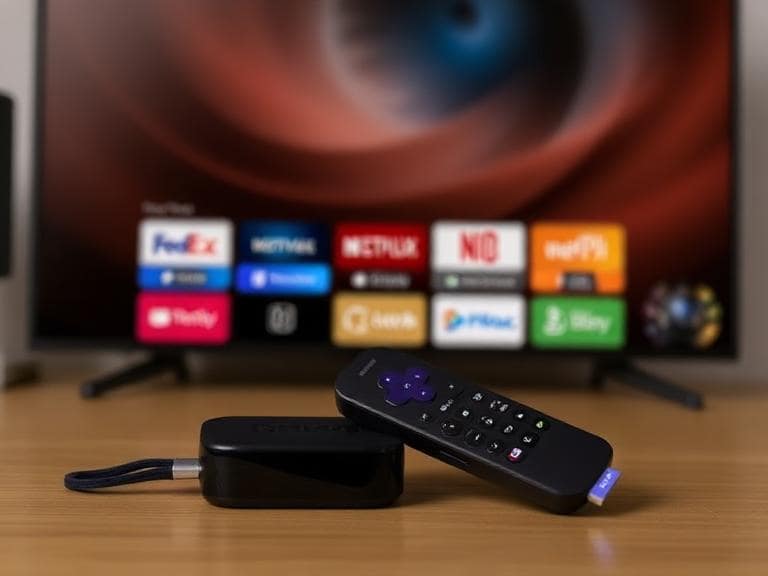
Understanding Different Types of Roku Remotes
When dealing with connectivity problems, it’s essential to identify the type of controller you have, as this determines the appropriate resolution methods. Roku offers several varieties, each with unique features and connection mechanisms. Simple infrared models rely on direct line-of-sight signals and do not require synchronization. These are basic units without advanced functions like voice commands or rechargeable batteries. Voice-enabled versions, on the other hand, use wireless technology for more flexible operation, allowing control without pointing directly at the device. They often include microphones for search features and may have dedicated buttons for quick access to streaming services.
Enhanced models might come with backlit keys or programmable shortcuts, but they follow similar protocols for reconnection. Rechargeable variants eliminate the need for frequent battery replacements but can encounter power-related glitches if not charged properly. Recognizing these differences helps in applying the correct steps without unnecessary trial and error. For instance, if your unit has a pairing indicator light, it’s likely a wireless model that needs specific synchronization procedures.
Many users overlook the subtle distinctions between models, leading to confusion during fixes. Always check the back or battery compartment for indicators like a synchronization button or status LED. This initial assessment saves time and prevents potential damage from incorrect handling.
Compatibility is another factor; ensure your controller matches your streaming device model. Older units might not work seamlessly with newer TVs or players, requiring updates or replacements in extreme cases.
Identifying Common Problems and Symptoms
Issues often manifest in various ways, disrupting your viewing experience. Buttons may become unresponsive, failing to register presses despite repeated attempts. This could affect navigation, volume adjustment, or power functions. Delayed responses are another frequent complaint, where commands take several seconds to execute, causing frustration during channel changes or menu scrolling.
Intermittent connectivity is common, where the unit works sporadically before failing again. Lights on the device might not illuminate, or voice commands could go unrecognized. In some scenarios, only specific buttons malfunction, while others operate normally, pointing to potential hardware wear or software glitches.
Overheating can occur, making the unit warm to the touch and unresponsive until cooled. Battery drainage faster than usual signals underlying problems. Recognizing these symptoms early allows for targeted interventions, preventing escalation into complete failure.
Environmental factors like interference from other electronics or physical obstructions can mimic hardware faults. Dust accumulation or liquid exposure might also contribute, requiring cleaning or drying before further steps.
Preparing for Troubleshooting
Before diving into specific fixes, gather necessary tools and create an optimal environment. You’ll need fresh batteries, a stable power source for your streaming device, and access to your TV’s input settings. Ensure a clear workspace to avoid losing small parts like battery covers.
Verify your device’s software is up to date, as outdated firmware can cause compatibility issues. Navigate to the system menu to check for updates. Have your mobile device ready, as the official app can serve as a temporary control alternative during the process.
Document any error messages or unusual behaviors for reference. This helps in identifying patterns or seeking additional support if needed. Work in a well-lit area to spot any physical damage or corrosion on contacts.
Safety first: unplug devices when handling internals to prevent electrical mishaps. If you’re uncomfortable with any step, consider professional assistance to avoid voiding warranties.
Checking Battery Health and Installation
Start with the basics by examining power sources. Remove the cover and inspect for corrosion on terminals, which can impede conductivity. Clean with a soft cloth or cotton swab dipped in vinegar if needed, then dry thoroughly.
Insert new, matching batteries, ensuring positive and negative ends align correctly. Mismatched or low-quality ones can cause erratic behavior. Test by pressing buttons to see if indicator lights activate.
For rechargeable models, connect to a power source and allow full charge. Monitor for charging indicators and avoid using during this period. Replace if swelling or leakage is observed, as these pose safety risks.
Regularly rotate batteries to maintain even wear, and store spares in cool, dry places to preserve lifespan.
Basic Restart Procedures
A simple power cycle often resolves temporary glitches. Begin by powering off your streaming device using the on-unit button if available, or unplug from the wall outlet. Wait at least ten seconds to allow residual energy to dissipate.
While disconnected, remove batteries from the controller for a similar duration. This resets internal circuits. Reinsert batteries and reconnect the device, observing for automatic reconnection.
If no response, repeat the process but extend the wait time to a minute. This method clears cached data that might be causing conflicts.
For integrated TV models, use the TV’s power button to cycle, ensuring the streaming interface reloads fully upon restart.
Restarting the Streaming Device
Unplug the power cord from your player or TV. Count to ten slowly before reconnecting. Watch for the logo screen, indicating successful boot.
Access the system menu post-restart to confirm connectivity. If issues persist, proceed to advanced steps.
This action refreshes network connections and software states, often fixing minor bugs without further intervention.
Re-Pairing Wireless Models
For units requiring synchronization, initiate the process carefully. Locate the synchronization button, typically in the battery compartment or on the back.
Press and hold for five seconds until the status light flashes. Ensure the device is powered on and within range, ideally close proximity.
The screen should display a confirmation dialog. Follow prompts to complete. If no button exists, use alternative key combinations like holding back and home simultaneously.
Test all functions post-pairing to verify full operability. Repeat if partial success is achieved.
Handling Models Without Dedicated Buttons
Some versions lack visible synchronization triggers. In these cases, simultaneously press and hold the back and home keys for five seconds.
Observe for flashing lights near the top. The device will detect and connect automatically within thirty seconds.
If unsuccessful, ensure no interference from nearby Wi-Fi devices or microwaves, which can disrupt signals.
Addressing Infrared Model Issues
These units don’t pair but require unobstructed paths. Position yourself directly in front, removing any barriers like furniture or glass doors.
Clean the sensor on both the controller and device with a microfiber cloth to remove dust or smudges affecting signals.
Test from various distances, ideally within ten feet. If responses are weak, consider environmental lighting, as bright sources can interfere.
Replace if persistent failures occur, as internal emitters may degrade over time.
Testing Line-of-Sight Connectivity
Point directly at the device’s front panel. Press buttons slowly, observing for immediate responses.
Adjust angles slightly if needed. Use mirrors temporarily to redirect signals in awkward setups, though not ideal long-term.
Advanced Reset Techniques
When basic methods fail, perform a full reset. Remove batteries and unplug the device for five minutes.
Reassemble and hold the reset trigger during power-up. This erases temporary data and forces reconnection.
For rechargeable units, use the provided cable to charge while holding designated keys.
Monitor for completion indicators. This step might require repeating if interrupted.
Factory Resetting the Device
As a last resort, navigate to system settings using an alternative control method. Select advanced options and choose factory reset.
Confirm and allow the process to complete, which erases all customizations. Re-setup as new afterward.
This resolves deep-seated software conflicts but requires reconfiguring accounts and apps.
Dealing with Volume and Power Control Problems
Voice models often handle TV functions. If these fail, reconfigure through settings.
Access remotes menu and select setup for TV control. Follow audio tests to identify correct codes.
Ensure HDMI-CEC is enabled in TV settings for seamless integration. Test incrementally.
If only one function works, cycle through additional codes provided during setup.
Preventing Future Issues
Maintain cleanliness by wiping surfaces regularly. Store in protective cases when not in use to avoid drops or spills.
Update firmware promptly via automatic checks. Avoid extreme temperatures that affect battery performance.
Use high-quality power sources and replace components proactively. Monitor usage patterns for early signs of wear.
Maintenance Tips for Longevity
Schedule monthly checks for battery levels. Clean contacts with isopropyl alcohol sparingly.
Avoid mixing old and new batteries. Keep firmware current to benefit from bug fixes.
Pro Tips
- Always keep spare batteries on hand to quickly rule out power issues. This prevents unnecessary disassembly and saves time during unexpected failures. Consider investing in rechargeable options for eco-friendly, cost-effective solutions over time.
- Use the mobile app as a backup control method. It mirrors all functions and can help navigate menus when physical units fail. Enable notifications for low battery alerts to stay proactive.
- Position your streaming device optimally to minimize signal interference. Place it away from routers or other wireless devices that might disrupt connections. Elevate it if possible for better range.
- Customize button mappings if available for frequently used functions. This reduces wear on specific keys and enhances user experience. Explore accessibility options for voice enhancements.
- Monitor for software updates regularly, as they often include fixes for common connectivity problems. Set to auto-update to ensure you’re always running the latest version without manual intervention.
- Test in different rooms or setups to identify environmental factors. Sometimes, relocating the device resolves persistent issues caused by hidden interferences like metal objects or thick walls.
- Consider upgrading to pro models for advanced features like backlighting and longer battery life. These offer better durability and additional troubleshooting tools built-in.
- Join online communities for real-time advice from other users. Sharing specific model details can yield tailored solutions not found in general guides.
Frequently Asked Questions
- What if my unit has no visible synchronization button? Use the alternative method of holding back and home keys simultaneously for five seconds. This triggers the mode on compatible models. If it doesn’t work, confirm your model type through the device’s settings menu.
- Why does my controller overheat during use? This could indicate a faulty battery or internal short. Stop using immediately and allow cooling on a non-flammable surface. Replace batteries and monitor; persistent issues may require a new unit.
- Can I use a universal replacement? Yes, but ensure compatibility with your specific device. Look for ones certified for Roku to avoid functionality gaps. Program according to manufacturer instructions for best results.
- How do I know if it’s a hardware failure? If all steps fail, including using alternatives like the app, it might be hardware. Signs include no lights or physical damage. Contact support for warranty options.
- Does Wi-Fi strength affect wireless models? Absolutely; weak signals can cause disconnections. Improve by moving closer to the router or using extenders. Check network status in settings.
- What about voice command failures? Ensure the microphone isn’t blocked. Test in quiet environments. Re-pair if needed, as this recalibrates the feature.
- Can I pair multiple units to one device? Yes, up to four in some cases. Follow the same process for each, useful for multi-user households.
- Why won’t TV controls work after setup? Re-run the configuration wizard. Ensure HDMI-CEC is active on your TV. Some models have limitations based on brand compatibility.
Conclusion
Addressing connectivity and responsiveness issues with your controller involves systematic steps from basic checks to advanced resets. By identifying the model type, performing power cycles, and ensuring proper synchronization, most problems can be resolved efficiently. Incorporating preventive maintenance and utilizing alternative controls like mobile apps ensures uninterrupted enjoyment. If challenges persist, leveraging community resources or professional support guarantees a return to seamless operation, enhancing your overall streaming experience.