

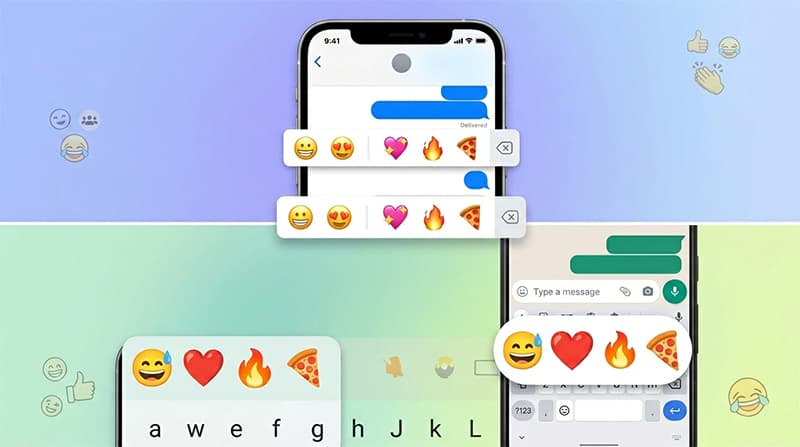
Emojis have become a core part of how we communicate — and both Apple and Google release new ones with every major software update. Whether you want the latest Unicode additions on your iPhone, fresh options on your Android, or you want to use iPhone-style emojis on your Android device entirely, this guide covers every working method step by step.
How New Emojis Come to Your Device
New emojis are released annually by the Unicode Consortium, the nonprofit body that standardizes text characters globally. Apple, Google, Samsung, and other manufacturers then implement these designs into their operating systems through software updates. That means the single most reliable way to get new emojis on any device — iPhone or Android — is to keep your software up to date.
Each new iOS or Android release typically bundles the latest approved Unicode emoji set. If your phone is running an outdated OS, you will see a blank box or a generic placeholder instead of the new emoji. Staying current also matters for security and performance, not just emoji support.
How to Get New Emojis on iPhone
Apple delivers new emoji through iOS updates. The process is straightforward and takes only a few minutes.
Step 1: Check Your Current iOS Version
Open Settings, tap General, then tap About. The iOS version number is listed here. Apple typically releases new emoji with point updates — for instance, iOS 18.4 brought a fresh batch of symbols and expressions that were not available in earlier versions.
Step 2: Run a Software Update
Go to Settings > General > Software Update. If an update is available, tap Download and Install. Make sure your iPhone has at least 50% battery or is plugged in before starting. Connect to Wi-Fi to avoid large mobile data usage during the download.
Once the update installs and your iPhone restarts, the new emojis appear automatically in your emoji keyboard. Open any messaging app, tap the emoji icon, and scroll or search to find the latest additions. You can also take a screenshot on iPhone to save and share any emoji combination you want to reuse later.
Step 3: Use Genmoji on iOS 18 and Later
If you are running iOS 18 or newer on a supported iPhone model, Apple introduced a feature called Genmoji that lets you create completely custom emoji using AI. Open the emoji keyboard in any app and look for the Genmoji option. You can describe what you want — a specific face, object, or combination — and Apple Intelligence generates a unique sticker-style emoji on the spot. This goes well beyond standard Unicode additions and lets you personalize your emoji set in a way that was not previously possible.
What If My iPhone Cannot Update Further?
Older iPhone models eventually stop receiving iOS updates. If your device is no longer supported, you will not receive new system emojis through the standard update path. The practical solution is to use a third-party keyboard app from the App Store that includes its own emoji set independent of the OS. Apps like Facemoji offer large libraries of stylized emojis that work inside iMessage, WhatsApp, and other messaging platforms. Keep in mind that recipients see these as images or stickers, not as standard Unicode characters.
If you are considering an upgrade and weighing your options, check out our roundup of the best cell phone deals to find a current model that supports the latest iOS features including Genmoji.
How to Get New Emojis on Android
Android emoji updates work similarly — new Unicode characters arrive through system software updates. However, because Android runs on hundreds of different devices from manufacturers including Samsung, Google, Xiaomi, OnePlus, and others, the exact process varies slightly depending on your phone brand.
Method 1: Update Your Android System Software
This is the primary and most reliable method for getting new emojis on Android.
- Open Settings on your Android phone.
- Scroll down and tap About Phone or About Device.
- Tap Software Update or System Update.
- If an update is available, tap Download and Install.
- Your phone will restart and the new emoji set will be active once it boots up.
On Samsung devices running One UI, the path is Settings > Software Update > Download and Install. On Google Pixel phones, go to Settings > System > System Update.
One important limitation: Android 11 and older versions may not render the newest emojis even after minor updates. If your device is stuck on Android 11 or below, the third-party methods below are your best options.
Method 2: Use a Third-Party Keyboard App
Third-party keyboards give you access to expanded emoji libraries that are independent of your Android OS version. Several well-known options are available on the Google Play Store.
Facemoji Emoji Keyboard is one of the most popular choices. It offers thousands of emojis, animated stickers, and custom styles that your system keyboard does not include. After installing it from the Play Store, go to Settings > General Management > Keyboard List and Default and set Facemoji as your default keyboard.
Gboard (Google’s own keyboard) also supports emoji mixing on Pixel devices — a feature that lets you combine two existing emojis into a new hybrid expression using Google’s Emoji Kitchen. This is not available on all Android phones, but Pixel users get it natively.
FancyKey and Kika Keyboard are two additional options that both offer iOS-style emoji packs alongside their own original designs. If you want to sideload apps on Android rather than going through the Play Store, some emoji keyboard APKs are available directly from developer sites — though sticking to Play Store installs is safer for most users.
How to Get iPhone Emojis on Android
One of the most searched emoji topics on the web is how to use Apple’s emoji style on an Android device. Android and iOS render the same Unicode characters differently — Apple’s designs tend to be rounder and more expressive, while Google’s designs are flatter and more minimal. If you prefer the iPhone look, there are a few safe ways to get it.
Method 1: ZFont 3 (Recommended — No Root Required)
ZFont 3 is a free, open-source app available on the Google Play Store that lets you change your Android device’s emoji font without rooting your phone. It works on most Samsung, Xiaomi, OnePlus, and Vivo devices.
- Download ZFont 3 from the Google Play Store.
- Open the app and use the search bar to find the latest iOS emoji font pack.
- Tap Download next to the iOS font package.
- Once downloaded, tap Apply.
- The app will guide you through the steps to install the font on your specific device. On Samsung, this works through the Good Lock app. On Xiaomi and Vivo, it uses the system font changer.
- Restart your phone after applying the font.
After the restart, your system emojis throughout Android — in messaging apps, social media, and everywhere else — will display in the iOS style. This is the safest and most widely compatible method.
Method 2: iOS Emojis For Android App
The Google Play Store also has a dedicated app called iOS Emojis For Android that offers the iPhone emoji style with customization options. It has over 14,000 ratings and is free to use. It functions as a keyboard replacement and displays Apple-style emojis within supported apps. Note that since it operates as a keyboard, be mindful of privacy — keyboard apps technically have the ability to log keystrokes, so only use apps with strong reviews and a transparent privacy policy.
Method 3: Magisk Module (Rooted Devices Only)
If your Android device is rooted, you can install a Magisk module that replaces the system emoji font at a deeper level than ZFont 3 can reach. This method applies the iOS emoji set system-wide with no exceptions and requires no third-party keyboard at all. However, rooting your phone voids the warranty and carries real risks if done incorrectly. Before attempting this, make sure you understand what rooting involves. You can read our full walkthrough on how to root Android phones and tablets before deciding whether this path is right for your device.
Security Considerations When Using Third-Party Emoji Apps
Not all emoji apps and keyboards are equal when it comes to privacy. Since keyboard apps sit between your fingers and every app on your phone, a malicious keyboard can theoretically capture passwords, messages, and other sensitive input. Before installing any third-party keyboard, check these boxes:
- Only download from the official Google Play Store or Apple App Store.
- Read the privacy policy and check what data the app collects.
- Look for apps with large install counts and recent updates — abandoned apps are higher risk.
- Avoid granting keyboard apps permission to access contacts, camera, or microphone unless there is a clear reason.
ZFont 3 is open-source, which makes it a safer choice than most alternatives since its code can be reviewed publicly. The same due diligence applies to any app that touches your input layer.
How to Use Emojis Across Different Platforms
One thing worth understanding is that emojis are not truly universal in appearance. The same Unicode character looks different on iPhone, Android, Windows, and web platforms. When you send a 😂 from an iPhone to someone on Android, they see Google’s version of that emoji, not Apple’s. This is by design — each platform renders Unicode characters using its own emoji font.
This is why cross-platform mismatches happen in group chats. An emoji that looks like one expression on iPhone can appear slightly different on Android, sometimes changing the tone of a message entirely. If consistent emoji appearance matters — for example in professional messaging or content creation — using a shared platform like WhatsApp (which renders its own emoji set) helps keep everyone seeing the same thing.
If you communicate heavily across devices, you may also find it useful to manage how messages and notifications are handled. Our guide on best free text apps for Android and iPhone covers cross-platform messaging apps that give you more control over how your messages appear on both sides.
How to Find and Use New Emojis Once Installed
After updating your OS or installing a new keyboard, here is how to quickly locate the newest emojis without scrolling through the entire keyboard:
On iPhone: Open the emoji keyboard and look for the clock icon on the far left of the category row — this shows your recently used emojis. For brand new additions, they typically appear in the Smileys & People or Objects categories depending on the emoji type. You can also use the search bar at the top of the emoji keyboard and type a descriptive word like “shaking,” “moose,” or “phoenix” to find specific new characters.
On Android: Open Gboard or your default keyboard and tap the emoji icon. New emojis appear in their respective categories. Gboard also has a search function — swipe up on the emoji keyboard or look for the magnifying glass icon to search by name or description.
On third-party keyboards: Most offer a “New” or “Recently Added” tab that surfaces the latest emoji additions so you do not have to hunt for them manually.
Troubleshooting: Why Are Some Emojis Still Showing as Boxes?
Even after updating your OS, you may occasionally see square boxes or question marks instead of emojis. Here is why that happens and how to fix it:
The sender used a newer emoji than your OS supports. If someone on iOS 18.4 sends you a brand new emoji and you are on Android 12, your device does not have that character in its font yet. Update your system software to resolve this.
The app is not rendering emoji correctly. Some older apps render text using their own fonts, which may not include the latest Unicode characters. Update the app from the Play Store or App Store.
Your device’s emoji font is corrupted or incomplete. This is rare but can happen after a failed update. A factory reset or reflash of the system firmware usually resolves it, though this is a last resort. Back up your data first — our guide on freeing up storage space on iPhone is a useful first step before any major system operation on iOS devices.
Quick Summary: Which Method Should You Use?
If you just want the latest emojis and your phone supports updates, run your system software update — that is all you need. If your device is too old to update, use a third-party keyboard like Facemoji. If you specifically want iPhone-style emojis on Android, ZFont 3 is the safest no-root solution available. And if you are on a rooted Android and want system-level emoji replacement, a Magisk module gives you the deepest integration.
Emoji support continues to improve with every OS release, so keeping your device updated remains the best long-term strategy — not just for emojis, but for the full range of features and security patches that come with each new version.
