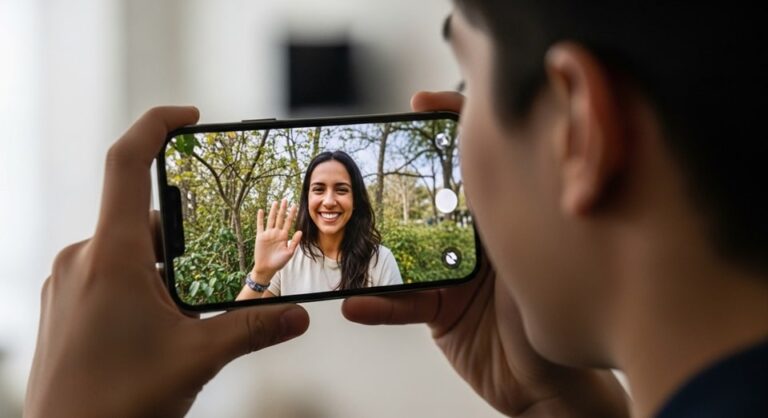
Apple TV 4K transforms your living room into a hub for seamless video communication, leveraging the big screen for more engaging FaceTime sessions. Introduced in tvOS 17, this capability has evolved significantly by 2025, incorporating advanced tools like Live Captions and dedicated camera setups for effortless connectivity. Whether connecting with distant family during holidays or collaborating on projects, mastering FaceTime on Apple TV enhances everyday interactions without the hassle of holding devices.
The integration relies on Continuity Camera, turning your iPhone or iPad into a high-quality webcam and microphone. This wireless link ensures privacy and ease, with features adapting to your environment for crystal-clear audio and video. As remote work and virtual gatherings persist, understanding these updates keeps your setup current and efficient.
By 2025, tvOS 18 and later versions prioritize accessibility and immersion, making calls feel natural on the largest display in your home. From initial pairing to advanced gestures, this guide covers everything needed for optimal performance. Prepare your devices and dive into a feature-rich experience that bridges distances effortlessly.
Essential Requirements for FaceTime on Apple TV 4K
Before initiating any setup, verify compatibility to avoid frustrations. FaceTime demands specific hardware and software alignments, ensuring stable performance across ecosystems. This foundation prevents common hurdles like connection failures or missing features.
Hardware Prerequisites
Your Apple TV must be a 4K model, second generation or later, equipped with the A12 Bionic chip or superior for processing demands. Compatible iPhones start from the XR model, including SE second generation, while iPads include eighth generation basics, fifth-generation minis, third-generation Airs, and Pro models from the first 11-inch and third 12.9-inch generations. These specs support high-resolution feeds and AI enhancements like Center Stage.
A stable Wi-Fi network is crucial, preferably the same for all devices to minimize latency. Ethernet connections for Apple TV further stabilize streams, ideal for group calls. Position your TV in a well-lit area to optimize camera feeds without glare.
Software and Account Setup
Update to tvOS 18 or newer via Settings > System > Software Updates, confirming iOS 18 or iPadOS 18 on companion devices. Sign into the same Apple ID across all for seamless syncing of contacts and calls. Enable FaceTime in device settings: on iPhone or iPad, navigate to Settings > FaceTime and toggle it on.
Activate Continuity Camera under Settings > General > AirPlay & Handoff. This permission allows wireless camera sharing, essential for tvOS integration. Restart devices post-update to clear caches and ensure fresh connections.
Account verification includes two-factor authentication for security, preventing unauthorized access during calls. Test basic FaceTime on mobile first to confirm service activation, avoiding carrier-specific blocks.
Step-by-Step Setup Process for FaceTime
Configuring FaceTime involves straightforward pairing, but attention to details yields reliable results. This process takes under five minutes once prerequisites are met, unlocking immediate use.
Connecting Your iPhone or iPad as Continuity Camera
Launch the FaceTime app on Apple TV from the home screen—its icon appears post-update. If prompted, select your profile under Users; otherwise, choose Other to generate a QR code. On your iPhone or iPad, open the Camera app, scan the code, and tap Connect to Apple TV when notified.
Confirm the connection on your mobile device; it enters landscape mode automatically for optimal framing. Position the device rear camera (iPhone) or front (iPad) facing you, ideally on a stable surface below the TV. A preview confirms alignment—adjust for eye-level views to mimic natural conversations.
For dedicated setups in tvOS 18, go to Apple TV Settings > Remotes and Devices > Dedicated Camera, select your profile, and approve on the iPhone. This automates future connections, limiting calls to Favorites for privacy. It streamlines family use, designating one device exclusively.
Initial Profile and Permissions Configuration
Once connected, recent calls sync from your mobile, populating the app’s sidebar. Grant microphone and camera permissions if queried, ensuring full functionality. Test the feed by previewing yourself—toggle lights if shadows obscure details.
Customize caller ID in iPhone Settings > FaceTime, preferring your Apple ID email over phone number for broader reach. This resolves issues with international or non-Apple contacts. Save Favorites in the Phone app for quick access during TV sessions.
Explore audio routing: Apple TV speakers default, but pair Bluetooth headphones via Settings > Remotes and Devices for private chats. This versatility suits varied scenarios, from lively gatherings to quiet evenings.
Making and Receiving FaceTime Calls on Apple TV
Initiating calls feels intuitive, mirroring mobile interfaces on a grand scale. The large display fosters inclusivity, perfect for multi-person views.
Starting a Video or Audio Call
In the FaceTime app, browse recent calls on the right sidebar or select New for fresh contacts. Highlight a name, then choose FaceTime Video for visuals or Audio for voice-only. Group calls support up to 32 participants—add via the plus icon, selecting multiples before confirming.
Dialing begins instantly, with ringing visualized onscreen. Incoming rings trigger notifications; press the remote’s center button to accept. For audio-only starters, Siri voice commands like “Hey Siri, FaceTime Mom” activate hands-free.
During connection, preview your feed to adjust angles—slight tilts enhance engagement. Once joined, the caller fills the screen, with your pip in the corner for self-view.
Answering Incoming Calls
Notifications chime and display caller info; swipe or press to accept/decline. Auto-answer options in Settings > Accessibility suit hands-free needs. Decline sends a quick text reply via onscreen prompts.
For persistent interruptions, mute notifications in Do Not Disturb mode, allowing whitelisted contacts through. This balances availability with focus during shows.
Post-answer, controls fade for immersion, reappearing on remote presses. Volume adjusts via remote, independent of TV settings for call clarity.
Mastering FaceTime Controls and Features
tvOS 18 elevates controls with intuitive gestures and accessibility aids, making calls dynamic. These tools adapt to user needs, from casual chats to professional meets.
Essential Onscreen Controls
Mute via the microphone icon silences input without alerting others—handy for side whispers. Camera toggle hides your feed temporarily, preserving privacy in shared spaces. End calls with the red button, confirming to prevent mishaps.
Add participants mid-call by selecting the plus, searching contacts seamlessly. SharePlay launches synced activities like Apple TV+ watches, fostering shared experiences. Controls access via Control Center: hold the remote’s TV button, navigate to FaceTime tab.
Advanced Video Enhancements
Center Stage auto-frames groups, panning as people move—ideal for lively family updates. Portrait mode blurs backgrounds, focusing on faces for polished looks. Reactions detect gestures like thumbs-up for confetti bursts, adding fun to interactions.
Split View resizes calls alongside content: select the layout icon for Picture-in-Picture during streams. This multitasking keeps connections alive without pausing entertainment.
Live Captions in tvOS 18 transcribe speech in real-time, supporting English variants and expanding languages like French, German, Japanese. Accuracy shines in quiet settings; expand captions via highlight for better readability. Disable in noisy environments to avoid errors.
Transferring and Managing Calls Across Devices
Handoff fluidity lets calls migrate between screens, suiting mobile lifestyles. This Continuity perk ensures uninterrupted flows.
Handing Off from iPhone or iPad to TV
During a mobile call, tap the speaker icon, selecting Apple TV from the list. A notification prompts on TV—accept to transfer seamlessly. Video quality upgrades instantly, leveraging TV resolution.
Reverse by selecting your device in TV controls, resuming on the smaller screen for mobility. Pauses during handoff last seconds, minimizing awkward silences.
Background Call Management
Minimize to Home Screen: press back, call shrinks to a movable window. Drag to edges for auto-hide, revealing on remote press. End from anywhere via Control Center’s red icon.
Notifications persist for missed calls, with visual voicemail-like recaps. This setup supports hybrid use, blending calls with browsing.
- Enable Handoff in settings: On all devices, toggle under General > AirPlay & Handoff for cross-device awareness. This syncs call states instantly, preventing duplicate rings. Test with a self-call to verify seamless switches.
- Use Siri for quick transfers: Say “Hey Siri, move call to TV” mid-conversation for voice-activated handoffs. It prioritizes the nearest compatible device, enhancing accessibility. Combine with shortcuts for custom automations.
- Monitor battery during extended use: iPhone as camera drains faster—plug in via stands with charging ports. Alerts prompt low-power warnings, suggesting breaks. This sustains long sessions without interruptions.
- Customize notification styles: In Accessibility > Audio/Visual, adjust ring volumes and vibrations for discreet alerts. Pair with LED lights for visual cues in quiet homes. These tweaks personalize alerts to lifestyles.
- Integrate with HomeKit scenes: Trigger lights or shades on call start via automations, setting moods automatically. This elevates ambiance for video chats. Explore in Home app for tailored environments.
- Leverage SharePlay for collaborations: During calls, sync documents or games, boosting productivity. It mirrors actions in real-time, ideal for remote teams. Start via the SharePlay button for instant joins.
- Record calls with permissions: Notify participants before screen captures, complying with etiquette. Use built-in tools for notes, enhancing follow-ups. Always prioritize consent in recordings.
- Optimize for group dynamics: Rotate gallery views to spotlight speakers, maintaining engagement. Adjust via layout options for balanced screens. This fosters inclusive discussions.
These strategies maximize versatility, turning calls into fluid extensions of daily routines. With practice, transfers become second nature, enriching connectivity.
Troubleshooting Common FaceTime Issues on Apple TV
Despite robust design, glitches arise from networks or configs—swift fixes restore functionality. Proactive checks prevent recurrence.
Connection and Pairing Problems
If QR scans fail, restart devices and Wi-Fi routers, ensuring same network bands. Forget and re-pair in Bluetooth settings if persistent. Update carrier settings on iPhone via prompts for compatibility.
Dedicated camera errors? Reset via Settings > Remotes and Devices, re-approving on mobile. Clear app caches by force-quitting FaceTime: double-press remote TV button, swipe up on app.
Call Quality and Audio/Video Glitches
Choppy feeds signal weak signals—move devices closer or switch to 5GHz Wi-Fi. Echoes resolve by muting TV speakers or using headphones. Test speeds at fast.com, aiming for 5Mbps upload minimum.
Black screens indicate camera blocks: verify permissions in iOS Settings > Privacy > Camera. For Live Captions inaccuracies, speak clearly and reduce background noise. Toggle off/on in controls for refreshes.
Failed calls often stem from caller ID mismatches—set email as primary in FaceTime settings. Deselect phone numbers if carrier issues persist. Restart service via toggle for reactivation.
Pro Tips for Enhancing Your FaceTime Experience
Elevate sessions with accessories and habits that amplify tvOS capabilities. These insights draw from user favorites, ensuring polished interactions.
Invest in the Belkin MagSafe Mount for secure iPhone attachment to TVs up to four inches thick—its wireless charging sustains long calls. Alternatives like Ugreen foldable stands offer portability for coffee table setups, folding compactly post-use.
Position lights strategically: ring lights behind the TV diffuse shadows, while natural window light flatters faces. Experiment with Portrait mode for virtual backgrounds, blurring clutter seamlessly.
For groups, arrange seating in semi-circles facing the camera, leveraging Center Stage’s wide-angle prowess. Pre-load playlists via SharePlay for mood-setting music during waits.
Utilize Reactions sparingly for emphasis—thumbs-up confetti delights kids during storytimes. Customize gesture sensitivities in Accessibility for precise triggers.
Schedule recurring calls via Calendar integrations, auto-joining on TV for punctuality. Backup contacts regularly to iCloud, safeguarding against sync losses.
Frequently Asked Questions
Does FaceTime on Apple TV work without an iPhone? No, it requires a compatible iPhone or iPad for the camera and mic via Continuity. Dedicated setups automate this, but a device is essential. Consider third-party cams for alternatives, though unsupported natively.
Why won’t my first-gen Apple TV 4K show the FaceTime app? It’s incompatible—upgrade to second-gen or later for tvOS 17+ support. Check model in Settings > General > About; A2169 or higher confirms eligibility. Trade-ins ease transitions.
How do I fix ‘Call Failed’ errors? Verify caller ID as email in iPhone FaceTime settings, restart devices, and check Wi-Fi. Toggle FaceTime off/on for reactivation. If persistent, contact Apple Support for diagnostics.
Can I use FaceTime internationally on Apple TV? Yes, with stable internet—data caps apply for cellular backups. Enable roaming on iPhone for travel. Quality varies by recipient’s connection; test beforehand.
What if Live Captions are inaccurate? Speak enunciated in supported languages; reduce echoes. It’s on-device for privacy, but not for emergencies—use subtitles cautiously. Updates refine accuracy over time.
Is there a built-in camera for future Apple TVs? Rumors suggest yes for 2025 models, enabling standalone use. Until then, Continuity suffices. Monitor announcements for hardware leaps.
How many people can join a group FaceTime on TV? Up to 32, with gallery views scaling dynamically. Manage via add button; mute individuals for clarity. Ideal for virtual events.
Does battery drain quickly during use? Yes, as camera—use stands with Qi charging. Limit to plugged sessions for marathons. tvOS alerts prompt conservations.
Conclusion
Harnessing FaceTime on Apple TV 4K redefines home communication, blending big-screen immersion with intuitive controls in tvOS 18 and beyond. From verifying requirements and seamless setups to mastering calls, enhancements, and fixes, this guide equips you for vibrant connections. Pro tips and answers to queries further empower customization, turning potential snags into smooth experiences. Embrace these tools to foster closer ties, making every call a window to shared moments in your digital living space.

Full-stack developer at Scylla Technologies (USA), working remotely from Bangladesh. Adobe Certified Magento Developer.