Streaming content from your computer to your television has become an essential feature for modern entertainment and productivity. Whether you want to share a presentation with colleagues, enjoy streaming videos on a larger screen, or browse the web from your couch, casting a Chrome tab to your TV offers a seamless solution. This comprehensive guide walks you through everything you need to know about casting Chrome tabs using Chromecast technology, from initial setup to advanced troubleshooting techniques.
Chromecast technology has revolutionized how we consume digital content by eliminating the need for complicated cable setups and expensive hardware. With just a few clicks, you can mirror your browser content directly to any compatible television. This guide covers all aspects of the casting process, ensuring both beginners and experienced users can make the most of this powerful feature.
Understanding Chrome Tab Casting and Chromecast Technology
Chrome tab casting is a feature built directly into the Google Chrome browser that allows users to display the contents of a specific browser tab on a television or other compatible display device. Unlike screen mirroring, which replicates your entire desktop, tab casting specifically transmits only the content from the selected Chrome tab, making it more efficient and focused. This technology leverages Google’s Cast protocol, which establishes a direct connection between your browser and the receiving device over your local WiFi network.
The casting process works by encoding the video and audio from your Chrome tab and streaming it over your network to the Chromecast device or compatible smart TV. The receiving device then decodes this stream and displays it on your television. This method is particularly efficient because for many popular streaming services like YouTube and Netflix, the Chromecast device actually fetches the content directly from the internet rather than streaming it through your computer, significantly reducing latency and improving quality.
Google Cast technology supports various types of content, including streaming videos, web pages, presentations, and even locally stored media files. However, certain plugins and proprietary formats may not work reliably when casting. Technologies like Microsoft Silverlight, QuickTime, and VLC player content may encounter compatibility issues during the casting process. Understanding these limitations helps users choose the most appropriate method for their specific content needs.
Essential Requirements for Casting Chrome Tabs
Before you begin casting Chrome tabs to your television, you need to ensure your setup meets specific hardware and software requirements. Having the right equipment and configuration is crucial for a smooth casting experience without interruptions or quality issues.
Hardware Requirements
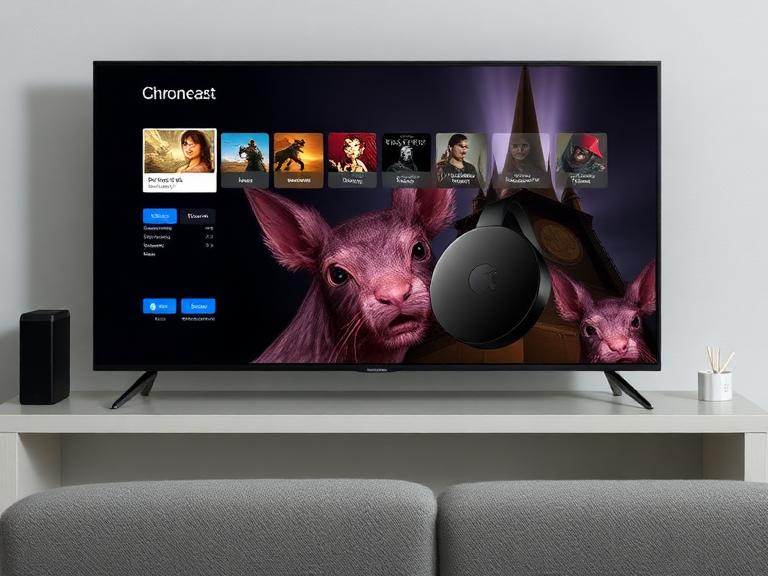
The primary hardware requirement is a Chromecast device or a television with built-in Chromecast functionality. Google offers several Chromecast models, including the standard Chromecast, Chromecast with Google TV, Chromecast Ultra for 4K content, and the newer Google TV Streamer. Each device connects to your television’s HDMI port and communicates with your computer over WiFi. If you’re using a standalone Chromecast dongle, you’ll also need a power source, either through your TV’s USB port or a wall outlet using the included power adapter.
Your television must have an available HDMI port with HDCP support. HDCP 1.3 or higher is required for standard content, while HDCP 2.2 is necessary for 4K Ultra HD streaming. Most televisions manufactured within the last five years include these specifications. Your computer should meet minimum processing requirements to handle the encoding and streaming workload. For Windows users, this means having at least a Core i3 processor or equivalent running Windows 7 or later. Mac users need Mac OS X 10.9 or later, with MacBook Pro models from 2010 onwards or MacBook Air from 2012 onwards. Chromebooks from 2014 and newer universally support Chrome tab casting.
Network Configuration
A stable WiFi network is absolutely essential for successful casting. Both your computer and Chromecast device must be connected to the same WiFi network for the casting feature to function. The network should provide sufficient bandwidth to handle the streaming data without buffering or quality degradation. For standard definition content, a minimum speed of 2 Mbps is recommended, while high definition content requires at least 5 Mbps. For 4K Ultra HD streaming, your network should support speeds of 20 Mbps or higher.
Network stability is just as important as speed. Interference from other devices, distance from your router, or physical obstacles can all impact casting performance. If you experience frequent disconnections or poor quality, consider positioning your router closer to your casting devices or using a WiFi extender to improve coverage. Some Chromecast models, particularly the Chromecast Ultra, include an Ethernet port for wired connections, which can provide more stable performance than wireless connectivity.
Software Requirements
You must use an updated version of the Google Chrome browser for casting functionality. Casting is not supported in other browsers like Firefox, Safari, or Microsoft Edge, even if they’re Chromium-based. Chrome automatically includes the casting feature without requiring any extensions or additional downloads. However, keeping your browser updated ensures you have the latest casting features, security patches, and compatibility improvements.
For Mac users running macOS 15 or later, an additional permission step is required. You must grant Chrome system-level access in your System Settings before the casting feature will function properly. This security measure ensures that applications have explicit permission before they can stream content from your computer.
Setting Up Your Chromecast Device
If this is your first time using Chromecast, you’ll need to complete an initial setup process before you can begin casting Chrome tabs. This one-time setup ensures your Chromecast device is properly configured and connected to your network.
Physical Installation
Start by connecting your Chromecast device to an available HDMI port on your television. If you’re using a standard Chromecast dongle, plug it directly into the HDMI port. For newer models like the Google TV Streamer, you may need to use an HDMI cable to connect the device to your TV. After connecting the HDMI cable, provide power to the Chromecast by either connecting the USB cable to your TV’s USB port or using the included power adapter and plugging it into a wall outlet. Newer models like Chromecast with Google TV and Google TV Streamer require the power adapter rather than USB power from the TV.
Once connected, switch your television’s input to the HDMI port where you plugged in the Chromecast. You should see the Chromecast setup screen displaying a welcome message or setup instructions. If you don’t see anything, verify that you’ve selected the correct HDMI input and that the Chromecast is receiving power.
Mobile App Configuration
Download the Google Home app on your smartphone or tablet from either the Google Play Store or Apple App Store. The Google Home app is the centralized control center for all Google smart home devices, including Chromecast. Open the app and sign in with your Google account. If you already have a Google account on your device, the app may automatically sign you in.
Tap the plus icon in the top left corner of the Google Home app, then select “Set up device” followed by “New device.” The app will automatically scan for nearby Chromecast devices on your network. When your Chromecast appears in the list, select it to begin the pairing process. The app will display a pairing code on both your phone and your television screen. Verify that these codes match exactly to ensure you’re connecting to the correct device, especially important if you have multiple Chromecast devices or neighbors with their own devices.
Network Connection
After confirming the pairing code, the Google Home app will prompt you to select your WiFi network. Choose the network you want your Chromecast to use, ensuring it has strong signal coverage in the area where your television is located. Enter your WiFi password when prompted. The Chromecast will test the connection and confirm successful network connectivity. This same network must be used by any device you want to cast from, so make note of which network you selected.
The setup process may include optional steps like enabling guest mode, which allows visitors to cast without joining your WiFi network, or setting up ambient mode, which displays photos or information when the Chromecast is idle. Complete these optional configurations according to your preferences, though they can be changed later through the Google Home app.
Step-by-Step Guide to Casting a Chrome Tab
Once your Chromecast is set up and connected to the same WiFi network as your computer, you’re ready to begin casting Chrome tabs. The process is straightforward and can be completed in just a few steps.
Accessing the Cast Function
Open the Google Chrome browser on your computer and navigate to the web page or content you want to display on your television. Click the three-dot menu icon located in the top right corner of the Chrome window, next to your profile picture or the minimize button. In the dropdown menu that appears, look for the option labeled “Cast, save, and share” and hover over it to reveal a submenu. Click on “Cast” from this submenu.
Alternatively, if you’ve previously used the cast feature, you may see a cast icon directly in your Chrome toolbar. This icon resembles a small rectangle with WiFi waves in the corner. If you see this icon, you can click it directly to access the casting menu without going through the main Chrome menu. This shortcut saves time for frequent casters.
Selecting Your Casting Destination
After clicking Cast, a small popup window will appear showing all available casting devices on your network. This list includes any Chromecast devices, smart TVs with built-in Google Cast support, and other compatible display devices. Each device is listed by the name you assigned during setup, making it easy to identify the correct destination if you have multiple devices.
Click on the name of the device where you want to display your Chrome tab. The connection process typically takes just a few seconds. You’ll know the connection is successful when you see two visual indicators in Chrome. First, a small display icon will appear on the tab that’s being cast. Second, a blue cast icon will appear in the toolbar to the right of the address bar, indicating an active casting session. Your television should now be displaying the contents of your Chrome tab.
Understanding Cast Options
The cast menu includes a “Sources” dropdown that gives you additional casting options beyond just casting the current tab. The default option is “Cast tab,” which streams only the specific tab you’re viewing. The “Cast desktop” option allows you to mirror your entire computer screen, including all applications and windows, not just Chrome. This is useful for presentations or demonstrations that require switching between multiple applications. The “Cast file” option lets you select a specific video or audio file from your computer to stream directly to your TV.
For most everyday use cases, casting the tab is the preferred method because it’s more efficient and provides better performance. When you cast a tab containing supported streaming services like YouTube or Netflix, Chrome intelligently switches to a more efficient streaming mode where the Chromecast device fetches the content directly from the internet rather than relaying it through your computer. This reduces latency and improves video quality significantly.
Managing Your Cast Session
While actively casting a Chrome tab, you maintain full control over the casting session and can make adjustments as needed. Understanding how to manage your cast session ensures the best possible experience.
Controlling Audio Output
When you cast a Chrome tab, the audio behavior depends on the type of content being cast. For most web content, the audio will play exclusively through your television speakers, while your computer remains silent. This prevents echo or delay issues that would occur if audio played from both devices simultaneously. However, other tabs and applications on your computer will continue to play their audio through your computer’s speakers, allowing you to multitask without disrupting what’s showing on your TV.
For video content, the audio routing is handled automatically by the casting system. If you’re casting your entire desktop instead of just a tab, the audio behavior changes. Desktop casting may play audio through your computer speakers, requiring you to manually adjust your system’s audio output settings if you want sound to come from your television instead. Windows users have more flexibility with audio routing during desktop casting compared to Mac or Linux users.
Switching Between Tabs
One of the advantages of tab casting over screen mirroring is the ability to use your computer normally while casting continues. You can switch to different tabs in Chrome, open other applications, or even minimize Chrome entirely, and the cast will continue displaying the original tab on your television. The tab being cast will continue to show a small display icon, making it easy to identify which tab is currently streaming to your TV.
If you want to switch which tab is being cast, simply click the blue cast icon in your Chrome toolbar, then click on your Chromecast device name in the menu that appears. This will stop casting the current tab. Then navigate to the new tab you want to cast and repeat the casting process. Some users prefer to pin the cast button to their toolbar for easier access by right-clicking the cast icon and selecting “Always show icon.”
Stopping the Cast Session
When you’re finished casting, you can disconnect in several ways. The simplest method is to click the blue cast icon in your Chrome toolbar, which opens a small control panel showing your active cast session. Click on the name of the device you’re casting to, and you’ll see a “Stop” button. Clicking this button immediately ends the casting session and returns your television to its previous state or idle screen.
Alternatively, you can stop casting by closing the Chrome tab that’s being cast. This automatically terminates the cast session since there’s no longer any content to stream. However, this method means you’ll lose any work or navigation progress in that tab, so it’s generally better to use the stop button in the cast control panel. If you close Chrome entirely while casting, the cast session will also end.
Advanced Casting Features and Techniques
Beyond basic tab casting, Chrome and Chromecast offer several advanced features that can enhance your streaming experience and provide more flexibility in how you share content.
Casting Local Media Files
You’re not limited to casting web content from Chrome tabs. You can also stream local video and audio files stored on your computer directly to your television. To cast a local file, open the cast menu in Chrome and click the dropdown arrow next to “Cast to” at the top of the menu. Select “Cast file” from the options that appear. A file browser window will open, allowing you to navigate to and select the media file you want to play.
After selecting your file, Chrome will begin streaming it to your Chromecast device. This feature supports most common video formats including MP4, MKV, and AVI, as well as audio formats like MP3 and FLAC. The playback quality depends on your network speed and the capabilities of your Chromecast device. For the best experience with local files, ensure your WiFi network has sufficient bandwidth and consider using a wired connection if your Chromecast model supports it.
Casting Image Folders
If you want to display a slideshow of photos on your television, you can cast entire image folders. Rather than using Chrome’s cast function, this method uses your computer’s file explorer. Navigate to the folder containing the images you want to display, right-click on the folder, and look for “Cast to device” in the context menu. Select your Chromecast from the submenu, and your television will begin displaying the images as an automatic slideshow.
This slideshow feature is perfect for sharing vacation photos with family, displaying artwork, or creating ambient displays for parties and gatherings. The images cycle automatically at a preset interval, typically a few seconds per image. While the slideshow is playing, you can continue using your computer normally without affecting the display on your television.
Desktop Casting for Presentations
When you need to display content from multiple applications or demonstrate software workflows, desktop casting provides a more comprehensive solution than tab casting. To cast your entire desktop, open the cast menu in Chrome and click “Sources,” then select “Cast desktop.” A new window will appear showing all available screens if you have multiple monitors. Click on the screen you want to cast, then click the “Share” button.
Desktop casting streams everything visible on your selected screen, including your taskbar, desktop icons, and all open windows. This is particularly useful for business presentations, software tutorials, or gaming. However, desktop casting is more processor-intensive than tab casting and may result in lower frame rates or quality depending on your computer’s specifications. It’s recommended to close unnecessary applications and ensure your computer is plugged into power rather than running on battery during extended desktop casting sessions.
Optimizing Casting Performance
While casting is generally reliable, several factors can affect the quality and stability of your streaming experience. Understanding how to optimize these factors ensures smooth, high-quality casting.
Network Optimization
Your WiFi network is the foundation of successful casting. To optimize network performance, ensure your router is positioned centrally and elevated, avoiding placement in cabinets or behind furniture that can block signals. If possible, use the 5GHz WiFi band instead of 2.4GHz, as it offers faster speeds and less interference from other devices, though it has shorter range. The 2.4GHz band may be more suitable if your Chromecast is far from your router.
Reduce network congestion by limiting the number of devices actively streaming or downloading while casting. Each device on your network consumes bandwidth, and too many simultaneous activities can cause buffering or quality reduction. For critical presentations or important viewing, ask others on your network to pause large downloads or streaming on other devices. Consider upgrading your internet plan if you frequently experience bandwidth limitations, especially if you have multiple users or devices in your household.
Computer Performance Considerations
The computer handling the casting process must encode video in real-time, which requires processing power. To optimize computer performance during casting, close unnecessary browser tabs and applications that consume system resources. Browser extensions can also impact performance, so consider disabling extensions you’re not actively using. Keep your Chrome browser updated to benefit from performance improvements and optimizations in newer versions.
If you notice stuttering or frame rate issues during casting, check your computer’s resource usage through Task Manager on Windows or Activity Monitor on Mac. High CPU usage from background processes can interfere with smooth casting. Antivirus scans, system updates, and cloud backup synchronization are common culprits that can temporarily reduce casting quality. Schedule these intensive tasks for times when you’re not planning to cast.
Content-Specific Optimization
Different types of content have different casting requirements and optimal settings. For video streaming, ensure you’re using a streaming service with native Chromecast support like YouTube, Netflix, or Disney Plus. These services provide the best quality because the Chromecast fetches content directly from their servers rather than routing it through your computer. For services without native support, consider using their mobile app on a smartphone or tablet, as many apps include Chromecast functionality even when their websites don’t.
When casting regular web pages or presentations, reduce visual complexity where possible. Pages with heavy animations, auto-playing videos, or constant content updates can strain the casting system and reduce responsiveness. For presentation software, export your slides as a PDF and display that in a Chrome tab rather than casting from PowerPoint or similar applications, as PDFs are lighter and easier to stream smoothly.
Troubleshooting Common Casting Issues
Even with proper setup and optimization, you may occasionally encounter issues while casting. Understanding how to troubleshoot common problems helps you quickly resolve issues and get back to enjoying your content.
Chromecast Not Appearing in Device List
If your Chromecast doesn’t appear when you open the cast menu in Chrome, the most common cause is that your computer and Chromecast are connected to different WiFi networks. Many routers broadcast both a 2.4GHz and 5GHz network with different names, or you might have separate networks for guests and residents. Verify that both devices are on the exact same network by checking your computer’s WiFi settings and the network shown in the Google Home app for your Chromecast.
Firewall or network security settings can also block the casting discovery process. Some corporate networks, public WiFi, or overly restrictive firewall rules prevent devices from detecting each other on the network. If you’re on a restricted network, you may need to contact your network administrator to enable the necessary ports and protocols for Google Cast. At home, try temporarily disabling your computer’s firewall to see if that resolves the issue, though remember to re-enable it afterward.
If network issues aren’t the problem, try restarting both your computer and your Chromecast device. To restart the Chromecast, you can either unplug it from power for 30 seconds or use the Google Home app to initiate a reboot. Similarly, restart your router to clear any network issues that might be preventing device discovery. After all devices have restarted, wait a minute or two for them to fully reconnect to the network before attempting to cast again.
Poor Video Quality or Buffering
If your cast stream appears pixelated, choppy, or frequently buffers, network bandwidth is usually the culprit. Start by running a speed test on your network to verify you’re getting the speeds you expect from your internet service provider. If speeds are significantly lower than expected, try moving your router closer to your casting devices or using a WiFi extender. Physical obstacles like walls, floors, and large metal objects can significantly degrade WiFi signal strength.
Reduce the streaming quality if high-definition playback is causing problems. Many streaming services allow you to manually adjust video quality in their playback settings. Selecting a lower quality setting like 720p or 480p reduces bandwidth requirements and can eliminate buffering, though at the cost of visual clarity. For streaming local files, consider transcoding high-bitrate videos to more compressed formats before casting them.
Close bandwidth-intensive applications on your computer and other devices on your network. File downloads, cloud backups, system updates, and other streaming activities all compete for network bandwidth. Check the number of devices connected to your network and consider asking others to pause their activities while you’re casting important content. If bandwidth limitations are a persistent problem, upgrading your internet plan to a higher speed tier may be necessary.
Audio and Video Synchronization Issues
Sometimes the audio and video in your cast stream may fall out of sync, with audio either leading or lagging behind the video. This issue typically stems from network latency or computer performance problems. First, try pausing and resuming the playback to allow the stream to resynchronize. If the problem persists, restart the cast session by stopping and starting it again.
For persistent sync issues, reduce the load on your computer by closing unnecessary applications and browser tabs. Check your computer’s CPU usage to identify any background processes consuming excessive resources. Browser extensions, particularly ad blockers and security extensions, can sometimes interfere with media streaming and cause synchronization problems. Try disabling extensions one at a time to identify if one is causing the issue.
If you’re casting desktop or using screen mirroring rather than tab casting, consider switching to tab casting for video content. Tab casting is more efficient for media playback and less prone to synchronization issues. Additionally, ensure you’re using the most recent version of Chrome, as Google regularly releases updates that improve casting performance and fix known bugs.
Cast Session Unexpectedly Disconnects
If your cast session randomly stops or disconnects, WiFi signal instability is the most likely cause. This can result from interference from other wireless devices, distance from the router, or signal degradation during peak usage times. Try moving your router to a more central location or reducing sources of interference like microwaves, cordless phones, and baby monitors that operate on the same frequencies as WiFi.
Power management settings on your computer might also cause disconnections. Many laptops enter power-saving modes when running on battery, which can disable or reduce WiFi performance to conserve energy. Ensure your laptop is plugged into power during casting sessions, or adjust your power settings to prevent WiFi from being turned off or throttled. On Windows, you can modify these settings in the Power Options control panel, while Mac users can adjust them in System Settings under Battery.
Outdated router firmware can cause stability issues with casting and other WiFi-dependent features. Check your router manufacturer’s website for firmware updates and install any available updates. Similarly, ensure your Chromecast device is running the latest firmware version, which you can verify and update through the Google Home app. After updating firmware on either device, restart all your network equipment before attempting to cast again.
Platform-Specific Casting Considerations
While the core casting process is similar across different operating systems, each platform has unique characteristics and requirements that affect the casting experience.
Windows Casting
Windows users generally have the most straightforward casting experience with Chrome. Windows 7 and later versions all support casting, though Windows 10 and 11 provide the best performance and compatibility. Windows handles audio routing particularly well during casting, making it the preferred platform for users who frequently cast audio content or need precise control over audio output destinations.
Windows users with multiple monitors can easily select which screen to cast when using desktop casting mode. The cast menu will display thumbnails of all connected displays, allowing you to choose which one to share. This flexibility is valuable for presentations or multi-monitor setups where you want to cast specific content without revealing other screens.
Windows Defender and third-party antivirus software can occasionally interfere with casting by blocking network communications. If you experience issues, check your antivirus settings to ensure Chrome and Chromecast-related services are allowed through the firewall. Most modern security software automatically recognizes legitimate casting traffic, but manual configuration may be necessary in some cases.
Mac Casting
Mac users running macOS 10.9 or later can cast Chrome tabs without issues, though there are some platform-specific considerations. Recent macOS versions, particularly macOS 15 and later, require explicit permission for screen recording and screen sharing capabilities. You must grant Chrome these permissions in System Settings under Privacy & Security before casting will function. Without these permissions, the cast option may appear in Chrome but fail to connect or show a black screen.
Audio handling differs slightly on Mac compared to Windows. When casting your desktop, audio typically continues playing through your Mac’s speakers rather than automatically routing to the television. To hear audio through your TV during desktop casting, you may need to manually change your system’s audio output device in the Sound preferences, selecting the Chromecast or your TV as the output destination.
Mac users with older MacBook models should be aware of performance limitations. MacBook Pro computers from 2010 and earlier, along with MacBook Air models before 2012, may struggle with smooth casting performance, particularly for high-resolution video content. If you have an older Mac and experience performance issues, consider reducing video quality, closing background applications, or upgrading to a newer model for better casting capabilities.
Chrome OS and Chromebook Casting
Chromebooks provide excellent casting support, which is unsurprising given that both Chrome OS and Chromecast are Google products designed to work together seamlessly. All Chromebooks manufactured from 2014 onwards support casting, along with select 2013 models. The casting process on Chromebooks is identical to other platforms, with the cast option available in the Chrome menu.
Chromebooks benefit from automatic updates and optimization for Google services, meaning casting features are always current and performance is generally reliable. The lightweight nature of Chrome OS also means more system resources are available for encoding and streaming video, resulting in smoother casting compared to older or underpowered Windows or Mac computers.
One limitation of Chromebooks is the inability to run traditional desktop applications outside of Chrome and Android apps. This means desktop casting from a Chromebook essentially mirrors your Chrome OS desktop, which may be less feature-rich than what Windows or Mac users can share. However, for web-based presentations, video streaming, and document sharing, Chromebooks provide an excellent casting experience.
Linux Casting Capabilities
Linux users can cast Chrome tabs, but with some limitations compared to other operating systems. Chrome on Linux supports tab casting and file casting, but the quality may be limited to standard definition rather than high definition. This limitation stems from DRM restrictions and codec support differences in Linux compared to Windows and Mac.
Different Linux distributions may have varying levels of casting performance and compatibility. Ubuntu and other popular distributions generally work well, but users of less common distributions may need to install additional codecs or libraries. The Chrome browser on Linux is fully functional for casting web content and presentations where video quality isn’t critical.
Desktop casting on Linux may require additional configuration depending on your display server and desktop environment. Users running Wayland instead of X11 may need to adjust permissions or switch to X11 for casting to function properly. Linux enthusiasts comfortable with terminal commands and system configuration can usually overcome these limitations, but casual users might find the experience less polished than on other platforms.
Compatibility with Different Content Types
Understanding which types of content work well with Chrome tab casting helps you choose the most appropriate method for sharing different materials on your television.
Streaming Service Support
Major streaming services like YouTube, Netflix, Disney Plus, HBO Max, and Hulu offer excellent casting support because they’ve integrated the Google Cast SDK directly into their web players. When you cast a tab containing these services, the Chromecast recognizes the content and switches to an optimized streaming mode. In this mode, your computer essentially becomes a remote control, sending playback commands to the Chromecast while the device streams content directly from the service’s servers.
This optimized mode provides several benefits including better video quality, lower latency, reduced buffering, and minimal impact on your computer’s performance. You can even close the Chrome tab or put your computer to sleep, and the content continues playing on your TV. Each supported streaming service typically displays a cast icon within their player interface, allowing you to initiate casting directly from the video player without using Chrome’s cast menu.
Some streaming services, particularly smaller or regional platforms, may not have native Chromecast support. For these services, casting still works, but the content streams through your computer rather than directly from the internet. This results in lower quality, higher latency, and greater susceptibility to buffering. If you frequently use services without native support, consider checking whether they offer mobile apps with casting capabilities, as these often provide better performance than browser-based casting.
Video and Audio File Compatibility
Chromecast supports a wide variety of video and audio file formats when casting local content. Common video formats like MP4, MKV, WebM, and AVI all work reliably, while audio formats including MP3, AAC, FLAC, and WAV are supported. However, files encoded with certain proprietary codecs or using unusual container formats may not play correctly or may require transcoding before casting.
High-bitrate video files, particularly those with 4K resolution or high-quality audio tracks, require sufficient network bandwidth to stream smoothly. If you experience stuttering or buffering when casting local high-quality files, consider compressing or transcoding them to a lower bitrate. Many free video transcoding applications can convert files to more Chromecast-friendly formats while maintaining good visual quality.
For users who frequently cast local media files, dedicated media server applications like Plex or Emby often provide a better experience than casting directly from Chrome. These applications include built-in transcoding, metadata management, and optimized streaming protocols that improve reliability and quality compared to basic file casting.
Web Content and Applications
Most standard web content including news sites, blogs, documentation, and informational pages cast successfully from Chrome tabs. Text-heavy pages typically cast flawlessly, while pages with complex layouts, animations, or interactive elements may experience some rendering differences or reduced responsiveness. JavaScript-heavy single-page applications sometimes encounter issues where interactive elements don’t function properly during casting.
Web-based presentation tools like Google Slides, Microsoft PowerPoint Online, and Prezi cast effectively for displaying presentations on television screens. For the best experience, enter full-screen mode before casting to eliminate browser interface elements and ensure the presentation fills the entire television screen. Consider using presenter view on your computer while casting the presentation view to your TV, allowing you to see notes and upcoming slides on your display while the audience sees only the current slide.
Web-based games and highly interactive applications may not cast well due to latency between your inputs and the display update on your television. Real-time competitive games or applications requiring precise timing are better suited to direct display on your computer screen rather than casting. However, casual games and turn-based applications typically work acceptably for casting.
Privacy and Security Considerations
When casting Chrome tabs, it’s important to understand the privacy and security implications to protect sensitive information and maintain appropriate boundaries.
What Gets Shared During Casting
When you cast a specific Chrome tab, only the visual content of that tab is transmitted to your television. Other tabs, your desktop, or applications running on your computer remain private and are not visible on the cast display. This makes tab casting safer for presentations in public or professional settings where you want to share specific content without revealing other information on your computer.
However, desktop casting shares everything visible on your selected screen, including desktop icons, taskbar notifications, and all open windows. This means private messages, email notifications, or sensitive documents could inadvertently appear on the television if they’re visible on your screen. When using desktop casting in professional or public settings, take precautions by enabling do-not-disturb mode, closing sensitive applications, and clearing your desktop of confidential files.
Audio from the tab being cast is transmitted to your television, but audio from other tabs or applications typically continues playing through your computer’s speakers. Be mindful of background audio sources that might interrupt or overlay your cast content, particularly notification sounds or media playing in other browser tabs.
Network Security
Casting occurs over your local WiFi network, and the data stream between your computer and Chromecast is encrypted. However, anyone else connected to the same WiFi network can potentially see that casting activity is occurring and may be able to cast to your Chromecast unless you’ve enabled security features. In shared living environments or public networks, this could allow others to interrupt your casting session or send unwanted content to your TV.
To improve security, enable Guest Mode on your Chromecast only when needed, and use a strong WiFi password to control network access. In extremely sensitive environments, consider using a separate WiFi network dedicated to your Chromecast, isolating it from guest devices and untrusted equipment. Enterprise users should consult their IT departments about network segmentation and security policies regarding casting devices.
Content Protection and DRM
Copyrighted content is protected by Digital Rights Management technologies that may restrict or alter casting behavior. Premium content from streaming services typically casts successfully because these services implement approved DRM solutions, but you may notice quality limitations or features like screenshot blocking when casting protected content.
Some content providers disable casting entirely for specific content, particularly newly released movies or premium live events. If you encounter a black screen or error message when trying to cast from a legitimate streaming service, DRM restrictions may be preventing the cast. These restrictions are implemented by content providers rather than Google or Chrome, so bypassing them violates terms of service and potentially copyright law.
Pro Tips for Enhanced Casting Experience
Taking your casting setup to the next level involves understanding advanced features and implementing best practices that improve reliability, quality, and convenience.
Create Dedicated Casting Profiles
Set up separate Chrome profiles for different casting scenarios to streamline your experience. For instance, create a presentation profile with only work-related bookmarks and extensions, a media profile optimized for streaming with minimal extensions, and a personal profile for casual browsing. Switching between profiles allows you to quickly access the appropriate environment for your casting needs while keeping performance optimized.
Profiles also help maintain privacy by segregating browsing history, saved passwords, and bookmarks. When casting in professional settings, using a dedicated work profile ensures personal browsing data doesn’t accidentally appear in suggestions or recently visited sites. Chrome makes it easy to switch between profiles through the profile icon in the top right corner of the browser window.
Optimize Browser Settings for Casting
Several Chrome settings can be adjusted to improve casting performance and reliability. Navigate to Chrome’s settings and search for hardware acceleration, which uses your computer’s graphics processor to handle video encoding. Enabling hardware acceleration typically improves casting quality and reduces CPU usage, though on some older systems it may cause compatibility issues and should be disabled if you experience problems.
Disable unnecessary Chrome features like preloading pages or prediction service while casting to free up system resources. Clear your browser cache and cookies regularly to prevent performance degradation from accumulated data. Consider using Chrome’s built-in task manager to identify and close tabs or extensions consuming excessive memory or CPU resources during casting sessions.
Leverage Keyboard Shortcuts
Learning keyboard shortcuts can make managing your cast sessions more efficient. Press F11 to enter full-screen mode in Chrome, which removes the browser interface and makes your content fill the entire television screen. Use Ctrl+T on Windows or Command+T on Mac to quickly open new tabs without disrupting your cast. Alt+Tab on Windows or Command+Tab on Mac lets you switch between applications without interrupting the cast session.
Pin the cast button to your Chrome toolbar for instant access by right-clicking the cast icon and selecting “Always show icon.” This eliminates the need to navigate through menus every time you want to start casting. Once pinned, you can click the icon and select your casting device with just two clicks.
Use Remote Desktop for Advanced Control
For situations where you need to control casting from another location in your home or office, consider using remote desktop software to access the computer connected to your Chromecast. Tools like Chrome Remote Desktop, TeamViewer, or Windows Remote Desktop allow you to control your casting computer from a smartphone, tablet, or another computer. This is particularly useful for starting casts of long videos or presentations without remaining at the computer throughout the playback.
Remote desktop control is also valuable for troubleshooting casting issues. If your Chromecast is located in a different room from where you typically use your computer, you can use remote desktop to adjust settings, restart applications, or modify network configurations without physically moving between locations.
Create a Dedicated Casting Station
If you frequently cast content, consider setting up a dedicated computer or laptop near your television specifically for casting purposes. This device can remain connected and optimized for casting, eliminating setup time and ensuring reliable performance. Even an older, inexpensive laptop or Chromebook can serve as an excellent dedicated casting station since the processing requirements for basic casting are minimal.
A dedicated casting station allows you to leave cables connected, maintain optimized settings, and keep the device positioned for optimal WiFi signal strength. You can also use the device as a media controller, accessing streaming services and adjusting playback without affecting other computers in your home that you use for work or personal tasks.
Frequently Asked Questions
Can I cast Chrome tabs without WiFi?
No, casting requires both your computer and Chromecast to be connected to the same WiFi network. Chromecast does not support direct wired connections from computers, nor does it work with mobile hotspots in most configurations. The WiFi network facilitates the communication between devices and the streaming of content. However, some newer Chromecast models support guest mode, which allows casting via ultrasonic pairing without joining the WiFi network, though this feature has limitations and is primarily designed for temporary access.
Why is there a delay between my computer and TV during casting?
Some latency is inherent to the casting process due to the time required to encode video on your computer, transmit it over the network, and decode it on the Chromecast. Typical latency ranges from 0.5 to 2 seconds depending on network conditions and computer performance. This delay makes casting unsuitable for activities requiring real-time synchronization like gaming or video conferencing, but it’s generally imperceptible for video playback and presentations. To minimize latency, ensure a strong WiFi signal, close unnecessary applications, and use tab casting rather than desktop casting when possible.
Can I cast to multiple TVs simultaneously?
Chrome’s built-in casting feature supports casting to only one device at a time from a single browser instance. However, you can achieve multi-room casting through several methods including opening multiple Chrome windows and casting different tabs from each window to different Chromecast devices, using the Google Home app to create speaker groups that synchronize audio across multiple devices, or leveraging third-party applications designed for multi-room casting scenarios. For synchronized video across multiple displays, dedicated media server solutions like Plex offer more robust multi-device streaming capabilities.
Does casting use mobile data or internet bandwidth?
The answer depends on what you’re casting. When casting from streaming services with native Chromecast support like YouTube or Netflix, the Chromecast device streams content directly from the internet, consuming your internet bandwidth but not routing through your computer. When casting general web pages or local files, the content streams from your computer to the Chromecast over your local WiFi network without using internet bandwidth. However, the web pages themselves may load content from the internet, which does consume bandwidth. If you’re on a metered or limited internet connection, be mindful of casting high-definition video content which can consume several gigabytes per hour.
Can I cast tabs from mobile Chrome browsers?
While mobile versions of Chrome support casting for specific media content within web pages, they don’t offer a dedicated cast tab feature like desktop Chrome. Instead, mobile casting typically works through native app integration where apps like YouTube, Netflix, and Spotify include their own cast buttons. For general mobile web content, you would need to cast your entire screen using the built-in screen mirroring feature of your Android device, or use AirPlay on iOS devices if your TV supports it. Desktop Chrome remains the recommended platform for comprehensive tab casting functionality.
What should I do if casting causes my computer to overheat?
Casting can be processor-intensive, particularly when streaming high-resolution video or casting your desktop. If your computer overheats during casting, ensure proper ventilation by using your laptop on a hard surface rather than soft materials like beds or couches that block air vents. Consider using a laptop cooling pad with additional fans to improve airflow. Close unnecessary applications and browser tabs to reduce CPU load. Lower the video quality or resolution you’re casting to reduce encoding requirements. If overheating persists, your computer may have dust buildup in its cooling system or aging thermal paste that needs maintenance. Regularly cleaning your computer’s vents and updating drivers can also improve thermal management during intensive tasks like casting.
Conclusion
Casting Chrome tabs to your television using Chromecast technology offers a versatile, convenient solution for sharing digital content on larger screens. Whether you’re streaming entertainment, delivering presentations, sharing photos with family, or simply browsing the web from your couch, mastering the casting process enhances your digital experience significantly. This comprehensive guide has covered everything from initial setup and basic casting procedures to advanced optimization techniques and troubleshooting strategies.
Success with casting depends on understanding the interplay between your hardware, network, and software components. Ensuring your Chromecast device is properly configured, maintaining a strong and stable WiFi connection, and optimizing your computer’s performance all contribute to smooth, reliable casting. By implementing the best practices and pro tips outlined in this guide, you can achieve professional-quality casting results whether you’re using the technology for business presentations or personal entertainment.
As streaming technology continues to evolve, Google regularly updates both Chrome and Chromecast with new features, improved performance, and enhanced compatibility. Keeping your software and firmware updated ensures you benefit from these ongoing improvements. Remember that casting is just one method of displaying content on your television, and different scenarios may call for different approaches such as HDMI connections, smart TV apps, or streaming devices with different capabilities.
The flexibility and accessibility of Chrome tab casting make it an invaluable tool for modern digital life. By understanding both its capabilities and limitations, you can effectively leverage this technology to suit your specific needs. Whether you’re a first-time user setting up casting for the first time or an experienced user looking to optimize your setup, the information provided in this guide equips you with the knowledge to make the most of casting technology in your home or office environment.