Dark mode in Windows flips the default white interface to a dark color scheme across the system, apps, and taskbar — reducing screen glare, cutting blue light exposure, and giving Windows a noticeably cleaner, modern look. Enabling it takes under a minute on both Windows 10 and Windows 11, and the same Settings path works on both versions with minor differences in labeling.
Whether the goal is eye comfort during long sessions, better visibility in low-light rooms, or simply a preference for darker interfaces, the steps below cover every method — from the standard Settings route to registry edits for unactivated systems, plus optional tools for automatic switching between light and dark based on time of day.
How to Enable Dark Mode in Windows 11
Windows 11 makes the dark mode toggle easy to find inside the Personalization section of Settings. Here is the full step-by-step process:
- Press Win + I to open Settings, or click the Start button and select the Settings gear icon.
- Click Personalization in the left sidebar.
- Select Colors from the Personalization menu.
- Under the Choose your mode dropdown, select Dark.
- The interface updates immediately — no restart required.
Alternatively, right-click anywhere on the desktop, choose Personalize, and navigate directly to Colors from there. Windows 11 also supports opening Themes settings via Start → Settings → Personalization → Themes, where selecting a dark theme applies a full dark visual package including the wallpaper and accent colors.
How to Enable Dark Mode in Windows 10
The process in Windows 10 is nearly identical but uses slightly different labeling in the Colors menu:
- Click the Start button and type Settings, then press Enter.
- Go to Personalization.
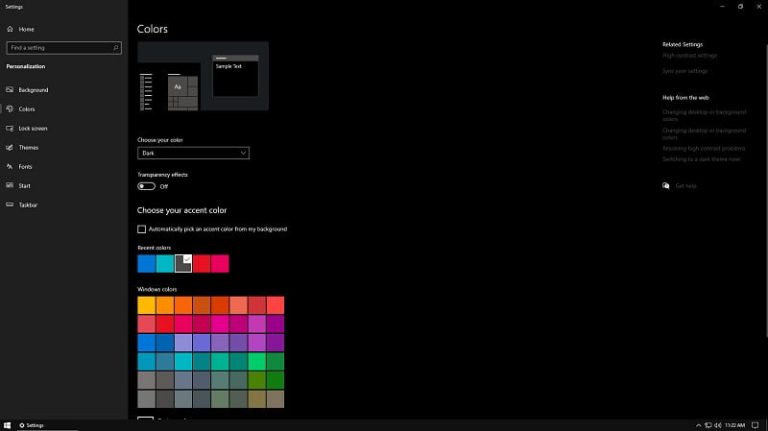
- Click Colors in the left-hand menu.
- Under Choose your color, open the dropdown and select Dark.
- The taskbar, Start menu, and supported apps switch immediately.
Windows 10 also offers a Custom option in the same dropdown. Selecting Custom reveals two separate controls — one for Windows mode and one for app mode — allowing the system UI to run in dark while keeping individual apps in light mode, or vice versa. This is useful if certain productivity apps are easier to read on a white background while the rest of the interface stays dark.
Customizing the Dark Mode Experience
Switching to dark mode opens up several additional settings worth adjusting for the best visual result.
Transparency Effects
Transparency effects are enabled by default in Windows 11 and give menus and panels a frosted glass look. Turning them off in the same Colors settings page creates a more solid, deep black appearance that many users prefer in dark mode. On older hardware, disabling transparency also reduces the processing load for rendering those effects.
Accent Colors
Dark mode pairs with accent color customization in the Colors menu. Choosing a custom accent color changes the highlighted elements — active window borders, selected items, toggle switches — giving the dark interface a distinct personal look. The option to automatically pick an accent color from the current wallpaper is also available and updates dynamically when the wallpaper changes.
Night Light
Dark mode and Night Light serve different purposes and work well together. Dark mode changes the color of the interface. Night Light, found under Settings → System → Display, reduces the amount of blue light emitted by the screen by warming the color temperature. Enabling both provides maximum eye comfort during evening and nighttime use. Night Light can be scheduled to activate automatically at sunset and deactivate at sunrise.
How to Set Dark Mode on Apps That Don’t Follow the System Setting
Some applications do not automatically adopt the Windows system dark mode setting. Legacy apps, older software, and some browser-based tools maintain their own independent theme controls. For browsers, dark mode is available in Settings for both Chrome and Edge — look for the Appearance or Themes section. Microsoft Office apps like Word and Excel have their own Office Theme setting under File → Account → Office Theme, where a Black or Dark Gray option is available independently of the Windows setting.
For apps that have no native dark mode at all, the Windows High Contrast mode (Settings → Accessibility → Contrast Themes) can force a dark appearance system-wide, though the visual result is less refined than true dark mode. Third-party tools like Auto Dark Mode — a free, open-source Windows app — provide more granular control, including scheduled switching, app-specific overrides, and a system tray toggle for instant switching without opening Settings.
Automatic Dark Mode Switching with Microsoft PowerToys
Microsoft PowerToys is a free utility available from Microsoft that includes a Windows Colors mode scheduler. After installing PowerToys, the tool allows automatic switching between light and dark mode at specific times — useful for anyone who prefers light mode during the day and dark mode in the evening without manually toggling the setting. PowerToys is available directly from the Microsoft Store or from the official Microsoft download page. It requires no third-party accounts and integrates directly with Windows settings.
How to Enable Dark Mode via Registry (Unactivated Windows)
On systems where Windows has not been activated, the Personalization settings in the Settings app may be locked or grayed out. The registry method bypasses this restriction and applies dark mode directly.
- Press Win + R, type regedit, and press Enter to open the Registry Editor.
- Navigate to: HKEY_CURRENT_USER\Software\Microsoft\Windows\CurrentVersion\Themes\Personalize
- Find the entry named AppsUseLightTheme and set its value to 0.
- Find the entry named SystemUsesLightTheme and set its value to 0 as well.
- Close the Registry Editor. The change applies immediately or after signing out and back in.
Setting either value to 1 reverts the corresponding element back to light mode. This method works on both Windows 10 and Windows 11 and does not require a restart. Those who also need to remove the Windows activation watermark can do so separately without affecting the dark mode registry settings.
Dark Mode on the Windows Lock Screen and Login Screen
One point of frequent confusion: the Windows lock screen and login screen do not follow the dark mode setting. These screens are controlled separately under Settings → Personalization → Lock Screen. Changing the lock screen background to a dark image is the most effective way to maintain a consistent dark appearance from the moment the screen turns on. Windows 11 offers a Windows Spotlight option that rotates lock screen images automatically, many of which are dark landscape or night sky photographs by default.
Pro Tips for Dark Mode on Windows
Dark mode renders most effectively when screen brightness is reduced by 20–30%. Running full brightness with a dark interface can cause the white text on dark backgrounds to bloom or appear slightly harsh, defeating the purpose of the mode. A brightness level between 50–70% combined with dark mode and Night Light active is the most comfortable combination for extended use.
Wallpaper selection matters more in dark mode than in light mode. Bright, high-contrast wallpapers create a jarring visual split between the desktop background and the dark interface borders. Choosing a dark, desaturated, or low-contrast wallpaper creates a more cohesive look. Windows 11 ships with several dark-toned wallpapers specifically designed for this purpose.
Some users working across multiple monitors find that secondary monitors may display slightly different brightness or contrast in dark mode depending on the panel type. IPS panels generally render dark grays more accurately, while cheaper TN panels can display dark mode backgrounds as muddy or uneven. Calibrating monitor color profiles under Settings → System → Display → Advanced Display Settings helps address this on multi-monitor setups.
For developers and power users who frequently switch between dark and light depending on the task — dark for terminal work, light for design tools — the Auto Dark Mode app offers a system tray icon for one-click toggling without navigating into Settings each time. The same app also hooks into sunrise and sunset times based on geographic location for fully automatic switching. Users managing Windows keyboard shortcuts will find that there is no built-in hotkey for toggling dark mode natively, making the Auto Dark Mode app’s system tray approach the most practical solution for frequent switchers.
FAQ
How do I turn off dark mode in Windows 11?
Open Settings → Personalization → Colors and change the mode dropdown from Dark to Light. The interface reverts immediately with no restart needed. The same Custom option allows reverting just the app mode or just the Windows mode independently.
Does dark mode help with eye strain?
Dark mode reduces the amount of bright white light emitted by the screen, which can ease eye fatigue in low-light environments. It does not reduce total blue light output the way Night Light does. For maximum eye comfort, enable both dark mode and Night Light together, particularly during evening use.
Why are some apps still white after enabling dark mode?
Legacy applications and some third-party software maintain their own independent theme controls and do not inherit the Windows system setting. These apps must be switched to dark mode individually through their own Settings or Preferences menus. Browsers like Chrome and Edge have dedicated Appearance settings for this purpose.
Does dark mode work on unactivated Windows 10 or 11?
The Personalization settings may be restricted on unactivated systems, but dark mode can still be applied through the Registry Editor by setting AppsUseLightTheme and SystemUsesLightTheme to 0 under the Themes\Personalize key. This method works on both Windows versions without requiring activation.
Is there a keyboard shortcut to toggle dark mode in Windows?
Windows does not include a built-in keyboard shortcut for switching between dark and light mode. The free Microsoft PowerToys utility adds a scheduled auto-switch feature, and the Auto Dark Mode app provides a system tray toggle that is the closest equivalent to a one-click shortcut for frequent mode switching.
Dark mode on Windows 10 and 11 is one of the most impactful visual changes available in the operating system, and it requires nothing beyond a few clicks in the Settings app. The standard Colors menu handles the vast majority of use cases. For unactivated systems, the registry method provides the same result without needing full activation. PowerToys and Auto Dark Mode extend the feature for anyone who wants scheduled or automated switching rather than a fixed setting.
The Custom mode option — allowing independent control of the Windows UI mode and the app mode — is particularly underused and solves the common complaint that certain apps are harder to read in dark backgrounds. Combining that control with Night Light, appropriate wallpaper selection, and reduced brightness turns dark mode from a simple aesthetic toggle into a genuinely more comfortable daily working environment.