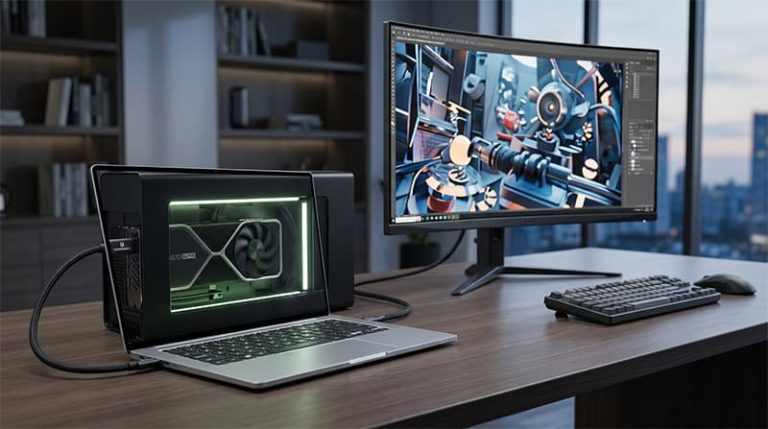
An external GPU (eGPU) connects a full desktop graphics card to your laptop through a high-speed cable, delivering the kind of performance that no thin-and-light can match internally. What began as a niche enthusiast experiment has matured into a genuinely practical upgrade path — one that can transform an ultrabook into a capable gaming or rendering machine without replacing the laptop itself. The technology has also fractured into two distinct camps in the last year: the familiar Thunderbolt ecosystem and a newer, faster challenger called OCuLink. Understanding the difference between them is now the most important decision you will make before buying anything.
This guide covers how eGPUs work, which connection standard makes sense for your setup, which enclosures and graphics cards are worth buying, and how to set everything up correctly to get the best possible performance.
How an eGPU Actually Works
An eGPU setup has two parts: the enclosure and the graphics card. The enclosure is a chassis that houses the GPU, powers it through an internal power supply, manages its cooling, and connects it to your laptop via cable. The graphics card itself is a standard desktop GPU — the same card you would put in a tower PC.
The connection between the enclosure and your laptop is where performance is won or lost. Unlike a desktop where the GPU communicates directly through the motherboard’s PCIe slot, an external GPU has to send all its data through a cable. The two technologies used for this are Thunderbolt and OCuLink, and they have meaningfully different performance characteristics that matter to real users.
Thunderbolt 3 and 4 use PCIe 3.0 x4, delivering 40 Gbps of bandwidth. They are the most widely supported standard — found on virtually all modern Intel laptops and many AMD machines. Hot-plugging works, meaning you can connect and disconnect the enclosure while the laptop is running. A single cable also carries power to charge the laptop simultaneously.
Thunderbolt 5 doubles the bandwidth to 80 Gbps using PCIe 4.0 x4 and supports up to 240W charging. It significantly narrows the gap with OCuLink, but availability remains limited to high-end and workstation-class laptops. The Thunderbolt controller still introduces protocol overhead that reduces real-world throughput below the theoretical maximum.
OCuLink (Optical-Copper Link) is a direct PCIe extension — no protocol tunneling, no controller overhead. It delivers 64 Gbps of raw PCIe 4.0 x4 bandwidth with lower latency than either Thunderbolt generation. Benchmarks from Tom’s Hardware and XDA Developers consistently show OCuLink outperforming Thunderbolt 5 in gaming, with Thunderbolt 5 running up to 14% slower on average and showing worse frame pacing in ray-traced titles. The tradeoff: OCuLink is not hot-swappable, does not carry display signals or laptop charging, and is far less common on consumer laptops. It currently appears mainly on gaming handhelds, mini PCs, and select high-performance laptops with an M.2 adapter.
Who Actually Benefits from an eGPU
External GPUs are not the right answer for every laptop user. They solve a specific set of problems, and identifying whether your situation matches is the first step before spending anything.
Laptop users with integrated or weak discrete graphics see the most dramatic gains. If your machine runs on Intel Iris Xe, AMD Radeon 600M, or a low-wattage discrete GPU, an eGPU can turn an office machine into something that handles modern games at 1440p. The gap between what you have and what a desktop card provides is large enough that even the Thunderbolt bandwidth overhead becomes irrelevant in practical terms.
Content creators on ultrabooks are the other primary beneficiary. Video editors cutting 4K or 8K footage in Premiere Pro, 3D artists rendering in Blender, and machine learning engineers using TensorFlow or PyTorch will see render times cut substantially. These workloads are bottlenecked by raw GPU compute, not bandwidth, so the eGPU connection overhead barely matters.
Users who need portability during the day and power at their desk find the eGPU model ideal. You carry the laptop. The enclosure stays on the desk. One cable connects both worlds. This is where the Thunderbolt single-cable convenience — data, display, and charging in one plug — genuinely justifies paying more than OCuLink.
Upgraders who want to extend laptop lifespan can replace only the GPU inside the enclosure every few years rather than buying an entirely new machine. This modularity is one of the more compelling long-term arguments for the format.
Thunderbolt vs OCuLink: Which Should You Choose
This is the decision that defines your entire setup, and the answer is simpler than the spec sheets suggest.
Choose Thunderbolt if your laptop is the primary device you carry to work or class. The single-cable connection handles GPU, display, and laptop charging simultaneously. Hot-plug support means connecting and disconnecting is seamless. Thunderbolt 4 is the current standard with the widest compatibility. If your laptop has Thunderbolt 5, it narrows the performance gap with OCuLink considerably — particularly for high-end cards at 4K where the GPU is the primary bottleneck rather than the connection.
Choose OCuLink if raw gaming performance is the priority and your device supports it natively. The direct PCIe connection eliminates the protocol overhead that caps Thunderbolt’s effective throughput. In gaming benchmarks at 1440p the performance lead over Thunderbolt 4 is consistent and meaningful. The practical limitation is hardware availability — native OCuLink ports appear on gaming handhelds like the ONEXPLAYER and select mini PCs, and while an M.2 adapter can add OCuLink support to any laptop with an accessible M.2 slot, that process requires opening the machine and is only recommended for technically confident users.
For the majority of laptop owners, Thunderbolt 4 remains the practical default. OCuLink is the better-performing option for those whose hardware already supports it.
Best eGPU Enclosures
Razer Core X V2
The Razer Core X V2 is the updated version of the enclosure that has defined the Thunderbolt eGPU market for years. It supports Thunderbolt 4 and 5, ships with a 700W power supply, and has interior clearance for triple-slot, full-length desktop cards. The single-cable setup charges your laptop at up to 100W while powering the GPU. Build quality is excellent and compatibility with both NVIDIA and AMD cards across Windows is as reliable as it gets in this category. Available for around $350. The Chroma variant adds RGB lighting, extra USB-A ports, and Ethernet for those who want a full docking station in one unit.
ASUS ROG XG Mobile (2025)
The ROG XG Mobile is the highest-performing mainstream eGPU option for those who own a compatible ASUS ROG or Zephyrus laptop. The 2025 model uses Thunderbolt 5 and is available with NVIDIA GeForce RTX 5090 laptop GPU hardware integrated directly into the unit. Because it uses a custom connector with higher effective bandwidth than standard Thunderbolt and bypasses the desktop card bottleneck entirely by using an integrated laptop-grade GPU, it is the fastest eGPU solution that does not require OCuLink. It functions as a dock simultaneously. The tradeoff is the proprietary connector — it only works with supported ASUS laptops, and the RTX 5090 version carries a price north of $2,500.
Minisforum DEG2
The DEG2 is the most versatile enclosure currently on the market for users who want to future-proof their setup. It includes both Thunderbolt 5 and OCuLink interfaces with a physical toggle switch — no cable swap or software configuration needed to move between them. Additional features include an M.2 NVMe slot, 2.5G LAN, and USB ports. It accepts standard ATX and SFX power supplies, which keeps upgrade costs low. Available for around $299, it is the logical choice for users who may upgrade to a device with OCuLink support or want to compare both interfaces directly.
AOOSTAR AG02 GTBOX G-DOCK
The AOOSTAR AG02 uses an open-air design that prioritizes airflow and compactness over the enclosed chassis approach of the Razer and Minisforum units. It supports OCuLink and USB4, making it well-suited for mini PC and gaming handheld users who already have OCuLink connectivity. Pricing sits around $150–$180 depending on configuration, making it one of the more accessible entry points into OCuLink eGPU setups.
EXP GDC TH3P4G3
The TH3P4G3 from EXP GDC is a budget-oriented enclosure supporting Thunderbolt 3, 4, and USB4 with a compact design. It lacks the power headroom for high-end cards but handles mid-range GPUs like the RTX 4060 or RX 7600 XT cleanly. At around $140–$160, it is the most practical option for users testing eGPU compatibility before committing to a more expensive setup.
Best Graphics Cards for eGPU Use
Not every desktop GPU makes sense in an eGPU enclosure. High-end cards like the RTX 4090 or RTX 5090 are increasingly bottlenecked by Thunderbolt 4’s bandwidth ceiling at 1080p and 1440p — the connection cannot feed the card fast enough to use its full potential. The sweet spot is the upper-mid-range, where the card is powerful enough to deliver excellent performance while the Thunderbolt overhead represents a smaller percentage penalty against total output.
For Thunderbolt 4 setups, the NVIDIA GeForce RTX 4070 Super and AMD Radeon RX 7800 XT hit the optimal balance of performance and connection utilization. Both cards deliver strong 1440p results and handle 4K adequately, with the Thunderbolt 4 bottleneck becoming negligible at higher resolutions where the GPU is fully occupied. Pricing sits around $500–$600 for the RTX 4070 Super and $450–$500 for the RX 7800 XT.
For Thunderbolt 5 or OCuLink setups, the bandwidth ceiling rises enough to justify stepping up. The RTX 4080 Super or early availability RTX 5080 cards become genuinely viable, with OCuLink in particular scaling well with higher-end hardware due to its direct PCIe connection. The RTX 5060 Ti is emerging as a strong mid-range option in this generation, combining 16GB VRAM with Ada-class efficiency.
For budget setups, the RTX 4060 or AMD RX 7600 XT deliver solid 1080p and entry-level 1440p performance at $280–$320 and are well within the power envelope of smaller enclosures.
How to Set Up Your eGPU
Step 1 — Download drivers before connecting anything. Visit NVIDIA’s or AMD’s official website and download the latest stable driver for your GPU model and operating system. Having the installer ready before the first connection avoids the system installing a generic driver you will need to replace immediately.
Step 2 — Install the GPU in the enclosure. With everything powered off, firmly seat the graphics card in the enclosure’s PCIe slot and secure it with the retention screw. Connect the enclosure’s internal PCIe power cables to the card. Close the enclosure, connect its power cable to the wall, and power it on.
Step 3 — Connect to your laptop. Using the certified Thunderbolt or OCuLink cable that came with the enclosure, connect the enclosure to the appropriate port on your laptop. On Windows you will hear a connection sound or see a device notification. On macOS a prompt may appear requesting permission.
Step 4 — Install the GPU driver. On Windows, cancel any automatic driver installation attempt and run the official installer you downloaded in Step 1. Restart after installation completes. Open NVIDIA Control Panel or AMD Software Adrenalin Edition and verify the eGPU is recognized under display adapters.
Step 5 — Connect an external monitor to the enclosure. Plug your display directly into the eGPU’s output ports rather than the laptop screen. This single step has the largest impact on performance — routing the rendered image back through the Thunderbolt cable to the laptop’s built-in screen costs bandwidth and reduces frame rates measurably. An external monitor connected to the enclosure bypasses this entirely.
Step 6 — Benchmark and validate. Run 3DMark Time Spy or a demanding game to confirm stability. Monitor temperatures using HWiNFO or GPU-Z. Look for consistent frame delivery without stuttering — stuttering often indicates a driver conflict or power supply issue rather than a cable bandwidth limitation.
Realistic Costs for a Complete Setup
A quality Thunderbolt 4 enclosure like the Razer Core X V2 runs $300–$380. A strong mid-range card like the RTX 4070 Super adds $550–$620. A complete high-performance Thunderbolt 4 setup therefore lands between $850 and $1,000. OCuLink-based setups can be assembled for less — a Minisforum DEG1 enclosure at $109 plus a used RTX 4070 at around $400 puts a capable rig together for under $550.
These numbers put eGPU setups in direct competition with budget gaming desktops and previous-generation gaming laptops. The eGPU wins on modularity — the enclosure and GPU can both be upgraded independently — but loses on raw performance per dollar compared to a purpose-built desktop tower. The case for an eGPU is strongest when you already own a premium laptop and want to extend its useful life rather than replace it.
Pro Tips for Getting the Most Out of Your eGPU
Always use an external monitor plugged into the enclosure. This is the single highest-impact change you can make. Connecting the display directly to the eGPU’s output ports eliminates the round-trip bandwidth penalty of sending rendered frames back through the Thunderbolt cable to the laptop screen.
Use only a certified cable. Do not substitute a generic USB-C cable for a Thunderbolt or OCuLink connection. Thunderbolt cables must be certified 40 Gbps or 80 Gbps depending on your standard. Cables longer than 0.7 meters must be active cables to maintain full speed — passive cables lose signal integrity at length.
Check driver release notes before updating. New GPU driver releases occasionally introduce regressions specific to eGPU configurations. Check the eGPU.io forums for community reports on any given driver version before applying it. Waiting a week after a major release is often worthwhile.
Target 1440p or 4K over 1080p. The Thunderbolt bandwidth overhead is most pronounced at 1080p, where the CPU and connection are more likely to be the limiting factor rather than the GPU. At 1440p and above, the GPU becomes the bottleneck and the connection overhead shrinks as a percentage of total performance, delivering results closer to desktop benchmarks.
For OCuLink setups, never hot-swap. Unlike Thunderbolt, OCuLink does not support hot-plugging. Connecting or disconnecting the enclosure while the system is running can damage both the laptop and the GPU. Always shut down completely before making or breaking the connection.
Pros and Cons
Advantages: Desktop-class GPU performance on a portable laptop. Full GPU upgradeability independent of the laptop. Clean desk setup — one cable connects the enclosure at your workstation. Extends laptop lifespan by years, delaying full system replacement. Thunderbolt setups also add USB hub, display output, and laptop charging through a single cable.
Disadvantages: Thunderbolt 4 imposes a 10–20% performance penalty versus the same card in a desktop. The combined cost of enclosure and GPU approaches or exceeds a budget gaming desktop. Requires Thunderbolt 3/4/5 or OCuLink support on the laptop — not all USB-C ports qualify. macOS on Apple Silicon has extremely limited eGPU support, restricted to select AMD cards via unofficial workarounds. OCuLink setups require hardware that is still uncommon on mainstream consumer laptops.
Frequently Asked Questions
Can I use an eGPU with any laptop?
No. Your laptop must have a Thunderbolt 3, 4, or 5 port, or a native OCuLink port. Standard USB-C ports without Thunderbolt certification do not have the bandwidth to run an eGPU enclosure effectively. Check for the lightning bolt icon next to the port, or look up your laptop model’s specifications to confirm Thunderbolt support.
Is OCuLink better than Thunderbolt for eGPU setups?
For raw performance, yes. OCuLink delivers direct PCIe 4.0 bandwidth without the protocol overhead that limits Thunderbolt’s effective throughput. Benchmarks consistently show OCuLink outperforming Thunderbolt 5 by around 10–14% in gaming, with better frame consistency. The practical barrier is availability — OCuLink ports are uncommon on mainstream laptops and require an M.2 adapter modification on devices that lack a native port.
Will an eGPU work with my MacBook?
On Apple Silicon Macs (M1 through M4), official eGPU support does not exist. Apple has not released drivers for external GPUs on its own chips, and unofficial community workarounds exist for select AMD cards only. NVIDIA is not supported on Apple Silicon under any circumstances. Intel-based MacBooks supported eGPU setups via Thunderbolt 3, but those machines are now several generations old.
Why is performance worse when using my laptop screen instead of an external monitor?
When the eGPU renders a frame, that image must travel back through the Thunderbolt cable to display on the laptop’s built-in screen. This consumes bandwidth that would otherwise be used for GPU-to-CPU data transfer. Connecting a display directly to the eGPU’s output ports eliminates this round-trip entirely, recovering a meaningful portion of the bandwidth overhead and improving frame rates noticeably.
How do I know if my graphics card will fit in the enclosure?
Check the enclosure manufacturer’s specifications page for the maximum supported card length, width, and slot thickness. Then compare those dimensions against the card you want to install. Enclosures like the Razer Core X V2 accommodate triple-slot, full-length cards. Compact enclosures like the EXP GDC TH3P4G3 may not fit larger coolers.
Is an eGPU worth it compared to buying a gaming laptop?
It depends entirely on your usage pattern. A gaming laptop is the better choice if you need high performance anywhere you go. An eGPU makes more sense if you already own a premium ultrabook for work or travel and want serious graphics performance only at your desk. The eGPU route is also more upgradeable long-term — you replace the GPU inside the enclosure rather than buying an entirely new laptop when the next graphics generation arrives.
Choosing the Right Setup for Your Situation
The eGPU market has expanded significantly with the arrival of Thunderbolt 5 and the growing OCuLink ecosystem. For most laptop users, a Thunderbolt 4 enclosure paired with an upper-mid-range GPU like the RTX 4070 Super remains the most practical combination — wide compatibility, single-cable convenience, and performance that transforms how a thin laptop handles demanding workloads. For users with OCuLink-capable devices, the direct PCIe connection delivers meaningfully better frame rates and consistency, particularly with higher-end cards at 1440p.
The key to a successful eGPU setup is matching the connection standard to your hardware, setting a realistic budget that accounts for both the enclosure and the GPU, and using an external monitor connected directly to the enclosure. Get those three things right and the performance gain over your laptop’s built-in graphics is substantial enough to justify the investment many times over.