

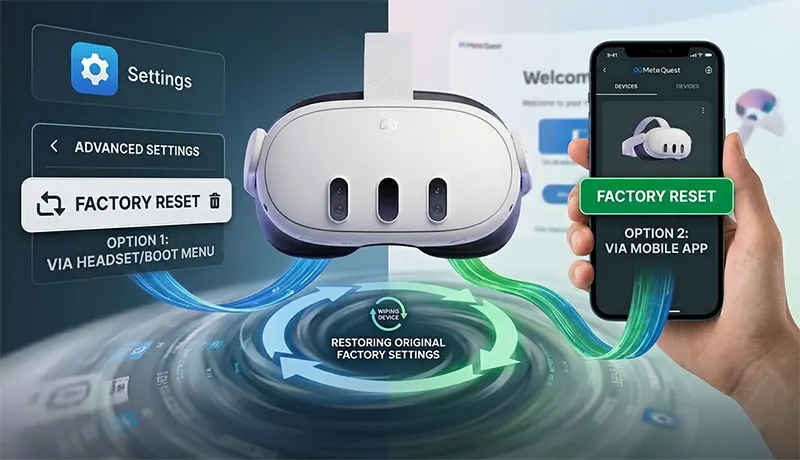
A factory reset on a Meta Quest headset erases everything on the device — apps, game progress, account information, saved settings, and all locally stored data — and returns it to the exact state it was in when it left the factory. Knowing how to factory reset Meta Quest 3, Quest 2, Quest 3S, and Quest Pro correctly matters whether fixing persistent software issues, preparing the headset for a new owner, or recovering from a forgotten PIN. This guide covers every method available across all current Meta Quest models, with clear step-by-step instructions, model-specific button locations, and everything to do before and after the reset.
When Should You Factory Reset a Meta Quest?
A factory reset is not the first step to try when something goes wrong. It is a last resort for software problems and a necessary step in specific ownership scenarios. Knowing when to use it prevents unnecessary data loss.
Selling or giving away the headset. This is the single most common reason. A Meta Quest stores account credentials, saved payment methods, and personal usage data. Handing over the headset without resetting it leaves all of that information accessible to the new owner. A factory reset is mandatory before any transfer of ownership.
Persistent software problems that do not resolve through standard troubleshooting — repeated crashes, apps that will not open, frozen screens, black screen on boot, or the headset stuck in a setup loop — often clear after a factory reset when other fixes fail. If restarting the headset, clearing app cache, and reinstalling individual apps have not resolved the issue, a reset is the next logical step. For less severe performance issues, clearing the system cache first may resolve the problem without requiring a full data wipe.
Buying a used Quest that is still linked to the previous owner’s account is another scenario. If the seller did not reset the headset before handing it over, the hardware reset method using the physical buttons bypasses the need to log into any account, allowing the new owner to start fresh without the previous user’s credentials.
Forgotten PIN or lock pattern. If the headset has been locked with a PIN that cannot be recalled, a factory reset via the boot menu is the only recovery option available without Meta support involvement.
What to Do Before Resetting Any Meta Quest
A factory reset is irreversible. Once completed, it cannot be undone, and no data recovery option exists for locally stored content. Taking a few minutes to prepare prevents permanent loss of game progress and personal files.
Enable cloud backup before resetting. Go to Settings > System > Backup on the headset and confirm Cloud Backup is toggled on. With cloud backup active, certain app data and settings sync to the Meta account and can be restored after reinstalling apps. Not all apps support cloud save sync — check individual app settings to confirm before relying on this.
Transfer screenshots and video recordings to a computer via USB-C before resetting. Media files stored locally on the headset are not included in cloud backups and will be permanently deleted during the reset. Connect the Quest to a PC using a USB-C cable, accept the data access prompt on the headset, and copy files from the internal storage to the computer.
Write down any important app settings or custom configurations. Apps that do not support cloud save will lose all local data. Note any customizations — controller mappings, display settings, Guardian boundaries, and accessibility preferences — that will need to be reconfigured after the reset.
Ensure the battery has sufficient charge. A factory reset that is interrupted by a dead battery mid-process can leave the headset in a partially reset state that is difficult to recover from. Charge the headset to at least 50% before beginning.
Factory Reset Meta Quest 3 — All Methods
The Meta Quest 3 has the power button on the right side of the headset when worn, and the volume buttons on the left. The Volume Down (-) button is the one closer to the center of the headset. These button locations matter for the hardware reset method.
Method 1: From the Headset Settings Menu (Quest 3)
This is the easiest method when the headset is functional and accessible.
- Put on the headset and open the universal menu from the bottom toolbar.
- Select Settings (the clock/gear icon).
- Navigate to System in the left panel.
- Scroll down and select Factory Reset.
- Read the warning prompt carefully, then select Factory Reset to confirm.
- The headset will reboot and begin the reset process automatically.
Method 2: Using the Meta Horizon App (Quest 3)
This method works remotely from a smartphone as long as the headset is powered on and connected to Wi-Fi. It is the most reliable option for a clean remote reset.
- Open the Meta Horizon app on a paired iPhone or Android phone.
- Tap Menu at the top of the Horizon Feed.
- Select Devices and choose the Quest 3 from the device list.
- Tap Headset Settings, then Advanced Settings.
- Tap Factory Reset, then tap Reset to confirm.
- The headset will receive the reset command and begin the process.
Method 3: Hardware Boot Menu Reset (Quest 3)
Use this method when the headset is unresponsive, locked, or cannot be navigated through the normal interface. No account login or app pairing is required.
- Hold the Power button for five seconds to fully shut the headset off.
- Press and hold the Power button and Volume Down (-) button simultaneously for two to three seconds until the boot menu appears on the lenses.
- Use the Volume buttons to navigate the boot menu — Volume Up moves the cursor up, Volume Down moves it down.
- Highlight Factory Reset and press the Power button to select it.
- On the confirmation screen, highlight Yes, erase and factory reset and press the Power button to confirm.
- The headset will reset completely and reboot into the first-time setup screen.
Factory Reset Meta Quest 2 — All Methods
On the Meta Quest 2, the volume buttons are located in the center of the left side of the headset, and the power button is on the right side. The Volume Down (-) button is the one closer to the center of the headset body. The steps are identical across methods but the physical button layout differs slightly from the Quest 3.
Method 1: From the Headset Settings Menu (Quest 2)
- Put on the Quest 2 and press the Oculus button on the right controller to open the universal menu.
- Select the Clock icon, then navigate to Settings.
- Select Device from the left panel.
- Scroll down to Factory Reset and select it.
- Confirm the reset on the following prompt. The headset will reboot and erase all data.
Method 2: Using the Meta Horizon App (Quest 2)
- Open the Meta Horizon app on a paired phone.
- Tap Devices in the bottom menu.
- Select the Quest 2 from the device list.
- Tap Headset Settings, then Advanced Settings.
- Tap Factory Reset and confirm with the Reset button.
Method 3: Hardware Boot Menu Reset (Quest 2)
- Hold the Power button until the headset fully shuts off.
- Press and hold the Power button and Volume Down (-) button simultaneously until the boot screen appears.
- Use the Volume buttons to highlight Factory Reset.
- Press the Power button to select it.
- Highlight Yes, erase and factory reset and confirm with the Power button.
- The Quest 2 will reset and return to the initial setup screen.
Factory Reset Meta Quest 3S — All Methods
The Meta Quest 3S shares the same button layout logic as the Quest 3 and Quest 2, with the Volume Down (-) button being the one closer to the center of the headset. The reset process is identical to the Quest 3 across all three methods.
Method 1: From the Headset Settings Menu (Quest 3S)
- Open Settings from the universal menu on the headset.
- Navigate to System, then scroll to Factory Reset.
- Select Factory Reset and confirm on the following prompt.
- The headset will begin erasing all local data and reboot to factory defaults.
Method 2: Using the Meta Horizon App (Quest 3S)
- Open the Meta Horizon app on the paired phone.
- Go to Menu > Devices and select the Quest 3S.
- Tap Headset Settings > Advanced Settings.
- Tap Factory Reset, then confirm.
Method 3: Hardware Boot Menu Reset (Quest 3S)
- Power off the headset completely by holding the Power button for five seconds.
- Press and hold Power and Volume Down (-) simultaneously for three to five seconds until the recovery menu appears.
- Use Volume buttons to navigate to Factory Reset and confirm with the Power button.
- Select Yes, erase and factory reset and confirm. The headset will reboot to factory defaults.
Factory Reset Meta Quest Pro — All Methods
The Meta Quest Pro has a slightly different physical design than the consumer Quest models. The power button is located on the top of the headset, and the volume buttons are on the right side. The boot menu access process is the same — hold Power and Volume Down together — but locating Volume Down on the Pro requires checking the right side of the headset rather than the left.
Method 1: From the Headset Settings Menu (Quest Pro)
- Open the universal menu and go to Settings.
- Navigate to System > Factory Reset.
- Select Factory Reset and confirm the prompt.
- The headset will erase all data and reboot to the setup screen.
Method 2: Using the Meta Horizon App (Quest Pro)
- Open the Meta Horizon app and go to Devices.
- Select the Quest Pro from the device list.
- Tap Headset Settings > Advanced Settings > Factory Reset.
- Confirm the reset. The headset will receive the command and begin the process.
Method 3: Hardware Boot Menu Reset (Quest Pro)
- Hold the power button (top of headset) to fully shut it off.
- Press and hold Power and Volume Down (-) simultaneously until the boot screen appears.
- Navigate with Volume buttons to Factory Reset and select with the Power button.
- Confirm with Yes, erase and factory reset. The Pro will reset and reboot.
Remote Factory Reset from the Meta Website
If the headset has already been sold, shipped, or is no longer physically accessible, a remote reset is possible through the Meta website — as long as the headset reconnects to Wi-Fi at some point after the command is issued.
- Log in to the Meta account at meta.com from a browser on a computer or phone.
- Navigate to the Device Management or Account & Devices section.
- Select the headset and choose Delete Device Data or Deauthorize Device.
- Complete any identity verification prompted by Meta.
- The reset command will execute automatically the next time the headset connects to Wi-Fi.
This method only works on supported software versions and may not be available on all account configurations. It is specifically useful for the scenario where the headset has already been transferred but was not reset beforehand. Understanding how to remotely locate and erase devices is important — the same principles apply when finding a lost or stolen device and wiping it remotely before someone else accesses personal data.
ADB Factory Reset — Advanced Method
The ADB (Android Debug Bridge) reset method is for advanced users only. It requires USB debugging to have been enabled on the headset before the reset became necessary — it cannot be activated after the headset becomes inaccessible. This method is sometimes useful for developers who had debugging enabled during normal use and need recovery options beyond the standard boot menu.
- Connect the Meta Quest to a PC via USB-C cable.
- Open Command Prompt or Terminal in the directory where ADB tools are installed.
- Run adb devices to confirm the headset is recognized.
- Accept the USB debugging authorization prompt on the headset if it appears.
- Run adb reboot recovery to enter the bootloader menu.
- Use the hardware boot menu steps above to complete the factory reset from the boot screen.
For most standard users the boot menu method achieves the same result without requiring ADB setup. The ADB approach is mainly relevant for developers who have sideloaded apps and need a specific recovery workflow. Anyone exploring how to sideload apps on Android-based devices will already have USB debugging enabled, making this method a viable recovery option.
What Happens to Purchased Games and Apps After a Reset?
Purchased content from the Meta Store is tied to the Meta account, not the headset. After a factory reset and logging back into the same account, all previously purchased games and apps appear in the game library and can be reinstalled at no additional cost. The reset does not affect ownership of digital purchases in any way.
Local save data and game progress, however, is only preserved if the specific app supports Meta’s cloud save sync. Many major titles do support cloud saves, but not all. Apps that store progress only locally will lose that data permanently in the reset. Checking individual game settings for cloud backup options before resetting is the only way to know which titles will retain progress and which will not.
Guardian boundaries and room tracking configurations are deleted and must be redrawn after the reset. Controller pairings are also reset — the Quest controllers will automatically re-pair on first boot, but any third-party controllers or accessories with custom pairing configurations will need to be re-paired manually.
Troubleshooting: Factory Reset Not Working
If the headset does not respond to the Power and Volume Down button combination, hold the Power button alone for 10 to 15 seconds to force a full hardware shutdown. Release, wait five seconds, then attempt the boot menu combination again from a fully powered-off state. The combination requires both buttons held simultaneously — pressing them in sequence rather than at the same time will not trigger the boot menu.
If the boot menu appears but the headset powers off before the reset completes, the battery charge was insufficient. Connect the charging cable, allow at least 30 minutes of charge, and retry. The reset process can take several minutes depending on how much content is stored on the device — do not interrupt it by holding the power button during the process.
If the Meta Horizon app does not show the Factory Reset option in Advanced Settings, confirm the headset is powered on, connected to Wi-Fi, and actively paired to the account in the app. A headset that is offline or in sleep mode may not show all management options in the app until it reconnects.
After the Reset: First Steps
The headset will reboot into the first-time setup screen after the reset completes. Put on the headset and follow the on-screen setup prompts to select language, connect to Wi-Fi, and log into the Meta account. After logging in, all purchased content becomes available to reinstall from the game library.
If cloud backup was enabled before the reset, the headset will offer to restore settings and app data during setup. Select restore when prompted — this brings back supported settings, app configurations, and any cloud-saved game progress without manual reconfiguration.
Re-draw Guardian boundaries during setup. The setup process will prompt this automatically for room-scale use. For anyone who prefers customized play area configurations, reconfiguring them immediately after setup ensures the headset is ready for use without a separate setup session later.
After restoring apps and confirming performance is back to normal, it is a good time to explore additional content. The Meta Quest platform expands significantly through sideloading unofficial apps — anyone interested in how to expand beyond the official store should understand the full range of what is available. The broader gaming ecosystem across platforms is also worth exploring; the best console emulators available across devices demonstrate how flexible modern gaming hardware has become. Meta Quest’s capability to run cross-platform content through cross-platform gaming is another area worth exploring after getting the headset back to full functionality.
Frequently Asked Questions
How do I factory reset my Meta Quest if I forgot the PIN?
Use the hardware boot menu method: power off the headset completely, then hold Power and Volume Down (-) simultaneously until the boot screen appears. Navigate to Factory Reset using the volume buttons and confirm with the Power button. This method bypasses PIN or pattern lock entirely and does not require access to the headset’s normal interface or any account login.
Does factory resetting an Oculus / Meta Quest delete everything?
A factory reset erases all locally stored data — apps, game progress, screenshots, videos, account credentials, settings, and Guardian configurations. It does not delete purchased content from the Meta Store, which remains tied to the account and can be reinstalled after logging back in. If cloud backup was enabled before the reset, supported app data and settings can be restored automatically during setup.
How do I factory reset a Meta Quest without the app?
Use the hardware boot menu method, which requires no app, no Wi-Fi, and no account access. Power off the headset, hold Power and Volume Down (-) simultaneously until the boot menu loads, navigate to Factory Reset with the volume buttons, and confirm with the Power button. This method works on Quest 2, Quest 3, Quest 3S, and Quest Pro regardless of whether the app is installed.
What is the difference between a hard reset and a factory reset on Meta Quest?
A hard reset — holding the Power button for 10 to 15 seconds — forces the headset to shut off and is used to recover from a frozen or unresponsive state. It does not erase any data. A factory reset wipes all local data and returns the headset to its original out-of-box state. The two terms are sometimes used interchangeably but refer to completely different processes with very different outcomes.
Conclusion
Every Meta Quest model — Quest 2, Quest 3, Quest 3S, and Quest Pro — supports three primary factory reset methods: through the headset settings menu, through the Meta Horizon app, and through the hardware boot menu using the Power and Volume Down buttons. The boot menu method is the most universally applicable, working even when the headset is locked, unresponsive, or no longer paired to any account.
The steps across all models are nearly identical, with the main difference being button placement. Quest 3 and 3S have the volume buttons on the left side of the headset and the power button on the right; Quest 2 has the volume buttons in the center-left and power on the right; Quest Pro has volume buttons on the right side and power on top. In every case, Volume Down is the button closer to the center of the headset body.
Before resetting, enable cloud backup, transfer any media files to a computer, and charge the headset to at least 50%. After resetting, all purchased content remains accessible through the Meta account and can be reinstalled immediately. The reset process itself takes just a few minutes from start to finish, and the headset returns to full functionality as soon as the first-time setup is complete.

Loading comments…