

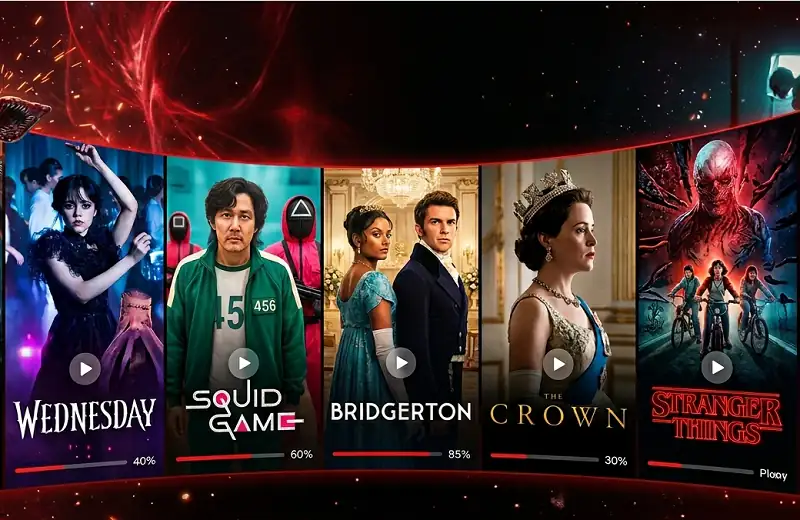
The Netflix Continue Watching row clutters your homepage fast — half-watched episodes, titles someone else started, and shows you abandoned after one minute all pile up in the same row. Removing them is straightforward once the process is clear, but the steps differ depending on whether the device is a phone, smart TV, or browser. This guide covers every method for clearing, hiding, and managing the Continue Watching list on Netflix across all devices and platforms.
What Is the Netflix Continue Watching Row?
The Continue Watching row appears near the top of every Netflix profile’s homepage. Netflix automatically populates it with any title that has been started but not finished — including individual episodes, movies partially viewed, and anything watched by anyone using that profile. The row updates in real time and syncs across every device logged into the same profile.
Removing a title from Continue Watching also removes it from the profile’s viewing history, which can affect future content recommendations. Hiding an episode gives the option to hide the full series as well. Changes made on one device generally sync to all others within 24 hours, though most updates take effect immediately.
How to Remove from Netflix Continue Watching on a Web Browser
The browser method is the fastest way to clean up the Continue Watching row on a desktop or laptop computer. It works on any browser including Chrome, Firefox, Safari, and Edge.
- Go to netflix.com and log in to the correct profile.
- Scroll down the homepage until the Continue Watching row is visible.
- Hover the mouse cursor over the title to be removed.
- Click the X icon (labeled “Remove from row”) that appears in the top corner of the thumbnail.
- If prompted, select a reason for removing the title — this step is optional and does not affect the removal.
The title disappears from the row immediately. If the X icon does not appear on hover, try refreshing the page and hovering again. This method does not remove the title from the full viewing history — it only clears it from the Continue Watching row on the homepage.
How to Remove from Netflix Continue Watching on Android
On Android phones and tablets, the process runs through the Netflix mobile app. Make sure the app is updated to the latest version before starting, as older versions may not show the removal option.
- Open the Netflix app and navigate to the correct profile.
- Scroll down the homepage to locate the Continue Watching row.
- Tap the three dots (⋮) icon displayed below the title thumbnail.
- Select Remove from row from the menu that appears.
- Tap Remove on the confirmation prompt.
The title is removed from the row instantly. If the three-dot menu does not appear beneath a title, tap the title itself to open its details page. From there, scroll down through the options to find “Remove from Continue Watching” listed among the available actions. The Android app syncs the change to all other devices on the same profile within a short period.
How to Remove from Netflix Continue Watching on iPhone and iPad
The iOS Netflix app follows the same tap-based process as Android, with a nearly identical interface. The steps work on both iPhone and iPad running any recent version of iOS.
- Open the Netflix app on the iPhone or iPad.
- Switch to the correct profile if multiple profiles are set up on the account.
- Find the Continue Watching row and swipe horizontally to locate the title.
- Tap the three dots (⋮) below the title.
- Select Remove from row and confirm the action.
Alternatively, tapping the title to open its detail page and scrolling through the options will also reveal the Remove from Continue Watching button. Users who want to manage Netflix content across multiple Apple devices will find the change propagates to all linked devices logged into the same Netflix profile.
How to Remove from Netflix Continue Watching on a Smart TV or Streaming Device
Smart TVs, Roku devices, Amazon Fire TV sticks, Apple TV, Chromecast, and gaming consoles all use the same general approach. Navigation uses a remote control rather than touch input, so the steps differ slightly from the mobile method.
- Open Netflix on the smart TV or streaming device and go to the correct profile.
- Navigate to the Continue Watching row using the remote directional buttons.
- Highlight the title to be removed — do not open it, just select it.
- Press the down button on the remote to reveal the options menu below the title.
- Navigate to and select Remove from Continue Watching.
- Confirm the removal when prompted.
On some older smart TV models or streaming sticks, the option may only appear after pressing the Select or OK button on the highlighted title to open its overview page. From there, use the directional buttons to scroll through the available actions until Remove from Continue Watching appears. The remote control response on Fire TV devices can occasionally lag — wait a second after each button press before proceeding to the next step.
How to Remove from Netflix Continue Watching Using Viewing Activity
The Viewing Activity page is the most thorough method for managing what appears in Continue Watching. Unlike the in-app removal options, the Viewing Activity page allows full deletion from the watch history — not just removal from the homepage row. This method works for all devices but must be accessed through a web browser.
- Open a web browser and log in to netflix.com.
- Click the profile icon in the top right corner and select Account from the dropdown menu.
- Scroll down to the Profile & Parental Controls section and click the profile whose history needs editing.
- Click Viewing Activity to open the full watch history for that profile.
- Find the title to remove and click the circle with a line through it (the hide icon) to the right of it.
- If hiding an individual episode, select Hide series to remove all episodes of the show from viewing history at once.
Titles hidden this way are removed from Continue Watching and from the recommendations algorithm. Netflix typically processes these changes within 24 hours across all devices. This is the recommended approach when the goal is a full reset of a profile’s content history rather than a quick cleanup of the homepage row.
How to Delete Your Entire Netflix Watch History
Netflix does not offer a single-click button to wipe the entire watch history at once. Each title must be hidden individually through the Viewing Activity page. For profiles with a long watch history, this process takes time but is the only official method available.
To clear the history systematically, open the Viewing Activity page as described in the previous section. The page loads watch history in chronological order with the most recent titles at the top. Use the hide icon on each entry row by row. For shows, selecting Hide series when prompted removes all episodes in a single action, which significantly speeds up the process for profiles with heavy TV show history.
Third-party browser extensions and automation tools that claim to delete Netflix history in bulk are not officially supported by Netflix and carry account security risks. The manual method through Viewing Activity remains the only safe and reliable approach.
Pro Tips for Managing the Netflix Continue Watching Row
Watching a title to completion — typically reaching 90 to 100 percent of a movie or the end credits of a TV episode — removes it from Continue Watching automatically. This is the fastest passive method for keeping the row clean without manual intervention.
Netflix profiles are separate, and watch history does not cross between them. Creating a dedicated profile for shared or guest use prevents other viewers’ half-watched titles from appearing in a personal Continue Watching row. Each profile maintains its own isolated history and recommendation engine.
If a title was removed from Continue Watching but reappears after some time, it usually means the title was re-opened on another device logged into the same profile. Check all logged-in devices and close any open Netflix sessions that may have re-triggered the entry.
The Continue Watching row on Netflix does not have a fixed limit, but it tends to display the most recently accessed titles first. Older entries scroll off the visible portion of the row but are not deleted automatically — they remain in history indefinitely until manually hidden.
Removing a title from Continue Watching on Netflix does not cancel a subscription, delete a profile, or affect billing. It is purely a cosmetic and recommendation-level change that affects how the homepage is organized for that specific profile.
For households managing Netflix across multiple devices simultaneously, the Viewing Activity cleanup is best done from a desktop browser rather than a mobile device. The larger screen makes it easier to identify and hide titles quickly without misclicks on adjacent entries.
Why Netflix Continue Watching Won’t Update on Some Devices
In some cases, a removed title continues to appear in the Continue Watching row on certain devices even after successful removal on another. This is almost always a sync delay rather than a permanent error. Netflix states that changes to viewing history can take up to 24 hours to propagate across all devices on the same account.
If the row still shows the removed title after 24 hours, the most reliable fix is to sign out of Netflix completely on the affected device, clear the Netflix app’s cache, and sign back in. On Android devices, clearing the app cache is done through Settings > Apps > Netflix > Storage > Clear Cache. On iOS, the Netflix app must be deleted and reinstalled to achieve the same result, as iOS does not expose an app-level cache-clearing function separately.
Smart TVs and streaming sticks sometimes hold a locally cached version of the Netflix homepage that does not reflect account-level changes. Restarting the device — not just the app — forces a fresh data pull from Netflix’s servers and resolves most display inconsistencies.
How to Stop Shows from Appearing in Netflix Continue Watching
The only way to prevent a title from ever entering the Continue Watching row is to avoid starting it. Once any progress is recorded — even a few seconds of playback — Netflix adds it to the row automatically. There is no setting to disable the Continue Watching feature entirely.
For users who want to preview a title without committing it to their history, using a separate Netflix profile is the most practical workaround. Start the title on a secondary profile, and the primary profile’s Continue Watching row remains unaffected. This approach is especially useful in shared households where one viewer’s browsing habits would otherwise interfere with another’s recommendations.
Netflix Kids profiles operate under the same rules — titles started on a Kids profile appear in that profile’s Continue Watching row but do not cross over to adult profiles. Parental controls do not include a history visibility toggle, so the same manual removal methods apply within the Kids profile interface.
Frequently Asked Questions
How do I remove something from Netflix Continue Watching on a TV?
Navigate to the title in the Continue Watching row using the remote, press the down button to reveal the options menu, and select Remove from Continue Watching. If the option does not appear, open the title’s detail page and scroll through the available actions. The change syncs to all devices within 24 hours.
Does removing from Continue Watching delete my watch history?
Removing a title from the Continue Watching row via the in-app option removes it from the homepage but may keep it in the full viewing history. To remove it from viewing history entirely, use the Viewing Activity page in Account settings on a web browser and click the hide icon next to the title.
Why can’t I remove something from Netflix Continue Watching?
If the Remove from Row option is missing, the Netflix app may need updating. On smart TVs, the option only appears after navigating to the title’s detail page using the remote’s down button. On mobile, ensure the app is on the latest version — older builds do not display the three-dot removal menu consistently.
What is the $9.99 Sling deal?
This does not apply to this article — that is a Sling TV pricing question. For Netflix-specific pricing and plan changes, visit the Account section on netflix.com directly.
How long does it take for Netflix Continue Watching to update across devices?
Most removals take effect immediately on the device where the action was performed. Syncing to all other devices linked to the same profile typically takes up to 24 hours, though in practice the update often appears within a few minutes on active devices.
Managing Netflix Continue Watching the Right Way
The Continue Watching row is one of the most visible parts of the Netflix interface, and keeping it organized makes a real difference to how quickly the right content can be found. The quickest method for most users is the in-app removal — three taps on mobile or a hover-and-click on the browser — which handles individual titles without touching the broader viewing history. For a full profile reset or bulk cleanup, the Viewing Activity page in Account settings is the most thorough tool available.
Smart TV users should use the remote’s down button to access the removal option directly from the homepage row, avoiding the need to open each title’s full detail page. Sync delays are normal and almost always resolve within 24 hours without any additional action needed.
Understanding how Netflix tracks watch progress — and how to override it — puts full control back in the viewer’s hands. Whether the goal is a cleaner homepage, a fresh start on recommendations, or simply removing a title someone else started, every device and platform has a reliable removal path covered in this guide.
