

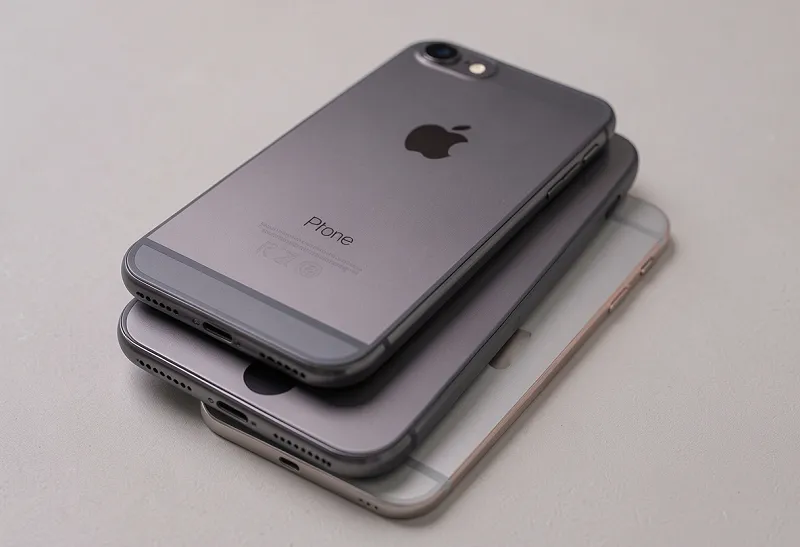
Restarting an iPhone is the single most effective first step for fixing software glitches, connectivity problems, frozen screens, and sluggish performance. The process takes under 30 seconds, erases no data, and resolves the vast majority of common iPhone issues without any technical knowledge required. The exact button combination differs depending on which iPhone model is being used — this guide covers every model from the latest iPhone 17 series all the way back to older devices with a Home button.
Before diving into the steps, it helps to understand the difference between a standard restart, a force restart, and a factory reset. A standard restart (also called a soft reset) powers the device off gracefully and brings it back on — ideal for routine maintenance or minor software hiccups. A force restart (hard reset) bypasses the normal shutdown process and immediately reboots the device, which is necessary when the screen is frozen or completely unresponsive. A factory reset erases all data and settings — that is a separate, more drastic procedure and is not covered here.
How to Restart iPhone 8, SE (2nd/3rd Gen), X, 11, 12, 13, 14, 15, 16, and 17 (Face ID Models)
All iPhones from the iPhone 8 onward — including every Face ID model through the current iPhone 17 lineup — use the same standard restart method. These devices removed the dedicated Home button and reorganized power controls across the Side button and volume buttons.
- Press and hold either the Volume Up or Volume Down button and the Side button simultaneously.
- Keep holding both buttons until the slide to power off slider appears on screen.
- Drag the slider from left to right to shut down the iPhone.
- Wait a full 30 seconds after the screen goes completely black — this ensures the system fully powers down.
- Press and hold the Side button on the right edge of the device until the Apple logo appears.
- Release the button and allow the iPhone to finish booting up.
The 30-second wait between shutting down and powering back on is not optional. Turning the device back on immediately after shutdown can interrupt the restart cycle and prevent it from fully clearing temporary processes in memory.
How to Restart iPhone 6, 6s, 7, and SE (1st Gen) — Models with a Home Button
iPhone models with a physical Home button use a simplified single-button restart process. The button locations differ slightly across these older generations, but the overall sequence is the same.
iPhone 6, 6s, SE (1st Generation)
- Press and hold the Side button (right edge) on iPhone 6/6s, or the Top button on SE 1st gen.
- Hold until the slide to power off slider appears.
- Drag the slider to the right to turn the device off.
- Wait 30 seconds.
- Press and hold the same button again until the Apple logo appears.
iPhone 7 and 7 Plus
The iPhone 7 introduced a non-mechanical Home button that does not physically depress, which changed the force restart process (covered in the next section). For a standard restart, the method is the same as the 6s — press and hold the Side button until the power-off slider appears, drag to shut down, wait 30 seconds, and hold the Side button again to turn it back on.
For older iPhone 5, 5s, and original SE models, the power button sits on the top edge of the device. Hold it down until the slider appears, drag to power off, wait, then hold again to restart.
How to Force Restart an iPhone When the Screen Is Frozen
A force restart is necessary when the touchscreen stops responding entirely, the device is stuck on a black screen, or the standard slider method cannot be initiated. This method directly interrupts the power cycle to reboot the hardware. It does not delete any data, apps, or settings.
Force Restart iPhone 8, SE (2nd/3rd Gen), X, 11, 12, 13, 14, 15, 16, and 17
- Quickly press and release the Volume Up button.
- Quickly press and release the Volume Down button.
- Press and hold the Side button without releasing.
- Keep holding even after the power-off slider appears — do not swipe it.
- Continue holding for 10 to 20 seconds until the screen goes black and the Apple logo appears.
- Release the Side button and wait for the device to reboot.
The most common mistake here is releasing the Side button when the power-off slider appears. The slider appearing is not the goal — the Apple logo is. Keep holding through the slider, and the force restart sequence will complete on its own.
Force Restart iPhone 7 and 7 Plus
- Press and hold the Volume Down button and the Side button at the same time.
- Hold both buttons until the Apple logo appears — approximately 10 seconds.
- Release and allow the iPhone to reboot.
Force Restart iPhone 6s, SE (1st Gen), and Earlier
- Press and hold both the Home button and the Side button (or Top button on very old models) simultaneously.
- Hold for 10 to 15 seconds until the Apple logo appears.
- Release both buttons and wait for the device to restart.
How to Restart an iPhone Without Using the Buttons
Button-free restart methods are essential when physical buttons are damaged, stuck, or difficult to press due to a thick protective case. There are three reliable approaches that work on any iPhone running a reasonably current version of iOS.
Restart via Settings
Go to Settings → General → Shut Down. Drag the power-off slider that appears. Once the screen goes black, press and hold the Side button to turn the device back on. This method works on all iPhones with iOS 11 and above.
Restart via AssistiveTouch
AssistiveTouch creates a floating on-screen button that replicates physical hardware actions. To enable it, go to Settings → Accessibility → Touch → AssistiveTouch and toggle it on. Once active, tap the AssistiveTouch button → Device → More → Restart. Confirm the restart when prompted. This is particularly useful for devices with a broken Side button or cracked volume buttons that no longer register physical presses.
Ask Siri to Restart
On devices running iOS 16 and above, Siri can initiate a restart directly. Activate Siri using Hey Siri or by pressing the Side button and say “Restart my iPhone.” Siri will ask for confirmation before proceeding. This is the fastest no-touch method when the screen is still responsive but the physical buttons are not.
Why Restarting an iPhone Fixes So Many Problems
A restart clears the iPhone’s active memory (RAM), terminates all running background processes, and forces apps to reload from scratch when reopened. Over time, apps accumulate temporary data and processes pile up in memory — some of which may conflict with each other or consume system resources inefficiently. Powering down gives the operating system a clean slate.
According to Apple’s own support documentation, restarting is the recommended first troubleshooting step for the vast majority of software-related issues. Common problems that a simple restart typically resolves include:
- Apps freezing, crashing, or refusing to open
- Wi-Fi or Bluetooth connections dropping or failing to reconnect
- Touch ID or Face ID suddenly not working
- The screen becoming unresponsive or lagging
- Cellular signal lost or stuck searching
- AirPlay or CarPlay not detecting the device
- Background app refresh behaving erratically
- Battery drain that seems abnormally fast
A weekly restart is generally good practice for maintaining iPhone performance — it takes less than a minute and prevents the accumulation of software state that causes gradual slowdowns. This is particularly true for devices running many background-active apps like navigation, health tracking, or communication tools.
Restart vs. Force Restart vs. Factory Reset — Key Differences
These three terms are frequently confused, and using the wrong procedure can lead to unnecessary data loss. Here is a clear breakdown:
Standard Restart (Soft Reset)
Uses the power-off slider to gracefully shut down all processes before powering off. The iPhone saves app state and system data normally before switching off. Best for routine maintenance, slow performance, or minor connectivity issues. No data is lost.
Force Restart (Hard Reset)
Bypasses the normal shutdown process and cuts power to the system immediately. Equivalent to holding down the power switch on a desktop PC. Used specifically when the screen is frozen or the device is completely unresponsive. No data is deleted — it simply reboots the hardware more aggressively. The iPhone screen will go black and the Apple logo will appear just as in a normal boot.
Factory Reset
Erases all apps, data, settings, and personal information, returning the device to its out-of-box state. This is irreversible without a full backup restore. It is appropriate only when preparing a device for resale, troubleshooting a persistent software issue that nothing else resolves, or recovering from a severe system corruption. Always back up the iPhone to iCloud or a computer before performing a factory reset.
What to Do When an iPhone Won’t Restart
In rare cases, neither a standard restart nor a force restart produces results. Before assuming a hardware failure, work through these steps in order:
Check the Battery Level
A completely drained battery can cause the iPhone to appear frozen or unresponsive when it has simply run out of power. Connect the device to a charger using the original cable and adapter. Wait at least 15 minutes before attempting to restart again. A battery below roughly 3% may not power on immediately even when plugged in — give it time.
Remove the Case and Try Again
Thick or rigid protective cases can physically block the Side button or volume buttons from fully depressing. Remove the case completely and attempt the force restart button sequence again on the exposed device. This is a surprisingly common reason why force restart attempts fail.
Try DFU Mode (Last Resort Before Service)
Device Firmware Update (DFU) mode bypasses both the operating system and the bootloader, allowing iTunes or Finder to reinstall iOS from scratch. It is the deepest recovery mode Apple provides and should only be used when everything else fails. DFU mode requires a computer with iTunes (Windows) or Finder (Mac) and a USB cable. The process varies by model — search Apple Support directly for the current model-specific DFU instructions, as the steps involve precise button timing.
Contact Apple Support
If a force restart does not work and the battery is charged, the issue may be hardware-related — a failed display, a damaged power IC chip, or a logic board fault. Apple Support and Apple Authorized Service Providers can run diagnostics and carry out repairs that are not solvable through software methods alone.
Pro Tips for Better iPhone Restarts
Timing the volume button presses correctly during a force restart is the most common point of failure. The Volume Up and Volume Down button presses in step one and two must each be a quick tap — not a hold. Holding them will trigger other functions (like the emergency SOS screen) rather than the force restart sequence. Press and release each volume button in under half a second, then immediately move to holding the Side button.
Closing apps before restarting is not necessary. A restart already terminates all processes automatically. App multitasking thumbnails in the app switcher are not the same as apps running in background — most apps are suspended, not actively running, when not in the foreground. Force-closing apps before a restart adds no benefit and can actually slow down the next launch since recently suspended apps have to reload entirely.
After a restart, allow 60 to 90 seconds before testing the problem that prompted the restart. Some system services — particularly Wi-Fi networking, Face ID, and push notifications — take a short time to fully initialize after boot. Testing immediately after the Apple logo disappears may give a false impression that the restart did not work.
For devices with iOS 16 or later, checking for a pending software update immediately after a restart is good practice. Many connectivity and performance issues that resist a standard restart are resolved by installing the latest iOS update, which Apple bundles with targeted bug fixes for known system-level problems.
Frequently Asked Questions
How do I force restart an iPhone that is completely frozen?
For iPhone 8 and all newer models, quickly press and release Volume Up, quickly press and release Volume Down, then hold the Side button for 10 to 20 seconds until the Apple logo appears. For iPhone 7, hold Volume Down and the Side button together. For iPhone 6s and older, hold the Home button and the Side or Top button together. No data is deleted by a force restart.
Does restarting an iPhone delete anything?
No. A standard restart and a force restart both preserve all apps, photos, contacts, messages, and settings. The only procedure that deletes data is a factory reset (Erase All Content and Settings), which is a completely separate process and requires deliberate confirmation steps before it executes.
How often should an iPhone be restarted?
Once a week is a reasonable baseline for maintaining performance. Apple has historically suggested periodic restarts as part of good device maintenance. More frequent restarts — daily, for example — are not harmful and may be worth doing if the device is used heavily with multiple background apps active continuously.
Why does the iPhone restart take so long?
The restart duration depends on the iPhone model and the amount of data the system processes during boot. Newer models with faster chips like the A17 Pro and A18 typically complete a full restart in 15 to 25 seconds. Older models with the A11 or A12 chip may take 30 to 45 seconds. If the restart takes longer than two minutes, the device may be stuck — attempt a force restart to break it out of the loop.
What is the difference between restarting and resetting an iPhone?
Restarting powers the device off and back on, clearing active memory and refreshing processes without touching any stored data. Resetting is an umbrella term — it can mean resetting specific settings (like network settings or keyboard dictionary) without data loss, or it can mean a full factory reset that erases everything. Always verify which type of reset is being described before proceeding.
Can a restart fix Wi-Fi and Bluetooth problems on iPhone?
Yes, and it is the recommended first step for both. Wi-Fi and Bluetooth connectivity issues are frequently caused by a networking daemon that has entered an error state. A restart terminates and reinitializes all system daemons, including the one managing wireless connections. If the problem returns consistently after every restart, resetting network settings via Settings → General → Transfer or Reset iPhone → Reset → Reset Network Settings is the next logical step.
Conclusion
Knowing how to restart an iPhone correctly — and which method applies to which model — is foundational iPhone knowledge that saves time and prevents unnecessary trips to the Apple Store. The standard restart handles the majority of everyday software issues in under a minute. The force restart sequence is the go-to solution for frozen screens and completely unresponsive devices, requiring only a specific button press order that differs by generation. Button-free methods via Settings, AssistiveTouch, or Siri cover situations where physical buttons are unavailable or damaged.
For any iPhone running iOS 16 or later, keeping software updated remains the single most effective way to minimize how often restarts are needed. Apple’s point updates address the underlying bugs that cause freezes, connectivity drops, and app crashes. A weekly restart paired with timely iOS updates covers the vast majority of software maintenance an iPhone needs under normal use.
When a restart — whether standard or forced — does not resolve the issue and the device remains unresponsive even after charging, that signals a potential hardware fault. At that point, Apple Support or an authorized repair provider is the appropriate next step. Software methods cannot fix physical component failures, and attempting increasingly aggressive recovery procedures on a hardware problem can complicate the eventual repair.
