

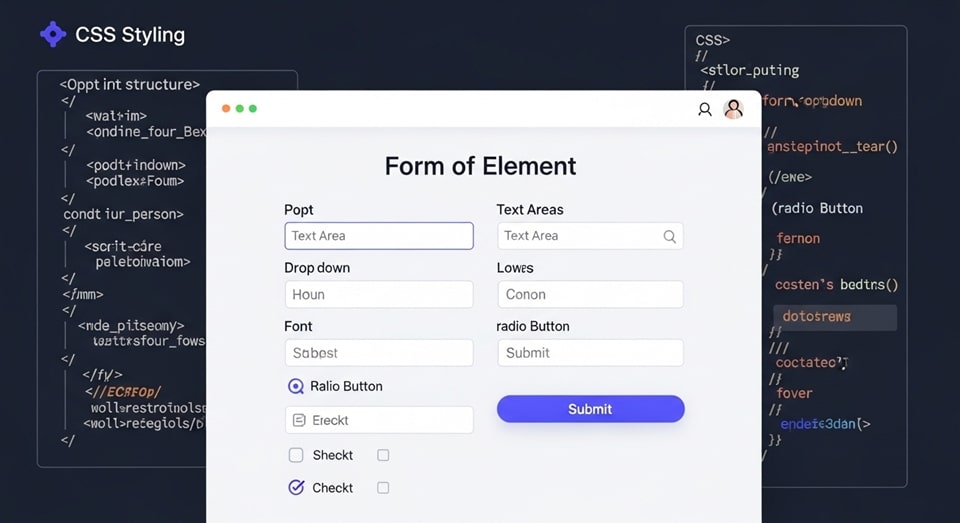
Forms are one of the most important interaction points on any website. Whether users are signing up, logging in, submitting feedback, or completing a purchase, the quality and usability of form elements directly affect conversion rates and overall user experience. Default browser styles for inputs, buttons, and other form controls are functional but often inconsistent across browsers and rarely align with a site’s visual identity. This makes custom styling with CSS not just a design preference, but a practical necessity for modern web development.
Styling form elements effectively requires a balance between aesthetics, usability, and accessibility. While CSS provides powerful tools to customize appearance, developers must also account for browser quirks, focus behavior, keyboard navigation, and assistive technologies. Poorly styled forms can reduce usability, frustrate users, or even make a site inaccessible. A well-designed approach, however, results in clean, intuitive, and visually consistent forms that enhance trust and ease of use.
This guide provides a comprehensive, step-by-step approach to styling common form elements using modern CSS. It covers inputs, textareas, select menus, checkboxes, radio buttons, buttons, validation states, and accessibility considerations. Each section focuses on practical techniques that can be applied across real-world projects while maintaining standards compliance and cross-browser reliability.
Understanding Browser Default Form Styles
Before applying custom styles, it is important to understand how browsers handle form controls by default. Each browser ships with its own user agent stylesheet that defines the look and behavior of form elements. This is why an input field may look subtly different in Chrome, Firefox, Safari, and Edge even when no CSS is applied.
Default styles prioritize usability and platform consistency over branding. Buttons often resemble native operating system controls, and inputs are styled to be recognizable and accessible out of the box. While these defaults are reliable, they can clash with a site’s design language, especially in modern interfaces that emphasize minimalism or strong visual identity.
To gain control, developers often reset or normalize form styles. A reset removes most default styling, while a normalization approach preserves useful defaults but ensures consistency. Understanding this baseline helps prevent unexpected behavior when custom styles are applied.
Resetting and Normalizing Form Elements
Resetting form styles typically involves removing margins, borders, background colors, and outlines so that all elements start from a neutral state. Normalization, on the other hand, focuses on aligning default styles across browsers while retaining accessibility-friendly behaviors.
A common approach is to remove browser-specific appearance properties while keeping semantic structure intact. This allows developers to build a consistent visual system without fighting against unpredictable defaults.
Styling Text Inputs and Textareas
Text inputs and textareas are among the most frequently used form elements. Styling them effectively improves readability, clarity, and user confidence. A well-designed input field clearly communicates its purpose, current state, and whether user input is valid.
Key visual aspects to consider include typography, spacing, border styles, background color, and focus states. Inputs should be large enough to interact with comfortably, especially on touch devices, and text should be easy to read under different lighting conditions.
Basic Input Styling
At a minimum, custom input styles should define font properties, padding, border radius, and colors. These properties create visual consistency with the rest of the interface while ensuring usability.
input,

textarea {

font-family: inherit;

font-size: 16px;

padding: 12px 14px;

border: 1px solid #ccc;

border-radius: 6px;

background-color: #ffffff;

color: #333333;

}
This approach ensures inputs inherit the site’s typography and remain legible. The padding provides sufficient space for comfortable typing, while subtle border radius softens the appearance.
Focus and Active States
Focus states are critical for accessibility and keyboard navigation. When an input receives focus, it should be visually distinct without being distracting. Relying solely on color changes can be problematic for users with visual impairments, so contrast and clarity are essential.
input:focus,

textarea:focus {

border-color: #0066cc;

outline: none;

box-shadow: 0 0 0 3px rgba(0, 102, 204, 0.2);

}
This technique replaces the default outline with a custom focus ring that is both visible and consistent with the brand’s color palette.
Customizing Select Menus
Select menus are notoriously difficult to style consistently across browsers. While basic properties such as font, padding, and border can be customized, the dropdown arrow and menu behavior are often controlled by the browser or operating system.
Despite these limitations, it is possible to achieve a clean and consistent appearance by removing native styling and adding custom visual cues. Care must be taken to ensure that usability and accessibility are not compromised.
Removing Native Appearance
Most browsers allow developers to suppress native styling using appearance-related properties. This provides greater control over the select element’s appearance.
select {

appearance: none;

-webkit-appearance: none;

-moz-appearance: none;

background-color: #ffffff;

border: 1px solid #ccc;

padding: 12px 40px 12px 14px;

border-radius: 6px;

}
The extra right padding leaves room for a custom arrow icon, which can be added using background images or pseudo-elements.
Maintaining Accessibility
Even when custom-styled, select elements must remain keyboard accessible and screen-reader friendly. Avoid replacing native selects with non-semantic elements unless absolutely necessary, as this often introduces accessibility challenges.
Styling Checkboxes and Radio Buttons
Checkboxes and radio buttons present unique challenges because their native appearance is tightly controlled by the browser. Modern CSS, however, makes it possible to create visually appealing custom controls while preserving underlying functionality.
The most reliable approach involves visually hiding the native input and styling a corresponding label or pseudo-element. This ensures that form semantics, keyboard navigation, and screen-reader support remain intact.
Custom Checkbox Example
input[type="checkbox"] {

position: absolute;

opacity: 0;

}
input[type=”checkbox”] + label {
position: relative;
padding-left: 28px;
cursor: pointer;
}
The label acts as the visible control, while the hidden checkbox maintains form behavior. Pseudo-elements can be used to draw the box and checkmark.
Radio Button Considerations
Radio buttons follow a similar pattern but require clear visual distinction between selected and unselected states. Grouping and spacing are especially important to prevent user confusion.
Designing Buttons for Clarity and Feedback
Buttons are action-driven elements and should clearly indicate interactivity. Their design should reflect importance, hierarchy, and state changes such as hover, active, and disabled.
Effective button styling improves usability by providing immediate visual feedback. Users should always understand what will happen when a button is clicked.
Primary and Secondary Buttons
Primary buttons represent the main action, while secondary buttons support alternative actions. Visual differentiation helps users make decisions quickly.
button {

font-size: 16px;

padding: 12px 20px;

border-radius: 6px;

border: none;

cursor: pointer;

}
button.primary {
background-color: #0066cc;
color: #ffffff;
}
button.secondary {
background-color: #e6e6e6;
color: #333333;
}
Hover and active states should subtly reinforce interactivity without causing distraction.
Handling Validation and Error States
Validation feedback is essential for guiding users through form completion. Clear, immediate feedback reduces frustration and prevents submission errors.
Error, success, and warning states should be visually distinct and accompanied by helpful messaging. Color alone should not convey meaning; icons or text cues improve accessibility.
Common Validation States
- Error state: Highlight invalid fields with a contrasting border color and provide a clear explanation. Error messages should be concise and placed near the relevant input.
- Success state: Confirm valid input with subtle visual feedback such as a green border or icon. This reassures users that their input is correct.
- Warning state: Use warnings for non-critical issues, such as weak passwords, while allowing users to proceed.
- Disabled state: Clearly indicate when an input or button is disabled to prevent confusion. Reduced opacity and cursor changes help communicate this state.
- Loading state: Provide feedback during form submission to prevent duplicate actions. Spinners or text indicators are commonly used.
Consistent validation styling improves clarity and reduces user errors.
Accessibility and Usability Best Practices
Accessible form styling ensures that all users, including those using assistive technologies, can interact with form controls effectively. Accessibility should be integrated from the beginning, not added as an afterthought.
Semantic HTML, proper labeling, sufficient color contrast, and visible focus states are foundational requirements. CSS should enhance these elements rather than obscure them.
Key Accessibility Considerations
- Label association: Every input must have a properly associated label to ensure screen-reader compatibility.
- Focus visibility: Custom focus styles must be clearly visible for keyboard users navigating forms.
- Color contrast: Text and borders should meet contrast guidelines to remain legible for users with visual impairments.
- Touch targets: Inputs and buttons should be large enough for comfortable interaction on touch devices.
- Error messaging: Validation messages should be announced to assistive technologies and clearly describe the issue.
By prioritizing accessibility, developers create forms that are both inclusive and future-proof.
Pro Tips for Professional Form Styling
Experienced developers often rely on a set of best practices to streamline form styling and avoid common pitfalls. One effective approach is to define reusable CSS variables for colors, spacing, and border radius. This ensures consistency and makes global updates easier.
Testing across browsers and devices is equally important. Subtle differences in rendering can impact usability, so forms should be reviewed in multiple environments. Finally, incremental enhancements help maintain performance and avoid overly complex styles that are difficult to maintain.
Frequently Asked Questions
Can all form elements be fully customized with CSS?
Most visual aspects can be customized, but some native behaviors, especially for select menus and date inputs, are controlled by the browser. Developers should work within these constraints to preserve usability.
Is it better to use JavaScript libraries for form styling?
Modern CSS is powerful enough for most styling needs. JavaScript libraries may add unnecessary complexity unless advanced behavior or custom widgets are required.
How do I ensure styled forms remain accessible?
Use semantic HTML, associate labels correctly, maintain visible focus states, and test with keyboard navigation and screen readers.
Should I remove all default browser styles?
Not always. Retaining useful defaults while normalizing inconsistencies often results in better usability and less maintenance.
Conclusion
Styling common form elements with CSS is a foundational skill in modern web development. By understanding browser defaults, applying consistent visual design, and prioritizing accessibility, developers can create forms that are both attractive and user-friendly. Thoughtful styling improves clarity, builds trust, and enhances the overall experience for users across devices and abilities. With a structured approach and attention to detail, well-designed forms become a powerful asset rather than a usability obstacle.
