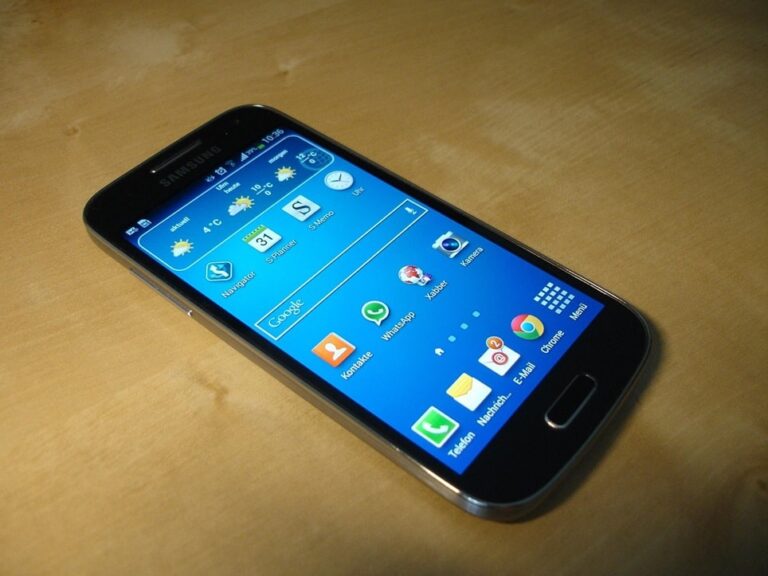
Experiencing random restarts on your smartphone can disrupt daily activities and lead to frustration. This issue affects both Android and iOS devices, often stemming from a mix of software glitches and hardware malfunctions. Understanding the root causes is the first step toward resolving it effectively.
Many users report this problem after installing new apps or system updates, highlighting how minor changes can trigger instability. In some cases, the restarts happen during specific tasks like gaming or charging, pointing to underlying resource strains. Addressing it promptly can prevent data loss and extend your device’s lifespan.
Before diving into fixes, it’s essential to observe when the restarts occur, such as during heavy usage or idle periods. This observation helps narrow down potential triggers. With a systematic approach, most instances can be fixed without professional intervention.
Smartphones are designed to restart as a protective measure against errors, but frequent occurrences indicate something amiss. Common scenarios include devices rebooting every few minutes or only at night. Recognizing patterns aids in efficient troubleshooting.
Common Causes of Random Restarts
Software issues often lead the list of culprits behind random restarts. Bugs in the operating system or incompatible apps can cause conflicts, forcing the device to reboot to recover. Over time, accumulated temporary files exacerbate these problems.
Hardware-related factors, such as a failing battery, contribute significantly. As batteries age, they may fail to hold a stable charge, leading to power fluctuations that trigger restarts. Physical damage from drops can also loosen internal connections.
Overheating is another frequent cause, especially in warmer environments or during intensive tasks. When the processor gets too hot, safety mechanisms kick in to cool it down by restarting. Poor ventilation from thick cases worsens this.
Insufficient storage space strains system resources, causing instability. When memory runs low, the device struggles to manage processes, resulting in crashes and reboots. Regularly clearing unnecessary data helps mitigate this.
- Outdated Software: Running an older version of the OS can lead to compatibility issues with newer apps, causing random shutdowns. Updates often include patches for known bugs that prevent such behavior. Ignoring update notifications increases vulnerability to these problems.
- Faulty Apps: Third-party applications with coding errors can conflict with system functions, leading to restarts. These apps might run in the background, consuming resources unexpectedly. Identifying and uninstalling them restores stability.
- Battery Degradation: Over years of use, lithium-ion batteries lose capacity, resulting in voltage drops that force reboots. Symptoms include rapid drain and swelling. Replacing the battery often resolves persistent issues.
- Overheating Problems: Excessive heat from prolonged gaming or direct sunlight activates thermal protection, causing the phone to restart. Blocked vents or defective cooling components amplify this. Monitoring temperature during use prevents escalation.
- Hardware Damage: Drops or water exposure can damage internal circuits, leading to erratic behavior like random restarts. Loose power buttons or faulty sensors mimic user inputs. Professional inspection is recommended for suspected physical issues.
- Memory Overload: Too many open apps overwhelm RAM, causing the system to crash and reboot. This is common on devices with limited memory. Optimizing app usage reduces the load.
- Network Conflicts: Unstable Wi-Fi or cellular signals sometimes trigger restarts as the device attempts reconnections. SIM card issues or carrier problems contribute. Testing in airplane mode isolates this cause.
- Virus or Malware: Though rare on modern devices, malicious software can destabilize the system, leading to reboots. Downloading from untrusted sources increases risk. Running security scans helps detect and remove threats.
Environmental factors, like extreme temperatures, play a role in device performance. Cold weather can affect battery efficiency, while heat accelerates wear. Protecting your phone from such conditions minimizes risks.
Step-by-Step Troubleshooting Guide
Start with the simplest solutions to avoid unnecessary complexity. These initial steps often resolve the issue without data loss. Patience is key during this process.
Perform a Manual Restart
Begin by powering off your device completely and waiting a few minutes before turning it back on. This clears temporary glitches and refreshes system processes. For Android, hold the power button until the menu appears; for iOS, use the side and volume buttons.
Observe if the random restarts persist after this. If they do, proceed to the next steps. This method is non-invasive and quick to try.
Update Your Operating System
Check for available OS updates in your settings menu. Outdated software is a common trigger for instability. Installing the latest version patches vulnerabilities and improves performance.
For Android users, navigate to Settings > System > System Update. iPhone owners should go to Settings > General > Software Update. Ensure a stable internet connection during the process.
After updating, restart the device manually to apply changes fully. Monitor for improvements over the next day. If issues continue, apps may be the problem.
Update and Manage Apps
Outdated or buggy apps can cause conflicts leading to restarts. Visit the Google Play Store or App Store to update all installed applications. Automatic updates can prevent future issues.
Identify recently installed apps that coincide with the start of the problem. Uninstall them one by one, testing after each removal. This isolates faulty software.
Clear Storage Space
Low storage hampers device operation, causing reboots. Delete unnecessary files, photos, and videos to free up space. Use built-in storage management tools for efficiency.
On Android, go to Settings > Storage to view and clear data. For iOS, check Settings > General > iPhone Storage for recommendations. Aim for at least 20% free space.
Cache files accumulate over time and can be cleared without losing important data. This step often boosts overall speed and stability.
Boot into Safe Mode
Safe mode disables third-party apps, helping identify if one is causing the issue. For Android, hold the power button and tap Restart, then hold Volume Down during boot. On iOS, it’s similar but limited.
If the phone operates normally in safe mode, a downloaded app is likely the culprit. Exit safe mode and remove suspects systematically.
Test for at least an hour in this mode to confirm. Note any differences in performance.
Check Battery Health
Battery degradation leads to power inconsistencies. View battery health in settings to assess capacity. If below 80%, consider replacement.
Avoid extreme charging habits, like overnight sessions, to prolong battery life. Use original chargers for optimal results.
Monitor for Overheating
Feel the device during use for excessive warmth. Remove cases during heavy tasks to improve airflow. Avoid direct sunlight exposure.
If overheating persists, limit processor-intensive activities. Software tools can monitor temperature in real-time.
Advanced Solutions for Persistent Issues
When basic fixes fail, advanced methods may be necessary. These involve more risk, so back up data first. Proceed cautiously.
Perform a Factory Reset
As a last resort, reset the device to original settings. This erases all data, so backup contacts, photos, and apps beforehand. For Android, find it under Settings > System > Reset Options.
On iOS, go to Settings > General > Transfer or Reset iPhone > Erase All Content and Settings. Post-reset, set up as new to avoid reintroducing issues.
Monitor the device after reset. If restarts continue, hardware problems are likely.
Seek Professional Assistance
Contact the manufacturer or visit an authorized service center for diagnostics. They can check for hardware faults like damaged components. Warranty coverage may apply for repairs.
Provide details on when the issue started and steps tried. This speeds up resolution.
Third-party repair shops offer alternatives, but ensure they use genuine parts. Research reviews before choosing.
Pro Tips
- Maintain Regular Updates: Enable automatic updates for OS and apps to stay ahead of bugs. This prevents many common issues from arising. Check weekly for manual installations if needed.
- Optimize Battery Usage: Use low power mode during long sessions to reduce strain. Avoid charging in hot environments. Replace batteries every two years for best performance.
- Manage App Permissions: Review and revoke unnecessary access to reduce background activity. This conserves resources and enhances security. Focus on location and microphone permissions.
- Protect from Physical Damage: Invest in quality cases and screen protectors. Handle devices carefully to avoid drops. Regular cleaning prevents dust buildup in ports.
- Monitor Device Health: Use built-in diagnostic tools periodically. Track usage patterns to spot anomalies early. Third-party apps can provide detailed insights.
- Avoid Overloading: Limit multitasking to essential apps. Close unused tabs in browsers. This keeps RAM free and reduces crash risks.
- Secure Against Malware: Install reputable antivirus software. Scan regularly and avoid suspicious downloads. Strong passwords add another layer of protection.
Implementing these habits extends device reliability. Consistency is crucial for long-term benefits.
Frequently Asked Questions
Can a faulty charger cause random restarts?
Yes, using non-original or damaged chargers can lead to unstable power delivery. This mimics battery issues and triggers reboots. Always use certified accessories.
Why does my phone restart more often at night?
Nightly restarts might coincide with scheduled optimizations or updates. Check auto-restart settings in your device menu. Disable if unnecessary.
Is overheating always a software problem?
No, it can stem from hardware like a failing processor or blocked vents. Software contributes through resource-heavy apps. Address both aspects for resolution.
What if safe mode doesn’t help?
If issues persist in safe mode, core system files may be corrupted. Consider a factory reset or professional repair. Backup data first.
How do I prevent future restarts?
Regular maintenance, like clearing cache and updating software, helps. Avoid extreme temperatures and monitor battery health. These steps minimize risks.
Conclusion
Random phone restarts, while annoying, are often fixable through systematic troubleshooting. By addressing common causes like software glitches, overheating, and battery problems, you can restore stability. Implementing pro tips and staying vigilant prevents recurrence, ensuring a smoother user experience.