

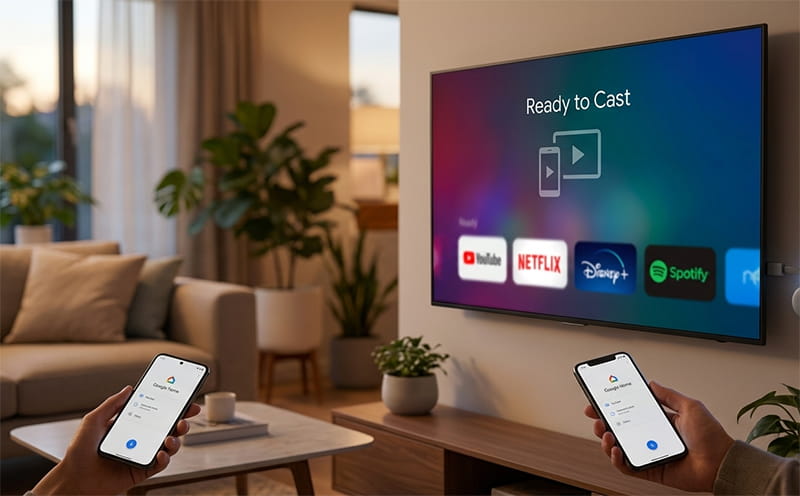
Google Chromecast transformed how millions of people use their televisions. A small dongle that plugs into any HDMI port, Chromecast turned ordinary TVs into smart streaming devices for as little as $30 — no new television required. Over 100 million Chromecasts were sold across its 11-year lifespan before Google officially ended the product line in August 2024. If you own one, it still works and still receives software updates. If you are shopping for a Google streaming device, the successor is the Google TV Streamer. This guide covers everything: what Chromecast is, how every model differs, how to set it up, how to cast from any device, and what to do when things go wrong.
What Is Google Chromecast?
Google Chromecast is a line of digital media players developed by Google between 2013 and 2024. Each device is a compact dongle that plugs directly into a television’s HDMI port, connecting to your home Wi-Fi network and enabling streaming from over 2,000 Cast-enabled apps. Rather than having its own full interface out of the box, the original Chromecast relied on your smartphone, tablet, or laptop as a remote — you start playback on your device and “cast” it to the TV screen.
Later models shifted this approach significantly. The Chromecast with Google TV, released in 2020, added a dedicated remote control and a full navigable interface running Google TV, meaning you could browse and launch content directly on the TV without needing a phone. This made it function more like a traditional streaming device — similar to a Roku or Fire TV Stick — rather than purely a casting receiver.
Chromecast was the best-selling streaming device in the United States in 2014, according to NPD Group, and it maintained strong market share throughout the following decade. The concept was simple and the price was low, making it one of the most accessible ways to add streaming capability to any television with an available HDMI port.
Every Google Chromecast Model Explained
Google released multiple generations of Chromecast across different form factors and capability levels. Understanding the differences helps you know what your device can do and whether it is worth upgrading.
Chromecast (1st Generation, 2013) — The original model that launched the product line at $35. It streamed up to 1080p via Wi-Fi and relied entirely on the Google Home app and Cast-enabled apps for control. Google stopped providing security updates and bug fixes for this model in 2023, so it is no longer recommended for active use.
Chromecast (2nd Generation, 2015) — A faster version of the original with improved Wi-Fi performance and a slightly redesigned circular body. Still relied on phone-based casting with no dedicated remote.
Chromecast Ultra (2016) — The first Chromecast to support 4K HDR streaming and Dolby Vision. It also included an Ethernet adapter port for wired connections, which significantly improved streaming stability for 4K content. Priced at $69 at launch.
Chromecast (3rd Generation, 2018) — An updated standard model with improved Wi-Fi and faster startup times, still limited to 1080p. Available for $35 and widely sold on Amazon and Walmart.
Chromecast with Google TV (4K, 2020) — The biggest evolution in the Chromecast line. This model added a full Google TV interface and a voice remote with Google Assistant, Google Assistant button, and dedicated Netflix and YouTube shortcut buttons. It supported 4K HDR with Dolby Vision and Dolby Atmos passthrough. This model fundamentally changed Chromecast from a casting receiver into a complete streaming platform. Priced at $49.99.
Chromecast with Google TV (HD, 2022) — A more affordable version of the 2020 model at $29.99, capped at 1080p output. Identical interface and remote to the 4K version but without high-resolution or HDR support. An excellent choice for 1080p televisions.
All Chromecast models were discontinued in August 2024. Google continues to provide software and security updates for all Chromecast with Google TV devices. Earlier generation classic Chromecasts (1st, 2nd, and 3rd gen) receive limited or no support. The Chromecast with Google TV 4K and HD models received a major firmware update to Android 14 in early 2026, ensuring continued performance and security for existing owners.
Google TV Streamer: The Chromecast Successor
On August 6, 2024, the same day Google announced the end of Chromecast production, it introduced the Google TV Streamer as its next streaming device. Unlike Chromecast’s dongle form factor that hides behind the television, the Google TV Streamer is a wedge-shaped box designed to sit in front of the TV — a deliberate design shift away from the hidden HDMI stick.
The hardware upgrades are significant compared to the Chromecast with Google TV 4K. The Google TV Streamer ships with 4 GB of RAM (double the Chromecast’s 2 GB) and 32 GB of storage (four times as much). The CPU is 22% faster. It adds an Ethernet port for wired network connections — a feature absent from all standard Chromecast models. It supports 4K HDR with Dolby Vision and Dolby Atmos natively, without requiring passthrough to an external system.
The new device also integrates Gemini AI for generating show summaries, creating personalized screensavers, and providing conversational voice search. The updated remote includes a new customizable button that can be programmed to open a specific app, switch TV inputs, or open the smart home control panel. The remote also contains a speaker for the Find My Remote feature — pressing a button on the back of the device causes the remote to emit a loud beeping tone. Google’s new remote is backward-compatible with the Chromecast with Google TV 4K, which is a useful upgrade option for existing owners.
The Google TV Streamer is also the first Google streaming device with a built-in Thread border router and Matter standard support, enabling it to function as a smart home hub for controlling compatible devices through the Google Home app. It is priced at $99 — double the Chromecast with Google TV 4K — and is available in Porcelain and Hazel colors.
How to Set Up Google Chromecast: Step-by-Step
Setting up any Chromecast model takes under 10 minutes and requires only a smartphone or tablet running the Google Home app. Chromecast setup from a computer is not supported — you must use a mobile device for the initial setup process. Once set up on one mobile device, any other phone on the same Wi-Fi network can cast to it without additional setup.
Step 1 — Connect the hardware. Plug your Chromecast into a free HDMI port on your television. Connect the USB power cable to the Chromecast’s USB port and plug the other end into the included wall adapter, then into a power outlet. Alternatively, if your TV has a USB power port delivering sufficient power, you can plug directly into that. Switch your TV to the correct HDMI input — you should see the Chromecast welcome screen appear.
Step 2 — Download the Google Home app. Download the Google Home app from the Google Play Store (Android) or Apple App Store (iOS) on your smartphone or tablet. Make sure your phone is connected to the same Wi-Fi network you intend to use with the Chromecast.
Step 3 — Open Google Home and add the device. Open the Google Home app, tap the Home tab, then tap Add Device, then Search for device. The app will scan for nearby Chromecast devices. When it detects yours, tap it to begin setup.
Step 4 — Verify the connection code. The app will display a 4-digit code on your phone screen. Check that the same code appears on your TV screen. Tap “I see the code” to confirm and continue. If the code does not appear on your TV, move your phone closer to the Chromecast and tap Try Again.
Step 5 — Name your Chromecast and connect to Wi-Fi. Choose a name for the device — something like “Living Room TV” — and then select your Wi-Fi network and enter the password. The Chromecast will connect to Wi-Fi and apply any pending software updates automatically.
Step 6 — Sign in to your Google account. Sign in with your Google account to personalize your Chromecast experience, access your Google Play content, and enable Google Assistant voice commands. Setup is complete. The Google Home app will offer to demonstrate how casting works — select a clip to test playback.
For the Chromecast with Google TV, the process includes a few additional steps. You will pair the voice remote — it usually pairs automatically, but if not, hold the Back and Home buttons simultaneously until the LED flashes. You will also be asked to scan a QR code displayed on your TV screen using your phone’s camera to link your Google account. The Google TV interface will then walk you through selecting streaming services and setting up any kids’ profiles.
How to Cast Content to Your TV
Casting is the core feature that made Chromecast popular and it works across virtually any Cast-enabled app. The process is nearly identical regardless of whether you are casting from Android, iPhone, or a computer running Chrome.
Casting from an Android or iPhone app: Open any Cast-enabled app — popular streaming services including Netflix, YouTube, Disney+, HBO Max, Spotify, and Hulu all support casting. Look for the Cast icon — a rectangle with Wi-Fi signal waves in the bottom-left corner. Tap it, select your Chromecast from the list of available devices, and playback transfers to your TV instantly. You can now use your phone as a remote to control playback, adjust volume, and pause — the app on your phone becomes the controller for what plays on the TV screen.
Casting from a laptop or desktop: Open Google Chrome and navigate to a website with video content, or use a Cast-enabled web app. Click the three-dot menu in Chrome’s top-right corner, then select Cast. Choose your Chromecast device from the list. You can cast a specific Chrome tab, your entire desktop, or just audio depending on the content. Note that for the Cast option to appear, your computer must be on the same Wi-Fi network as the Chromecast.
Mirroring your Android screen: Android devices can cast the entire screen to the TV, not just specific apps. Open the Google Home app, tap the Account tab, scroll to Mirror Device, and select Cast Screen/Audio. Choose your Chromecast and your full screen appears on the TV — useful for apps that do not have a native Cast button. Note that iOS screen mirroring is not supported through Chromecast; iPhone users can only cast from Cast-enabled apps.
On Chromecast with Google TV: In addition to casting from your phone, you can navigate the full Google TV interface using the included remote. Browse the home screen, search for content using Google Assistant, and launch streaming apps directly — exactly like using a Roku or Apple TV. This model does not require a phone for day-to-day use, only for initial setup.
What Apps Work with Google Chromecast?
More than 2,000 apps support Google Cast, covering virtually every major streaming service, music platform, social media app, and browser. The breadth of Cast support is one of Chromecast’s strongest advantages over competing streaming devices.
Video streaming services with Cast support include Netflix, YouTube, YouTube TV, Disney+, Max (formerly HBO Max), Hulu, Peacock, Paramount+, Apple TV, Amazon Prime Video, ESPN+, and Tubi. Music services include Spotify, Apple Music, YouTube Music, Pandora, Tidal, and Google Play Music. Podcast apps including Pocket Casts and Castbox support casting audio to Chromecast devices. Photo and video apps including Google Photos support screen sharing to the TV.
Any app built for the Chromecast with Google TV’s Google TV interface functions as a native app — installed and launched directly from the device, without needing a phone to initiate casting. The Netflix app on the Chromecast with Google TV, for instance, is a full standalone application with its own login, search, and playback controls accessible entirely from the remote. You can also sign into individual streaming services, manage your account preferences, and log out of Netflix on your TV directly from the app — no phone required.
For content that is not available in your region, a VPN configured at the router level can extend Chromecast’s reach to geo-restricted libraries. Using a reliable VPN service at the router level passes VPN protection to all devices on your network including Chromecast, since the dongle itself does not support VPN apps directly.
Chromecast Troubleshooting: Common Problems and Fixes
Most Chromecast issues trace back to a small set of common causes — Wi-Fi connectivity, app compatibility, or device state. Working through these systematically resolves the majority of problems without needing to contact Google support.
Chromecast not showing up in app or Cast menu: The most common cause is that your phone and Chromecast are on different Wi-Fi networks. Confirm both devices are connected to the same network — not one on 2.4 GHz and one on 5 GHz if your router broadcasts them separately. If they are on the same network, unplug the Chromecast from power, wait 10 seconds, and plug it back in. Wait two minutes for it to fully restart, then try casting again. If it still does not appear, unplug your router for 30 seconds and restart it.
Buffering or poor video quality: Wi-Fi signal strength is the primary cause of streaming performance issues on Chromecast. Move the Chromecast and router closer together if possible, or use a Wi-Fi extender to improve signal at the TV location. If your TV is near your router, use the Ethernet adapter (available for Chromecast Ultra and Google TV Streamer) for a wired connection that eliminates wireless interference entirely. Also check that no other device on your network is consuming large amounts of bandwidth during playback.
Cast button missing from an app: Not all apps support casting, and some apps only show the Cast button when a Chromecast device is detected on the network. First confirm your Chromecast is powered on and connected. Then update the app in question — outdated app versions sometimes lose Cast functionality after software changes. If the Cast button is still missing after updating, that app may not support the Cast protocol on your specific device or operating system version.
Chromecast not connecting to Wi-Fi during setup: Make sure you are entering the correct Wi-Fi password — passwords are case-sensitive. If you have a dual-band router, try selecting the 2.4 GHz network instead of 5 GHz, as older Chromecast models only support 2.4 GHz. If your router has AP Isolation enabled (a security feature that prevents devices on the network from communicating with each other), disable it temporarily — Chromecast requires devices on the same network to be able to communicate.
Factory resetting a Chromecast: If troubleshooting steps do not resolve the problem, a factory reset clears all settings and returns the device to its original state. On a classic Chromecast, hold the button on the side of the device for 25 seconds while it is plugged in — the LED will flash and the device will reset. On Chromecast with Google TV, go to Settings, then System, then About, then Factory Reset. After a factory reset, you will need to set the device up again from scratch using the Google Home app.
Chromecast vs Google TV Streamer vs Alternatives
With Chromecast discontinued, the streaming device market has evolved. Understanding where each option fits helps you make the right choice for your television setup.
The Google TV Streamer ($99) is the natural upgrade from Chromecast with Google TV for anyone wanting to stay in the Google ecosystem. The performance improvements — faster processor, doubled RAM, four times the storage, Ethernet port — make a noticeable difference in app loading speed and multitasking. The smart home hub capabilities and Gemini AI integration add genuine utility beyond streaming. It is the best option if you are already invested in Google Home devices or want the most capable Android TV experience available.
The Amazon Fire TV Stick 4K Max ($59.99) is the most direct competitor. It runs Amazon’s Fire OS instead of Google TV, which means Google Assistant is replaced by Alexa and YouTube access is through the web browser rather than a native app. Amazon Prime Video and other Amazon services are more deeply integrated. For Prime subscribers, it offers strong value. For households already using Google services, Google TV Streamer or remaining Chromecast with Google TV inventory will feel more natural.
The Roku Streaming Stick 4K ($49.99) is widely considered the most user-friendly streaming device available. Roku’s interface is the most neutral of all the major platforms — it does not prioritize Amazon or Google content — and it supports virtually every streaming service. It lacks Google Assistant but includes built-in voice search across services. A strong choice for users who want simplicity and broad service compatibility without ecosystem lock-in.
The Apple TV 4K ($129) is the premium option, running tvOS and integrating tightly with iPhone, iPad, iCloud, and AirPlay. The performance is excellent, the remote is well-designed, and Apple Arcade adds gaming capability. For iPhone users who want seamless device integration, it is the strongest ecosystem choice. At $129, it is the most expensive option in this comparison.
Frequently Asked Questions
Is Google Chromecast discontinued?
Yes. Google officially announced the end of Chromecast production on August 6, 2024. The company said it would continue selling existing inventory until it ran out and would continue providing software and security updates for remaining devices — particularly the Chromecast with Google TV models. Google replaced the Chromecast with the Google TV Streamer, a box-style device priced at $99. If you already own a Chromecast with Google TV, it continues to work and receive updates.
How do I set up Chromecast without a smartphone?
You cannot complete the initial Chromecast setup without a smartphone or tablet — Google does not support setup from a computer or directly from the TV. You need the Google Home app on either Android or iOS to complete the setup process. Once setup is complete, you can cast from the Chrome browser on a laptop without needing the phone again, but the initial setup requires a mobile device.
Does Chromecast work with iPhone?
Yes. Chromecast works with iPhone through any Cast-enabled app — Netflix, YouTube, Spotify, Disney+, and thousands of others all have a Cast button that works on iOS. The limitation is that iPhone screen mirroring is not supported through Chromecast; Android users can mirror their entire screen, but iPhone users can only cast from apps that have native Cast support. AirPlay is Apple’s equivalent protocol and requires an Apple TV or AirPlay-compatible TV.
What is the difference between Chromecast and Chromecast with Google TV?
Classic Chromecast models (1st, 2nd, and 3rd generation) are casting receivers — they have no interface of their own and rely entirely on your phone or laptop to initiate and control playback. Chromecast with Google TV added a full navigable interface running Google TV, a voice remote with Google Assistant, and the ability to browse, launch, and control content directly from the TV without needing a smartphone at all. Chromecast with Google TV functions like any other streaming stick — you can use it entirely without a phone once it is set up.
Can I use Chromecast without Wi-Fi?
Not for streaming. Chromecast requires a Wi-Fi connection to stream content from the internet or from apps on your phone. However, some classic Chromecast models support Guest Mode, which uses a combination of ultrasound audio signals and a low-power radio to allow guests to cast to your Chromecast without connecting to your Wi-Fi network — useful when you do not want to share your Wi-Fi password with visitors.
Why can’t I buy Chromecast anymore?
Google ended Chromecast production in August 2024 after 11 years, citing the evolution of the product toward the more capable Google TV Streamer. Stock of the final Chromecast with Google TV models has been largely depleted from Google’s own store, though some units remain available on Amazon, Walmart, and third-party sellers. The Google TV Streamer at $99 is the official replacement for new purchases.
