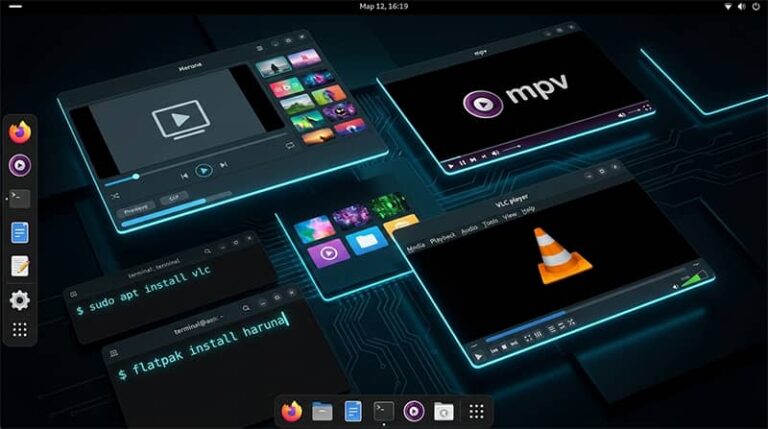
Open-source video players remain a cornerstone for Linux users seeking reliable, customizable media playback without proprietary constraints. These tools handle everything from everyday video watching to advanced streaming, all while integrating seamlessly with various desktop environments. The best open-source video players for Linux emphasize performance, format support, and ease of use, making them ideal for both casual viewers and power users. With ongoing community development, options like VLC and MPV continue to evolve, offering hardware acceleration and subtitle handling that rival commercial alternatives.
Choosing the right player depends on your specific needs, whether it’s a minimalist interface for quick playback or a feature-rich application for media libraries. Many of these players support a wide array of codecs out of the box, reducing the hassle of additional installations. As Linux distributions advance, these video players adapt, ensuring compatibility with the latest kernels and graphics drivers.
Exploring these options reveals how open-source software empowers users with control over their media experience. From KDE to GNOME integrations, each player brings unique strengths to the table. Developers contribute regularly, fixing bugs and adding enhancements that keep these tools relevant in 2026.
Top Open-Source Video Players for Linux
VLC Media Player
VLC Media Player stands out as a versatile tool that plays virtually any video format without needing extra codecs, making it perfect for users who deal with diverse media files. Designed for everyone from beginners to advanced Linux enthusiasts, its strength lies in robust streaming capabilities and cross-platform consistency. While it excels in reliability, some users find its interface dated compared to sleeker alternatives, though this is offset by extensive customization options. Free and open-source software (retrieved March 04, 2026).
- Supports a wide range of formats including MKV, MP4, and AVI.
- Hardware acceleration for smooth playback on modest hardware.
- Built-in subtitle synchronization and download features.
- Streaming server functionality for sharing media.
- Customizable skins and extensions for personalized use.
Installing VLC on Ubuntu involves running sudo apt update && sudo apt install vlc in the terminal, or users can opt for Snap with snap install vlc for the latest version. Download from the official VideoLAN website.
MPV Player
MPV Player delivers high-quality video rendering through its minimalist design, appealing to users who prefer command-line control alongside a simple GUI. It targets videophiles and developers needing scriptable playback, with standout performance in handling high-resolution content efficiently. The lack of a traditional menu system might deter novices, but its lightweight nature ensures it runs smoothly even on older machines, providing superior upscaling over many competitors. Free and open-source software (retrieved March 04, 2026).
- On-the-fly scripting with Lua for advanced automation.
- Excellent video scaling algorithms for sharp images.
- Support for HDR and high-bit-depth videos.
- Minimal resource usage during playback.
- Wayland compatibility for modern desktops.
To install MPV on Debian-based systems, execute sudo apt install mpv, while Fedora users can use sudo dnf install mpv. Download from the official MPV website.
Power users appreciate MPV’s flexibility in configuring playback parameters via configuration files, allowing tweaks for optimal performance on specific hardware. This player shines in scenarios requiring precise control, such as frame-by-frame analysis or custom shader application. Community scripts further extend its functionality, turning it into a powerhouse for specialized tasks.
SMPlayer
SMPlayer serves as a frontend for MPlayer and MPV, offering an intuitive interface that remembers playback positions and settings for each file. Ideal for movie buffs who switch between videos frequently, its strength is in seamless YouTube integration without ads, though it may feel redundant for those already comfortable with backend players. The built-in codec support eliminates common playback issues, providing a hassle-free experience despite occasional interface quirks. Free and open-source software (retrieved March 04, 2026).
- Remembers settings like volume and subtitles per file.
- Integrated YouTube browser with ad-free playback.
- Multiple skins for UI customization.
- Audio and video filters for enhancement.
Installation on Ubuntu requires adding a PPA first with sudo add-apt-repository ppa:rvm/smplayer followed by sudo apt update && sudo apt install smplayer. Download from the official SMPlayer website.
Haruna Video Player
Haruna Video Player acts as a modern Qt-based frontend for libmpv, focusing on a clean KDE-integrated experience for Linux desktops. Suited for users in Plasma environments, it excels in playlist management and hardware decoding, but lacks some advanced features found in standalone players. Its responsive design handles large libraries well, though dependency on MPV might limit appeal for those seeking independence. Free and open-source software (retrieved March 04, 2026).
- Playlist support with drag-and-drop functionality.
- Hardware-accelerated decoding for efficiency.
- Customizable keyboard shortcuts.
- YouTube-dl integration for online videos.
- Screenshot capture during playback.
For Flatpak installation across distributions, use flatpak install flathub org.kde.haruna. Download from the official KDE invent repository.
Haruna’s integration with KDE makes it a natural choice for users prioritizing aesthetic coherence in their desktop setup. It handles subtitle adjustments effortlessly, ensuring accessibility for international content. Regular updates from the KDE community keep it aligned with evolving desktop standards.
GNOME Videos
GNOME Videos, formerly Totem, provides a straightforward player embedded in the GNOME ecosystem, perfect for users wanting minimal overhead in video consumption. It caters to casual viewers with its plugin-based extensibility, shining in basic playback but falling short in advanced codec handling without extras. The clean interface promotes distraction-free watching, countering any limitations with tight desktop integration. Free and open-source software (retrieved March 04, 2026).
- Support for major formats via GStreamer.
- Channel sorting for organized media access.
- Snapshot feature while playing videos.
- Plugin system for added functionality.
Install via Flatpak with flatpak install flathub org.gnome.Totem or on Ubuntu using sudo apt install totem. Download from the official GNOME website.
Dragon Player
Dragon Player offers simplicity for KDE users, emphasizing ease over complexity in handling CDs, DVDs, and local files. Targeted at those who value a no-frills approach, its automatic subtitle loading and resume features stand out, though it lacks robust streaming options. This makes it reliable for everyday use, balancing minimalism with essential capabilities without overwhelming the user. Free and open-source software (retrieved March 04, 2026).
- Automatic subtitle detection and loading.
- Resume playback from last position.
- Support for optical media like DVDs.
- Adjustable brightness and contrast.
On Debian systems, install with sudo apt install dragonplayer; Fedora uses sudo dnf install dragonplayer. Download from the official KDE applications page.
Dragon Player’s focus on core functions ensures it performs well on resource-constrained systems, a boon for older hardware. It integrates playback history, allowing quick returns to interrupted sessions. KDE’s ongoing maintenance guarantees compatibility with new releases.
MPlayer
MPlayer functions as a command-line powerhouse for video playback, appealing to script-savvy users who need broad format support across systems. It’s geared toward developers and automation enthusiasts, with strengths in output drivers and streaming, but its GUI is less polished than modern alternatives. Despite this, its efficiency in converting and playing content makes it indispensable for technical workflows. Free and open-source software (retrieved March 04, 2026).
- Wide range of video and audio drivers.
- Support for numerous subtitle formats.
- Integrated MEncoder for file conversion.
- Playback of streamed content.
- Frame-by-frame navigation.
Install on Ubuntu with sudo apt install mplayer mplayer-gui; Arch Linux uses sudo pacman -S mplayer. Download from the official MPlayer website.
Celluloid
Celluloid, a GTK frontend for MPV, brings configurability to GNOME users through drag-and-drop playlists and Wayland support. It suits those in GNOME setups seeking MPV’s power without command-line hassle, excelling in desktop integration but relying heavily on MPV’s backend. This dependency enhances reliability, though it may not suit users wanting standalone simplicity. Free and open-source software (retrieved March 04, 2026).
- MPRIS2 integration for media controls.
- Wayland compatibility for smooth operation.
- Drag-and-drop playlist management.
- High configurability via settings.
Use Flatpak: flatpak install flathub io.github.celluloid_player.Celluloid or add PPA on Ubuntu for sudo apt install celluloid. Download from the GitHub repository.
Celluloid’s evolution from GNOME MPV reflects community efforts to refine user experience. It handles hardware decoding adeptly, reducing CPU load during 4K playback. Integration with desktop notifications adds convenience for multitaskers.
Parole
Parole delivers a lightweight media player for Xfce, using GStreamer for efficient playback of local and streamed content. Aimed at users prioritizing speed and low resource use, its plugin extensibility is a key strength, though format support depends on installed plugins. This modularity allows tailored experiences, countering any base limitations with flexibility. Free and open-source software (retrieved March 04, 2026).
- Plugin-based enhancements for features.
- Support for subtitles and Audio CDs.
- Live stream playback capability.
- Low system resource consumption.
Install on Ubuntu with sudo apt install parole; OpenSUSE uses sudo zypper install parole. Download from the official Xfce website.
Kaffeine
Kaffeine specializes in digital TV alongside standard video playback, making it valuable for users with TV tuners on KDE. It targets multimedia enthusiasts needing recording features, with VLC backend ensuring broad compatibility, but its niche focus might overlook general users. The user-friendly interface simplifies complex tasks, enhancing its appeal for integrated media setups. Free and open-source software (retrieved March 04, 2026).
- Digital TV watching and recording.
- Support for all VLC-compatible formats.
- User-friendly KDE interface.
- Time-shifting for live broadcasts.
- EPG guide integration.
On Ubuntu, install via sudo apt install kaffeine; Flatpak available from Flathub. Download from the official KDE applications page.
Kaffeine’s TV capabilities set it apart in a landscape dominated by file-based players. It manages channel scanning effortlessly, ideal for cord-cutters. Community patches maintain its relevance in 2026.
QMPlay2
QMPlay2 leverages FFmpeg for comprehensive audio and video support, attracting users interested in spherical videos and hardware decoding. Suitable for cross-platform needs, its YouTube integration and quality controls are strengths, though the interface can feel cluttered. This versatility makes it a solid choice for diverse media, balancing features with performance. Free and open-source software (retrieved March 04, 2026).
- Hardware-accelerated video decoding.
- Spherical view on OpenGL/Vulkan.
- YouTube video playback with quality selection.
- Audio CD support.
Download AppImage from GitHub, make executable with chmod +x QMPlay2-*.AppImage, then run. Download from the official GitHub releases.
Clapper
Clapper utilizes GTK4 and GStreamer for a minimalistic GNOME player with adaptive UI and floating mode. It appeals to users seeking visual appeal in playback, excelling in hardware acceleration, but limited to basic functions without expansions. The clean design promotes immersion, addressing needs for uncomplicated internet video handling. Free and open-source software (retrieved March 04, 2026).
- Hardware acceleration for performance.
- Adaptive interface for different screens.
- Floating window mode.
- URL-based video playback.
Install via Flatpak: flatpak install flathub com.github.rafostar.Clapper. Download from the GitHub repository.
Clapper’s modern toolkit ensures it blends with contemporary GNOME themes. It supports quick URL pasting for streaming, simplifying access to online content. Developer activity promises future enhancements.
Pricing Comparison
All these open-source video players come at no cost, relying on community donations and volunteer efforts rather than subscription models. This zero-price entry point democratizes access to high-quality media playback, contrasting with paid alternatives that might bundle unnecessary features. Value emerges from the ecosystem each player fosters, with VLC offering extensive extensions at no extra charge, while MPV provides scripting depth that rivals premium software.
Comparing across the board, players like SMPlayer and Haruna deliver ad-free YouTube experiences without the premiums seen in commercial apps, saving users potential fees elsewhere. Specialized tools such as Kaffeine add TV recording capabilities that would otherwise require separate paid hardware or services. Overall, the free nature encourages experimentation, allowing Linux users to mix players based on tasks without financial barriers.
How to Choose the Right Video Player
When selecting an open-source video player for Linux, start by considering your desktop environment to ensure seamless integration and optimal performance. GNOME users might lean toward Celluloid or GNOME Videos for native feel, while KDE enthusiasts benefit from Haruna or Dragon Player’s cohesive design. Factor in your hardware capabilities, as players supporting acceleration like MPV or QMPlay2 perform better on systems with dedicated GPUs, reducing power consumption during extended sessions.
Assess the types of media you consume most frequently, prioritizing players with robust codec support if your library includes obscure formats or high-resolution files. For those incorporating online streaming, options with YouTube-dl integration such as Haruna or SMPlayer streamline access without browser dependency. Think about extensibility through plugins or scripts if you anticipate customizing workflows, as this adds longevity to your choice.
Evaluate resource usage against your system’s specs, opting for lightweight options like Parole or Clapper on older machines to avoid slowdowns. Community support plays a crucial role, so check forums and update histories for active development that addresses bugs promptly. Finally, test a few players hands-on, as personal preference in interface and controls often seals the decision in this diverse landscape.
Current Market Prices and Deals
As of March 04, 2026, all featured open-source video players remain entirely free, with no tiered pricing or in-app purchases clouding the experience. Developers encourage donations via platforms like Patreon or GitHub Sponsors, where contributors to MPV or VLC often receive early access to betas as a perk. Occasional community drives offer themed merchandise, but core software access stays unrestricted.
Distributions sometimes bundle these players in premium spins, though the base versions are identical to free downloads. Look for deals in Linux app stores where Flatpak or Snap versions might include bundled themes at no cost. Active projects like Celluloid occasionally highlight sponsor promotions, indirectly benefiting users through enhanced features funded by contributions.
Pro Tips for Using Open-Source Video Players on Linux
Maximize playback quality by enabling hardware decoding in players like VLC or MPV, which offloads processing to your GPU and conserves battery life on laptops. Configure this in settings or via command-line options for MPV, ensuring your graphics drivers are up to date through your distribution’s package manager. This tweak noticeably improves smoothness in 4K videos, especially on mid-range hardware.
Organize subtitles efficiently by using automatic download features in SMPlayer or Haruna, saving time on manual searches for foreign films. Pair this with custom shortcut bindings to adjust timing on the fly, creating a tailored viewing setup. Regular updates to subtitle databases keep accuracy high, enhancing immersion without interruptions.
Leverage scripting in MPV to automate repetitive tasks, such as applying specific shaders for color correction across sessions. Write simple Lua scripts stored in your config directory, testing them on sample files before full implementation. This approach turns a basic player into a professional-grade tool for video analysis or editing previews.
Integrate players with your file manager for quick previews, associating formats in GNOME or KDE settings to launch GNOME Videos or Dragon Player directly. This streamlines workflows for media-heavy users, reducing clicks and improving efficiency. Explore extensions if available to add thumbnail generation for better navigation.
Monitor system resources during playback using tools like htop, adjusting player settings to balance quality and performance. For instance, downscale resolution in Clapper on resource-limited systems to prevent stuttering. This proactive monitoring ensures consistent experiences across varying hardware configurations.
Experiment with multiple players installed side by side, assigning defaults based on file types via MIME associations. Use Parole for quick clips and Kaffeine for TV streams, optimizing your setup for versatility. Community forums offer configuration shares that can inspire further refinements.
Back up configuration files regularly, especially for customized setups in QMPlay2 or Celluloid, to preserve preferences across reinstalls. Store them in a dotfiles repository on GitHub for easy syncing between machines. This habit safeguards your personalized environment against system upgrades or crashes.
Frequently Asked Questions
What makes VLC the most popular open-source video player for Linux?
VLC’s popularity stems from its ability to handle nearly every media format without additional codecs, providing a plug-and-play experience for Linux users. Its cross-platform nature allows consistent usage across devices, while features like streaming and conversion add utility beyond basic playback. Community-driven development ensures it stays current with emerging technologies.
Can MPV handle 4K and HDR videos effectively on Linux?
MPV excels at 4K and HDR playback thanks to advanced scaling and color management, particularly when configured with appropriate options. It leverages hardware acceleration to maintain frame rates on capable systems, making it a go-to for high-end video. Users fine-tune settings via config files to optimize for their specific displays and GPUs.
How does SMPlayer differ from other players in handling YouTube content?
SMPlayer integrates a YouTube browser that enables direct playback within the app, bypassing ads and browser overhead. This feature sets it apart by offering quality selection and subtitle options tailored to streaming. It remembers positions in videos, enhancing convenience for interrupted sessions.
Is Haruna suitable for non-KDE Linux desktops?
Haruna works well on various desktops despite its KDE origins, thanks to Qt’s cross-compatibility, though it shines brightest in Plasma. Users on GNOME or Xfce might notice minor styling inconsistencies, but functionality remains intact. Flatpak installation ensures dependency resolution across environments.
Why choose GNOME Videos for a minimalist setup?
GNOME Videos prioritizes simplicity, integrating tightly with the desktop for quick access to local media without bloated features. It handles essentials like snapshots and channels efficiently, appealing to users avoiding complexity. Plugins extend capabilities as needed, keeping the base lightweight.
What advantages does Dragon Player offer for KDE users?
Dragon Player provides a native KDE experience with automatic features like subtitle loading and resume, streamlining daily use. Its focus on optical media support fills a niche for DVD enthusiasts. The uncomplicated interface complements KDE’s aesthetic without overwhelming options.
Does MPlayer still hold up in 2026 for Linux playback?
MPlayer remains viable for its broad driver support and command-line efficiency, useful in scripting or server environments. While GUI aspects lag behind newer players, its core engine powers many frontends reliably. Updates from forks keep it relevant for legacy formats.
How can Celluloid enhance the MPV experience on GNOME?
Celluloid adds a user-friendly GTK interface to MPV’s backend, including playlists and media controls that fit GNOME’s workflow. It supports modern protocols like Wayland, improving responsiveness. Configuration options allow mirroring MPV’s power in a graphical wrapper.
Conclusion
Open-source video players for Linux in 2026 offer unmatched flexibility, from VLC’s universal compatibility to MPV’s precision tuning, empowering users to curate their media experiences. These tools not only handle diverse formats but also integrate with evolving desktop technologies, ensuring longevity. Community contributions drive innovations that keep them competitive against proprietary options.
By selecting based on environment and needs, users gain efficient playback without compromises. Experimentation reveals hidden gems like Kaffeine’s TV features or Clapper’s minimalism. Ultimately, these players underscore Linux’s strength in customizable, cost-free software solutions.
Embracing updates and configurations maximizes potential, turning routine viewing into optimized sessions. The ecosystem’s vibrancy promises continued advancements, benefiting all users.

Full-stack developer at Scylla Technologies (USA), working remotely from Bangladesh. Adobe Certified Magento Developer.