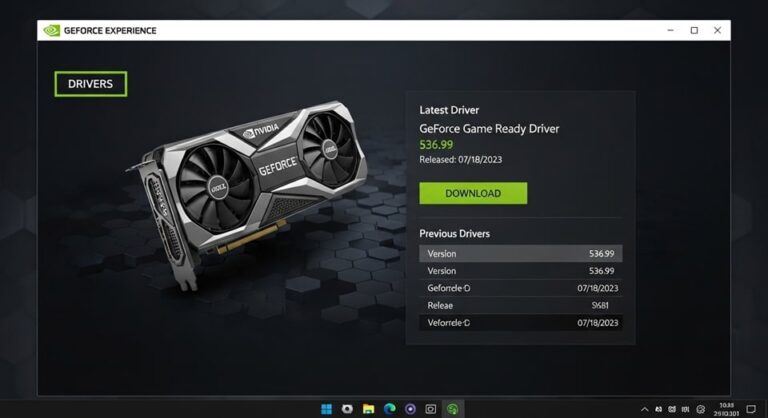
The NVIDIA Control Panel is essential for managing your NVIDIA GPU settings, but it can sometimes disappear from your desktop context menu, system tray, or Start menu. This issue is common after Windows updates, driver conflicts, or incorrect installations. Below, we provide a detailed, step-by-step guide to help you restore the NVIDIA Control Panel and regain full control over your graphics settings.
Why Does the NVIDIA Control Panel Go Missing?
Before diving into fixes, it’s important to understand why the NVIDIA Control Panel might disappear:
- Outdated or Corrupted Drivers: If your NVIDIA drivers are outdated or corrupted, the Control Panel may fail to launch or appear.
- Windows Updates: Major Windows updates can sometimes interfere with NVIDIA services, causing the Control Panel to disappear.
- Disabled NVIDIA Services: The NVIDIA Display Container LS service must be running for the Control Panel to function.
- Incorrect Installation: Installing the wrong driver type (e.g., DCH instead of Standard) can result in the Control Panel being missing.
- Hidden by Windows: Windows or third-party apps may hide the Control Panel icon, making it seem like it’s missing.
- NVIDIA Optimus Issues: On laptops with NVIDIA Optimus, the Control Panel may not appear if the system defaults to integrated graphics.
How to Fix NVIDIA Control Panel Missing on Windows 10/11
Fix 1: Restart NVIDIA Services
If the NVIDIA Control Panel is missing, the first step is to ensure all NVIDIA services are running:
- Press Win + R, type services.msc, and press Enter.
- Scroll down and locate the following services:
- NVIDIA Display Container LS
- NVIDIA LocalSystem Container
- NVIDIA NetworkService Container
- NVIDIA Telemetry Container
- Right-click each service and select Restart.
- If any service is not running, right-click it and select Start.
- Set the Startup type to Automatic for each service.
- Restart your PC and check if the NVIDIA Control Panel reappears.
Fix 2: Run NVIDIA Control Panel as Administrator
Sometimes, the Control Panel is installed but hidden. You can manually launch it:
- Press Win + R, type C:\Program Files\NVIDIA Corporation\Control Panel Client\nvcplui.exe, and press Enter.
- If the file exists, right-click nvcplui.exe and select Run as administrator.
- If the Control Panel opens, right-click your desktop, select NVIDIA Control Panel, and check Add Desktop Context Menu and Show Notification Tray Icon.
Fix 3: Reinstall or Update NVIDIA Drivers
Outdated or corrupted drivers are a common cause of the missing Control Panel. Here’s how to update or reinstall them:
- Press Win + X and select Device Manager.
- Expand Display adapters, right-click your NVIDIA GPU, and select Uninstall device.
- Check Delete the driver software for this device and click Uninstall.
- Restart your PC.
- Download the latest driver from NVIDIA’s official website.
- Install the driver using the Custom (Advanced) option and select Perform a clean installation.
- Restart your PC and check if the Control Panel is restored.
Fix 4: Install NVIDIA Control Panel from Microsoft Store
If the Control Panel is missing, you can reinstall it directly from the Microsoft Store:
- Press Win + S, type Microsoft Store, and press Enter.
- Search for NVIDIA Control Panel.
- Click Install or Update if it’s already installed.
- Restart your PC and check if the Control Panel appears.
Fix 5: Reset Windows Graphics Settings
Resetting your graphics settings can resolve conflicts that cause the Control Panel to disappear:
- Press Win + I to open Settings.
- Go to System > Display > Graphics settings.
- Click Reset to restore default graphics settings.
- Restart your PC and check if the Control Panel reappears.
Fix 6: Check for Hidden NVIDIA Control Panel
Windows or third-party apps may hide the Control Panel. To unhide it:
- Right-click your desktop and select NVIDIA Control Panel (if visible).
- Go to Desktop and ensure Add Desktop Context Menu and Show Notification Tray Icon are checked.
- If the option is missing, manually launch the Control Panel as described in Fix 2.
Fix 7: Use DDU to Clean Install NVIDIA Drivers
If standard reinstallation doesn’t work, use Display Driver Uninstaller (DDU) for a clean install:
- Download DDU and extract it.
- Boot into Safe Mode.
- Run DDU and select Clean and restart for NVIDIA drivers.
- After restarting, install the latest NVIDIA driver from the official website.
- Restart your PC and check if the Control Panel is restored.
Fix 8: Check for Windows Updates
Pending Windows updates can sometimes resolve compatibility issues:
- Press Win + I and go to Update & Security > Windows Update.
- Click Check for updates and install any available updates.
- Restart your PC and check if the Control Panel reappears.
Fix 9: Enable NVIDIA Control Panel via Registry Editor
If the Control Panel is disabled in the registry, you can re-enable it:
- Press Win + R, type regedit, and press Enter.
- Navigate to HKEY_LOCAL_MACHINE\SOFTWARE\NVIDIA Corporation\Global\NvCplApi\Policies.
- Right-click Policies, select New > DWORD (32-bit) Value, and name it EnableNvCpl.
- Double-click EnableNvCpl, set its value to 1, and click OK.
- Restart your PC and check if the Control Panel is restored.
Fix 10: Check for NVIDIA Optimus Issues (Laptops Only)
If you’re using a laptop with NVIDIA Optimus, the Control Panel may not appear if the system is using integrated graphics:
- Right-click your desktop and select NVIDIA Control Panel (if available).
- Go to 3D Settings > Manage 3D Settings.
- Set Preferred graphics processor to High-performance NVIDIA processor.
- Restart your PC and check if the Control Panel is accessible.
Pro Tips for Preventing Future Issues
- Regularly Update Drivers: Always keep your NVIDIA drivers up to date to avoid compatibility issues.
- Use Standard Drivers: If you’re using a DCH driver and the Control Panel is missing, switch to the Standard driver from NVIDIA’s website.
- Disable Fast Boot: Fast Boot can sometimes interfere with NVIDIA services. Disable it in your BIOS or Windows Power Options.
- Check for Conflicting Software: Some third-party apps (e.g., GPU tweaking tools) can conflict with the NVIDIA Control Panel. Uninstall or disable them if necessary.
- Monitor Windows Updates: After major Windows updates, check if the Control Panel is still accessible and reinstall drivers if needed.
Frequently Asked Questions (FAQ)
Why is my NVIDIA Control Panel missing after a Windows update?
Windows updates can sometimes override or disable NVIDIA services, causing the Control Panel to disappear. Reinstalling the NVIDIA driver or restarting NVIDIA services usually resolves this issue.
Can I use NVIDIA GeForce Experience instead of the Control Panel?
While GeForce Experience offers some settings, it doesn’t provide the full range of options available in the NVIDIA Control Panel. For advanced graphics settings, the Control Panel is essential.
What should I do if the NVIDIA Control Panel keeps disappearing?
If the issue persists, try the following:
- Perform a clean install of NVIDIA drivers using DDU.
- Check for Windows updates and install them.
- Disable Fast Boot in your BIOS.
- Contact NVIDIA support for further assistance.
Is it safe to use third-party driver updaters?
No. Third-party driver updaters can install incorrect or malicious drivers. Always download drivers directly from NVIDIA’s official website.
Conclusion
The NVIDIA Control Panel is a powerful tool for managing your GPU settings, and its disappearance can be frustrating. By following the steps outlined in this guide, you can restore the Control Panel and prevent future issues. Always ensure your drivers are up to date, check for hidden settings, and use official tools to avoid compatibility problems.
If none of the above solutions work, consider reaching out to NVIDIA’s customer support or visiting their official forums for further assistance.