Understanding the Missing Application Dilemma in Ubuntu
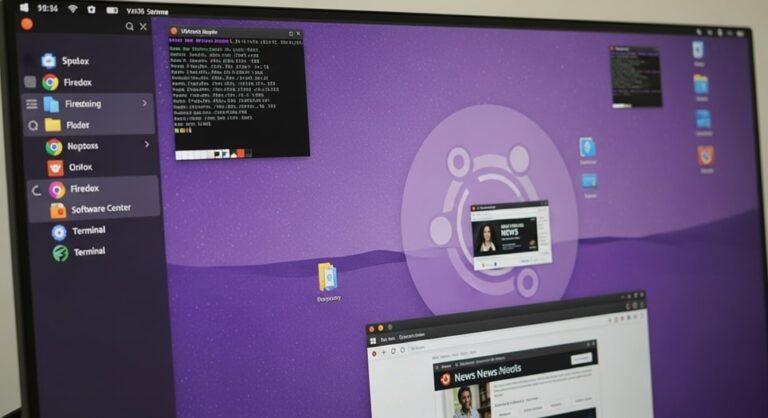
Encountering a situation where a manually installed application fails to appear in the Show Applications menu is a common point of frustration for many Ubuntu users. This menu, often visualized as a grid of dots at the bottom of the dock, serves as the primary launchpad for software on the GNOME desktop environment. When an application you’ve taken the time to install does not show up here, it can feel as though the installation was incomplete or has failed. However, this issue is almost always related to the system’s desktop entry database and not the integrity of the application’s core files. The applications menu is populated by small files known as desktop entries, which contain the necessary instructions for the system to display and launch the program. When these files are missing, misplaced, or improperly formatted, the application remains installed and functional but becomes invisible to the graphical user interface, forcing users to launch it from the terminal.
The root causes for this disappearance are varied but typically fall into a few specific categories. Understanding these categories is the first step toward an effective resolution. The problem can stem from the installation method itself; for instance, applications installed via a compressed tarball or by compiling from source code often require manual intervention to register with the system. In other cases, the issue may lie with a corrupted cache that the system uses to quickly load the menu, or simple permission errors that prevent the system from reading the desktop file. The good news is that the Linux ecosystem is built on transparency and user control, meaning that for every problem, there is a logical and accessible solution. This guide will explore the underlying mechanics of the application menu and provide a comprehensive, step-by-step methodology to diagnose and resolve the issue, ensuring your applications are always accessible.
The Role of Desktop Entry Files in Application Discovery
At the heart of the Ubuntu applications menu lies a simple but critical standard: the desktop entry specification. These are plain text files with a .desktop extension that act as a bridge between an installed application and the desktop environment. They do not contain the application’s executable code but instead provide a set of key-value pairs that tell the system how to handle the program. A properly configured desktop file includes essential information such as the name of the application, the command to execute it, the path to its icon, and the categories it belongs to, which determines where it appears in the menu. Without this file, the system has no way of knowing that the application exists or how to present it to the user in a graphical context.
These .desktop files are stored in specific directories on the system, which are standardized across Linux distributions using the Freedesktop.org specifications. The system looks for these files in several locations, with the two most important being the system-wide directory, which contains entries for applications available to all users, and the user-specific directory within the local user’s home folder. When you install an application using a package manager like APT or Snap, the process automatically generates and places a desktop entry in the correct system-wide location. However, when you install an application manually—by extracting files or compiling—this step is often left to the user. The absence of a desktop file in a recognized directory is the most frequent reason a manually installed application does not appear in the menu.
Common Installation Methods and Their Pitfalls
How you install software on Ubuntu directly influences whether it will integrate seamlessly with your desktop. Package managers are designed to handle all aspects of integration, but manual methods require a more hands-on approach. Understanding the distinction is crucial for troubleshooting.
- APT and Snap Packages: The Advanced Package Tool (APT) and the Snap package manager are the standard, recommended methods for installing software on Ubuntu. When you use commands like
sudo apt installor install from the Ubuntu Software Center, the package manager not only places the binary files in the correct system directories but also automatically creates, validates, and installs the corresponding .desktop file. This automated process ensures the application appears in the menu without any user intervention. - Third-Party .deb Packages: Some software providers offer their applications as downloadable .deb files. While these are Debian packages, they are installed using a tool like
dpkgorgdebi. In most cases, these packages also include a desktop entry and will appear in the menu. However, if the package is poorly maintained or built for a different distribution, the desktop file might be missing or contain errors, leading to the same visibility issue. - Self-Contained Tarballs and AppImages: Many applications, such as those from JetBrains or standard Java programs, are distributed as compressed tarballs (.tar.gz) or as portable AppImages. These are essentially self-contained folders that you extract to a location of your choice, like /opt or your home directory. Since no system-wide package manager is involved, the installation process does not create a desktop entry. The user is responsible for creating this file manually to make the application visible in the menu.
- Compiling from Source: For power users and developers, compiling an application from its source code offers the highest level of control and customization. The build process, typically managed with tools like
make, often includes an “install” target that copies the compiled binaries and other files to system directories. A well-configured source package will also install a desktop file. However, if the build system is outdated or configured incorrectly, this step may be skipped, leaving the application functional but hidden from the graphical menu.
Step-by-Step Diagnostic and Repair Guide
When an application is missing from the menu, a systematic approach will quickly identify the cause and lead to a solution. The following steps are arranged in order of complexity, starting with the simplest and most common fixes before moving on to more involved solutions.
Step 1: Refreshing the Desktop Application Cache
The most immediate and frequently effective solution is to rebuild the desktop application cache. For performance reasons, the GNOME shell does not scan the filesystem for .desktop files every time you open the applications menu. Instead, it relies on a cache. If this cache becomes outdated or corrupted, it will not reflect newly installed applications. To refresh this cache, you can use a simple terminal command. Open a terminal window and execute the command to update the desktop database. Following this, you should log out of your Ubuntu session completely and then log back in. In many cases, this simple action of resetting the user session and forcing the shell to rebuild its internal cache is all that is needed to make the missing application icon appear.
If the application still does not appear, the issue is likely not with the cache but with the desktop file itself. The next step is to verify that a valid desktop file actually exists on the system.
Step 2: Locating and Verifying the Desktop Entry File
To determine if a desktop file exists, you need to search the standard directories. The system-wide directory is the first place to look, as it contains entries for all applications installed via package managers. The user-specific directory is where you should place desktop files for applications you have installed manually for your user account only. You can check both locations using the terminal. If you find a .desktop file for your application in one of these directories, the next step is to inspect its contents for errors.
Desktop files are simple text files and can be viewed and edited with any text editor. Open the file and look for the key sections. The most critical line is the one that specifies the command to execute the application. This path must be absolute and correct. If the Exec line points to a binary that has been moved or does not exist, the system will often deem the desktop entry invalid and omit it from the menu. Similarly, the Icon line should point to a valid image file. If the icon is missing, the application may still appear, but it will show a default “missing icon” placeholder. Ensuring these paths are accurate is essential for the desktop file to function properly.
Step 3: Creating a Custom Desktop Entry File
If your search in the previous step yielded no results, you will need to create a desktop file manually. This is a common and straightforward task for applications installed from tarballs or AppImages. You should create this file in your local applications directory to avoid it being overwritten by system updates. Using a text editor, create a new file with a .desktop extension in this directory.
A basic but functional desktop file requires only a few lines. The Type should always be “Application”. The Name is the display name that will appear in the menu. The Exec is the absolute path to the executable file or script that launches the application. The Icon is the absolute path to a PNG or SVG icon file. The Categories field is important as it determines under which sub-menu your application will be grouped; you can find a list of standard categories online. Once you have created and saved this file, you must make it executable. This is a crucial security and functional step that is often overlooked. After making the file executable, log out and log back in, or run the update command again. Your application should now be visible in the menu.
Step 4: Advanced Troubleshooting and System Checks
For persistent issues, more advanced diagnostic steps are necessary. One powerful tool is the command-line utility designed to validate desktop files. Running this command on your .desktop file will parse it and report any warnings or errors, such as a missing executable, an invalid category, or a disallowed key. Addressing these warnings can often resolve the problem.
Another area to investigate is the installation method itself. If you used a shell script to install the application, it might have placed files in a non-standard location. Check the script’s documentation or use system search commands to locate the main executable binary. Knowing its exact location is a prerequisite for creating a correct desktop file. Furthermore, consider the application’s permissions. Ensure that the binary file itself is executable and that you have read permissions for the directory it resides in. Permission issues can prevent the desktop environment from both displaying and launching the application.
Proactive Measures and Best Practices
Prevention is always better than cure. Adopting certain habits can help you avoid the problem of missing applications altogether. Whenever possible, prioritize installing software from the official Ubuntu repositories or as Snap packages. These methods guarantee proper integration with your desktop environment. For software not available in the repositories, check if the developer provides a third-party repository that you can add to your system, which will allow you to manage the application with APT and receive updates automatically.
When a manual installation is unavoidable, such as with an AppImage or a tarball, make creating the desktop entry part of your standard installation procedure. Keep a dedicated folder in your home directory for icons, and download the application’s official icon at the time of installation. By consistently creating a desktop file immediately after extracting the application, you integrate this final step into your workflow, ensuring that all your applications remain accessible from the unified applications menu. This practice maintains the user-friendly experience that makes a desktop environment like Ubuntu so appealing.
Conclusion
The disappearance of a manually installed application from the Ubuntu Show Applications menu is a solvable problem rooted in the mechanics of how the desktop environment indexes and displays software. The issue almost invariably traces back to the presence, location, or content of the .desktop entry file. By following a logical diagnostic path—beginning with a simple cache refresh, progressing to a search for and validation of the desktop file, and culminating in the manual creation of a new entry if necessary—users can reliably restore access to their applications. Understanding that package managers handle this integration automatically highlights the importance of using them when possible and being prepared for the extra manual step when they are not an option. Ultimately, this knowledge empowers users to take full control of their software environment, ensuring that every installed application, regardless of its source, is just a click away in the applications menu.