

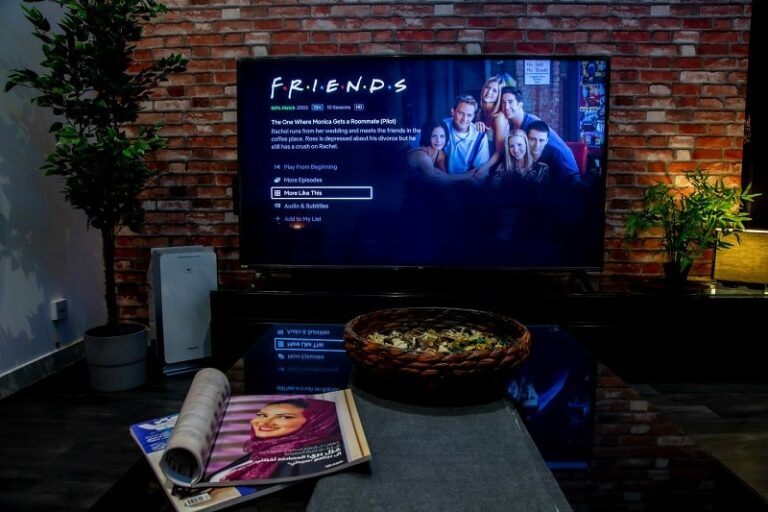
Picture-in-Picture mode on Netflix lets you keep a video playing in a small floating window while you work, browse, or do anything else on your Windows PC. The window stays on top of all other open applications, so you never have to pause or switch tabs to check what’s happening in a show. This guide covers every working method to enable Netflix PiP on Windows 10 and Windows 11 — from the official app to browser-based options and extensions.
What Is Picture-in-Picture and How Does It Work on Windows
Picture-in-Picture creates a video overlay that sits above the normal window layer of your desktop. Windows handles this through the Desktop Window Manager, which carves out a dedicated rendering space for the floating video that ignores minimize and background commands from the parent application. When you activate PiP, the video stays visible even when you switch focus to Word, a browser, a coding environment, or anything else running on your machine.
Netflix on Windows is accessible two ways: the official Microsoft Store app and web browsers including Chrome, Edge, and Firefox. Each handles PiP differently, and the method that works best for you depends on whether you prioritize video quality, subtitle support, or ease of setup. All methods covered here are verified to work on both Windows 10 and Windows 11.
Method 1: Netflix Windows App — The Most Reliable Option
The official Netflix app from the Microsoft Store has a built-in Compact Overlay mode — Microsoft’s term for Picture-in-Picture. This is the most stable and feature-complete method available. It supports subtitles inside the floating window, which browser-based PiP generally does not, and it maintains the best possible video quality for the window size.
To use it, open the Netflix app and start playing any title. Move your cursor over the video to reveal the player controls. In the bottom-right corner of the controls, you will see an icon showing a small square overlapping a larger one — that is the PiP button. Click it and the player immediately shrinks into a floating window in the corner of your screen. You can drag the edges to resize it or click and hold the center to reposition it anywhere on the desktop.
If the PiP icon is missing, the fix is straightforward. Open the Microsoft Store, search for Netflix, and check for pending updates. The Compact Overlay feature requires a recent app version. Also make sure Windows itself is current — open Settings, go to Windows Update, and install any available updates. Once both are updated, the icon should appear in the player controls.
The app is built as a Universal Windows Platform application, which makes it more power-efficient than browser-based streaming. On a laptop, this matters — the native app draws less battery running a floating video than a browser tab with an active extension. It is also the only method where subtitles reliably render inside the PiP window, making it the default recommendation for anyone who watches content with captions enabled.
Method 2: Google Chrome — Extension and Media Controls
Chrome is the most widely used browser and offers solid Netflix PiP support through two different routes. Netflix uses a custom video player that overrides the standard right-click context menu, so the common double-right-click trick used for YouTube does not work here. Use the media controls toolbar or a dedicated extension instead.
The fastest browser method uses Chrome’s built-in media control button. When a Netflix video is playing, look for a music note icon with three lines in the top-right corner of your browser toolbar. Clicking it opens a small media preview panel. Inside that panel is a Picture-in-Picture button. Click it and the Netflix video pops out into a floating window that persists even if you minimize Chrome. This uses Chrome’s Web PiP API and requires no extensions.
For a faster workflow, install the Picture-in-Picture Extension by Google from the Chrome Web Store. Once installed, it adds an Alt+P keyboard shortcut that triggers PiP instantly for any active video without navigating any menus. This is the most efficient option for users who switch in and out of PiP mode frequently throughout a session.
One important limitation: in browser-based PiP, subtitles do not appear in the floating window. The PiP API pulls only the video stream, not the text overlay rendered by Netflix’s player. If you need subtitles, use the official Windows app. If subtitles are not required, Chrome’s method is quick and works without any special system configuration.
Method 3: Microsoft Edge — Native PiP With 4K Support
Edge is built on the same Chromium engine as Chrome but adds advantages specific to Windows that make it worth considering for Netflix streaming. It supports PlayReady DRM, which allows 4K streaming on Netflix — a capability Chrome and Firefox do not have for this platform. It also has one of the most intuitive PiP interfaces available in any browser.
When you play a Netflix video in Edge, hover your cursor over the video frame. A small Picture-in-Picture button appears at the top-center of the video. Clicking it immediately pops the video out. If you do not see the button, enable it manually: go to Edge Settings, then Cookies and site permissions, scroll to Picture-in-Picture control, and make sure the toggle for “Show Picture-in-Picture control inside video frame” is turned on.
Edge also supports PiP through the same media controls toolbar method as Chrome. The music note icon appears in the Edge toolbar when a video is playing. Click it to access the PiP button from there if the in-video button is not showing. Both routes produce the same floating window behavior.
For users on a dual-monitor setup, Edge combined with Windows Snap Layouts creates a highly practical multitasking environment. You can organize your work applications into a snap grid on one portion of the screen and let the Netflix PiP window float freely over the top. On Windows 11, hover over the maximize button of any window to access Snap Layouts and arrange your workspace around the floating video.
Method 4: Mozilla Firefox — Built-In PiP With No Extensions Required
Firefox has one of the cleanest native PiP implementations of any browser. No extension installation is required and no settings need to be changed. When you hover over a Netflix video in Firefox, a small blue Picture-in-Picture icon appears on the right side of the video frame. Click it and the video enters floating mode immediately.
Firefox also supports the keyboard shortcut Ctrl+Shift+] to trigger PiP for an active video. The floating window in Firefox supports easy corner-snapping and resizing. The same subtitle limitation applies here as in Chrome — subtitles do not render in the Firefox PiP window for Netflix. Use the official Windows app if captions are required.
Firefox does not support 4K Netflix streaming on Windows, so if video quality is the priority for your setup, Edge is the stronger browser choice. For general HD streaming with a no-friction PiP experience, Firefox delivers a clean result with zero setup required.
Fixing Common Netflix PiP Problems on Windows
Black Screen or Blank Window in PiP Mode
A black screen in the PiP window is almost always caused by a conflict between hardware acceleration and Netflix’s DRM encryption. Netflix uses encrypted media extensions to protect its content, and some GPU configurations interfere with the overlay rendering. Fix it by opening your browser settings, searching for “hardware acceleration,” and toggling it off, then back on. Restart the browser and try PiP again. Also make sure your graphics card drivers are current — outdated GPU drivers are a frequent cause of protected content overlay failures on both Windows 10 and Windows 11.
PiP Window Disappearing When Switching Apps
If the floating window disappears when you click on another application, this usually happens with browser-based PiP rather than the official app. The official Netflix app’s Compact Overlay mode is more resistant to minimize commands because it operates as a UWP window with different system-level behavior. Switch to the app if browser PiP is unreliable on your machine. Also check that Focus Assist or Do Not Disturb settings are not configured to dismiss floating windows when high-priority alerts arrive.
PiP Not Available in the Netflix Windows App
If the Compact Overlay button is missing from the Netflix app player controls, the app needs to be updated. Open the Microsoft Store, click Library in the bottom-left, and select Get updates. After the Netflix app updates, restart it and the PiP button will appear in the bottom-right of the player controls. If the update does not resolve it, uninstall and reinstall the app from the Microsoft Store — this clears any corrupted installation data that can prevent features from loading correctly.
Subtitles Not Showing in PiP Mode
Browser-based PiP does not support Netflix subtitles. The PiP API captures the raw video stream but not the text overlay layer rendered by Netflix’s custom player. The only reliable solution is the official Windows Netflix app, where subtitles render correctly inside the Compact Overlay window. Some Chrome extensions marketed as “Subtitles for Netflix” claim to inject captions into the PiP window — results vary and these are third-party tools not supported by Netflix directly.
Optimizing Your Windows Desktop for PiP Multitasking
Getting the most out of Netflix PiP mode involves more than just enabling the floating window. A few desktop configuration changes make the experience significantly more practical for extended multitasking sessions.
Setting your taskbar to auto-hide in Taskbar Settings reclaims vertical screen space, which matters on laptop displays where the PiP window competes for room with open applications. The floating window can be moved partially off-screen if you only want to monitor audio while catching occasional glimpses of the video — useful during long background viewing sessions while working.
Windows 11’s Snap Layouts work well alongside PiP. Use Snap Layouts to organize your work windows into a structured grid and let the Netflix PiP float freely above the arrangement. On Windows 10, Snap Assist achieves a similar result by dragging windows to screen corners. Virtual desktops are another option — create one desktop for work and another for entertainment, with the PiP window pinned to carry across both.
For gaming alongside Netflix PiP, most games running in true fullscreen mode will hide the floating window because they take exclusive control of the display. Set your game to Borderless Windowed or Windowed mode. This keeps the Windows Desktop Window Manager active and allows the Netflix overlay to render on top of the game frame. Most modern games support borderless windowed without meaningful performance penalty.
If the PiP window appears blurry, check Display Settings and confirm that scaling is set to the recommended percentage — typically 100% or 125%. Mismatched scaling settings cause the overlay to render at the wrong resolution. On high-DPI displays, also verify that the Netflix app or browser is configured to use system DPI settings rather than overriding them.
Which Netflix PiP Method Should You Use
The official Netflix Windows app is the best choice for most users. It is stable, supports subtitles, offers the best video quality for the window size, and uses fewer system resources than browser-based streaming. If you already use the app for watching Netflix, the PiP button is already there — you just need to click it.
Microsoft Edge is the best browser option if you need 4K resolution or want a seamless PiP experience without installing extensions. The in-video PiP button makes it the lowest-friction browser method, and the PlayReady DRM support means the video quality ceiling is higher than in Chrome or Firefox.
Google Chrome with the Google PiP extension is the right choice if you are a Chrome-primary user and value the keyboard shortcut workflow. Firefox is the best option for users who want zero-setup browser PiP and do not need 4K or subtitles.
Avoid generic third-party tools that claim to pin application windows to the top of the screen — these work inconsistently and often conflict with Netflix’s DRM implementation, producing blank screens or stuttering video. Stick to the browser-native and app-native methods described here for reliable results every time. If you also stream Netflix on other devices, the floating window behavior varies — Windows remains the most flexible platform for desktop PiP customization.
Frequently Asked Questions
Why does my Netflix screen go black in Picture-in-Picture mode?
A black screen in PiP is almost always a hardware acceleration conflict with Netflix’s DRM. Disable hardware acceleration in your browser settings, restart the browser, and try again. Also update your GPU drivers — outdated graphics drivers frequently cause protected content overlay failures on Windows 10 and 11.
Can I watch Netflix in PiP while playing a full-screen game?
Not in true fullscreen mode. Set your game to Borderless Windowed or Windowed mode, which keeps the Windows Desktop Window Manager active and allows the Netflix PiP window to appear on top of the game frame. Most modern games support this without noticeable performance impact.
Does Netflix PiP support 4K resolution?
4K in a small floating window is not practically useful, and the PiP window typically downscales to conserve resources. If 4K is important for your setup, use Microsoft Edge for browser streaming — it is the only Windows browser with PlayReady DRM support that enables 4K Netflix playback before the PiP transition.
How do I get subtitles working in Netflix PiP mode?
Use the official Netflix Windows app and click the Compact Overlay button. Browser-based PiP does not render subtitles because it captures only the raw video stream. The Windows app is currently the only reliable method for subtitles inside a floating Netflix window on PC.
Is there a keyboard shortcut for Netflix Picture-in-Picture?
There is no universal Windows shortcut. In Chrome with the Google PiP extension installed, Alt+P triggers PiP for any active video. In Firefox, Ctrl+Shift+] activates the floating window. The official Netflix Windows app has no keyboard shortcut for Compact Overlay — you click the icon in the player controls.
Why is the PiP button missing from the Netflix Windows app?
The app needs to be updated. Open the Microsoft Store, go to Library, and select Get updates. After the Netflix app updates, restart it and the PiP button will appear in the bottom-right of the player controls. If the issue persists, uninstall and reinstall the app from the Microsoft Store.
