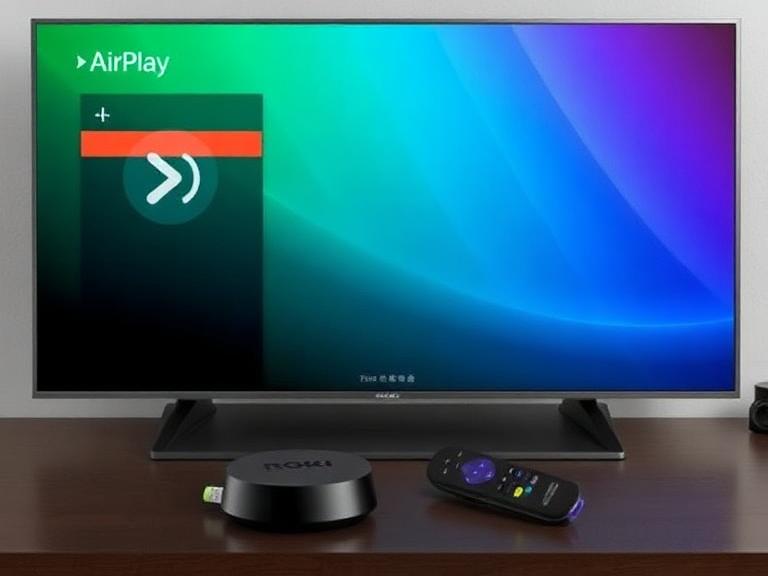
For millions of people, the living room television is the central hub for entertainment. It’s where we watch movies, binge our favorite shows, and share photos and videos with family. For years, Apple device users looking to cast content to the biggest screen in the house have been locked into a specific ecosystem, often requiring an Apple TV for the best experience. Similarly, Roku users have enjoyed a vast selection of streaming channels on a user-friendly platform. The exciting news for users on both sides is that these two powerful worlds can now connect. If you own a Roku streaming player or Roku TV, you can now use Apple’s proprietary AirPlay technology to wirelessly stream content directly from your iPhone, iPad, or Mac. This seamless integration has eliminated a major pain point and opened up new possibilities for a more connected and flexible home media setup.
Understanding the Requirements for AirPlay on Roku
Before you begin casting, it’s crucial to ensure your devices meet the necessary technical specifications. This compatibility check is the most important first step to guarantee a smooth setup process. Both your Roku device and your Apple source device must be running recent software versions, and they must be connected to the same local Wi-Fi network.
Device Compatibility Checklist
The following list details the specific models and requirements needed to use AirPlay on your Roku device. If your device is not on this list, the feature will not be available.
- Roku Streaming Players: AirPlay 2 is supported on Roku streaming players from the Roku Ultra (model 4800 or later), Roku Streambar, Roku Smart Soundbar, and Roku Streaming Stick+ (model 3810 or later) and newer. Most models released from 2019 onwards are compatible.
- Roku TVs: All Roku TV models from the following brands that were manufactured from 2019 onward support AirPlay 2: TCL, Hisense, Sharp, Philips, Element, and RCA. You can typically find your TV’s model number and year on a label on the back of the set.
- Apple Source Devices: You can stream from an iPhone, iPad, or Mac. Your iPhone or iPad must be running iOS 12.3 or later or iPadOS 13 or later. Your Mac must be running macOS Mojave 10.14.5 or later.
- Network Requirements: Both your Roku device and your Apple device must be connected to the same Wi-Fi network. They cannot be on different networks, and using a mobile hotspot is generally not recommended due to performance issues.
- Software Updates: Your Roku device must have its operating system updated to Roku OS 9.4 or later. You can check for updates in the Roku settings under System > System update. Your Apple device should also be updated to its latest available software.
Verifying these points will save you time and frustration. If you discover your Roku model is too old, you may need to consider an upgrade to enjoy this feature.
Step-by-Step Setup Guide
Once you’ve confirmed compatibility, setting up AirPlay on your Roku is a straightforward process. The following steps will guide you through enabling the feature on your Roku device and then connecting from your Apple device.
Enabling AirPlay on Your Roku Device
The AirPlay feature is built into compatible Roku devices but may need to be turned on. Follow these steps on your Roku TV or using your Roku remote:
- Navigate to Settings: From your Roku home screen, scroll and select Settings on the left-hand menu.
- Access Apple AirPlay and HomeKit: Within Settings, scroll down and select Apple AirPlay and HomeKit.
- Turn on AirPlay: You will see an option for AirPlay. Select it and choose Turn on AirPlay. You may also be prompted to set a device name, which will appear when you search for it from your Apple device.
- Optional HomeKit Setup: On the same screen, you may see an option to set up HomeKit. This allows you to control your Roku TV (power and volume) via the Apple Home app and with Siri voice commands. You can set this up now or skip it for later.
Connecting from Your Apple Device
With AirPlay enabled on your Roku, you are ready to connect from your iPhone, iPad, or Mac. The process is nearly identical to streaming to an Apple TV.
- Connect to the Same Network: Ensure your Apple device is connected to the exact same Wi-Fi network as your Roku device.
- Start Playing Content: Open the app that contains the content you want to stream. This could be the Photos app for videos, the Music app, Safari for a website, or a third-party app like YouTube or Disney+ that supports AirPlay.
- Tap the AirPlay Icon: Look for the AirPlay icon, which is a rectangle with a solid triangle at the bottom. In video apps, it’s usually in the top or bottom corner. In audio apps like Music, it’s often in the playback controls. On a Mac, you can click the AirPlay icon in the menu bar or in supported apps.
- Select Your Roku Device: A list of available AirPlay receivers will appear. You should see your Roku device listed by the name you assigned. Tap on it to start streaming.
Your content should now appear on your TV screen. You can use your Apple device as a remote to play, pause, or adjust the volume.
What You Can Stream with AirPlay on Roku
The versatility of AirPlay is one of its greatest strengths. It goes far beyond simply mirroring your phone’s screen. You can stream a wide variety of content types, each with its own optimized experience.
Video and Photo Streaming
This is the most common use for AirPlay. You can stream virtually any video or photo from your Apple device to your Roku TV.
- Personal Media Library: Stream home videos, vacation photos, and movies you’ve purchased or rented from the Apple TV app directly from your iPhone or iPad’s Photos app. The quality is excellent, making it perfect for sharing memories with a group.
- Streaming Apps: Many popular streaming apps support AirPlay natively. You can start watching a show on your iPad in the Netflix, Hulu, or HBO Max app and then seamlessly cast it to your Roku TV with a single tap. This is often more reliable than the built-in casting features within some apps.
- Web Browser Videos: While watching a video in Safari on your iPhone or Mac, you can use the AirPlay icon in the video player (if available) to send it to your TV. This is great for content on websites that don’t have a dedicated TV app.
Audio Streaming and Multi-Room Audio
AirPlay 2, the version supported by Roku, brings powerful audio capabilities. It’s not just about sending sound to your TV’s speakers.
- Whole-Home Audio: You can stream music, podcasts, or audiobooks from your Apple device to your Roku TV and other AirPlay 2-compatible speakers simultaneously. This allows you to create a synchronized audio experience throughout your home.
- TV as a Speaker: You can send audio exclusively to your Roku TV’s speakers from your device, even while the TV screen is off. This effectively turns your TV into a powerful wireless speaker for your music.
- Audio from Video: When you stream a video, the audio is, of course, included. The AirPlay 2 protocol ensures audio stays perfectly in sync with the video, eliminating frustrating lip-sync issues that can plague other casting methods.
Troubleshooting Common AirPlay Issues
Even with a perfect setup, you may occasionally encounter issues. The following troubleshooting guide addresses the most common problems users face when trying to use AirPlay with Roku.
Roku Device Not Appearing in AirPlay List
This is the most frequent issue. If you don’t see your Roku device as an option from your Apple device, work through these steps:
- Verify Network Connection: This is the number one cause. Double-check that both your Roku and Apple device are on the same 2.4GHz or 5GHz Wi-Fi band. Some routers create separate network names for each band (e.g., “HomeWiFi_2G” and “HomeWiFi_5G”). They must match.
- Check for Interference: Thick walls, microwave ovens, and other electronic devices can interfere with Wi-Fi signals. Try moving your router closer to your Roku device or reducing the number of active wireless devices.
- Restart Everything: The classic IT solution often works. Restart your Roku device (Settings > System > System restart), restart your Apple device, and restart your Wi-Fi router. This clears temporary glitches in the network.
- Update Software: Go to your Roku’s Settings > System > System update and select Check Now. Ensure both your Roku OS and your Apple device’s iOS/iPadOS/macOS are up to date.
Poor Playback Quality or Frequent Buffering
If your stream is stuttering, freezing, or displaying poor video quality, the problem is almost always related to your network’s bandwidth or signal strength.
- Test Your Internet Speed: Run a speed test on your Apple device while standing near your Roku. For HD video, you need a consistent 5-10 Mbps. For 4K video, you need at least 25 Mbps. Lower speeds will cause buffering.
- Reduce Network Load: If other people in your home are downloading large files, gaming online, or video conferencing, it can consume the bandwidth needed for smooth AirPlay. Ask them to pause heavy activities while you stream.
- Improve Wi-Fi Signal: If your Roku is far from the router, consider using a Wi-Fi extender or, even better, a mesh network system to boost the signal. For the most reliable performance, connect your Roku streaming player directly to your router via an Ethernet cable if possible.
Advanced Features and Pro Tips
Once you’ve mastered the basics, you can explore more advanced features to get the most out of the AirPlay and Roku combination. These tips can enhance your convenience, privacy, and overall user experience.
Using HomeKit for Siri Voice Control
If you set up HomeKit integration during the initial AirPlay enablement, you unlock hands-free control of your Roku TV.
- Basic Commands: You can use Siri on your iPhone, iPad, HomePod, or Apple Watch to turn your Roku TV on or off, change the volume, play or pause content, and switch inputs. Just say, “Hey Siri, turn on the Living Room TV” or “Hey Siri, pause the Bedroom TV.”
- Scene Integration: You can include your Roku TV in HomeKit scenes. For example, a “Movie Night” scene could dim the smart lights, close the smart blinds, and turn on your Roku TV, all triggered by a single command or automation.
- Privacy and Security: The HomeKit connection is encrypted end-to-end. Commands are processed locally on your devices when possible, meaning your voice data isn’t sent to the cloud just to control your TV.
Optimizing for Privacy and Guest Use
AirPlay is designed to be convenient, but you may want to control who can stream to your TV.
- Set a Device Name: Give your Roku TV a unique, recognizable name in the AirPlay settings. This prevents confusion if you have multiple AirPlay devices (like speakers) and makes it easy for you to select the right one.
- Require a Code (For Guests): In the Roku AirPlay settings, you can enable Require Code. When this is on, anyone trying to stream to your TV will need to enter a four-digit code that appears on your TV screen. This prevents neighbors or unwanted guests from accidentally or intentionally casting to your TV.
- Temporary Permission: When code requirement is off, anyone on your Wi-Fi network can see and stream to your Roku. This is perfect for parties where you want friends to be able to share music or videos easily.
Frequently Asked Questions (FAQs)
Here are answers to some of the most common questions users have about using AirPlay with their Roku devices.
- Can I use AirPlay on an older Roku model?No, AirPlay 2 support is only available on specific Roku models released from approximately 2019 onward. This includes Roku Streaming Stick+ (3810), Roku Ultra (4800), Roku Smart Soundbars, and Roku TVs from 2019 and newer. If you have an older model, the AirPlay option will simply not appear in your settings menu.
- Does AirPlay on Roku support 4K and HDR video?Yes, if your source content is in 4K or HDR (like Dolby Vision or HDR10) and your Roku device and TV support those formats, AirPlay will transmit the video at its native quality. For example, playing a 4K HDR movie purchased from the Apple TV app on your iPhone and casting it to a compatible 4K Roku TV will result in a 4K HDR picture.
- Why is the audio out of sync with the video?Audio sync issues are rare with AirPlay 2 but can happen. First, ensure both devices are updated. If the problem persists, try pausing the video for a few seconds and then resuming. A full restart of the Roku device and your router is the most reliable fix for persistent sync problems, as it resets the network connection.
- Can I use my phone while AirPlaying video?Absolutely. Once you start streaming a video, you can exit the app, lock your phone, or use it for other tasks. The stream will continue uninterrupted on your TV. This is different from full-screen mirroring, which shows your phone’s entire display and would be interrupted.
- Is there any delay or lag when using AirPlay?For streaming pre-recorded video and audio (like movies, TV shows, and music), there is no perceptible lag—the experience is just like using a native app on your Roku. However, if you are mirroring your entire screen in real-time (e.g., for a presentation), there will be a slight delay of one to two seconds, which is normal for any wireless screen-mirroring technology.
Comparing AirPlay to Other Casting Methods
While AirPlay is a fantastic solution for Apple users, Roku supports other casting protocols. Understanding the differences can help you choose the best tool for the job.
AirPlay vs. Roku’s Built-In “Play on Roku”
Roku has its own proprietary casting feature, often labeled “Play on Roku” or seen as a cast icon within mobile apps.
- Platform Availability: AirPlay is exclusive to Apple’s ecosystem (iOS, iPadOS, macOS). Roku’s “Play on Roku” feature works with both Android and iOS devices, as long as the app supports it.
- Functionality: AirPlay is generally more robust. It supports multi-room audio, exclusive audio streaming, and HomeKit integration. Roku’s own casting is typically limited to sending video from supported apps.
- Reliability: Many users find AirPlay to be more consistent and reliable, especially for streaming from personal media libraries and web browsers, where Roku’s casting may not be an option.
AirPlay vs. Google Cast (Chromecast Built-in)
Some newer Roku devices also support Google Cast, allowing you to cast from Android devices and Chrome browsers.
- Ecosystem Lock-in: AirPlay is for Apple; Google Cast is for Android/Chrome. Your choice is dictated by the primary devices you own.
- User Experience: Both protocols offer a similar, app-based casting experience. However, AirPlay’s deep integration with iOS (like appearing in Control Center) can make it feel more seamless for iPhone users.
- The Advantage of Roku: By supporting both AirPlay and Google Cast, modern Roku devices become a universal receiver, eliminating the need to buy a separate Apple TV or Chromecast dongle. This makes your Roku an incredibly versatile hub for all your guests’ devices.
Conclusion
The integration of AirPlay technology into Roku devices marks a significant step towards a more unified and user-friendly smart home entertainment system. By bridging the gap between Apple’s ecosystem and the widely popular Roku platform, users are no longer forced to choose sides based on their preferred streaming hardware. The process of setting up and using AirPlay is remarkably simple, revolving around a few key requirements: compatible hardware, updated software, and a shared Wi-Fi network. Once configured, it unlocks a powerful suite of capabilities, from streaming high-quality personal videos and supporting multi-room audio parties to enabling hands-free Siri control through HomeKit integration. While occasional network-related hiccups can occur, they are typically resolved through basic troubleshooting steps like verifying network bands and restarting devices. Ultimately, AirPlay support transforms your Roku from a mere streaming box into a central, accessible destination for all your digital content, providing Apple device owners with the seamless, wireless casting experience they expect, right on their existing television.