

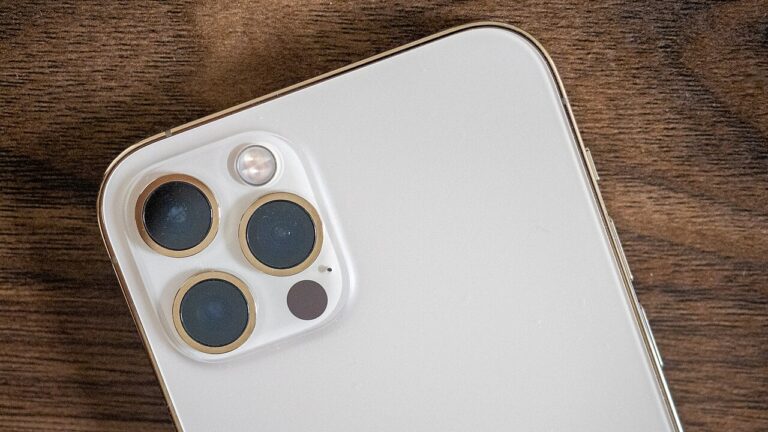
The iPhone 12 series, encompassing the standard iPhone 12, the compact iPhone 12 mini, and the powerful iPhone 12 Pro and Pro Max models, represented a significant shift in Apple’s design philosophy. With its return to the flat-edged aesthetic and the inclusion of the vibrant Super Retina XDR display, the device provides a stunning canvas for digital content. Capturing that content—whether it is a snippet of a conversation, a high-score in a mobile game, or a digital receipt—is a fundamental skill for any modern smartphone user. Understanding how to screenshot on an iPhone 12 involves more than just knowing which buttons to press; it involves mastering the entire ecosystem of screen capture tools that Apple has integrated into iOS.
Since the removal of the physical Home button with the iPhone X, Apple transitioned to a gesture-based system and a new hardware button configuration for essential tasks. For long-time users transitioning from older models like the iPhone 7 or 8, this change can initially feel counterintuitive. However, the new system is designed to be faster and more ergonomic once the muscle memory is established. Beyond the basic button press, the iPhone 12 offers advanced accessibility features and software-driven methods that allow users to capture their screens without even touching the side buttons, making the device more inclusive and versatile.
In this comprehensive guide, we will explore every possible way to take a screenshot on your iPhone 12. We will delve into the standard hardware methods, hidden accessibility shortcuts, voice-activated captures, and the sophisticated editing suite that appears immediately after a capture is made. Furthermore, we will address specific scenarios such as capturing entire webpages, managing your screenshot library to save storage, and troubleshooting common issues that might prevent the feature from working correctly. By the end of this article, you will be an expert in capturing, editing, and sharing digital moments on your iPhone 12.
The Standard Hardware Method: The Button Combination
The primary and most frequently used method to take a screenshot on the iPhone 12 involves the simultaneous use of two physical hardware buttons. Because the iPhone 12 lacks a Home button, Apple utilizes the Side button (located on the right edge of the device) and the Volume Up button (located on the left edge). To capture your screen, you must press these two buttons at the same time and then quickly release them. It is important not to hold them for too long, as holding these buttons for several seconds will trigger the “Slide to Power Off” and Emergency SOS menu instead of a screenshot.
When the screenshot is successful, you will notice a brief white flash across the screen, mimicking a camera shutter. If your phone is not on silent mode, you will also hear a distinct shutter click sound. Immediately following this, a small thumbnail of the captured image will appear in the bottom-left corner of your display. This thumbnail is temporary; if you do nothing, it will slide off the screen after a few seconds, and the image will be automatically saved to your Photos library. However, if you tap the thumbnail, you will be taken directly into the Markup interface where you can edit the image before saving or sharing it.
The placement of these buttons on the iPhone 12 is designed for one-handed use, particularly for right-handed users where the thumb rests naturally on the Side button and the index or middle finger rests on the Volume Up button. For users with the iPhone 12 Pro Max, the larger dimensions of the phone might require a more deliberate grip to reach both buttons simultaneously without accidentally dropping the device. Practice makes perfect, and once you get the timing right, this method becomes second nature for capturing quick snippets of information.
Utilizing the Thumbnail for Quick Actions
The thumbnail that appears in the bottom-left corner is a powerful productivity tool rather than just a visual confirmation. If you press and hold on the thumbnail, a “Share” sheet will immediately appear. This allows you to send the screenshot via Messages, Mail, AirDrop, or other third-party apps like WhatsApp or Slack without ever leaving the app you are currently in. This is incredibly useful for professionals who need to share information rapidly during a workflow.
If you choose to swipe the thumbnail to the left, it disappears instantly and saves the image to your “Screenshots” album. Conversely, tapping the thumbnail opens the full Markup suite. Within this suite, you can crop the image by dragging the thick blue borders. This is particularly helpful for removing sensitive information or unnecessary UI elements like the status bar (which shows battery life and signal strength) or the “home bar” at the bottom of the screen. Once you are finished with your edits, tapping “Done” gives you the option to save the photo to “Photos,” “Files,” or even “Notes.”
An often-overlooked feature of the thumbnail is the ability to delete the screenshot immediately if it was taken by accident. In the Markup screen, you can simply tap the trash can icon or select “Delete Screenshot” from the “Done” menu. This keeps your photo library clean and prevents the buildup of accidental captures that can clutter your iCloud storage over time. Managing your screenshots at the moment of capture is the most efficient way to keep your digital space organized.
Advanced Method: Back Tap for Seamless Capture
One of the most innovative features introduced in modern iOS versions is “Back Tap,” which is found within the Accessibility settings. This feature turns the entire back of your iPhone 12 into a giant, invisible button. By utilizing the device’s internal accelerometer, the iPhone can detect specific tapping patterns on the rear glass. You can configure the device to take a screenshot when you double-tap or triple-tap the back of the phone. This is a game-changer for users who find the physical button combination difficult to execute or for those who want a one-handed capture method that doesn’t involve the edges of the phone.
To enable this feature, you must navigate to Settings, then Accessibility, then Touch, and finally scroll to the bottom to find “Back Tap.” Once there, you can choose either “Double Tap” or “Triple Tap” and assign the “Screenshot” action to it. It is important to note that Back Tap works even through most protective cases, though extremely thick or rugged cases might occasionally dampen the vibration detection. This method is particularly popular among power users who want to minimize the physical wear and tear on the Side and Volume buttons.
The sensitivity of Back Tap is generally well-tuned, but it can occasionally trigger accidentally if you set your phone down on a hard surface too abruptly. For this reason, many users prefer to set the screenshot action to a “Triple Tap” rather than a “Double Tap” to ensure the action is intentional. This method provides a “stealthier” way to take screenshots and is highly recommended for users with motor impairments or those who simply enjoy the futuristic feel of gesture-based hardware interaction.
Using AssistiveTouch for Virtual Screenshots
AssistiveTouch is another powerful accessibility feature that places a floating, virtual button on your screen. This button can be moved anywhere along the edges of the display and provides quick access to various system functions. For users who have difficulty pressing physical buttons or for those whose buttons may be malfunctioning, AssistiveTouch provides a reliable software-based alternative for taking screenshots. It ensures that the device remains fully functional even if the physical hardware is compromised.
To set this up, go to Settings > Accessibility > Touch > AssistiveTouch and toggle it on. Once the floating menu appears, you can customize the “Top Level Menu.” You can add a “Screenshot” icon to this menu so that it is only two taps away at all times. Alternatively, you can set a “Custom Action” so that a single tap, double tap, or long-press on the AssistiveTouch button itself triggers a screenshot immediately. This level of customization allows you to tailor the capture process to your specific physical needs or preferences.
When you take a screenshot using AssistiveTouch, the virtual button itself and the menu overlay are automatically hidden from the final image. This ensures that your screenshots remain clean and professional, capturing only the content of the screen and not the accessibility tools you used to get it. This method is widely used by technical support professionals and developers who need to document app behavior without the interference of physical hand movements.
Capturing Full-Page and Scrolling Screenshots
A common limitation of standard screenshots is that they only capture what is currently visible on the display. If you are reading a long article on a news site or viewing a lengthy PDF in Safari, a standard screenshot would require you to take multiple captures and stitch them together. Fortunately, iOS includes a built-in “Full Page” capture feature that handles this automatically within specific apps like Safari, Mail, and Pages.
To use this feature, take a standard screenshot using any of the methods mentioned above. Tap the thumbnail that appears in the corner to enter the editing mode. At the top of the screen, you will see two tabs: “Screen” and “Full Page.” Tap on “Full Page,” and the iPhone will generate a single, continuous image of the entire webpage or document. You can scroll through the preview on the right side of the screen to ensure everything was captured correctly. Because these files can be quite large, they are saved as PDF documents rather than standard JPEG or PNG image files.
When you save a Full Page screenshot, you will be prompted to save it to the “Files” app rather than “Photos.” This is because the Photos app is optimized for standard aspect ratio images, whereas a PDF is better suited for long-form document preservation. This feature is invaluable for students, researchers, and professionals who need to archive entire web pages for offline viewing or documentation. Note that this feature is currently limited to first-party Apple apps and select third-party apps that have implemented the API.
Editing and Annotating with the Markup Tool
The Markup tool is the secret weapon of the iOS screenshot system. It is a robust set of editing tools that allows you to turn a simple image into a detailed piece of communication. Once you tap a screenshot thumbnail, you are presented with a variety of drawing tools at the bottom of the screen. These tools are designed to look like physical writing instruments, and each serves a specific purpose for annotation and highlighting.
Mastering the Markup Tools:
- The Pen and Highlighter: Use the pen tool for thin, precise lines and the highlighter for semi-transparent emphasis over text or images. Both tools allow you to change colors and opacity by tapping the color wheel, making it easy to color-code your notes or draw attention to specific data points.
- The Magic Lasso: This tool allows you to select elements you have drawn and move them around the screen. It is perfect for reorganizing your handwritten notes or repositioning an arrow that didn’t quite land where you intended it to.
- Shapes and Magnifiers: By tapping the “+” icon in the Markup toolbar, you can add perfect shapes like squares, circles, and arrows. The Magnifier tool is particularly useful for zooming in on a small detail of the screen, such as a specific line of code or a tiny icon, ensuring the viewer knows exactly what you are referencing.
- Text and Signatures: You can overlay typed text onto your screenshot, which is much cleaner than handwriting for professional documents. Additionally, the Signature tool allows you to save and apply your digital signature, making it easy to sign and return screenshots of contracts or forms.
- Opacity Control: The Markup suite includes a slider that allows you to dim the background of the screenshot. By reducing the opacity of the original capture and placing a bright shape or text over it, you can create high-contrast callouts that are incredibly easy for the recipient to read.
The versatility of Markup means you rarely need a third-party image editor for basic tasks. Whether you are blurring out a phone number (using the solid fill shape tool) or pointing out a bug in an app, Markup provides all the necessary instruments. Once finished, you can save the edited version and the original will be discarded, or you can save both depending on your workflow needs.
Managing and Organizing Your Screenshot Library
Screenshots can quickly fill up your storage, especially on high-resolution devices like the iPhone 12. Every capture is saved in high quality to ensure text remains legible. To help you manage this, the Photos app automatically creates a “Screenshots” media folder. By navigating to the “Albums” tab in Photos and scrolling down to “Media Types,” you can find all your captures in one place. This makes it easy to batch-delete old screenshots that are no longer needed.
With the introduction of iCloud Photos, your screenshots are synced across all your Apple devices. While this is convenient for accessing a capture on your Mac or iPad, it also means your screenshots consume your iCloud storage quota. To save space, consider converting your screenshots to the HEIF format in settings, or regularly moving them to an external cloud service like Google Drive or Dropbox if you need to keep them but don’t want them cluttering your main gallery.
Another powerful feature is the “Search” functionality within the Photos app. iOS uses on-device machine learning to “read” the text inside your screenshots (a feature called Live Text). This means you can type “receipt” or “Amazon” or “password” into the search bar of your Photos app, and it will pull up screenshots containing those specific words. This revolutionary feature eliminates the need to manually sort screenshots into folders, as the system effectively indexes them for you based on their content.
Pro Tips for iPhone 12 Screenshots
Optimizing Your Capture Workflow:
- Instant Silent Screenshots: If you want to take a screenshot without the loud shutter sound in a quiet environment like a library or a meeting, simply flip the physical Mute switch on the left side of your iPhone 12 before capturing. The screen will still flash, but no sound will be emitted.
- Siri Hands-Free: If your hands are dirty or busy, you can say, “Hey Siri, take a screenshot.” Siri will perform the action and save the image to your library automatically. This is especially useful while cooking or working on a car.
- Screen Recording for Motion: If a static image isn’t enough, you can use the Screen Recording feature found in the Control Center. This captures video of your screen, which is perfect for showing a sequence of steps or a gameplay clip. Access it by swiping down from the top-right corner.
- The “Copy and Delete” Trick: In the Markup screen (after tapping the thumbnail), tap “Done” and select “Copy and Delete.” This copies the screenshot to your clipboard so you can paste it into a message, but it doesn’t save the file to your Photos library, saving you from clutter.
- Avoid Redaction Mistakes: When hiding sensitive info, do not use the black highlighter tool. If the brightness of the screen is turned up on the recipient’s phone, they can often see through the semi-transparent highlighter. Use the “Solid Shape” tool (the square icon) with a solid fill to ensure 100% privacy.
- Direct to Notes: If you are doing research, you can drag and drop the screenshot thumbnail directly into a waiting Note in the Notes app. This bypasses the save-to-photos step and keeps your research organized in a dedicated document.
- Check Your Storage: Screenshots are often saved as PNG files, which are larger than JPEGs. If you are low on space, go to Settings > Camera > Formats and ensure “High Efficiency” is selected to reduce the file size of all your media captures.
Frequently Asked Questions
Why does my iPhone 12 take screenshots by itself?
This is most likely due to the “Back Tap” feature being enabled. If your phone detects a double or triple tap when you set it down or grip it firmly, it will trigger a screenshot. You can disable this in Settings > Accessibility > Touch > Back Tap.
Where do my screenshots go?
By default, all screenshots are saved to the Photos app. You can find them in the “Recents” album or the dedicated “Screenshots” folder under the “Media Types” section in the Albums tab.
Can I take a screenshot of a video?
Yes, you can take a screenshot while a video is playing. The iPhone will capture the specific frame visible at the moment the buttons are pressed. However, some streaming apps (like Netflix or Disney+) may show a black screen instead of the video content due to Digital Rights Management (DRM) restrictions.
How do I take a long screenshot on iPhone 12?
Use the “Full Page” method. Take a normal screenshot in Safari, tap the thumbnail, and select the “Full Page” tab at the top. This allows you to save the entire webpage as a PDF.
What if my buttons are broken?
You can use the AssistiveTouch feature to create a virtual screenshot button on your screen. Enable it via Settings > Accessibility > Touch > AssistiveTouch.
Is it possible to change the screenshot file format?
iOS typically captures screenshots as PNG to preserve text clarity. While you cannot directly change the screenshot format in settings, saving them to “Files” or using a third-party shortcut can allow you to convert them to JPEG or HEIC for smaller file sizes.
Conclusion
Mastering the art of taking a screenshot on the iPhone 12 is an essential step in becoming a proficient user of Apple’s modern ecosystem. Whether you rely on the tried-and-true hardware button combination of the Side and Volume Up buttons, or you prefer the advanced accessibility features like Back Tap and AssistiveTouch, the iPhone 12 provides a variety of paths to capture your screen effectively. The integration of the Markup tool and the Full Page capture feature further elevates the device from a simple communication tool to a powerful productivity workstation. By utilizing the organization features within the Photos app and leveraging AI-powered search, you can ensure that your captures are always easy to find and share. As you continue to use your iPhone 12, these methods will become an integral part of your digital life, allowing you to document, edit, and communicate with unprecedented ease and precision.


