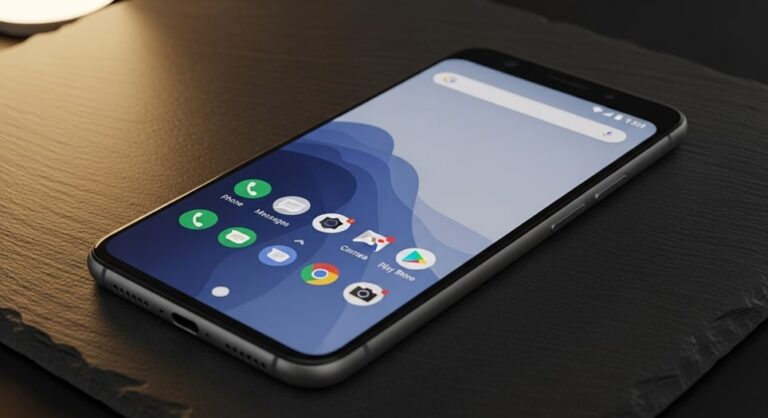
Android 12, released in October 2021, introduced transformative features like Material You theming, enhanced privacy controls, and smoother animations that reshaped the user experience on compatible devices. Even in late 2025, with official support ending on March 31, this version remains a viable option for owners of older smartphones seeking improved performance and security on legacy hardware. While newer iterations like Android 15 dominate the market, installing Android 12 can breathe new life into devices stuck on earlier builds, provided you navigate compatibility hurdles and potential risks carefully.
The process varies by manufacturer and model, ranging from simple over-the-air downloads to advanced sideloading techniques. Google Pixel phones received the update earliest and most reliably, but Samsung, OnePlus, and others rolled it out progressively through 2022. For unsupported phones, generic system images and custom recoveries offer workarounds, though they demand technical savvy and may void warranties.
Before diving in, assess your device’s eligibility: Android 12 requires at least 3GB of RAM, a 64-bit processor, and Project Treble support for generic installs. Back up all data, as interruptions can lead to bootloops or data loss. With these precautions, you can unlock Android 12’s dynamic theming and app hibernation features on hardware that might otherwise gather dust.
Assessing Device Compatibility and Prerequisites
Determining if your phone can run Android 12 starts with checking its current build and hardware specs. Navigate to Settings > About Phone to view the Android version and build number; if it’s below 11, upgrades may be limited. Tools like the CPU-Z app provide detailed processor and RAM info, essential since Android 12 demands robust resources for its widget stacks and privacy dashboard.
Charge your device to at least 50% and connect to a stable Wi-Fi network, as downloads can exceed 2GB. Enable developer options by tapping the build number seven times in About Phone, then toggle USB debugging under Developer Options for advanced methods. A computer with ADB and Fastboot tools installed simplifies troubleshooting, while a USB-C cable ensures reliable data transfer.
For custom installations, verify Project Treble compatibility using the Treble Info app from the Play Store—it scans for Vendor Interface and System modules, confirming if generic system images will work. Unsupported devices might need bootloader unlocking, a step that erases data and risks bricking if mishandled.
Method 1: Over-the-Air (OTA) Update for Supported Devices
The simplest path for eligible phones involves Google’s automated delivery system, which pushes updates directly without extra tools. This method preserves data and settings, making it ideal for first-time upgraders. However, with support lapsed in 2025, availability depends on your carrier or OEM’s last firmware push.
Step-by-Step OTA Installation
- Launch the Settings app and scroll to System > System Update (or Software Update on Samsung devices).
- Select Check for Updates; if Android 12 appears, tap Download and Install.
- Enter your PIN if prompted, then let the process run—your phone will reboot multiple times.
- Upon completion, verify the version in About Phone; expect 10-30 minutes total, depending on file size.
- If no update shows, force a refresh by wiping the cache partition: Power off, hold Volume Up + Power, then select Wipe Cache from recovery menu.
For Pixel users, visit the Pixel Update Bulletin archives to manually trigger lingering OTAs. Samsung owners can use the Members app to diagnose update blocks, often resolved by clearing the download manager cache.
This approach shines on devices like the Pixel 3 series through 6, where Google maintained extended support until 2023. If your phone qualifies, it’s the least invasive route, minimizing exposure to third-party risks.
Method 2: Sideloading OTA Packages for Delayed Rollouts
When OTA checks fail due to regional delays or carrier locks, sideloading the official ZIP package bypasses restrictions. Download firmwares from trusted repositories like XDA Developers or manufacturer sites, ensuring they match your exact model and build variant to avoid incompatibility crashes.
Enable USB debugging and install the Android SDK Platform-Tools on your PC for ADB commands. This method retains data but requires a stable connection to prevent partial installs that could soft-brick your device.
Detailed Sideloading Steps
- Download the Android 12 OTA ZIP for your model from the official Google factory images page or Samsung’s firmware portal.
- Transfer the file to your phone’s Downloads folder via USB.
- Boot into recovery mode: For Pixels, hold Volume Down + Power; for others, use Volume Up + Power + Home.
- Select Apply Update from ADB in the recovery menu.
- On your PC, open a command prompt in the Platform-Tools folder and enter:
adb sideload path/to/ota-file.zip. - Monitor progress on-screen; reboot once verified.
Sideloading proves invaluable for locked bootloaders, as seen on Verizon variants where carriers delay pushes. Always verify file integrity with MD5 checksums to thwart corrupted downloads.
Method 3: Installing Generic System Images (GSI) for Unsupported Phones
Project Treble-enabled devices from 2018 onward can adopt Android 12 via GSIs, Google’s blueprint for vendor-agnostic updates. These images, available as arm64 A/B or AB variants, allow experimentation on mid-range phones like the Moto G series without full ROM overhauls.
Prepare by unlocking the bootloader—a irreversible step erasing all data—and flashing a compatible vendor image. GSIs deliver core Android 12 features like one-handed mode but may lack OEM customizations like camera tweaks.
GSI Installation Guide
- Confirm Treble support with the Treble Info app; download the arm64 GSI from developer.android.com.
- Unlock bootloader: Enter fastboot mode (Volume Down + Power), then run
fastboot flashing unlockon PC. - Flash vendor:
fastboot flash vendor vendor.img(obtain from device-specific forums). - Extract GSI.img and resize: Use
lunch treble_arm64_avN-userdebugin AOSP source or img_tools. - Flash system:
fastboot flash system system.img, followed byfastboot -wto wipe data. - Reboot and enroll in Google Play via initial setup.
For A/B devices, seamless updates prevent downtime, a boon for daily drivers. Test in a virtual environment first using Android Studio’s emulator to simulate behaviors.
GSIs extend life to budget handsets, but battery optimization might falter without vendor blobs—monitor thermals during extended use.
Method 4: Custom ROMs for Advanced Customization
LineageOS and Pixel Experience ROMs build on Android 12’s AOSP base, adding stability patches and theming options for end-of-life devices. Communities on XDA maintain these for flagships like the OnePlus 7, ensuring security beyond official EOL.
Install a custom recovery like TWRP first, then flash the ROM ZIP alongside GApps for Play Store access. This path offers root via Magisk, enabling modules for ad-blocking or UI mods.
Custom ROM Flashing Process
- Download TWRP for your model from twrp.me and flash via
fastboot flash recovery twrp.img. - Boot into TWRP (Volume Up + Power), then wipe Dalvik/ART Cache, System, Data, and Cache.
- Install the Android 12 ROM ZIP from the developer’s GitHub or forum thread.
- Flash OpenGApps nano package immediately after to avoid boot issues.
- Optionally, install Magisk ZIP for root; reboot and verify in About Phone.
- Reconfigure apps and restore backups selectively to prevent conflicts.
ROMs like crDroid incorporate Android 12’s game dashboard, enhancing multitasking on older Snapdragon chips. Join device-specific subreddits for build recommendations tailored to your kernel.
OEM-Specific Installation Tips
Samsung Galaxy devices require Odin for firmware flashing, a tool from Sammobile that handles multi-CSC updates seamlessly. For S20 series, select the HOME_CSC to preserve data during Android 12 betas turned stable.
OnePlus users leverage local upgrade in Settings for OxygenOS 12, or MSM tool for unbricking post-flash. Xiaomi’s Mi Flash tool supports fastboot ROMs, but enable MIUI’s developer options fully beforehand.
Common OEM Challenges and Solutions
- Samsung Galaxy S21: Carrier-locked models block OTAs; extract AP/BL/CP files in Odin, flash in Download mode (Volume Down + Bixby + Power), then reboot to apply—resolves Knox tripping for most users without warranty loss.
- Google Pixel 4a: Last official build in 2022; sideload via ADB after enabling OEM unlocking, ensuring dynamic partitions aren’t resized incorrectly to avoid fastboot loops.
- OnePlus 8T: OxygenOS 12 GSI variants cause haptic glitches; patch with AK Kernel manager post-install for vibration fixes, maintaining 90Hz smoothness.
- Motorola Moto G Stylus: Treble GSIs bootloop on stock; flash Moto’s vendor addon from XDA first, then GSI, to align camera HALs properly.
- Sony Xperia 1 III: AOSP lacks stock launcher; include Lawnchair in ROM ZIP during TWRP install for gesture navigation continuity.
- Nothing Phone (1): Glyph interface unsupported in custom builds; stick to OTA or stable Lineage for LED patterns, avoiding vendor mismatches.
- ASUS ROG Phone 3: Gaming mode breaks in GSIs; use Franco Kernel with ROM for thermal throttling control during extended sessions.
- Fairphone 4: Modular design aids repairs post-flash; always update BIOS via FP Open before ROM to sustain NFC and eSIM functions.
These tweaks ensure feature parity, like Samsung’s Secure Folder surviving the upgrade. Cross-reference with official changelogs for variant-specific quirks.
Troubleshooting Common Installation Issues
Bootloops often stem from mismatched partitions; reflash the stock recovery temporarily to rescue, then retry with verified hashes. If ADB won’t recognize your device, install universal drivers from Google’s USB page and toggle USB mode to file transfer.
Post-install battery drain signals unoptimized doze; clear app caches and enable adaptive battery in Settings > Battery. For GSI users, SELinux enforcing mode can crash apps—temporarily set permissive via boot scripts, then report to maintainers.
Overheating during flashes indicates poor cable quality; switch to original chargers and monitor with AccuBattery. If Google Play crashes, reflash pico GApps instead of full, conserving storage on 64GB models.
Network errors mid-download? Use a VPN to mimic OTA regions or download via PC with 7-Zip extraction for integrity. Persistent issues warrant a full NANDroid backup restoration from TWRP.
Security and Performance Considerations Post-Install
Without quarterly patches since 2025, manually apply via custom kernels or Magisk modules from trusted devs. Enable approximate location and auto-reset permissions in Privacy settings to leverage Android 12’s indicator dots.
Optimize with app hibernation for unused bloat, freeing RAM for smoother scrolling. Monitor via developer options’ GPU rendering profiler to tweak animations if lag persists on mid-tier SoCs.
Pro Tips
- Schedule installs during off-peak hours to avoid server throttles on official mirrors, ensuring faster pulls for large ISOs and reducing frustration from timeouts.
- Layer thermal pads on exposed SoCs for custom setups, preventing throttling in warmer climates while sustaining boost clocks for gaming.
- Script ADB commands in batch files for repeatable flashes, saving time on multi-device testing and minimizing human error in syntax.
- Integrate F-Droid for open-source apps post-root, enhancing privacy without compromising Android 12’s scoped storage benefits.
- Calibrate compass via GPS Status app after ROM flashes to fix ARCore glitches, vital for extended reality experiences on upgraded hardware.
- Use macroDroid for automation rules, like auto-silencing during flashes, streamlining workflows on daily drivers.
- Backup EFS partitions before bootloader unlocks to preserve IMEI, a critical safeguard against carrier blacklists.
- Experiment with substratum theming engines for deeper Material You customizations, unlocking accent colors beyond stock palettes.
Frequently Asked Questions
Can I install Android 12 on a phone from 2017? Possibly, if it supports Project Treble like the Essential Phone; check with Treble Info app, but expect performance hits on 4GB RAM setups—opt for lightweight GSIs.
Will sideloading void my warranty? In most regions, no, as it’s reversible via stock recovery flash; however, repeated unlocks might flag diagnostics for carriers.
How do I revert to stock after a custom install? Boot to fastboot and flash the full factory image ZIP, including radio and boot.img, then relock the bootloader if desired.
Is Android 12 secure without updates in 2025? Marginally, with manual patches via community ROMs; prioritize banking apps on isolated profiles for added safety.
What if my device overheats during the process? Pause and cool with compressed air, then resume in shorter bursts; ensure vents are clear of dust accumulations.
Does GSI support all sensors like fingerprint? Usually yes on Treble devices, but verify HAL compatibility in logs; fallback to pattern locks if biometrics falter.
Can I update apps on Android 12 in 2025? Absolutely, via Play Store; however, some developers drop support for older APIs, prompting side-loading APKs from APKMirror.
Conclusion
Installing Android 12 in 2025 empowers users to revitalize aging smartphones through OTA simplicity, GSI versatility, or ROM depth, each method tailored to hardware constraints and skill levels. From compatibility checks to OEM nuances and post-install tweaks, this guide equips you to harness Material You’s vibrancy and privacy shields safely. While newer Androids beckon, Android 12’s enduring polish proves legacy tech’s value, blending nostalgia with practical enhancements for budget-conscious enthusiasts.