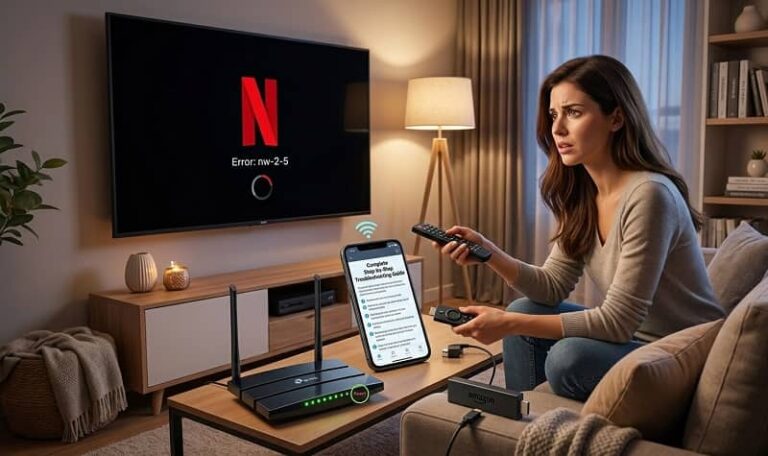
Netflix streaming errors on TVs and streaming devices can be fixed in minutes by restarting your device and router, clearing the app cache, signing out and back in, or reinstalling the Netflix app. Most errors trace back to network instability, corrupted data, or outdated software. This guide walks through every fix in order, from the simplest to the most advanced.
Understanding Netflix Streaming Errors on TVs and Streaming Devices
Netflix errors on televisions and streaming devices occur when the app loses communication with Netflix servers, fails to decode video data, or encounters corrupted local files. Unlike browser-based errors on a PC, TV and streaming device errors are often harder to diagnose because the operating systems are more closed and the error messages less descriptive.
The good news is that nearly all Netflix playback errors on smart TVs, Roku, Fire TV Stick, Apple TV, Android TV, and game consoles fall into a predictable set of causes. Network connectivity failures account for the majority of cases. Device memory issues, outdated firmware, and corrupted app data cover most of the rest. Account-level problems are rare but worth checking when all else fails.
Understanding which category your error falls into is the fastest path to a fix. The structured approach in this guide moves from broad fixes to specific ones, ensuring no step is wasted.
Common Symptoms of Netflix Streaming Errors
- Error codes during launch or playback: Alphanumeric codes such as NW-2-5 or UI-800-3 point to specific problems — network connectivity and stored data corruption respectively — and require targeted fixes rather than random restarts.
- Endless loading or buffering screens: A spinning icon that never resolves typically means data is arriving too slowly or is being dropped entirely, usually a network speed or stability issue.
- Black or blank screen with audio: This symptom often points to an HDMI handshake failure between your streaming device and TV, or a DRM decryption problem affecting the video layer only.
- Sudden playback interruptions: Content that stops mid-stream usually correlates with unstable Wi-Fi, bandwidth congestion from other devices on the network, or the app running out of memory.
- Repeated sign-in prompts: Being forced to log in repeatedly indicates an authentication or session token problem, often fixed by a full sign-out and sign-in cycle.
Common Netflix Error Codes and What They Mean
Netflix uses error codes to communicate the nature of a problem. Knowing what each code means eliminates guesswork and points you directly to the correct fix. Below are the most frequently reported error codes on TVs and streaming devices.
Network Connectivity Error Codes
- NW-2-5 and NW-3-6: These are the most common Netflix error codes. They indicate that the device cannot reach Netflix servers, almost always due to a network configuration problem. The fix involves restarting your router and modem, checking that your network allows streaming services, and ensuring no VPN or proxy is interfering with the connection.
- TVQ-BR-100: This code signals a general network issue or a need to refresh the Netflix session. Restarting the device and clearing app data resolves it in most cases. If the error persists, it may point to an ISP-level problem requiring a call to your provider.
- M7034: This connectivity error appears across devices when the internet signal is weak or unstable. Moving your device closer to the router or switching to a wired Ethernet connection usually resolves it immediately.
Playback and Device Error Codes
- UI-800-3 and UI-800-2: These codes mean the data stored on your device needs to be refreshed. Clearing the Netflix app cache and data, or deactivating and reactivating the app, is the standard fix. On Samsung TVs, the hidden reset menu described later in this guide handles this automatically.
- TVQ-PB-101: This playback error indicates a problem with data stored on the device interfering with video output. It is device-specific and requires clearing app data or reinstalling Netflix entirely.
- -100: Common on Amazon Fire TV and Fire Stick, this error means data is stuck and the device needs a restart or restore. Unplugging the Fire Stick for 30 seconds and clearing the Netflix cache via Settings resolves it in most cases.
- UI-113: This code appears on Roku and Fire TV and usually means a connectivity disruption occurred mid-session. Restarting the router, then the streaming device, and disabling any active VPN typically clears it.
Step 1: Check Your Internet Connection
A stable, fast internet connection is the single most important factor in Netflix streaming performance. Before adjusting any device or app settings, confirm that your network is functioning correctly. A connection that appears active may still be too slow or too unstable for streaming video.
Netflix recommends at least 3 Mbps for standard definition, 5 Mbps for high definition, 15 Mbps for 4K Ultra HD, and 25 Mbps or more for 4K HDR content. These are minimum figures — shared networks with multiple devices require significantly more headroom.
How to Test and Fix Network Issues
- Restart your modem and router: Unplug both devices from power, wait a full 60 seconds, and reconnect. This clears the connection cache and refreshes your IP address with your internet service provider. Many Netflix errors disappear after this step alone.
- Run a speed test on the affected device: On Samsung TVs, go to Settings > General > Network > Network Status. Other smart TVs have similar options. Compare the result against Netflix’s minimum speed requirements for your chosen quality.
- Switch from Wi-Fi to Ethernet: A wired connection eliminates wireless interference, signal drops, and congestion from neighboring networks. This is the fastest way to rule out Wi-Fi as the cause.
- Move your device closer to the router: Wi-Fi signal degrades quickly over distance and through walls. Physical proximity makes a measurable difference on devices that cannot use Ethernet.
- Disconnect other devices from the network: Multiple active connections compete for bandwidth. Temporarily disconnecting phones, tablets, and computers helps identify whether congestion is the cause.
- Change your DNS to 8.8.8.8: On Samsung TVs specifically, DNS server issues can block Netflix connections even when general internet access works. Setting the DNS manually to Google’s public server at 8.8.8.8 resolves this in many cases. This option is found under Settings > General > Network > Network Status > IP Settings.
Step 2: Restart Your TV or Streaming Device
A proper restart — not just switching the screen off — clears temporary memory, stops background processes that consume resources, and reloads system components that may have become unresponsive. This step resolves a surprisingly high percentage of Netflix errors and should always be performed before moving to more complex fixes.
The key distinction is between a standby restart and a full power cycle. Pressing the power button on most remotes puts the TV into standby mode, which does not clear memory or reset app processes. A full power cycle does.
How to Properly Restart Each Device Type
- Smart TVs: Unplug the TV from the wall outlet — not just the power strip switch. Wait at least 60 seconds, then reconnect and power on. This ensures capacitors fully discharge and memory is completely cleared.
- Roku: Go to Settings > System > System Restart to perform a clean software restart. Alternatively, remove the power cable from the Roku device itself for 30 seconds.
- Amazon Fire TV and Fire Stick: Navigate to Settings > My Fire TV > Restart. For a full power cycle, unplug the device from the HDMI port and power source for 30 seconds before reconnecting.
- Android TV and Google TV: Hold the power button on the remote for five seconds and select Restart from the menu that appears. This performs a clean software reboot rather than just a standby toggle.
- Apple TV: Go to Settings > System > Restart. You can also unplug the power cable for 30 seconds for a full hardware reset.
- Game consoles (PlayStation, Xbox): Perform a full shutdown rather than rest or sleep mode. On PlayStation, hold the power button until you hear a second beep. On Xbox, hold the Xbox button and select Restart Console.
Step 3: Sign Out and Sign Back In to Netflix
Authentication problems can prevent the Netflix app from verifying account credentials or syncing session data with Netflix servers. This is particularly common after a password change, a plan upgrade, or when the device has been idle for an extended period. Signing out completely and signing back in forces the app to request fresh credentials from Netflix’s authentication servers.
Refreshing Account Credentials on Your Device
- Navigate to Netflix settings or the help menu: On most devices, open the Netflix app and scroll to the left edge of the home screen to access Settings or use the menu button on your remote.
- Select Sign Out and confirm: Complete the sign-out process fully — do not interrupt it midway, as this can leave partial session data on the device.
- Force close the Netflix app: After signing out, exit the app completely. On Android TV, go to Settings > Apps > Netflix > Force Stop before reopening.
- Clear session cookies using Netflix’s tool: Visit netflix.com/clearcookies in a browser to clear stored session data at the account level. This is separate from clearing app cache on the device.
- Sign in with fresh credentials: Enter your email and password carefully. If you recently changed your password, ensure you are using the updated version.
- Test across multiple profiles: If the error persists only on one profile but not others, the issue may be profile-specific rather than a device or network problem.
Step 4: Clear Netflix App Data or Reinstall the App
Corrupted cache files are a frequent cause of persistent Netflix errors that survive restarts and sign-outs. The Netflix app stores temporary data locally to speed up loading times, but this data can become corrupted and actively interfere with playback. Clearing it forces the app to rebuild its local data from scratch using fresh files from Netflix servers.
Clearing Cache on Each Device Type
- Android TV and Google TV: Go to Settings > Apps > Netflix > Storage > Clear Cache and Clear Data. Then restart the device before reopening Netflix.
- Amazon Fire TV and Fire Stick: Navigate to Settings > Applications > Manage Installed Applications > Netflix > Clear Cache and Clear Data.
- Samsung Smart TV: Go to Settings > Support > Device Care > Start Device Care. This clears cache for all apps simultaneously. For Netflix specifically on newer models, go to Settings > Apps > Netflix > Clear Cache.
- Roku: Roku does not support manual cache clearing per app. Instead, remove and reinstall the Netflix channel by going to the channel, pressing the star (*) button on the remote, selecting Remove Channel, then re-adding it from the Channel Store.
- Apple TV: Hold the TV button and the Back button simultaneously until the home screen appears, which forces the app to close. For a deeper reset, go to Settings > General > Manage Storage > Netflix > Delete App.
Reinstalling the Netflix App
- Uninstall Netflix: Remove the app completely from your device through the system settings or app management menu.
- Restart the device: Always restart after uninstalling before reinstalling. This ensures all residual files are cleared from temporary storage.
- Download and install Netflix again: Use your device’s official app store — the Roku Channel Store, Amazon Appstore, Google Play Store, or Samsung App Store depending on your device.
- Sign in and test immediately: Test playback on multiple titles to confirm the fix holds across different content types.
Step 5: Update Device Firmware and the Netflix App
Outdated firmware on your TV or streaming device can cause compatibility problems with Netflix’s current streaming protocols, DRM systems, and codec requirements. Netflix regularly updates its infrastructure, and devices running old software may encounter errors that simply did not exist on their original software version.
Keeping Software Current on All Devices
- Check for system firmware updates: On Samsung TVs, go to Settings > Support > Software Update > Update Now. On Roku, go to Settings > System > System Update. On Fire TV, go to Settings > My Fire TV > About > Check for Updates.
- Update the Netflix app separately: The Netflix app version and device firmware are independent. Check your device’s app store for a pending Netflix update even if the firmware is already current.
- Enable automatic updates: Most streaming devices allow automatic app and firmware updates in settings. Enabling this prevents future compatibility gaps from accumulating silently.
- Restart after any update: Updates do not always take full effect until the device is rebooted. Always restart after updating before testing Netflix.
- Consider device age: If your smart TV or streaming stick is several years old and no longer receiving firmware updates, the Netflix app may no longer be supported on that hardware. A newer streaming device connected via HDMI is the most cost-effective solution.
Step 6: Device-Specific Fixes for Netflix Errors
While the steps above cover most Netflix streaming errors across all devices, some platforms have unique troubleshooting options that are not available elsewhere. Using the device-specific fix for your hardware often resolves errors faster than following general steps alone.
Samsung Smart TV
Samsung TVs support a dedicated Netflix reset sequence and a Smart Hub reset that clears all app data simultaneously. From Netflix’s home screen where profiles appear, enter the following on your remote: Up, Up, Down, Down, Left, Right, Left, Right, Up, Up, Up, Up. A hidden service menu appears with options to Sign Out, Reset, or Deactivate. This clears Netflix’s stored data and forces a fresh connection without requiring a full factory reset. You will need to sign back in afterward. If this does not help, go to Settings > Support > Device Care > Self Diagnosis > Reset Smart Hub and enter PIN 0000 to reset all apps.
Roku
On Roku, the most effective fix for persistent Netflix errors is removing and reinstalling the channel completely. Press the star (*) button while hovering over Netflix on the home screen, select Remove Channel, restart the Roku, then re-add Netflix from the Channel Store. If the error is network-related and the code is NW-2-5 or UI-113, also go to Settings > Network > Set Up Connection and reconnect to your Wi-Fi network from scratch.
Amazon Fire TV and Fire Stick
Amazon devices running the -100 or TVQ-BR-100 error respond well to a combination of cache clearing and forced restart. Go to Settings > Applications > Manage Installed Applications > Netflix > Clear Data and Clear Cache. Then unplug the Fire Stick from both the HDMI port and its power supply for 30 seconds before reconnecting. This performs a complete hardware reset rather than just a software restart, which is more thorough for clearing stuck data.
Android TV and Google TV
Android TV offers a Force Stop option that is not available on other platforms. Go to Settings > Apps > Netflix > Force Stop before clearing cache and data. Force Stop terminates all background processes associated with the app, including any that may have become unresponsive without triggering a visible error. After Force Stop, clear the cache, then reopen Netflix without restarting the device first to test whether the fix worked before committing to a full reboot.
Step 7: Fix HDMI and Display Settings
Black screens, no-signal errors, and resolution failures on Netflix are often caused by HDMI handshake problems between the streaming device and the TV rather than by the Netflix app itself. This is particularly common when streaming 4K HDR content, which requires specific HDMI standards and cable quality to function correctly.
Diagnosing and Fixing Display Connection Issues
- Use a certified high-speed HDMI cable: Standard HDMI cables may not support 4K HDR signals. Look for cables certified as HDMI 2.0 or higher for 4K content and HDMI 2.1 for 8K and high-refresh-rate signals.
- Try a different HDMI port on the TV: Some HDMI ports on smart TVs only support the full standard on specific ports. Check your TV’s manual to identify which port supports HDCP 2.2, which is required for Netflix 4K.
- Temporarily lower the resolution: If Netflix works at 1080p but fails at 4K, the issue is likely a display compatibility or bandwidth limitation rather than an app error. Adjust the resolution in your streaming device’s display settings.
- Disable HDR temporarily: HDR mode can cause compatibility conflicts on older TVs paired with newer streaming devices. Disabling HDR in the TV’s picture settings while keeping 4K active helps isolate whether HDR is the specific cause.
- Restart both TV and streaming device simultaneously: Powering off both devices and reconnecting them forces the HDMI handshake to reset completely, which resolves most black screen issues caused by signal negotiation failures.
Pro Tips to Prevent Future Netflix Streaming Errors
- Restart your streaming devices weekly: A scheduled weekly restart keeps memory clear and prevents the slow accumulation of cached data that causes errors over time.
- Position your router centrally in the home: Wi-Fi signal strength drops significantly with distance and through walls. A central router position with a clear line of sight to streaming devices reduces connection drops.
- Enable automatic firmware and app updates: Keeping software current eliminates the compatibility gaps that generate a significant portion of Netflix errors.
- Avoid heavy background downloads while streaming: Large downloads on the same network consume bandwidth and introduce the instability that triggers buffering and error codes.
- Use official Netflix channels and apps only: Sideloaded or modified versions of the Netflix app bypass DRM systems and frequently trigger playback issues that cannot be fixed through standard troubleshooting.
- Keep HDMI cables and connections secure: A loose HDMI cable is a surprisingly common cause of intermittent black screens and audio-only errors that appear to be app problems.
Frequently Asked Questions
Why does Netflix keep saying there is an issue with my streaming device?
This message typically means Netflix cannot complete the authentication or data handshake with your specific device. The most common causes are outdated firmware, corrupted app data, or a session that has timed out. Clearing the Netflix app cache, updating the device firmware, and signing out and back in resolves this in the majority of cases. If the error persists, reinstalling the Netflix app forces a completely clean installation.
Why can’t I stream Netflix on my smart TV even though the internet works?
A working internet connection does not guarantee that Netflix can reach its servers from your specific device. Your router may be blocking streaming traffic on certain ports, your TV’s DNS settings may be misconfigured, or the Netflix app version on your TV may be incompatible with the current Netflix infrastructure. Try setting your DNS manually to 8.8.8.8 in your TV’s network settings and check whether a firmware update is available for your TV model.
Why is my Netflix glitching on my smart TV?
Glitching during playback — stuttering, freezing, or sudden drops in quality — is almost always a network stability issue rather than an app problem. Run a speed test directly on the TV and compare it against Netflix’s requirements for your chosen quality. If the speed is sufficient but glitching continues, switch to a wired Ethernet connection and test again. Persistent glitching on a wired connection may indicate the TV’s processor or memory is struggling with the current app version.
How do I use the Netflix hidden reset menu on my TV?
From Netflix’s home screen — the screen where profile icons appear — enter the following sequence using your TV remote: Up, Up, Down, Down, Left, Right, Left, Right, Up, Up, Up, Up. A diagnostic menu appears with options to sign out, reset, or deactivate the app. This menu is available on most smart TVs with a Netflix app and is the fastest way to clear stored data without navigating through system settings manually.
How long should I wait after restarting before opening Netflix?
After restarting your router, wait at least 60 seconds before opening Netflix to allow the modem and router to fully re-establish the connection to your ISP. After restarting a streaming device, 30 seconds is sufficient before launching the app. Rushing this process can result in the same error reappearing before the connection has stabilized.
Conclusion
Netflix streaming errors on TVs and streaming devices are almost always fixable without professional help. By working through the steps in this guide — starting with network verification and device restart, then progressing through sign-out cycles, cache clearing, app updates, and device-specific fixes — the vast majority of error codes and playback issues can be resolved in under ten minutes. Understanding what each error code means removes the guesswork and points directly to the right solution. The hidden reset menu, DNS adjustment, and Force Stop options available on specific devices are particularly powerful tools that most users never discover. With the preventative habits outlined here, recurring Netflix app errors become rare rather than routine.