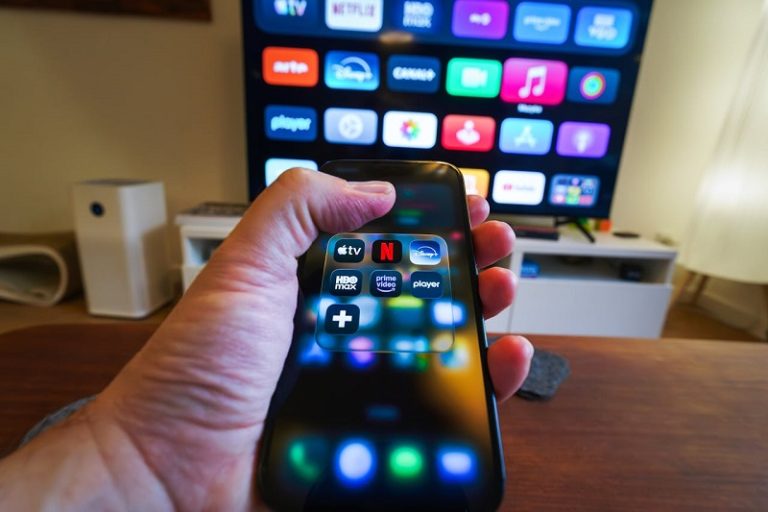
Streaming issues can turn a relaxing movie night into a frustrating experience. Netflix, despite being one of the most reliable streaming platforms globally, is not immune to technical hiccups. Users frequently encounter problems such as buffering, error codes, login failures, audio-video sync issues, or the app refusing to load entirely. These issues can stem from network instability, device limitations, outdated software, or temporary service disruptions.
This comprehensive guide is designed to walk you through proven, practical troubleshooting steps that address the most common Netflix problems across smart TVs, mobile devices, computers, game consoles, and streaming sticks. Each section focuses on real-world fixes that align with Netflix’s officially supported troubleshooting practices and widely accepted technical standards.
By following this guide from start to finish, you can systematically identify the root cause of most Netflix issues and resolve them efficiently without guesswork. Whether you are dealing with slow streaming speeds, cryptic error messages, or playback failures, this article provides a clear and structured approach to getting Netflix back up and running smoothly.
Understanding Common Netflix Issues
Netflix problems usually fall into a few broad categories, each with distinct causes and solutions. Recognizing the category your issue belongs to can significantly reduce troubleshooting time. The most common problem areas include connectivity, playback, account access, and device compatibility.
Connectivity issues often result in buffering, low video quality, or failure to load content. Playback issues may include freezing, black screens, or audio problems. Account-related problems usually involve login errors, profile loading failures, or region-related restrictions. Device compatibility issues arise when hardware or software no longer meets Netflix’s current requirements.
While Netflix occasionally experiences service outages, most problems originate on the user’s end. That is why a methodical, device-agnostic troubleshooting process is the most reliable way to restore normal functionality.
Network and Internet-Related Problems
A stable internet connection is the backbone of smooth Netflix streaming. Netflix recommends specific minimum internet speeds depending on the streaming quality, with higher resolutions requiring faster and more consistent bandwidth.
Unstable Wi-Fi, network congestion, outdated routers, or incorrect DNS settings can all interfere with Netflix’s ability to stream content reliably. These issues often manifest as buffering loops, sudden drops in quality, or error messages related to connectivity.
Step-by-Step Netflix Troubleshooting Process
The most effective way to fix Netflix problems is to follow a structured troubleshooting order. Starting with simple steps helps eliminate common causes before moving on to more advanced solutions.
Restart Your Device and Network
Restarting is one of the most underestimated yet effective troubleshooting steps. Power cycling your device clears temporary cache files, resets network connections, and resolves minor software glitches.
- Restart your streaming device: Turn it off completely, unplug it from power for at least 30 seconds, then power it back on. This clears temporary memory and reloads system processes.
- Restart your modem and router: Unplug both devices, wait 60 seconds, then reconnect the modem first followed by the router. This refreshes your internet connection and IP assignment.
- Avoid quick restarts: Simply turning a device off and on quickly may not fully reset internal components.
- Check indicator lights: Ensure your modem and router show stable connectivity before relaunching Netflix.
- Test Netflix again: Open the app after the restart process completes to see if the issue is resolved.
Check Your Internet Speed
Netflix streaming quality depends heavily on available bandwidth. If multiple devices are using the same network, congestion can degrade performance.
Use a trusted speed testing tool to measure your download speed. Compare the results against Netflix’s recommended speeds for SD, HD, and Ultra HD streaming. If speeds are consistently below expectations, your internet service provider or home network setup may be the limiting factor.
Fixing Netflix App and Software Issues
Outdated apps and system software are common sources of Netflix malfunctions. Streaming platforms frequently update their apps to improve performance, security, and compatibility.
Update the Netflix App
Running an outdated version of the Netflix app can cause crashes, playback errors, or missing features. App updates often include bug fixes that directly address known issues.
Check your device’s app store for pending Netflix updates. Install updates promptly and restart the app after installation to ensure changes take effect.
Update Device Software
Operating system updates are equally important. Smart TVs, phones, tablets, and streaming devices rely on system-level updates to maintain compatibility with streaming apps.
If your device software is several versions behind, Netflix may not function correctly or may stop working altogether. Keeping your device updated ensures long-term stability.
Resolving Netflix Error Codes
Netflix error codes are designed to identify specific issues. While they may look confusing, each code points to a known problem category such as connectivity, account verification, or device limitations.
Common Error Code Categories
- Network-related errors: These often indicate problems connecting to Netflix servers and are usually resolved by checking internet connectivity.
- Device compatibility errors: These appear when a device no longer meets Netflix’s technical requirements.
- Account or billing errors: These can occur if there is an issue with payment methods or account status.
- App data errors: Corrupted cache or app data can trigger repeated error messages.
- Region or VPN-related errors: These arise when Netflix detects location inconsistencies.
Clearing app data, disabling VPNs, and ensuring account details are up to date can resolve many error codes without further intervention.
Troubleshooting Netflix on Specific Devices
Different devices require slightly different troubleshooting approaches. Understanding device-specific quirks helps speed up resolution.
Smart TVs
Smart TVs often struggle with limited processing power or outdated firmware. If Netflix freezes or fails to load, reinstalling the app or performing a full TV power reset can help.
Mobile Phones and Tablets
On mobile devices, issues often stem from background apps, low storage, or power-saving modes. Closing unused apps and disabling battery optimization for Netflix can improve performance.
Computers and Laptops
Browser-based streaming issues may be caused by extensions, outdated browsers, or hardware acceleration conflicts. Switching browsers or updating graphics drivers can resolve these problems.
Advanced Network Troubleshooting
If basic steps fail, deeper network diagnostics may be required. These solutions address less obvious connectivity problems.
- Switch to a wired connection: Ethernet connections are more stable than Wi-Fi and reduce buffering.
- Change DNS settings: Using a reliable public DNS can improve connection reliability.
- Reduce network congestion: Pause large downloads or disconnect unused devices.
- Check router firmware: Outdated firmware can cause compatibility issues.
- Test on another network: This helps determine whether the issue is device-specific or network-related.
Pro Tips for a Better Netflix Experience
Optimizing your setup can prevent future problems and improve overall streaming quality.
- Position your router strategically: Place it centrally to improve Wi-Fi coverage.
- Use quality HDMI cables: Poor cables can cause display and audio issues.
- Enable automatic updates: Keep apps and devices current without manual checks.
- Limit background usage: Reduce bandwidth competition during streaming.
- Restart devices periodically: Routine restarts help maintain performance.
Frequently Asked Questions
Why does Netflix keep buffering even with fast internet?
Buffering can still occur due to network congestion, Wi-Fi interference, or device performance limitations.
How do I know if Netflix is down?
If Netflix fails across multiple devices and networks, a service outage may be occurring.
Does clearing cache delete my Netflix account?
No, clearing cache only removes temporary files and does not affect account data.
Why does Netflix work on my phone but not on my TV?
This usually indicates a TV-specific app, firmware, or connectivity issue.
Conclusion
Netflix troubleshooting does not have to be complicated. By following a structured approach that starts with basic connectivity checks and progresses to device-specific and advanced network solutions, most issues can be resolved quickly and effectively. Regular updates, proper network management, and a proactive maintenance mindset can prevent many problems before they start. With the steps outlined in this guide, you can confidently diagnose and fix Netflix issues across all major devices and enjoy uninterrupted streaming whenever you want.