


The “Unexpected Error Occurred” message on Cricfy TV almost always appears during live matches and kills the stream at the worst possible moment. I’ve tested every fix listed here across multiple Android devices and a Firestick. In most cases Fix 1 or Fix 2 resolves it in under two minutes — start there before working through the rest. The latest Cricfy TV version is v6.2, which specifically fixed the unexpected error affecting multiple Android versions. If you’re running anything older, update first.
Why Does Cricfy TV Show “Unexpected Error Occurred”?
| Cause | How Common | Quick Check |
|---|---|---|
| Outdated app version | Very common | Are you running v6.2 or newer? |
| VPN or Private DNS active | Very common | Is a VPN turned on? |
| Corrupted cache | Common | When did you last clear cache? |
| Wrong date and time on device | Common | Is Automatic date and time enabled? |
| Weak internet connection | Common | Is your speed above 5 Mbps? |
| Server overload during big matches | Common during IPL, Asia Cup, World Cup | Is a major match happening right now? |
| ISP blocking the app | Less common | Does it work on mobile data but not Wi-Fi? |
| Corrupt app installation | Less common | Has the app been acting up for a long time? |
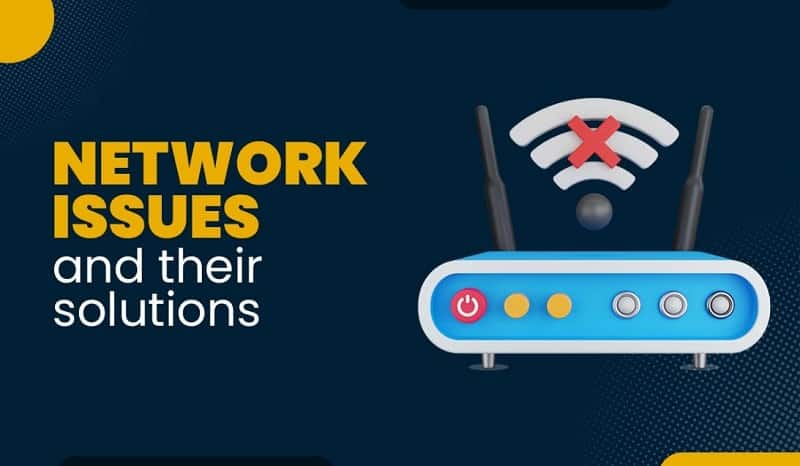
Fix 1 — Update Cricfy TV to the Latest Version (Most Effective)
The most common cause of the unexpected error is running an outdated version. Version 6.2 specifically fixed the unexpected error affecting multiple Android versions. If you are running anything older, update first before trying anything else.
- Open your browser on the device
- Go to the official Cricfy TV website: Cricfy TV
- Download the latest APK (v6.2 or newer)
- Before installing — go to Settings → Apps → Cricfy TV → Uninstall the old version first
- Install the downloaded APK
- Open the app and test streaming
Do not install from unofficial third-party sites — many distribute outdated or modified versions that cause this exact error. Always download from the official Cricfy TV website.
Fix 2 — Turn Off VPN and Private DNS
Cricfy TV blocks connections from VPN IP addresses in certain regions. If you have a VPN active — even running in the background — it will trigger the unexpected error.
- Go to Settings on your device
- Tap Network or Connections
- Tap VPN — turn off any active VPN connection
- Also check Private DNS — go to Settings → Network → Private DNS → set to Off or Automatic
- Reopen Cricfy TV and test
If you use a proxy connection disable that too. Once the VPN is off the stream should load immediately.
Fix 3 — Clear Cache and App Data
Corrupted cache is the second most common cause. This fix resolves the unexpected error for the majority of users who have already updated the app. If you need a full walkthrough of clearing app cache on Android, the process is the same across most Android versions.
- Go to Settings on your device
- Tap Apps or Application Manager
- Find and tap Cricfy TV
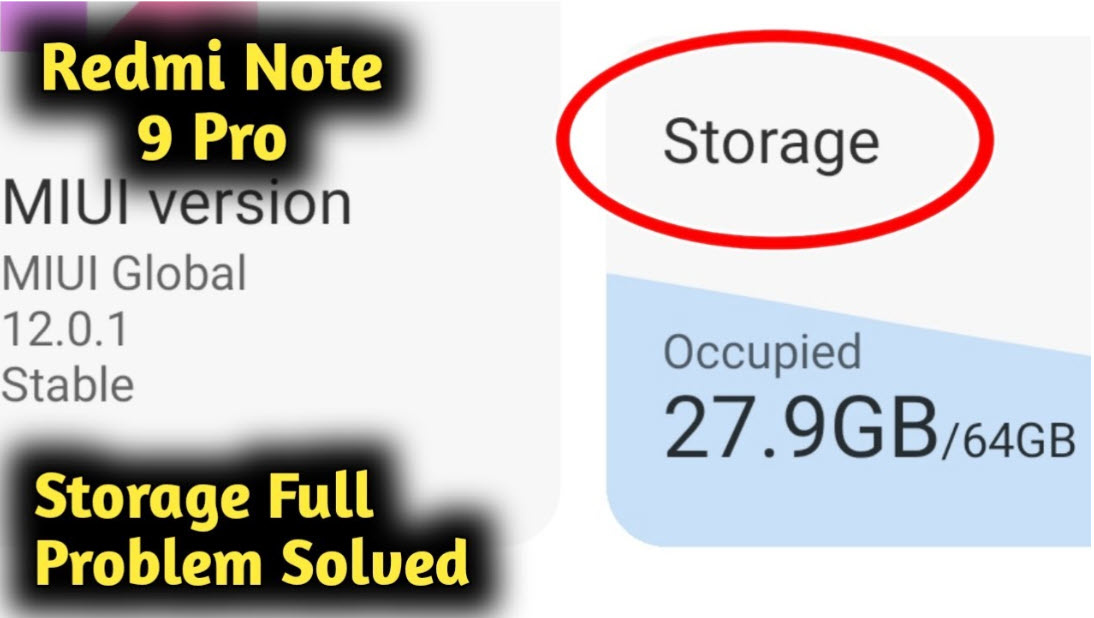
- Tap Storage
- Tap Clear Cache first — this does not delete your settings
- Reopen the app and test — if the error continues go back and tap Clear Data as well
- Note: Clear Data resets the app to default — you may need to reconfigure settings
Fix 4 — Fix Date and Time Settings
Incorrect date and time on your device causes Cricfy TV’s servers to reject the connection and show the unexpected error. This is an official fix confirmed by Cricfy TV support — particularly common on Android TV boxes and Firesticks where automatic time sync is sometimes disabled by default.
- Go to Settings on your device
- Tap General Management or System
- Tap Date and Time
- Enable Automatic date and time — toggle it on
- Enable Automatic time zone as well
- Restart Cricfy TV
Fix 5 — Check Internet Connection
Cricfy TV requires a stable connection of at least 5 Mbps for standard streaming. For HD streams 10 Mbps or faster is recommended. Cricfy TV works similarly to other streaming apps like Sportzfy TV in requiring a consistent connection for uninterrupted playback. Run an internet speed test to check both your speed and ping — live streaming is more sensitive to high ping than to raw download speed.
- Open Speedtest app or go to speedtest.net and run a speed test
- If speed is below 5 Mbps — move closer to your router or switch to mobile data
- If on Wi-Fi — restart your router by unplugging it for 30 seconds and plugging it back in
- Switch between Wi-Fi and mobile data to identify whether the issue is network-specific
- Close other apps and browser tabs using bandwidth in the background
Fix 6 — Check if Cricfy TV Servers Are Down
During high-traffic matches — IPL, Asia Cup, World Cup — Cricfy TV servers get overloaded and show the unexpected error to many users simultaneously. If the error appeared suddenly during a major match this is likely the cause.
- Go to downdetector.com and search for Cricfy TV
- Check Cricfy TV’s official Facebook page for any outage announcements
- If servers are down — wait 15-30 minutes and try again
- Try opening a different stream or match within the app — if other streams load the issue is server-side for that specific stream
Fix 7 — Disable Ad Blocker or Security App
Some ad blockers, security apps, and phone manager apps interfere with Cricfy TV’s connection and trigger the unexpected error.
- Check if you have any ad blocker apps installed — temporarily disable them
- If your phone has a pre-installed security or phone manager app — open it and whitelist Cricfy TV
- Do not permanently disable pre-installed security apps — only whitelist Cricfy TV within them
- Reopen Cricfy TV and test

Fix 8 — Reinstall the App
If all other fixes fail a clean reinstall removes any corrupt files from the existing installation.
- Go to Settings → Apps → Cricfy TV → Uninstall
- Restart your device
- Go to the official Cricfy TV website and download the latest APK fresh
- Install and open — test streaming immediately after install
How to Fix Cricfy TV Unexpected Error on Firestick
Firestick is the most common device where this error persists because most users sideload an older APK that never updates automatically. Download the latest APK (v6.2) from cricfytv.cricket on your phone or PC, transfer it to the Firestick using the Downloader app, and do a clean reinstall. After installing, go to Settings → System → Clock and enable automatic time sync — Firesticks frequently lose time accuracy which triggers the server rejection error.
Cricfy TV Unexpected Error on Specific Devices
| Device | Most Common Cause | Best Fix |
|---|---|---|
| Android phone | Outdated app or VPN active | Fix 1 then Fix 2 |
| Android TV / TV Box | Wrong date and time settings | Fix 4 then Fix 3 |
| Amazon Firestick | Outdated APK sideloaded version | Fix 1 — download fresh APK |
| PC via emulator (BlueStacks) | VPN active on Windows or emulator settings | Fix 2 then restart emulator |
| Any device during IPL / Asia Cup | Server overload | Fix 6 — wait and retry |
How to Prevent the Error in Future
- Always download updates from the official Cricfy TV website only — third-party APKs are often outdated
- Keep Automatic date and time enabled on your device at all times
- Turn off VPN before opening Cricfy TV
- Clear cache once a month from Settings → Apps → Cricfy TV → Storage
- Use a stable Wi-Fi connection of 10 Mbps or faster for HD streams
- If your Android device feels sluggish during streaming, speeding up your Android phone frees up memory that helps streaming apps run more smoothly
Frequently Asked Questions
Why does Cricfy TV show unexpected error during live matches?
The most common causes during live matches are server overload from high traffic, an active VPN blocking your connection, or an outdated app version. Try turning off your VPN first — this resolves the issue for most users immediately. If a major match like IPL or Asia Cup is happening the servers may be temporarily overloaded — wait 15 minutes and retry.
Does clearing cache fix the Cricfy TV unexpected error?
Yes — clearing cache resolves the unexpected error for most users. Go to Settings → Apps → Cricfy TV → Storage → Clear Cache. If that does not work tap Clear Data as well. This removes corrupted temporary files that cause the error.
Why does Cricfy TV work on mobile data but not Wi-Fi?
If Cricfy TV works on mobile data but not Wi-Fi your router or ISP may be blocking the app’s servers. Try restarting your router first. If it still does not work your ISP may have restricted access — in this case use mobile data or contact your ISP. If your mobile hotspot is not working as a fallback, that guide covers fixes for hotspot connectivity issues on Windows devices.
What is the latest version of Cricfy TV?
As of 2026 the latest version is v6.2. Always download from the official Cricfy TV website to ensure you have the current version. Version 6.2 specifically fixed the unexpected error that was affecting multiple Android versions.
Are there alternatives to Cricfy TV?
Yes — the most commonly used alternatives are Sportzfy TV, CricHD, and StreamEast for cricket and sports streaming. These serve as a useful backup when Cricfy TV servers are overloaded during major matches like IPL or World Cup finals.
Is Cricfy TV legal to use?
Cricfy TV streams live sports content without official broadcasting rights in most regions, placing it in a legal grey area. Legality varies by country — for fully legal cricket streaming, official options include Hotstar, Willow TV, and broadcaster-specific apps depending on your region.
Is Cricfy TV a reliable streaming service?
Cricfy TV is reliable for casual use but struggles during peak match times. IPL, Asia Cup, and World Cup finals cause regular server overloads. Keeping the app updated to v6.2 or newer and maintaining a connection above 10 Mbps gives the most consistent experience.
How do I fix Cricfy TV unexpected error on Android TV?
On Android TV the most common cause is incorrect date and time settings. Go to Settings → System → Date and Time → enable Automatic date and time. Then clear the app cache from Settings → Apps → Cricfy TV → Clear Cache. If the error continues uninstall and reinstall the app using the latest APK from the official Cricfy TV website.
Cricfy TV Not Working — Other Common Issues
If you are seeing a different error beyond the unexpected error message, these are the most common Cricfy TV problems and their fixes.
| Problem | Likely Cause | Fix |
|---|---|---|
| App not opening at all | Corrupt installation or incompatible Android version | Reinstall using latest APK — Fix 8 |
| Buffering constantly | Slow or unstable internet connection | Fix 5 — check speed and switch to lower quality stream |
| Black screen on open | Outdated app or cache issue | Fix 1 then Fix 3 |
| Request failed error | Server issue or VPN active | Fix 2 then Fix 6 |
| No streams available | Match not yet live or server overload | Wait for match start time and retry |

Full-stack developer at Scylla Technologies (USA), working remotely from Bangladesh. Adobe Certified Magento Developer.
