

Losing your Android smartphone or tablet can be a distressing experience, particularly when you consider the vast amount of personal data, financial information, and irreplaceable memories stored on these devices. The panic that sets in when you realize your device is missing is often accompanied by concerns about identity theft, unauthorized access to banking apps, and the potential loss of important contacts and documents. Fortunately, modern Android devices come equipped with powerful tracking and security features designed specifically to help users locate, secure, and recover their lost or stolen devices.
The evolution of Android security has brought significant advancements in device tracking capabilities, particularly with the introduction of Google’s Find Hub network and enhanced anti-theft features. These tools work together to create a comprehensive safety net that can help you locate your device even when it appears to be offline or powered off. Understanding how these features work and preparing your device in advance can make the difference between recovering your device and losing it permanently.
Understanding Google Find Hub: Your Primary Device Recovery Tool
Google Find Hub, formerly known as Find My Device, represents the cornerstone of Android device security and recovery. This built-in service provides users with multiple capabilities for locating and securing their devices remotely. The system works by leveraging your device’s connection to your Google account, GPS capabilities, and network connectivity to provide real-time location information and remote management options.
Find Hub automatically activates on your device when you sign in with a Google account, meaning most Android users already have this protection enabled without needing to take additional steps. The service has undergone significant improvements in recent years, particularly with the introduction of the Find Hub network, which uses a crowdsourced approach to locate devices even when they are offline. This network relies on encrypted location data from other Android devices to help pinpoint your lost device’s whereabouts, similar to Apple’s Find My network.
Key Features of Google Find Hub
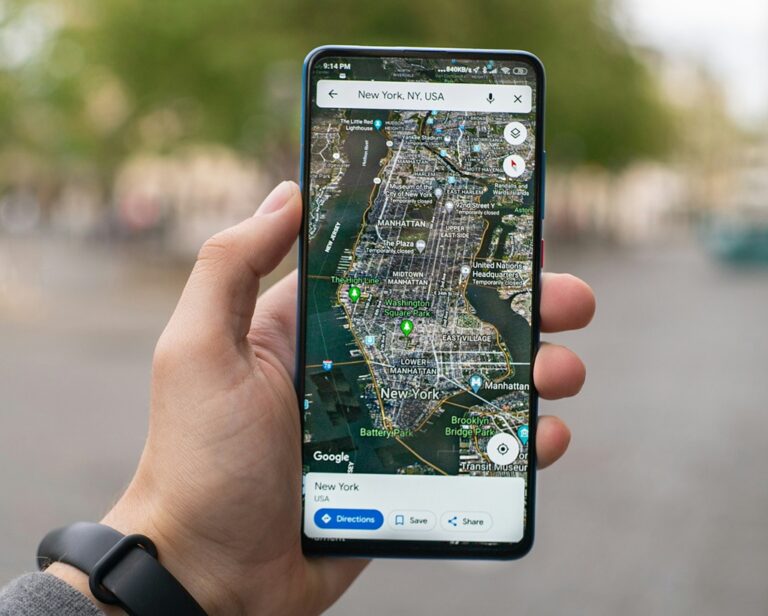
The Find Hub service offers several essential functions that work together to help you recover your device. The location tracking feature displays your device on an interactive map, showing either its current location or the last known position before it went offline. This visual representation makes it easier to understand where your device might be and plan your recovery strategy accordingly.
The remote sound function allows you to make your device ring at full volume for five minutes, even if it is set to silent or vibrate mode. This feature proves particularly useful when you have misplaced your device somewhere nearby, such as between couch cushions, in another room, or buried in a bag. The sound is designed to be loud enough to hear from a distance, helping you quickly locate your device within your immediate vicinity.
The secure device option provides critical protection if your device falls into the wrong hands. This feature allows you to remotely lock your device with your existing PIN, pattern, or password, or create a new lock if you had not previously set one up. Additionally, you can display a custom message on the lock screen with contact information, making it easier for someone who finds your device to return it to you. The system also signs you out of your Google account on the device, preventing unauthorized access to your personal information and services.
When all else fails, the factory reset option enables you to permanently erase all data from your device remotely. This nuclear option should be reserved for situations where you believe your device is unrecoverable and want to ensure your personal information does not fall into the wrong hands. Once you initiate a factory reset, the device becomes completely wiped and will require Google account credentials to set up again, thanks to Factory Reset Protection.
Setting Up Your Device for Maximum Recoverability
Preparation is the key to successfully recovering a lost Android device. Taking the time to configure your device’s security settings before an incident occurs dramatically increases your chances of locating and recovering your device. The following steps outline the essential preparations every Android user should complete to ensure their device is ready to be found if lost.
Essential Pre-Loss Configuration Steps
Begin by verifying that you are signed into a Google account on your device. Navigate to your device’s Settings app, tap on Google, and confirm that your account information appears correctly. This Google account connection forms the foundation of the Find Hub system and must be active for the service to function properly. If you use multiple Google accounts on your device, remember that the first account added typically controls Find Hub access.
Location services must be enabled for Find Hub to accurately track your device. Access your device’s Location settings through the Settings app and ensure the feature is turned on. Modern Android versions offer granular control over location accuracy, and selecting high accuracy mode provides the best results for device tracking. This setting uses GPS, Wi-Fi networks, and cellular networks to determine your device’s position with maximum precision.
The Find Hub network settings deserve special attention, as they enable your device to be located even when it goes offline. Navigate to Settings, then Google, then All Services, and select Find Hub. Look for the “Find offline devices” option and configure it according to your preferences. You can choose between three settings: Off, which disables offline finding; With network in busy places only, which helps locate your device in high-traffic areas; and With network everywhere, which provides the most comprehensive coverage. The latter two options require that you have set a PIN, pattern, or password on your device.
For owners of Google Pixel 8, Pixel 9, and Pixel 10 series devices, an additional feature allows the device to be located even when powered off or when the battery has died. This capability relies on specialized hardware that maintains basic functionality for several hours after shutdown, continuing to broadcast location information via Bluetooth to nearby Android devices in the Find Hub network. Ensure Bluetooth and Location services remain enabled when your device shuts down to take advantage of this feature.
Immediate Steps When Your Device Goes Missing
The moment you realize your Android device is missing, time becomes a critical factor in successful recovery. Acting quickly and methodically can prevent unauthorized access to your data and increase the likelihood of locating your device. The following procedures outline the immediate actions you should take when you discover your device is lost.
Accessing Find Hub Through Alternative Devices
You have multiple options for accessing Find Hub when your device goes missing. The most straightforward method involves using a web browser on any computer or mobile device to visit android.com/find. Sign in with the same Google account that is linked to your lost device, and the service will display all devices associated with that account. Select your missing device from the list, and a map will appear showing its current or last known location.
Alternatively, you can use the Find Hub app on another Android device. If you have access to a friend’s or family member’s Android phone or tablet, download the Find Hub app from the Google Play Store if it is not already installed. The app offers a guest mode that allows you to sign in with your Google account without requiring the device owner to share their credentials. This approach provides the same functionality as the web version but with a mobile-optimized interface that may be easier to use while on the move.
Once you have accessed Find Hub, assess the information displayed about your device. If your device appears online and shows a current location, you are in a good position to potentially recover it. The map interface allows you to zoom in for more detailed location information and switch between different map views to better understand the surrounding area. If your device shows as offline, the system displays the last known location from when the device was connected to the internet, which can still provide valuable clues about where to search.
Using Remote Actions Effectively
After locating your device on the map, you must decide which remote actions to take based on your specific situation. If you believe your device is nearby but cannot see it, use the Play Sound feature first. This action causes your device to ring at maximum volume for five minutes, making it audible even if buried under objects or in another room. The ringing continues regardless of the device’s volume settings, ensuring you can hear it if it is within range.
If your device appears to be in an unfamiliar location or you suspect it may have been stolen, immediately use the Secure Device option to lock the screen. This action prevents anyone from accessing your personal information, apps, or services. When securing your device, take the opportunity to add a custom message to the lock screen with your contact information. Keep this message brief and clear, such as “Lost phone – Please call” followed by an alternative phone number. Some users also mention a reward to incentivize the return of their device.
Advanced Tracking Techniques for Offline Devices
One of the most challenging scenarios occurs when your Android device goes offline shortly after being lost or stolen. Thieves often attempt to disconnect devices from networks immediately to prevent tracking, but Google’s Find Hub network and other technologies can help overcome this obstacle. Understanding how offline tracking works and what alternatives exist can provide additional recovery options.
Leveraging the Find Hub Network
The Find Hub network revolutionizes offline device tracking by creating a crowdsourced mesh of Android devices that can detect and report the location of lost devices. When your device is offline but has Bluetooth enabled, it periodically broadcasts encrypted location beacons. Nearby Android devices that are part of the Find Hub network can detect these signals and securely relay the location information to Google’s servers, which then updates your device’s location in Find Hub.
This system works entirely through encrypted communications, ensuring that no one, including Google or the owners of the detecting devices, can see the actual location data. The encryption uses end-to-end security protocols that protect your privacy while enabling the network functionality. For the Find Hub network to assist in locating your device, you must have enabled the feature beforehand and set a secure lock screen on your device.
The effectiveness of the Find Hub network depends largely on the density of Android devices in the area where your device is located. In busy urban environments, shopping centers, transportation hubs, and other high-traffic areas, the network can provide frequent location updates as multiple devices detect and report your lost device’s signal. In remote or sparsely populated areas, updates may be less frequent, but the system still offers better coverage than relying solely on cellular or Wi-Fi connections.
Samsung SmartThings Find for Galaxy Devices
Samsung Galaxy device owners have access to an additional tracking system called SmartThings Find, which works alongside or as an alternative to Google Find Hub. This Samsung-specific service offers similar offline finding capabilities and includes some unique features tailored to Samsung’s ecosystem. The system can locate Galaxy phones, tablets, watches, earbuds, and other Samsung devices through a unified interface.
To use SmartThings Find, you must have previously signed into your Samsung account on the lost device and enabled the Remote controls and Offline finding features. These settings are found in the Settings app under Security and privacy, then Lost device protection. Once configured, you can access SmartThings Find through its dedicated website or mobile app, using your Samsung account credentials to sign in.
SmartThings Find excels at locating devices in offline mode through Samsung’s own crowdsourced network of Galaxy devices. The system works particularly well if your lost device is a recent Samsung flagship or mid-range model, as these devices include enhanced Bluetooth Low Energy capabilities that extend battery life while broadcasting location signals. The service also offers a Track location feature that sends location updates every fifteen minutes when enabled, useful if you believe your device is moving or has been stolen.
Understanding Google’s New Anti-Theft Protection Features
In October 2024, Google began rolling out a comprehensive suite of anti-theft protection features to Android devices running Android 10 and above. These innovations represent a significant advancement in mobile security, using artificial intelligence and machine learning to detect and respond to theft attempts in real time. The features work automatically once enabled, providing protection without requiring user intervention during a theft incident.
Theft Detection Lock: AI-Powered Protection
The Theft Detection Lock feature represents the most sophisticated addition to Android’s security arsenal. This system uses machine learning algorithms trained to recognize motion patterns commonly associated with phone theft, such as someone suddenly snatching your device from your hand and running, cycling, or driving away at high speed. The feature analyzes data from your device’s accelerometer, gyroscope, and other motion sensors in real time, combining this information with Wi-Fi and Bluetooth connection status to make instant decisions about potential theft scenarios.
When Theft Detection Lock identifies motion patterns consistent with a theft attempt, it immediately locks your device’s screen, requiring your PIN, password, or biometric authentication to unlock it. This rapid response prevents thieves from accessing your apps, data, or accounts during the critical moments after a theft occurs. The system is designed to minimize false positives by using sophisticated algorithms that distinguish between normal activities like running for a bus while holding your phone and the specific motion signatures associated with theft.
To enable Theft Detection Lock, navigate to your device’s Settings app, tap Google, then All Services, and look for the Theft protection section under Personal & device safety. On Samsung devices, the path differs slightly: go to Security & Privacy, then Lost device protection, and finally Theft protection. Toggle the Theft Detection Lock option to enable it, and the system begins protecting your device immediately.
Offline Device Lock and Remote Lock
The Offline Device Lock feature addresses a common tactic used by sophisticated thieves: immediately disconnecting a stolen device from all networks. When this feature is enabled, your device automatically locks its screen if it detects prolonged disconnection from the internet while the device was unlocked and being actively used at the time of theft. This prevents thieves from exploiting the device while it remains disconnected from networks that would allow remote tracking and locking.
The Offline Device Lock triggers up to twice within a twenty-four-hour period to minimize the risk of false activations. This limitation helps prevent situations where legitimate network connectivity issues might cause unwanted lockouts. The feature works by monitoring your device’s connectivity status and usage patterns, activating only when the specific combination of factors suggests a theft scenario rather than normal offline usage.
Remote Lock provides an emergency fallback option for situations where you cannot immediately access your Google account but need to secure your device quickly. By visiting android.com/lock and entering your device’s phone number along with a security challenge, you can lock your device’s screen remotely. This feature is particularly valuable in the chaotic moments immediately following a theft, when you may not have immediate access to another device where you are signed into your Google account. Once the device is locked through Remote Lock, you gain time to recover your account credentials and access the full range of Find Hub features for device recovery or data erasure.
Factory Reset Protection and Device Security
Factory Reset Protection represents one of Android’s most important anti-theft features, yet many users remain unaware of how it works or why it matters. This security measure prevents thieves from simply resetting your device to remove your lock screen and Google account, making stolen devices significantly less valuable and reducing theft incentives. Understanding Factory Reset Protection helps you appreciate the multiple layers of security protecting your device.
How Factory Reset Protection Works
When you set up a Google account and screen lock on your Android device, Factory Reset Protection automatically activates. This feature creates a cryptographic link between your device, your Google account, and your lock screen credentials. If someone attempts to perform a factory reset on your device without proper authorization, the device will complete the reset process but will require the original Google account credentials and knowledge of the previous lock screen method before it can be set up and used again.
This protection persists even if a thief manages to force a factory reset by accessing recovery mode through hardware button combinations. After the reset completes, the device displays a setup screen that requires the user to enter the Google account username and password that were previously associated with the device. Without these credentials, the device remains essentially unusable, transforming a potentially valuable stolen device into a worthless piece of electronics.
Recent improvements to Factory Reset Protection have made it even more robust. Google now requires verification of the device owner’s credentials even before allowing a factory reset to be initiated from settings or recovery mode. This prevents thieves from quickly resetting devices to prepare them for resale, as they cannot bypass the security check without knowing your Google account information and screen lock credentials.
Alternative Tracking Methods and Workarounds
While Google Find Hub and manufacturer-specific tracking services provide comprehensive device location capabilities, several alternative methods and workarounds can supplement these primary tools or provide options when standard tracking fails. Understanding these alternatives expands your toolkit for recovering a lost device and offers backup options if primary tracking services encounter issues.
Google Maps Timeline for Historical Location Data
Google Maps Timeline serves as an often-overlooked resource for tracking a lost device’s movements, particularly when the device has gone offline or been powered off. If you previously enabled Location History in your Google account settings, Google Maps automatically records and stores your device’s location data over time. This historical record can help you retrace your steps and identify the last places your device visited before it disappeared.
To access Google Maps Timeline, visit www.google.com/maps using any web browser and sign in with the Google account associated with your lost device. Click “Your timeline” from the menu, and the system displays a calendar interface showing your location history by date. Scroll through the timeline to find the period when you last had possession of your device, and examine the locations recorded during that time. The map view shows your device’s path and the specific locations where it spent time, potentially revealing where you left it or where a thief took it after theft.
The effectiveness of Google Maps Timeline depends on whether you enabled Location History before losing your device and whether your device maintained sufficient connectivity to upload location data to Google’s servers. The Timeline feature requires that location services remain active on your device, and location updates typically occur when your device connects to Wi-Fi networks or maintains stable cellular data connections. Devices that go offline immediately after being lost may have limited Timeline data available.
Carrier-Based Tracking Services
Many mobile network carriers offer their own device tracking and security services, which can serve as alternatives or supplements to Google Find Hub. These carrier-specific services often leverage the cellular network infrastructure to locate devices, sometimes providing coverage in situations where GPS or Wi-Fi-based tracking fails. The availability and features of carrier tracking services vary significantly depending on your specific carrier and service plan.
Major carriers typically require you to enroll in their tracking service before your device goes missing, and some charge monthly fees for access to premium features. These services may offer capabilities such as location tracking through cellular tower triangulation, remote device locking, alarm activation, and data wiping. Contact your carrier’s customer service department to inquire about available tracking options and how to activate them on your account.
In extreme situations involving theft or serious emergencies, carriers may be able to provide law enforcement with device tracking information using the IMEI number. The International Mobile Equipment Identity number uniquely identifies every mobile device and cannot be changed easily. While carriers cannot typically share IMEI-based tracking information directly with device owners due to privacy policies and legal restrictions, they can work with police investigations to assist in recovering stolen devices.
Pro Tips for Device Recovery and Security
Enable Two-Factor Authentication: Set up two-factor authentication on your Google account before losing your device. This security measure ensures that even if someone gains access to your Google account password, they cannot fully compromise your account without also having access to your second authentication factor, such as a phone number or authentication app on another device. Two-factor authentication protects not only your lost device but also all services and data connected to your Google account.
Maintain Regular Backups: Configure automatic backups of your device data to Google Drive or another cloud storage service. Regular backups ensure that if you must perform a remote factory reset on a lost device, you can restore your important data to a replacement device without significant loss. Navigate to Settings, then Google, then Backup, and enable automatic backups for your apps, app data, call history, contacts, device settings, SMS messages, and photos. Schedule backups to occur over Wi-Fi to avoid consuming mobile data.
Document Your IMEI Number: Record your device’s IMEI number and store it in a secure location separate from your device, such as in a password manager or written document. You can find your IMEI by dialing *#06# on your device’s phone app, checking the device’s original packaging, or viewing it in your device’s Settings app under About phone. This number becomes crucial if you need to file a police report for a stolen device or work with your carrier to disable the device on cellular networks.
Create a Custom Lock Screen Message: Use your device’s lock screen settings to display a permanent custom message with alternative contact information, even before your device goes missing. This proactive measure ensures that if someone finds your lost device, they immediately see how to contact you for return. Keep the message concise and avoid displaying sensitive information that could be misused if your device is stolen rather than simply found.
Use Strong Authentication Methods: Configure your device with a strong screen lock using a complex PIN, pattern, or password rather than relying solely on biometric authentication. While fingerprint sensors and facial recognition offer convenience, they can sometimes be bypassed by determined thieves. A strong alphanumeric password provides the most robust protection against unauthorized access, especially when combined with biometric options as a secondary authentication layer.
Consider Third-Party Security Apps: Investigate reputable third-party anti-theft applications that offer additional features beyond what Google Find Hub provides. Some of these applications can capture photos of unauthorized users attempting to access your device, send email alerts when SIM cards are changed, or provide more frequent location updates. Research applications carefully and choose only well-established options from trusted developers available through the Google Play Store.
Establish a Family Sharing Plan: Set up Google Family Link or similar family sharing features that allow trusted family members to help locate your device if it goes missing. Family sharing can provide additional support during device recovery efforts, as family members may be able to assist with tracking or communicating with people who find your device. This collaborative approach proves particularly valuable in stressful situations when you need help coordinating recovery efforts.
Practice Recovery Procedures: Periodically test your device recovery procedures while your device is safely in your possession. Visit android.com/find and verify that your device appears correctly on the map, test the Play Sound feature to ensure it works as expected, and confirm that you remember your Google account credentials. This practice run helps identify any configuration issues before you actually need to use these features in an emergency situation.
Avoid Dangerous Recovery Attempts: If Find Hub indicates that your stolen device is located in an unfamiliar or potentially dangerous location, do not attempt to recover it yourself. Contact local law enforcement and provide them with the location information from Find Hub. Police departments are equipped and trained to handle device recovery situations safely, and attempting personal recovery from criminals can result in physical harm or escalation of an already unfortunate situation.
Act Quickly but Thoughtfully: When you discover your device is missing, act swiftly to secure it and track its location, but take time to think through your actions. Hastily performing a factory reset before exhausting other recovery options eliminates the possibility of tracking your device’s location later. Follow a logical progression: locate the device first, attempt recovery if safe, secure the device if recovery seems unlikely, and only perform a factory reset as a last resort when you are certain the device cannot be recovered.
Frequently Asked Questions
Can I track my Android device if it is powered off?
Yes, but with limitations. Google Pixel 8, Pixel 9, and Pixel 10 series devices support powered-off finding through specialized hardware that continues broadcasting location signals for several hours after shutdown. For other Android devices, you can only see the last known location before the device was powered off. Samsung Galaxy devices with SmartThings Find enabled also support offline finding through Samsung’s crowdsourced network. The effectiveness of tracking powered-off devices depends on whether these features were enabled before the device was lost and how long ago the device was turned off.
What should I do if Find Hub shows my device in a location I don’t recognize?
If Find Hub indicates your device is in an unfamiliar location, first verify that you have not simply forgotten leaving it somewhere. Consider whether friends, family, or colleagues might have taken your device for safekeeping. If you determine that your device has likely been stolen, immediately use Find Hub to lock the device remotely and contact local law enforcement with the location information. Provide police with your device’s IMEI number and any other identifying information. Never attempt to confront suspected thieves or retrieve the device yourself from potentially dangerous situations.
How accurate is the location shown in Find Hub?
Location accuracy in Find Hub varies depending on several factors including the device’s available positioning methods, environmental conditions, and network connectivity. In ideal conditions with GPS enabled and clear sky visibility, location accuracy can be within five to ten meters. When relying on Wi-Fi networks and cellular towers for positioning, accuracy typically ranges from twenty to several hundred meters depending on network density in the area. Indoor locations and areas with limited GPS visibility may show less accurate positioning. The map interface in Find Hub displays a blue circle around the location marker indicating the approximate accuracy radius.
Can thieves bypass Factory Reset Protection?
Factory Reset Protection is designed to be extremely difficult to bypass through legitimate means, requiring the original Google account credentials and lock screen password to set up a device after reset. While some sophisticated technical methods have been discovered over time, Google continuously updates the security system to close any discovered vulnerabilities. The most important aspect of Factory Reset Protection is that it renders stolen devices nearly unusable for the average thief, significantly reducing their resale value and motivation for theft. Keeping your device updated with the latest security patches ensures you have the most current FRP protections.
What happens to my data if I use the factory reset option in Find Hub?
When you initiate a factory reset through Find Hub, the system permanently erases all data from your device’s internal storage, including installed apps, app data, photos, videos, music, documents, and all personal information. This process cannot be reversed once completed. However, if you previously enabled Google Backup, you can restore most of your data to a replacement device by signing into your Google account during setup. Photos backed up to Google Photos, contacts synced to your Google account, and other cloud-stored data remain accessible after the reset. The factory reset does not affect data stored on removable SD cards in most cases.
Is my location data private when using the Find Hub network?
Yes, the Find Hub network uses end-to-end encryption to protect location data privacy. When nearby Android devices detect your lost device’s Bluetooth signals and relay location information, the data is encrypted such that neither the detecting device owners nor Google can view the actual location details. Only you can decrypt and view your device’s location through your authenticated Find Hub account. The system is designed with privacy as a core principle, using aggregated device location reporting that provides additional protection against unwanted tracking. Your device must have a secure lock screen enabled to participate in the Find Hub network, adding another layer of security to the entire system.
Can I use Find Hub if I don’t remember my Google account password?
If you cannot remember your Google account password when attempting to access Find Hub, you must first recover your account access through Google’s account recovery process. Visit accounts.google.com/signin/recovery and follow the prompts to verify your identity and reset your password. Google may ask for a recovery email address, recovery phone number, or answers to security questions you set up previously. This is why configuring account recovery options before losing your device is essential. The Remote Lock feature at android.com/lock provides a temporary alternative, allowing you to lock your device using just your phone number and a security challenge while you recover your account credentials.
Conclusion
Successfully recovering a lost Android device requires a combination of preparation, quick action, and knowledge of available tools and features. Google Find Hub, enhanced anti-theft protection features, and manufacturer-specific tracking services provide powerful capabilities for locating, securing, and recovering devices in various scenarios. The key to maximizing your chances of device recovery lies in configuring these features before an incident occurs, maintaining regular backups of important data, and understanding how to access and use tracking tools effectively when needed.
Modern Android security has evolved significantly, transforming devices from vulnerable targets into highly trackable and securable assets. Features like Theft Detection Lock, offline finding through the Find Hub network, and robust Factory Reset Protection create multiple layers of defense against theft and unauthorized access. These technological advances, combined with user vigilance and proper security practices, dramatically improve outcomes when devices go missing.
Remember that device security extends beyond just tracking capabilities. Setting strong authentication methods, enabling two-factor authentication on accounts, maintaining current software updates, and practicing good digital hygiene all contribute to comprehensive device protection. The minutes you invest in properly configuring your device’s security settings today could save you hours of stress and potentially thousands of dollars in losses if your device is ever lost or stolen.
While technology provides powerful tools for device recovery, personal safety must always remain the top priority. Never place yourself in dangerous situations attempting to recover a stolen device, and always involve law enforcement when criminal activity is suspected. The combination of smart preparation, effective use of tracking tools, and appropriate response procedures gives you the best possible chance of recovering your device while keeping yourself safe throughout the process.

Full-stack developer at Scylla Technologies (USA), working remotely from Bangladesh. Adobe Certified Magento Developer.