If you own a Samsung Galaxy smartphone and suddenly can’t locate the Google Play Store, you’re not alone. Millions of Android users encounter this issue every year — whether the app icon has disappeared from the home screen, been accidentally disabled, or simply moved to a different location. The Google Play Store is the primary gateway to downloading apps, games, movies, and digital content on Android devices, making it one of the most essential apps on any Samsung phone. This comprehensive guide walks you through every method to find, restore, and troubleshoot the Play Store on your Samsung device, no matter which Galaxy model you own.
Understanding the Google Play Store on Samsung Devices
Samsung Galaxy phones run Android, Google’s mobile operating system, which means the Google Play Store comes pre-installed on virtually every Samsung device sold outside of China. However, Samsung also layers its own interface — One UI — on top of Android, which changes the appearance and placement of apps compared to stock Android devices like Google Pixel phones.
Because of One UI and Samsung’s customization, the Play Store may not always appear in the most obvious location. Some users find it on the home screen, while others discover it tucked away inside an app drawer. On certain Samsung models or after a factory reset, the app might appear disabled. Understanding how your Samsung organizes apps is the first step toward consistently finding the Play Store whenever you need it.
It’s also important to distinguish between the Google Play Store and the Galaxy Store — Samsung’s own app marketplace. Both stores exist on Samsung phones, and new users sometimes confuse the two. The Galaxy Store carries Samsung-exclusive apps and themes, while the Google Play Store offers the full Android app ecosystem with millions of titles. This guide focuses specifically on the Google Play Store.
Step-by-Step Methods to Find the Google Play Store on Your Samsung Phone
Method 1: Check the Home Screen
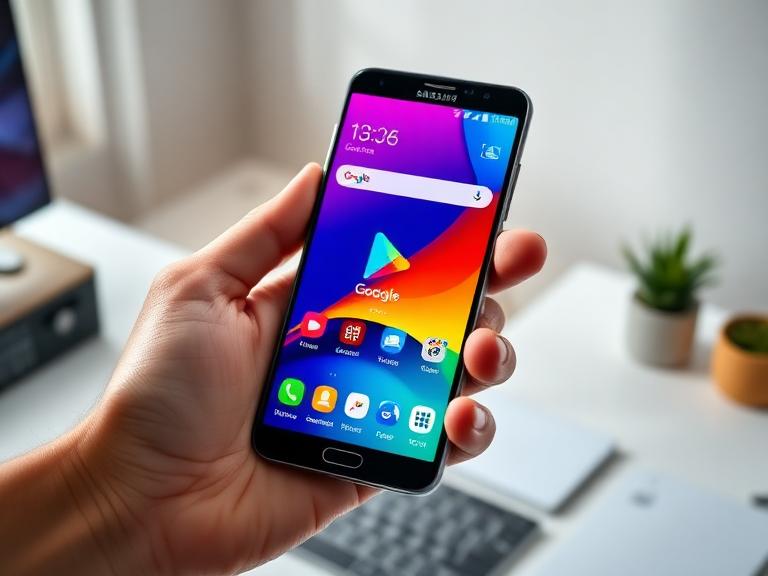
The simplest place to look is your home screen. By default, Samsung places the Google Play Store icon — a white shopping bag with a colorful triangle — directly on the main home screen or in a Google folder. Swipe left and right across all home screen pages to check each panel. Many Samsung phones come with multiple home screen pages pre-configured, and the Play Store may have been placed on a secondary page rather than the primary one.
If you’ve customized your home screen extensively, the Play Store icon might have been accidentally moved or deleted from the home screen. Removing an icon from the home screen on Samsung does not uninstall the app — it simply removes the shortcut. The app itself remains installed and accessible through the app drawer.
Method 2: Search Using the App Drawer
The app drawer on Samsung One UI contains every installed app on your device, regardless of whether it has a shortcut on the home screen. To open the app drawer, swipe upward from the bottom of your home screen. Once inside, scroll through the alphabetical list until you reach the “P” section and look for Play Store.
Alternatively, tap the search bar at the top of the app drawer and type “Play Store.” The app should appear immediately in the search results. Once you find it, tap and hold the icon and select “Add to Home” to restore its shortcut to your home screen for quicker future access.
Method 3: Use Samsung’s Search Feature
Samsung One UI includes a powerful system-wide search function called Bixby Search or simply the search feature accessible by swiping right on the home screen or swiping down from the top of the screen. Type “Play Store” into this search bar, and the system will locate the app instantly, even if it isn’t visible anywhere on your home screen or in an easily accessible folder.
This method is particularly useful if you aren’t sure where the app is or if your app drawer is disorganized. The search result will show the Play Store app with an option to open it directly, saving you from needing to locate its physical icon.
Method 4: Check Inside Google or App Folders
Samsung and carrier partners sometimes pre-organize apps into folders on the home screen. Look for a folder named “Google” — it typically contains Gmail, Google Maps, YouTube, and the Google Play Store together. Tap the folder to expand it and locate the Play Store inside.
Some carrier-branded Samsung phones also create folders labeled “Apps” or “Essentials” that bundle the Play Store with other pre-installed applications. Check any folders visible on your home screen before assuming the app is missing or uninstalled.
What to Do If the Google Play Store Is Disabled on Your Samsung Phone
On some Samsung devices, particularly those that have been reset or reconfigured, the Google Play Store may be present on the device but in a disabled state. When an app is disabled, it doesn’t appear in the app drawer or on the home screen, which can make it seem like the app is missing entirely.
How to Re-Enable the Google Play Store
To check whether the Play Store has been disabled and to re-enable it, follow these steps carefully:
- Open the Settings app on your Samsung phone. This can be found by swiping down from the top of the screen and tapping the gear icon, or by locating the Settings app in your app drawer. Settings is where all system-level configurations for your device are managed.
- Tap “Apps” from the Settings menu. On some Samsung models running older versions of One UI, this option may appear as “Application Manager” or “Manage Apps.” This section lists every app installed on your device, including system apps.
- Tap the three-dot menu or filter icon and select “Show system apps” or “All apps.” By default, the apps list may only show user-installed apps, hiding built-in system apps like the Play Store from view.
- Scroll to find “Google Play Store” in the full app list. The list is alphabetical, so navigate to the “G” section. You can also use the search function within the Apps settings page to find it faster.
- Tap on “Google Play Store” to open its app settings page. Here you will see options such as Force Stop, Disable, Clear Cache, and Clear Data — along with the current status of the app.
- If you see an “Enable” button, tap it. This will re-enable the app, restore it to your app drawer, and make it fully functional again. If the button reads “Disable,” the app is already enabled and active.
- Return to your home screen and check the app drawer. The Google Play Store icon should now reappear and be ready to use. You may need to add it back to your home screen manually by long-pressing the icon in the app drawer.
Troubleshooting: Google Play Store Crashes or Won’t Open on Samsung
Finding the Play Store is only half the battle — sometimes the app icon is visible, but tapping it results in a crash, an error message, or a blank loading screen. This is typically caused by corrupted cache files, outdated app data, or a Google account authentication issue. Fortunately, these problems are straightforward to resolve.
Clear the Play Store Cache and Data
Clearing the app’s cached data is the most reliable first step when the Play Store behaves erratically. Navigate to Settings > Apps > Google Play Store and tap “Storage.” You’ll see two options: Clear Cache and Clear Data. Start by tapping Clear Cache, then reopen the Play Store. If the problem persists, return and tap Clear Data — note that this will sign you out of the Play Store and reset your preferences, but your downloaded apps will not be affected.
You should also clear the cache for the Google Play Services app, which runs in the background and supports Play Store functionality. Go to Settings > Apps > Google Play Services > Storage > Clear Cache. Google Play Services is the backbone of most Google apps on Android, and a corrupted cache here can cause issues across multiple Google applications simultaneously.
Update the Google Play Store
The Play Store updates itself automatically in the background, but if automatic updates have been interrupted or disabled, running an outdated version can cause compatibility problems. Open the Play Store (if possible), tap your profile picture in the top-right corner, then go to Settings > About > Play Store version. Tapping this option triggers a check for updates. If an update is available, it will install automatically.
Check Your Google Account on Samsung
The Play Store requires an active Google account to function. If your Google account has been removed from the phone, experienced a sign-in error, or requires verification, the Play Store may fail to load or display error codes. Go to Settings > Accounts and Backup > Manage Accounts and verify that your Google account is listed and showing no sync errors.
If the account shows an error, tap on it and select “Sync now” to attempt re-synchronization. In some cases, removing the account and re-adding it resolves persistent authentication errors. Before removing the account, ensure you know your Google account password, as you will need it to sign back in.
How to Reinstall or Update Google Play Store on Samsung
The Google Play Store, as a system app, cannot be fully uninstalled through normal means on most Samsung devices. However, if only the updates have been uninstalled, you may be running an older base version of the app. To update it manually, you can download the latest APK (Android Package Kit) file from a trusted source such as APKMirror and sideload it, though this process requires enabling installation from unknown sources and is best suited for advanced users.
For most users, the recommended approach is to wait for the automatic update system to restore the latest version. Alternatively, ensuring that Google Play Services is updated and that your Samsung’s system software is running the latest available firmware version will often resolve any compatibility issues that prevent the Play Store from updating itself.
Pro Tips for Managing the Google Play Store on Samsung Galaxy Devices
- Pin the Play Store to your taskbar or home screen immediately after setup. During the initial Samsung setup process, you’ll be prompted to organize your home screen. Taking a moment to place the Play Store on the main home screen during setup saves significant time and confusion later. A long-press on any app icon in the drawer lets you drag it to the home screen.
- Enable automatic app updates to keep the Play Store functioning optimally. Inside the Play Store, go to Settings and enable auto-updates over Wi-Fi. This ensures both the store itself and all your downloaded apps remain current, reducing the likelihood of crashes or compatibility issues on your Samsung device.
- Use the Google Play Store widget for quick access to recent downloads. The Play Store offers a home screen widget that shows your recently updated or installed apps. Long-press on an empty area of your home screen, select Widgets, and search for Play Store to add this widget for a convenient shortcut dashboard.
- Regularly clear the Play Store cache every few months. Even if the app is working normally, clearing the cache periodically helps maintain smooth performance and prevents the gradual buildup of corrupted temporary files that can eventually cause slowdowns or errors on your Samsung device.
- Keep Google Play Services updated at all times. Many Samsung users focus on updating their visible apps but overlook Google Play Services, which operates invisibly in the background. Visit Settings > Apps > Google Play Services to check its version and ensure it’s current, as an outdated version is one of the most common causes of Play Store malfunction.
- If you use multiple Google accounts, check which account is set as primary. The Play Store is tied to specific Google accounts, and if you switch your primary account or use a secondary account for purchases, your app library and settings may appear differently. Go to the Play Store settings to manage which account is active for downloads and purchases.
- Consider using Samsung’s Device Care feature to optimize app performance. Navigate to Settings > Device Care and run an optimization scan. This process clears unnecessary cached data across all apps, including the Play Store, and can resolve minor performance issues without requiring manual intervention.
Frequently Asked Questions About Google Play Store on Samsung
Why can’t I find the Google Play Store on my Samsung phone?
The most common reasons are that the app icon was removed from the home screen (the app is still installed), the app has been accidentally disabled in Settings, or the app is located inside a folder like “Google” or “Apps.” Follow the steps in this guide to locate and restore it. In rare cases involving carrier-locked Samsung phones sold in certain markets, the Play Store may require activation through a software update.
Is the Google Play Store the same as the Galaxy Store?
No, they are two separate apps. The Galaxy Store is Samsung’s own app marketplace and offers Samsung-exclusive content, themes, and apps. The Google Play Store is Google’s marketplace and provides access to the full Android app ecosystem. Both stores coexist on Samsung devices, and you can install apps from either one.
Can the Google Play Store be completely deleted from a Samsung phone?
Not through standard methods. The Google Play Store is a protected system app on Samsung devices, meaning it can only be disabled, not fully uninstalled by the user. Disabling it hides the app and stops it from running, but the core files remain on the device. Enabling it again through Settings restores full functionality without requiring a reinstallation.
Why does the Play Store keep crashing on my Samsung Galaxy?
Crashes are most commonly caused by a corrupted cache, outdated app version, or a Google account authentication error. Start by clearing the Play Store cache and data through Settings, then check that Google Play Services is up to date. If the problem continues after these steps, try removing and re-adding your Google account, then check whether a Samsung software update is available for your device.
Will resetting the Play Store delete my apps?
Clearing the cache or data for the Play Store app itself will not delete any apps you’ve downloaded. It only removes temporary files and resets the store’s preferences and sign-in state. Your installed apps remain on your phone. However, you will need to sign back into the Play Store with your Google account after clearing data.
How do I update the Google Play Store on my Samsung phone?
Open the Play Store app, tap your profile picture in the top-right corner, go to Settings, and scroll to the About section. Tap “Play Store version” to trigger an update check. The store updates itself automatically in the background, but this manual check forces an immediate verification and installation if a newer version is available.
Conclusion
The Google Play Store is one of the most critical applications on any Samsung Galaxy smartphone, serving as the primary source for apps, games, and digital content on the Android platform. Whether your Play Store icon has disappeared from the home screen, the app has been disabled by accident, or it’s crashing and refusing to load, the solutions covered in this guide address every common scenario you’re likely to encounter. From checking the app drawer and re-enabling a disabled app in Settings to clearing cached data and verifying your Google account, each method is practical, safe, and requires no technical expertise. By following the troubleshooting steps and pro tips outlined here, you can quickly restore full Play Store access on your Samsung device and keep it functioning smoothly for the long term. Remember that regular software updates, periodic cache clearing, and keeping Google Play Services current are the best preventive measures for avoiding Play Store issues on your Samsung Galaxy phone in the future.