

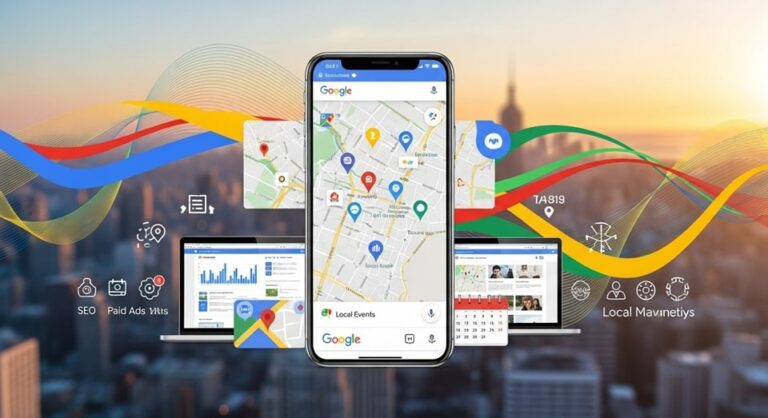
In the modern digital landscape, providing a seamless user experience involves more than just text and static images. For businesses with physical locations, service areas, or event venues, integrating an interactive map is a fundamental requirement for building trust and ensuring customer convenience. Google Maps remains the undisputed leader in geospatial technology, offering robust features that allow website owners to display precise locations, offer real-time navigation, and showcase local surroundings. Integrating these maps effectively requires an understanding of various methods, from simple iframe embeds to complex API implementations that offer deep customization.
The transition from a basic digital presence to a location-aware platform can significantly impact local Search Engine Optimization (SEO) and user engagement metrics. When a visitor can see exactly where a business is located without leaving the website, the “friction” in the conversion funnel is greatly reduced. This guide explores the multifaceted world of Google Maps integration, providing technical clarity for beginners and advanced insights for developers. By leveraging the power of the Google Maps Platform, you can transform a static contact page into a dynamic resource that provides immediate value to your audience.
Understanding the distinction between different embedding methods is crucial for choosing the right path for your specific needs. While the standard embed code is perfect for a single location on a “Contact Us” page, more complex needs—such as displaying multiple storefronts or creating custom-styled maps—require the use of the Google Maps JavaScript API. This guide will walk through every step of the process, ensuring that regardless of your technical background, you can implement a professional-grade mapping solution that enhances your site’s functionality and aesthetic appeal.
The Foundations of Google Maps Embedding
Before diving into the technical execution, it is essential to understand why Google Maps is the preferred choice for developers and marketers alike. Google’s extensive database of locations and its familiar interface mean that users already know how to interact with the map. They can zoom, switch to satellite view, and even explore the area via Street View effortlessly. Furthermore, Google Maps is highly responsive, adapting gracefully to mobile devices, which is critical since a large portion of local searches occur on smartphones while users are on the go.
The simplest method of integration is the Quick Embed via an iframe. This method does not require an API key or any programming knowledge. It is a “copy and paste” solution where Google generates a specific snippet of HTML code for you. This is ideal for small businesses or personal blogs where the primary goal is to show a single, static location. However, it lacks the flexibility to change the map’s color scheme, remove standard markers, or add interactive layers that react to user input. For those seeking a more integrated brand experience, moving beyond the iframe is necessary.
For more sophisticated websites, the Google Maps Platform offers a suite of APIs. While these typically require a billing account, Google provides a generous recurring monthly credit that covers the needs of most small to medium-sized websites for free. Using an API allows for “Dynamic Maps,” which are fully interactive and can be controlled via JavaScript. This level of integration enables features like custom markers (using your business logo), varied map styles (such as dark mode or grayscale to match your site’s theme), and the ability to overlay data like heatmaps or custom shapes.
Step-by-Step Guide to the Standard Embed Method
The standard embed method is the most accessible way to add a map to your site. To begin, navigate to the Google Maps website and search for the specific address or business name you wish to feature. Once the location is pinned on the map, click the Share button in the left-hand panel. This will open a pop-up window with two tabs: “Send a link” and “Embed a map.” Select the latter to view the HTML code and a preview of how the map will appear on your webpage.
Google allows you to choose from several preset sizes, including Small, Medium, and Large, or you can select a Custom Size to define specific pixel dimensions. Once you have selected your desired size, click Copy HTML. This snippet is an <iframe> tag that contains all the necessary parameters to render the map. You then navigate to your website’s content management system (CMS) or HTML editor and paste the code directly into the source view of the page where you want the map to appear.
One of the key benefits of this method is that Google handles the hosting and rendering of the map data. You do not need to worry about server load or updating the map data; if a new road is built or a business name changes in Google’s database, the embedded map on your site will update automatically. This “set it and forget it” nature makes it the go-to choice for millions of webmasters. However, always ensure that the iframe’s width is set to 100% in the code if you want it to be fully responsive on mobile devices, rather than a fixed pixel width.
Customizing the Iframe for Better Integration
While the standard embed is simple, you can make minor manual adjustments to the code to better fit your site’s design. The width and height attributes within the iframe tag are the most common areas for modification. For a modern, full-width look, changing the width attribute to width="100%" ensures the map spans the entire container it is placed in, regardless of the screen size. You can also adjust the loading="lazy" attribute, which is often included by default, to ensure that the map only loads as the user scrolls down to it, thereby improving initial page load speed.
Another often overlooked aspect of the iframe embed is the Zoom Level. Although the standard embed doesn’t offer a slider for zoom in the code itself, you can manually adjust the zoom level on the Google Maps site before copying the code. If you want to show the surrounding neighborhood, zoom out slightly; if you want to highlight the exact building and entrance, zoom in. The resulting HTML code will reflect these coordinates and zoom parameters. This level of detail helps guide your visitors more effectively to your physical doorstep.
Advanced Integration: Using the Google Maps JavaScript API
For those who require a professional edge, the Google Maps JavaScript API is the definitive solution. This method requires creating a project in the Google Cloud Console and generating an API Key. This key acts as a unique identifier that allows your website to communicate with Google’s servers. The API provides a vast library of functions that give you total control over the map’s behavior and appearance. You can disable the default UI elements, like the “Street View” pegman or the “Map/Satellite” toggle, to create a cleaner, more focused interface.
To implement this, you must first include the Google Maps script in your HTML <head> or before the closing <body> tag. The script URL will include your specific API key. Following the script inclusion, you use a small block of JavaScript to initialize the map. This involves defining a “map options” object where you specify the center coordinates (latitude and longitude), the zoom level, and the “mapId” if you are using advanced cloud-based styling. The map is then injected into a specific <div> on your page identified by an ID.
The real power of the API lies in its ability to handle Events and Overlays. You can write scripts that trigger actions when a user clicks on a marker, such as opening a custom-designed info window or updating content elsewhere on the page. Furthermore, if you are a developer for a real estate site or a travel blog, the API allows you to programmatically place hundreds of markers based on a database, something that is impossible with the standard iframe method. This flexibility is what separates basic websites from high-end, interactive web applications.
Essential Features to Enhance User Experience
When embedding a map, certain features can significantly improve how users interact with your location data. Integrating these elements ensures that the map is not just a visual aid, but a functional tool. Consider the following enhancements for your map integration:
- Custom Map Styling: Use JSON-based styling or the Google Cloud Map Styling tool to change the colors of roads, water, and landmarks. This allows the map to blend seamlessly with your brand’s color palette, creating a more cohesive visual experience for the visitor.
- Interactive Markers: Instead of the standard red pin, use custom icons or brand logos. These markers can be programmed to bounce or animate when the page loads, drawing the user’s eye to your primary location immediately.
- Info Windows and Tooltips: When a user clicks a marker, display a custom pop-up containing the business name, hours of operation, a thumbnail image, and a direct link to “Get Directions.” This provides all the necessary information in one place.
- Location Autocomplete: If your map involves user input (like finding the nearest store), use the Places API to provide an autocomplete search bar. This helps users find locations quickly by suggesting addresses as they type.
- Dynamic Data Layers: For businesses covering large areas, add GeoJSON layers to show service boundaries or sales territories. This provides a clear visual representation of where your business operates.
- Street View Integration: Embed a specific Street View panorama to show the front of your building. This helps customers recognize your storefront when they arrive in person, reducing confusion and improving the overall customer journey.
Troubleshooting Common Google Maps Embed Issues
Despite the reliability of Google Maps, developers often encounter common hurdles during integration. One of the most frequent issues is the “Development Purposes Only” watermark. This occurs when the JavaScript API is used without a valid API key, or if billing has not been enabled on the Google Cloud project. Even if you stay within the free tier, Google requires a credit card on file to verify your identity and ensure service continuity if you exceed the limits. Ensuring your API key is correctly restricted to your domain also prevents other sites from “stealing” your quota.
Another common problem is Responsiveness. An iframe with a fixed width will break the layout on a mobile device, forcing the user to scroll horizontally. As mentioned previously, using CSS or setting the width to 100% is the solution. Furthermore, “scroll-jacking” can be an issue where a user trying to scroll down the page gets “stuck” inside the map because their mouse wheel starts zooming the map instead. This can be fixed in the API settings by disabling the scrollwheel option, requiring the user to use two fingers or click a button to zoom.
Lastly, API Key Security is a critical concern. If your API key is exposed in your source code without restrictions, anyone can copy it and use it on their own site, potentially exhausting your monthly credits. Always go to the Google Cloud Console and set “Application Restrictions.” This tells Google to only accept requests for your API key if they originate from your specific website URL. Adding “API Restrictions” to limit the key only to the Maps JavaScript API further hardens your security posture.
Pro Tips for Advanced Map Customization
To truly master Google Maps integration, consider these expert strategies that go beyond the basics. First, utilize Cloud-based Map Styling. This relatively new feature allows you to update the look and feel of your maps from the Google Cloud Console without changing a single line of code on your website. Once the Map ID is linked in your JavaScript, any changes made in the console are pushed live instantly across all pages using that ID. This is particularly useful for seasonal themes or rebranding efforts.
Second, leverage Local Context API if you want to show what is near your business. This feature automatically adds points of interest like cafes, parks, and transit stations around your location, providing users with a sense of the neighborhood. Third, for websites with high traffic, optimize performance by using Static Maps for the initial page load. A static map is a simple image that loads instantly. You can then use a script to “swap” the image for a fully interactive map only when the user clicks on it, significantly improving your Core Web Vitals and overall SEO performance.
Frequently Asked Questions
Is it free to embed a Google Map on my website?
Yes, the standard iframe embed method is completely free and does not require an account or billing information. If you use the Google Maps JavaScript API for more advanced features, Google provides a $200 monthly credit. For most small to medium websites, this credit covers all usage costs, effectively making it free. However, you must provide billing details to access the API features.
Do I need an API Key for a simple location map?
No, if you only need to show a single location with a standard pin, you can use the “Share > Embed a map” feature on the Google Maps website. This provides an iframe code that works without an API key. You only need a key if you want to customize the map via JavaScript, add multiple markers dynamically, or use specific Google Maps Platform services.
How do I make my embedded map responsive?
To make an iframe map responsive, change the width="600" (or whatever number is there) to width="100%" in the HTML code. To maintain a consistent aspect ratio, you can wrap the iframe in a container <div> and use CSS “padding-top” hacks or the modern aspect-ratio property to ensure the map scales correctly on all screen sizes.
Why is my map showing an error message like “Oops! Something went wrong”?
This is usually due to an issue with the API key. Common reasons include: the API key is typed incorrectly, the Maps JavaScript API is not enabled in your Google Cloud Console, billing is not set up, or the domain restrictions on the key are preventing your website from using it. Check the browser’s developer console (F12) for a specific error code that will point you to the exact problem.
Can I hide the Google logo or copyright information?
No, Google’s Terms of Service strictly prohibit hiding the Google logo, copyright notices, or terms of use links. Attempting to hide these via CSS can result in your API key being suspended. The only way to remove these elements is through a specialized enterprise license, which is generally not available for standard websites.
Conclusion
Embedding a Google Map on your website is a powerful way to enhance local visibility and provide a superior user experience. From the straightforward iframe method that takes seconds to implement, to the robust and highly customizable JavaScript API, there is a solution for every level of technical expertise. By choosing the right method, ensuring mobile responsiveness, and following security best practices for API keys, you create a functional tool that guides customers to your location and builds brand authority. As digital maps continue to evolve with features like 3D views and augmented reality, staying proficient in these integration techniques will ensure your website remains at the forefront of local search and user engagement. Remember to prioritize speed and usability, and your integrated map will serve as a vital bridge between your online presence and your physical location.

