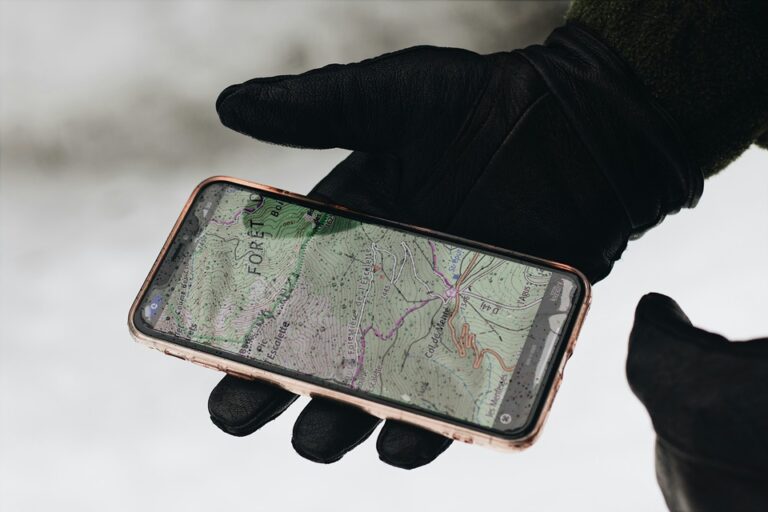
In today’s fast-paced world, staying connected isn’t always possible—especially when traveling through remote areas, abroad, or in places with poor network coverage. Offline maps are a game-changer, allowing you to navigate confidently without relying on mobile data or Wi-Fi. Whether you’re a frequent traveler, hiker, or urban commuter, knowing how to download and use offline maps on your Android device can save you time, data, and stress.
This comprehensive guide will walk you through everything you need to know about offline maps in 2025: from downloading areas in Google Maps to exploring the best third-party apps, pro tips, and troubleshooting common issues. By the end, you’ll be equipped to navigate anywhere, anytime—without an internet connection.
Why Use Offline Maps on Android?
Offline maps offer several advantages, making them indispensable for modern travelers and adventurers:
- Save Mobile Data: Avoid costly roaming charges or exceeding your data plan while traveling. Offline maps use no data once downloaded.
- Navigate Without Signal: Perfect for remote areas, underground tunnels, or foreign countries where network coverage is unreliable.
- Emergency Preparedness: Always have access to maps and directions, even during network outages or natural disasters.
- Faster Access: Offline maps load instantly, without waiting for a connection or buffering.
- Privacy: Some offline apps don’t track your location or require an internet connection, offering more privacy.
However, offline maps do have some limitations:
- No Real-Time Updates: You won’t see live traffic, road closures, or rerouting suggestions.
- Storage Requirements: Large areas or detailed maps can take up significant space on your device.
- Manual Updates: You’ll need to remember to update your offline maps periodically for accuracy.
How to Download Offline Maps on Android
Using Google Maps
Google Maps remains the most popular choice for offline navigation, thanks to its global coverage and user-friendly interface. Here’s how to download and use offline maps:
- Open Google Maps: Launch the app and ensure you’re signed in to your Google account.
- Search for Your Destination: Tap the search bar and enter the city, region, or specific area you want to download.
- Access Offline Maps: Tap your profile picture in the top-right corner, then select Offline maps.
- Select Your Own Map: If your desired area isn’t listed in the recommendations, tap Select your own map.
- Adjust the Area: Use your fingers to zoom in or out and move the map to cover the exact area you need. The required storage space will be displayed at the bottom.
- Download the Map: Tap Download and wait for the process to complete. The map will now be available offline.
- Manage Your Offline Maps: Return to the Offline maps section to rename, update, or delete downloaded areas.
Pro Tip: For road trips, download maps for each major city or region along your route. Google Maps allows multiple offline areas, but each must be downloaded separately.
Using Alternative Offline Map Apps
While Google Maps is convenient, several third-party apps offer advanced offline features, better privacy, or specialized use cases. Here’s a quick guide for some of the best alternatives:
- 2GIS: Ideal for urban navigation, with detailed business directories and public transport info. Download city maps directly from the app’s main screen.
- HERE WeGo: Offers offline maps for over 100 countries. Download regions or entire countries from the app’s settings.
- MAPS.ME: Lightweight and OpenStreetMap-based. Download countries or regions with a single tap.
- OsmAnd: Highly customizable with support for GPX tracks. Download maps via the app’s map management menu.
- Organic Maps: Privacy-focused and ad-free. Download maps by selecting regions in the app.
Best Offline Map Apps for Android in 2025
Not all offline map apps are created equal. Here’s a breakdown of the top options, their standout features, and who they’re best suited for:
1. Google Maps
- Coverage: Global, with detailed maps for most countries and cities.
- Features: Turn-by-turn navigation, lane guidance, business info, and user reviews (available offline for downloaded areas).
- Best For: General use, road trips, and urban navigation.
- Limitations: No real-time traffic or rerouting offline.
2. 2GIS
- Coverage: Focused on cities in Europe, Asia, and South America.
- Features: Hyper-detailed city maps, business directories (including entrances and working hours), public transport routes, and Android Auto support.
- Best For: Urban explorers, business travelers, and public transport users.
3. HERE WeGo
- Coverage: Over 100 countries, with offline maps for entire regions.
- Features: Offline turn-by-turn navigation, public transit info, and walking directions.
- Best For: International travelers and those needing public transport guidance.
4. MAPS.ME
- Coverage: Global, based on OpenStreetMap data.
- Features: Lightweight, fast, and completely free. Supports hiking trails and points of interest.
- Best For: Backpackers, hikers, and budget travelers.
5. OsmAnd
- Coverage: Global, with highly customizable map layers.
- Features: Supports GPX tracks, elevation contours, and plugins for specialized navigation (e.g., APRS for amateur radio).
- Best For: Outdoor enthusiasts, hikers, and amateur radio operators.
6. Organic Maps
- Coverage: Global, open-source, and privacy-focused.
- Features: No ads, no tracking, and fast offline performance.
- Best For: Privacy-conscious users and those seeking a Google Maps alternative.
Pro Tips for Offline Navigation
- Save Storage Space: Delete old or unused offline maps regularly. In Google Maps, go to Offline maps > Select a map > Delete.
- Update Maps Before Trips: Offline maps can become outdated. Update them via Wi-Fi before heading out.
- Use Wi-Fi for Downloads: Large map areas can consume significant data. Always download over Wi-Fi to avoid charges.
- Combine Apps for Best Results: Use Google Maps for general navigation and 2GIS or OsmAnd for detailed city or hiking maps.
- Enable Battery Saver Mode: Navigation can drain your battery. Enable battery saver and reduce screen brightness.
- Pre-Download Multiple Areas: For road trips, download maps for each major stop or region along your route.
- Use Offline Maps for Hiking: Apps like OsmAnd and MAPS.ME support GPX tracks and topographic maps, ideal for outdoor adventures.
- Check for App-Specific Features: Some apps, like HERE WeGo, offer offline public transport schedules—perfect for city exploration.
Troubleshooting Common Issues
Offline maps are generally reliable, but you may encounter occasional issues. Here’s how to fix the most common problems:
- Maps Won’t Download: Ensure you have a stable internet connection and sufficient storage space. Restart the app or your device if downloads stall.
- Navigation Not Working Offline: Double-check that you’ve downloaded the correct area and that location services (GPS) are enabled.
- Storage Full: Delete unused maps or clear the app’s cache. In Google Maps, go to Settings > Offline maps > Storage preferences.
- Outdated Maps: Update your offline maps manually, especially before long trips.
- App Crashes: Reinstall the app or check for updates in the Google Play Store.
Frequently Asked Questions (FAQ)
Can I get turn-by-turn directions offline?
Yes! Both Google Maps and apps like HERE WeGo, OsmAnd, and Organic Maps offer offline turn-by-turn navigation. However, real-time rerouting (due to traffic or road closures) requires an internet connection.
How much storage do offline maps use?
Storage varies by area and detail. A single city in Google Maps typically uses 100–300 MB, while an entire country can require 1–2 GB. High-detail apps like OsmAnd may use more.
Do offline maps expire?
Yes. Google Maps offline areas expire after 30 days if not updated. Other apps may have different policies, so check their settings for expiration details.
Can I use offline maps for hiking or cycling?
Absolutely! Apps like OsmAnd, MAPS.ME, and Organic Maps support hiking trails, cycling routes, and GPX tracks. Some even offer topographic maps and elevation data.
Are there any free offline map apps without ads?
Yes. Organic Maps and MAPS.ME are completely free and ad-free. OsmAnd offers a free version with optional in-app purchases for advanced features.
Conclusion
Offline maps are an essential tool for anyone who wants to navigate confidently without relying on an internet connection. Whether you’re traveling abroad, exploring remote trails, or simply looking to save data, downloading and using offline maps on your Android device is easier than ever in 2025.
In this guide, you learned how to download offline maps using Google Maps and alternative apps, discovered the best options for different use cases, and picked up pro tips to enhance your offline navigation experience. With the right app and a little preparation, you’ll never have to worry about getting lost—even without a signal.
Ready to hit the road? Start by downloading your first offline map today and enjoy seamless, stress-free navigation wherever your adventures take you!