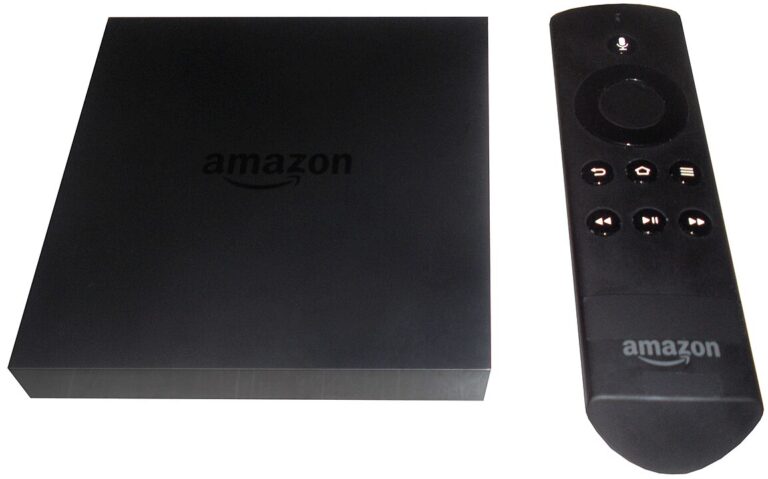
Managing storage space on your Amazon Fire TV Stick is essential for maintaining optimal performance and ensuring a smooth streaming experience. With most Fire TV Stick models offering limited internal storage ranging from 8GB to 16GB, knowing how to efficiently delete apps becomes crucial for every user. This comprehensive guide walks you through multiple methods to uninstall applications, clear cache data, and optimize your device’s performance while explaining why these maintenance tasks matter for your streaming device.
The Fire TV Stick has transformed how millions of people consume entertainment, turning any television with an HDMI port into a smart streaming hub. However, the convenience of downloading numerous streaming apps, games, and utilities comes with a significant challenge that affects performance over time. Users frequently encounter storage warnings, sluggish app launches, and buffering issues that stem directly from insufficient available space on their devices.
Understanding Fire TV Stick Storage Limitations
Before diving into deletion methods, understanding your device’s storage capacity helps you make informed decisions about app management. The Amazon Fire TV Stick 4K Max second generation offers 16GB of internal storage, which represents a substantial upgrade from earlier models that contained only 8GB. Despite these specifications, the actual usable space available to users is considerably less than the advertised capacity because the Fire OS operating system and pre-installed applications consume a significant portion of the total storage.
Most Fire TV Stick models provide approximately 4.5GB to 5.5GB of usable storage space after accounting for system files and essential applications. This limited capacity fills up surprisingly quickly when you install popular streaming services like Netflix, Disney Plus, Hulu, YouTube, and HBO Max, along with games and utility applications. Each application stores cache data, login credentials, viewing history, and downloaded content that accumulates over time, gradually consuming valuable storage space.
Why Storage Management Matters
Proper storage management directly impacts your Fire TV Stick’s performance in multiple ways. When available storage drops below 500MB, users typically notice increased buffering during video playback, slower application launch times, and system-wide sluggishness that affects the overall user experience. The device may struggle to download updates for installed applications or prevent you from installing new apps altogether until sufficient space becomes available.
Additionally, insufficient storage can cause applications to crash unexpectedly, lose saved preferences, or fail to load content properly. These technical issues often frustrate users who may consider purchasing a new streaming device when simple storage management would resolve the problems. Understanding when and how to delete apps, clear cache data, and remove unnecessary files extends your Fire TV Stick’s lifespan and maintains peak performance without additional investment.
Method One: Deleting Apps Through Settings Menu
The most straightforward and commonly used method for removing applications from your Fire TV Stick involves accessing the device settings menu. This approach provides comprehensive control over all installed applications and displays detailed information about storage consumption for each app, helping you identify which programs occupy the most space on your device.
Step-by-Step Instructions for Settings Menu Deletion
Begin by pressing the Home button on your Fire TV remote control to return to the main home screen. Navigate to the far right side of the top menu bar where you will find the Settings icon, which appears as a gear symbol. Depending on your Fire TV interface version, this icon may be located in the center of the screen or positioned alongside your profile picture in the upper right corner.
Once you have opened the Settings menu, scroll down and select the Applications option from the available menu choices. This section contains all settings related to installed apps, notifications, and app permissions. Within the Applications menu, locate and select Manage Installed Applications, which displays a comprehensive alphabetical list of every application currently installed on your Fire TV Stick.
The Manage Installed Applications screen provides valuable information about each app, including its current size, data consumption, and cache storage. This detailed view helps you make informed decisions about which applications to remove based on their storage footprint. Scroll through the list to find the specific application you wish to delete, then select it to open the app management screen.
On the app management screen, you will see several options including Force Stop, Uninstall, Clear Cache, and Clear Data. Before uninstalling, you may want to select Force Stop to close the application if it is currently running in the background. Then, select the Uninstall button to initiate the deletion process. A confirmation prompt will appear asking you to verify your decision. Select Uninstall again or Confirm to complete the removal process.
Important Considerations for System Apps
Not every application on your Fire TV Stick can be removed using standard uninstallation methods. Amazon pre-installs certain system applications that are integral to the device’s operation, and these apps do not display an Uninstall option when selected. Common system apps include Amazon Prime Video, Amazon Shopping, Amazon Photos, Amazon Music, and various Fire TV utilities that support core functionality.
If you attempt to uninstall a system app and notice the Uninstall button is missing or grayed out, this indicates the application cannot be removed through standard methods. While you cannot delete these pre-installed apps, you can still clear their cache and data to free up storage space. Some advanced users employ Android Debug Bridge commands to disable or remove system apps, but these methods carry risks and may void warranties or cause system instability.
Method Two: Quick Delete from Apps Menu
Amazon provides a faster alternative method for deleting applications directly from the Apps menu, which proves particularly convenient when you already know which app you want to remove. This streamlined approach requires fewer navigation steps and allows for quicker app management without diving deep into system settings.
Using the Apps Library for Quick Access
To access this method, press and hold the Home button on your Fire TV remote for approximately two seconds. A quick access menu will appear on your screen with several options including Apps, Sleep, Settings, and Mirroring. Select the Apps option to open your complete apps library, which displays all installed applications in a grid format for easy browsing.
Alternatively, you can access the Apps library from the home screen by selecting the icon that resembles three square tiles positioned next to the Settings gear icon in the top right corner. This icon opens the same Apps and Games interface where you can view your recently used apps, pinned favorites, and access the complete App Library for your device.
Navigate through your installed applications using the directional buttons on your remote until you highlight the specific app you wish to delete. Instead of pressing the Select button to open the application, press the Menu button on your remote, which typically features three horizontal lines or is labeled as Options on some remote models. This action opens a context menu on the right side of your screen.
From the context menu that appears, scroll down and select the Uninstall option. A confirmation dialog box will appear asking you to confirm the deletion. Select Uninstall or OK to finalize the removal. The application and its associated data will be permanently deleted from your Fire TV Stick, immediately freeing up storage space for other uses.
Clearing Cache and Data Without Uninstalling
Sometimes you may want to keep an application installed while still freeing up storage space or resolving performance issues. Clearing an app’s cache and data serves as an effective middle-ground solution that removes temporary files and stored information without completely uninstalling the program from your device.
Understanding Cache vs Data
Before clearing either cache or data, understanding the difference between these two storage types helps you make appropriate decisions. Cache consists of temporary files that applications store to improve loading speeds and performance. These files include image thumbnails, recently accessed content, and other data designed to make subsequent app launches faster and more efficient. Clearing cache removes these temporary files but preserves your login credentials, preferences, and saved settings.
Data, on the other hand, includes all information an application stores including login credentials, user preferences, downloaded content, watch history, and custom settings. Clearing data essentially resets the application to its default state as if you had just installed it for the first time. You will need to log in again, reconfigure all settings, and rebuild any customized preferences after clearing an app’s data.
How to Clear Cache for Individual Apps
To clear cache for a specific application, navigate to Settings from your Fire TV home screen, then select Applications followed by Manage Installed Applications. Scroll through the list to find the app whose cache you want to clear, then select it to open the app management screen. On this screen, you will see a Clear Cache button displaying the amount of cache currently stored by the application.
Select Clear Cache and the process completes instantly or within a few seconds depending on the cache size. You do not need to confirm this action as it executes immediately upon selection. After clearing the cache, you may notice the app takes slightly longer to load the first time you open it because it needs to rebuild its cache files. However, this minor inconvenience is typically offset by improved performance and recovered storage space.
Bulk Cache Clearing Feature
Recent Fire TV software updates introduced a convenient feature that allows users to clear cache for all installed applications simultaneously. This time-saving option proves especially useful when performing general device maintenance or troubleshooting widespread performance issues. To access this feature, navigate to Settings, select Applications, then Manage Installed Applications. At the top of the applications list, you should see an option labeled Clear All Application Caches.
Selecting this option displays a confirmation screen showing the total amount of storage space that will be recovered by clearing all app caches. Select Confirm to proceed with the bulk cache clearing operation. This process may take several seconds to complete depending on the total cache size across all your installed applications. After completion, your Fire TV Stick should demonstrate improved responsiveness and have significantly more available storage space.
If you do not see the Clear All Application Caches option in your settings menu, your Fire TV device may be running an older software version that does not include this feature. In this case, you can either update your device’s software by navigating to Settings, selecting My Fire TV, then About, and choosing Install Update, or continue clearing cache for individual applications manually.
Checking Available Storage Space
Regularly monitoring your Fire TV Stick’s available storage helps you stay ahead of potential performance issues and determine when app deletion or cache clearing becomes necessary. Amazon provides built-in tools for checking storage status, though these features are somewhat hidden within the settings menu structure.
To view your current storage status, navigate to the Fire TV home screen and open Settings. Select Applications from the settings menu, and on the right side of the screen, you will see a summary displaying your total internal storage capacity along with the amount of space currently available. This information updates in real-time as you install or remove applications and accumulate cache data.
For more detailed storage information, navigate to Settings, then select My Fire TV or Device depending on your software version. Choose About from the available options, then select Storage. This screen provides a comprehensive breakdown of your storage usage, showing how much space the operating system occupies, how much is consumed by installed applications and their data, and how much remains available for future use.
Experts recommend maintaining at least 1GB of free storage space on your Fire TV Stick to ensure optimal performance. When available storage drops below this threshold, you should prioritize deleting unused apps, clearing cache data, or removing downloaded files to prevent performance degradation and system instability.
Identifying Storage-Hungry Applications
Not all applications consume equal amounts of storage space on your Fire TV Stick. Some streaming services and games require significantly more storage than others due to high-resolution graphics, downloaded content, or extensive cache files. Identifying which apps occupy the most space helps you maximize storage recovery when performing cleanup operations.
When viewing the Manage Installed Applications list in your settings menu, pay attention to the size information displayed on the right side of the screen for each app. This figure represents the total storage footprint including the application itself, stored data, and cached files. Applications frequently used for streaming video content typically accumulate large cache files over time, sometimes consuming hundreds of megabytes or even gigabytes of storage.
Gaming applications often require substantial storage space for graphics assets, game data, and saved progress information. Popular games can easily consume 500MB to 1GB or more of storage, making them prime candidates for deletion if you are experiencing storage limitations and do not actively play these games regularly.
Streaming services that offer download features for offline viewing naturally consume more storage than standard streaming apps. If you have enabled downloads within apps like Netflix, Prime Video, or Disney Plus, these files can quickly fill your available storage. Before uninstalling such apps, check whether disabling or removing downloaded content would provide sufficient storage relief without requiring complete app deletion.
Removing Downloaded Files and APK Installations
Beyond installed applications and cached data, your Fire TV Stick may accumulate various files that consume storage space unnecessarily. Users who sideload applications through the Downloader app or similar tools often forget to delete the APK installation files after successfully installing the applications, leaving these unnecessary files to occupy valuable storage space indefinitely.
To remove downloaded files and APK installers, you need to use a file manager application. Several file manager apps are available for Fire TV devices, including ES File Explorer, X-plore File Manager, and Total Commander. Install one of these file managers from the Amazon Appstore, then open it to browse your device’s file system and locate unnecessary files.
Navigate to the Downloads folder or the directory where your downloaded files are stored. Review the files present and delete any APK installers for apps you have already installed, old download files you no longer need, or any other unnecessary content consuming storage space. Most file managers allow you to select multiple files simultaneously and delete them in bulk, making the cleanup process more efficient.
Exercise caution when deleting files through a file manager, as removing critical system files or data folders can cause applications to malfunction or render your Fire TV Stick unstable. Only delete files you recognize and are certain you no longer need, avoiding system directories and folders that contain essential operating system components.
Performing a Factory Reset as Last Resort
When all other storage management methods fail to resolve persistent performance issues or free up sufficient space, performing a factory reset returns your Fire TV Stick to its original out-of-box state. This drastic measure deletes all installed applications, stored data, custom settings, and login credentials, essentially giving you a fresh start with maximum available storage space.
Before proceeding with a factory reset, understand that this action is permanent and cannot be undone. You will need to reconfigure your entire Fire TV Stick from scratch, including signing in to your Amazon account, downloading all your preferred applications again, and re-entering login credentials for every streaming service. Make note of any important settings, passwords, or configurations before initiating the reset process.
To perform a factory reset, navigate to Settings from your Fire TV home screen, then select My Fire TV or Device depending on your software version. Scroll down to find the Reset to Factory Defaults option and select it. A warning message will appear explaining that this action will erase all data and cannot be reversed. If you are certain you want to proceed, select Reset to confirm your decision.
The factory reset process typically takes between five and fifteen minutes to complete. During this time, your Fire TV Stick will restart multiple times and display various loading screens. Do not unplug the device or interrupt the process until it completes entirely. After the reset finishes, you will be greeted with the initial setup screen as if you had just purchased a brand new Fire TV Stick.
Preventing Future Storage Issues
Proactive storage management prevents the need for emergency cleanup operations and maintains consistent device performance over time. Implementing regular maintenance habits ensures your Fire TV Stick continues operating smoothly without unexpected storage warnings or performance degradation.
Establish a monthly routine for reviewing your installed applications and removing any that you have not used in the past 30 days. Many users install apps to try them out, then forget about them even though they continue consuming storage space. Regular audits help identify and eliminate these forgotten applications before they accumulate into significant storage problems.
Clear cache for your most frequently used streaming applications every two to four weeks. Apps like YouTube, Netflix, Prime Video, and Hulu accumulate cache files rapidly due to constant video streaming, and regular cache clearing prevents these files from growing to problematic sizes. The brief inconvenience of slightly slower first-time app launches after clearing cache is far outweighed by the storage savings and performance improvements.
Be selective about installing new applications, particularly large games or apps with extensive media libraries. Before installing any new app, check its size in the Amazon Appstore and consider whether you have sufficient storage space and whether you will actually use the application regularly enough to justify its storage footprint.
Avoid enabling automatic downloads or offline viewing features unless absolutely necessary. These convenience features can quickly consume gigabytes of storage without your explicit awareness, particularly if you forget to manage downloaded content regularly. When you do need offline content, download only specific titles you plan to watch soon and delete them promptly after viewing.
Troubleshooting Common Deletion Issues
Occasionally, users encounter problems when attempting to delete applications or manage storage on their Fire TV Stick. Understanding common issues and their solutions helps you overcome these obstacles without requiring technical support or device replacement.
If you press the Play/Pause button on an app in the Manage Installed Applications menu and nothing happens, this typically indicates the application is a system app that cannot be removed through standard methods. As mentioned earlier, certain pre-installed Amazon applications are protected from deletion and can only have their cache and data cleared.
When the Manage Installed Applications menu freezes or becomes unresponsive during app deletion attempts, first try restarting your Fire TV Stick by unplugging it from power for 30 seconds, then plugging it back in. This simple restart often resolves temporary software glitches that interfere with normal operation. If the problem persists after restarting, ensure your Fire TV software is updated to the latest version by checking for updates in the settings menu.
If apps fail to uninstall despite repeated attempts or reappear after deletion, you may be experiencing a more serious software issue. In these cases, clearing the cache and data for the Manage Installed Applications utility itself sometimes resolves the problem. Navigate to Settings, select Applications, choose Manage Installed Applications, scroll to find the Application Installer or Device Provisioner app, and clear its cache and data.
For persistent uninstallation problems that resist all troubleshooting attempts, performing a factory reset may be necessary to resolve deep-rooted software conflicts or corruption. While inconvenient, this nuclear option reliably eliminates stubborn issues and provides a clean slate for proper device operation.
Advanced Storage Management Techniques
Power users and technically inclined individuals can employ advanced methods for optimizing Fire TV Stick storage beyond the standard options available through the device interface. These techniques require additional tools and careful execution but can provide more granular control over storage management.
The Android Debug Bridge provides command-line access to your Fire TV Stick’s operating system, allowing you to uninstall system apps, disable background services, and perform other advanced operations not accessible through the standard interface. Using ADB requires enabling developer options and debugging on your Fire TV, installing ADB tools on a computer, and connecting your Fire TV to the computer via network or USB connection.
When using ADB to uninstall apps, include the user 0 flag in your uninstall commands to ensure apps are completely removed rather than just disabled. Without this flag, uninstalled apps often reappear after system updates or device restarts. The command syntax typically follows this format: adb uninstall –user 0 package.name.here, replacing the package name with the specific identifier for the app you want to remove.
Third-party storage management apps like SD Maid Pro and Clean Master offer automated cleanup tools that identify junk files, duplicate content, and unnecessary data consuming storage space. These apps scan your file system and present recommendations for files that can be safely deleted to recover storage. While not available through the Amazon Appstore, these applications can be sideloaded using the Downloader app or similar installation methods.
Some Fire TV Stick models support expandable storage through USB OTG adapters, allowing you to connect USB flash drives or external hard drives to increase available storage capacity. This option works best for storing downloaded content or installing sideloaded apps rather than moving system apps or data. Check your specific Fire TV model’s compatibility before investing in external storage accessories.
Pro Tips for Optimal Fire TV Stick Performance
Beyond basic app deletion and cache clearing, implementing these expert recommendations ensures your Fire TV Stick maintains peak performance and longevity while minimizing storage-related problems.
- Prioritize quality over quantity when installing apps. Rather than installing every available streaming service and app, focus on the handful of applications you actually use regularly. A curated selection of essential apps performs better than dozens of rarely-used programs competing for resources and storage space. Consider whether you truly need separate apps for similar services or whether consolidating to fewer platforms improves your user experience.
- Update your Fire TV software regularly to benefit from performance improvements and bug fixes. Amazon continuously releases software updates that optimize memory management, improve storage efficiency, and fix issues that may contribute to storage problems. Enable automatic updates in your settings or manually check for updates monthly to ensure you are running the latest version. New features like bulk cache clearing often arrive through these updates.
- Restart your Fire TV Stick weekly to clear temporary files and refresh system resources. Simply unplugging your device from power for 30 seconds, then plugging it back in, clears accumulated temporary data from memory and resolves minor software glitches. This simple maintenance habit prevents many common performance issues before they become noticeable problems requiring more extensive troubleshooting.
- Disable automatic app updates for non-essential applications to prevent unwanted storage consumption. While keeping apps updated is generally recommended, allowing every installed app to download updates automatically can fill your storage unexpectedly. Consider manually updating only the apps you use frequently, while disabling automatic updates for seldom-used applications. Access this setting through Settings, Applications, Appstore, and toggling Automatic Updates.
- Use the Recent row on your home screen to quickly identify apps you have not used in weeks. The Fire TV home screen displays recently used apps for convenient access, but this feature also helps identify which apps you are actually using versus those sitting idle. If an app has not appeared in your Recent row for several weeks, it is likely a good candidate for deletion to free up storage space.
- Consider installing a lightweight alternative file manager app for easier file system navigation and cleanup. Apps like X-plore File Manager or Total Commander provide intuitive interfaces for browsing your storage, identifying large files, and removing unnecessary content. These tools offer superior functionality compared to the built-in file management options and make storage maintenance more efficient and less time-consuming.
- Avoid installing multiple VPN applications simultaneously as they consume significant resources. If you use a VPN for privacy or accessing geo-restricted content, choose one reliable service and stick with it rather than installing several VPN apps for comparison. VPN applications often run background processes that consume memory and storage, and multiple VPN installations create unnecessary overhead that impacts performance.
- Regularly review and remove sideloaded apps that you installed for testing but no longer use. Users who enjoy experimenting with unofficial apps through sideloading often accumulate numerous test installations that serve no ongoing purpose. Periodically audit your sideloaded applications and remove those that did not meet expectations or have been replaced by better alternatives, along with their associated APK installation files.
Frequently Asked Questions
Can I uninstall multiple apps at once on my Fire TV Stick?
Unfortunately, the Fire TV Stick operating system does not support batch uninstallation of multiple applications simultaneously. You must delete each app individually through either the Settings menu or Apps library method. While this limitation can make cleanup operations time-consuming when you want to remove many apps, the individual deletion approach ensures you maintain full control over which applications are removed and prevents accidental deletion of apps you intended to keep. Third-party file manager applications may offer bulk uninstallation features, though these require sideloading and may not work reliably across all Fire TV models and software versions.
Will deleting apps remove my login credentials and viewing history?
Yes, uninstalling an application completely removes all associated data including login credentials, viewing history, preferences, and saved settings. When you reinstall the app in the future, you will need to log in again and reconfigure all settings as if using the application for the first time. If you want to preserve your login credentials while still freeing up storage space, consider clearing only the app’s cache instead of uninstalling it entirely. Clearing cache removes temporary files without affecting your login status or preferences, providing storage relief while maintaining convenience.
How much storage space will clearing cache actually free up?
The amount of storage recovered by clearing cache varies significantly depending on which apps you use most frequently and how long since you last performed this maintenance. Streaming apps that you use daily typically accumulate 100MB to 500MB of cache over several weeks of use. Video streaming services cache video thumbnails, preview data, and streaming segments, resulting in substantial cache growth over time. Clearing cache across all installed applications can commonly recover between 500MB to 2GB of storage space, sometimes more on heavily used devices that have never undergone cache clearing since purchase.
Why can’t I delete certain pre-installed Amazon apps?
Amazon designates certain applications as system apps that are integral to Fire TV Stick functionality and cannot be removed through standard uninstallation methods. These protected apps include Amazon Prime Video, Amazon Shopping, Amazon Photos, Amazon Music, and various Fire TV utilities that support core features like voice control, content discovery, and device management. While frustrating for users seeking maximum storage freedom, these restrictions prevent accidental deletion of critical components that could render the device non-functional. Advanced users can employ ADB commands to disable or remove system apps, though this approach risks system instability and may void your warranty.
Does uninstalling apps from one Fire TV Stick affect other devices on my account?
No, uninstalling applications from one Fire TV Stick does not remove them from other Fire TV devices or streaming sticks connected to your Amazon account. Each device maintains its own independent installation of applications and manages its storage separately. This means you can customize the app selection on each Fire TV Stick according to the specific needs and preferences of different rooms or users without affecting your other devices. Your Amazon account remembers your app library and purchase history, making it easy to reinstall apps on any device whenever needed.
Will I lose my streaming service subscriptions if I delete their apps?
Absolutely not. Your subscriptions to streaming services like Netflix, Hulu, Disney Plus, HBO Max, and others are managed through those services’ websites or your Amazon account, completely independent of whether the apps are installed on your Fire TV Stick. Deleting a streaming app only removes the software from your device but does not cancel subscriptions, delete your account, or affect your access to the service. You can reinstall the app anytime from the Amazon Appstore and immediately resume watching content by logging back in with your existing credentials.
How often should I perform storage maintenance on my Fire TV Stick?
For optimal performance, conduct a basic storage review monthly where you clear cache for your most-used apps and check available storage space. Perform more thorough maintenance quarterly, including uninstalling unused apps, removing downloaded files, and evaluating whether your current app selection still serves your needs. Users who heavily utilize their Fire TV Stick for gaming, frequent app installations, or extensive streaming may benefit from more frequent maintenance, possibly every two to three weeks. Conversely, light users who primarily watch content from two or three streaming services can extend maintenance intervals to every two to three months without experiencing significant performance impacts.
Can clearing too much cache cause problems with my apps?
Clearing cache is generally safe and cannot cause permanent damage to applications or your Fire TV Stick. The worst consequence of clearing cache is temporarily slower app launch times the first time you open each application after clearing, as apps must rebuild their cache files from scratch. Some users report needing to log in again to certain streaming services after clearing cache, though this varies by app and is not universal. Overall, the benefits of regular cache clearing far outweigh any minor temporary inconveniences, and you cannot “over-clear” cache in any way that would harm your device or applications.
Conclusion
Successfully managing storage on your Amazon Fire TV Stick requires understanding the various methods for deleting apps, clearing cache data, and maintaining optimal device performance. Whether you choose the comprehensive Settings menu approach or the quicker Apps library method, regularly removing unused applications prevents storage limitations from degrading your streaming experience. Combining app deletion with routine cache clearing, storage monitoring, and proactive maintenance habits ensures your Fire TV Stick continues delivering smooth performance for years to come.
The limited storage capacity of Fire TV Stick devices makes efficient storage management essential rather than optional for all users. By implementing the techniques and recommendations outlined in this guide, you can maximize your available storage space, eliminate performance issues caused by storage limitations, and maintain a curated selection of applications that truly enhance your entertainment experience. Remember that storage maintenance is an ongoing process rather than a one-time fix, and developing good habits around app management pays dividends in sustained device performance and user satisfaction.

Full-stack developer at Scylla Technologies (USA), working remotely from Bangladesh. Adobe Certified Magento Developer.