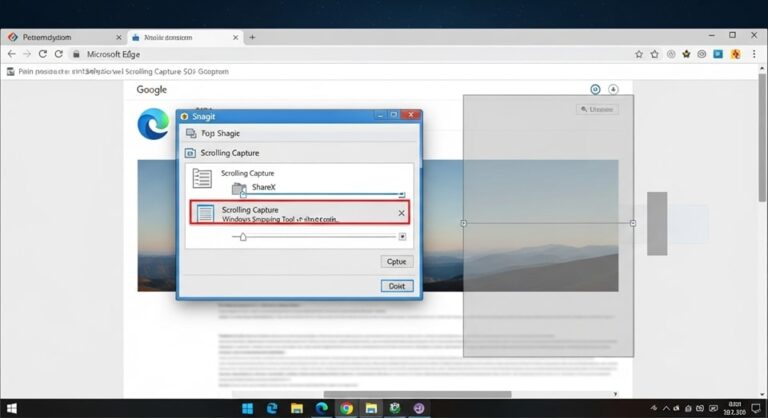
Taking a standard screenshot is simple enough, but the moment you need to capture a full web page, a lengthy email thread, or a document that runs well beyond the visible screen, the usual methods fall apart fast. Capturing a scrolling screenshot on Windows 10 and 11 requires either a browser’s built-in tool, a dedicated third-party application, or a developer trick — and knowing which one to use for your specific situation saves real time. This guide covers every reliable method in detail, so you can pick the one that fits your workflow and get a clean, complete capture on the first attempt.
Windows still does not include a native scrolling screenshot feature in its Snipping Tool or Snip & Sketch utility as of 2025. That gap has been filled by browser developers and third-party software makers who recognized the demand years ago. Whether you are a casual user who only needs to grab a full webpage occasionally or a technical writer who documents processes daily, the right tool makes the difference between a polished result and a frustrating afternoon of manual stitching.
What Is a Scrolling Screenshot and Why Standard Tools Fall Short
A scrolling screenshot — also called a full-page screenshot or long screenshot — automatically captures everything in a window from top to bottom, including content that is not visible on screen without scrolling. The resulting image is a single, uninterrupted file that shows the complete page, document, or interface without any cropping or gaps.
The built-in Windows screenshot tools, including the Snipping Tool, Snip & Sketch, and the Print Screen key, only capture whatever is currently visible in the viewport. If you need to take a screenshot on a Windows PC of something simple and static, those tools work fine. But for a page with a hundred items, a conversation thread, or a long report, they force you to take multiple overlapping screenshots and align them manually — a process that almost always produces visible seams, inconsistent scaling, and wasted effort.
Scrolling capture tools solve this by automating the scroll-and-stitch process entirely, producing pixel-perfect output in seconds.
Method 1 — Microsoft Edge Web Capture (Built-In, No Install Needed)
Microsoft Edge includes one of the cleanest native full-page capture tools available in any browser. It requires no extensions, no downloads, and no developer tools. Open the page you want to capture in Edge, then press Ctrl + Shift + S to open the Web Capture panel. Select “Capture full page” and Edge will automatically scroll through the entire page, stitch the frames together, and present the result in an editing panel where you can annotate, crop, or highlight before saving.
The saved file is a PNG by default, which preserves text sharpness and graphical detail without compression artifacts. Edge Web Capture works reliably on most websites and is fast enough that even very long pages complete in a few seconds. For anyone already using Edge as their primary browser, this is the first method to try — there is no reason to install anything else for standard web page captures.
Method 2 — Mozilla Firefox Screenshot Tool (Built-In, One Click)
Firefox has offered a native screenshot feature since version 55, and it remains one of the most straightforward full-page capture tools in any browser. Right-click anywhere on the page and select “Take Screenshot,” or access it through the three-line menu under More Tools. In the screenshot interface, click “Save full page” and Firefox captures everything from the top of the document to the bottom, saving it directly as a PNG file.
Firefox handles dynamic content reasonably well and the interface is clean, making this the go-to option for Firefox users who want a fast, zero-configuration solution. The tool also includes a “Save visible” option if you only need the current viewport, giving you flexibility without adding steps.
Method 3 — Google Chrome Full-Page Screenshot via Developer Tools
Chrome does not have a visible screenshot button, but the capability is built into its developer tools and takes about thirty seconds to access once you know where to look. If you want to take a full-page screenshot using Chrome’s developer tools, open the target page and press Ctrl + Shift + I to open DevTools. Then press Ctrl + Shift + P to open the Command menu, type “screenshot,” and select “Capture full size screenshot.” Chrome will render and save the complete page automatically.
This method works well for most pages but may produce inconsistent results on pages that use lazy loading or JavaScript-heavy infinite scroll layouts, since Chrome renders those elements based on viewport position. For reliable captures of standard web pages, the developer tools method is solid and completely free.
Method 4 — GoFullPage Extension for Chrome (One-Click, Highly Reliable)
GoFullPage is the most popular scrolling screenshot extension in the Chrome Web Store, with tens of millions of installs and consistently high ratings. After installation, a small camera icon appears in the Chrome toolbar. One click starts the capture — the extension scrolls the page automatically, assembles the frames, and opens the result in a new tab where you can save it as PNG or JPEG, or download it as a PDF.
GoFullPage handles most modern websites accurately, including those with sticky headers and fixed elements that would otherwise appear repeatedly in a manual capture. It is free for standard use, with a paid GoFullPage Pro tier that adds annotation tools and cloud storage. For Chrome users who want a reliable everyday tool without touching developer menus, this is the practical choice.
Method 5 — ShareX (Free, Open-Source, Works Across All Applications)
ShareX is the most powerful free scrolling screenshot tool available for Windows, and it works beyond browsers — capturing scrolling content in documents, chat applications, file explorers, and most other Windows software. Download it from the official ShareX website or GitHub, install it, and navigate to Capture → Scrolling Capture. Select the window you want to capture, configure the scroll delay if needed, and ShareX will handle the rest.
Beyond basic capture, ShareX includes an extensive post-capture workflow: automatic uploads to Imgur, Google Drive, or Dropbox; watermarking; OCR text extraction; and image annotation. The keyboard shortcut system in ShareX is fully customizable, so experienced users can trigger any capture type without touching the interface. ShareX has a steeper learning curve than browser-based tools, but for anyone who needs scrolling capture across multiple types of applications, no free tool comes close to its capabilities.
Method 6 — Snagit by TechSmith (Professional-Grade, Paid)
Snagit is the industry standard for professional screen capture and is widely used by technical writers, instructional designers, and product teams. Its Panoramic Capture mode scrolls and captures content in virtually any application on Windows — browsers, Word documents, Excel spreadsheets, PDFs, Slack threads, and more. The captured image opens immediately in Snagit’s editor, where you can annotate with callouts, arrows, blur sensitive information, and export in multiple formats.
Snagit is priced at $62.99 for a perpetual license (as of TechSmith’s official website, verified March 2025), with upgrade pricing available for existing users. It is a one-time purchase, not a subscription, which makes it cost-effective for anyone who uses screen capture regularly. The combination of reliable cross-application scrolling capture and a professional editing suite makes Snagit the top recommendation for users with serious documentation needs.
Method 7 — Greenshot (Free, Lightweight, Simple)
Greenshot is a lightweight free tool that has been a staple for Windows users who want quick, no-frills screen capture with basic editing. Its scrolling window capture feature works in a range of applications, though it is less reliable on modern web applications with dynamic loading than ShareX or Snagit. For straightforward tasks — capturing a static webpage, a settings panel, or a document — Greenshot delivers clean results with minimal system overhead.
The built-in editor supports basic annotation, highlighting, and obfuscation tools. Greenshot is available free for Windows and is an excellent starting point for users who are new to dedicated capture tools and want something simple to learn on.
Method 8 — PicPick (Free for Personal Use, All-in-One Design Tool)
PicPick includes a scrolling window capture feature as part of a broader suite that also covers screen color picking, pixel rulers, a whiteboard, and image editing. It is free for personal use and a one-time purchase for commercial use. The scrolling capture works reliably in most Windows applications and browsers, and the results open directly in PicPick’s image editor for any needed adjustments.
PicPick suits users who want one application that handles both capture and light design work without paying for something as comprehensive as Snagit.
Pro Tips for Better Scrolling Screenshots
Before starting a capture, close any floating pop-ups, cookie banners, or chat widgets on the page. These elements often appear at a fixed screen position and will repeat across every frame in the capture, cluttering the final image with overlapping UI elements.
If you are capturing a page with lazy-loaded images — where images only load as you scroll — manually scroll through the entire page once before starting the capture. This forces the browser to load all assets, so your screenshot does not come back with blank gray boxes where images should be.
For long captures in ShareX, increase the scroll delay setting slightly if you notice frame misalignment in the output. A small increase from the default gives slower-rendering pages time to finish drawing each section before the next frame is captured.
When saving for documentation or sharing, PNG is the better format for anything containing text. The lossless compression keeps characters sharp and readable at any zoom level, unlike JPEG which can introduce blurring around text edges even at high quality settings.
If your capture only needs to show specific sections of a long page, most tools allow you to crop the final image before saving. Doing this inside the capture tool itself — rather than reopening it in a separate image editor — saves steps and keeps the workflow clean. Users who regularly manage files this way may also find it useful to know multiple ways to open File Explorer in Windows 10 for faster navigation to saved screenshots.
For professional documentation work, standardize on one output format and folder location across your team. Consistent naming conventions and a shared cloud folder — rather than each person saving to their desktop — makes screenshot libraries searchable and reusable months later.
If a scrolling capture tool fails on a particular website, try switching browsers. Some websites block automated scrolling scripts as an anti-bot measure. Edge and Firefox native tools tend to bypass these restrictions more reliably than browser extensions because they operate at a lower level within the browser engine.
Frequently Asked Questions About Scrolling Screenshots on Windows
Does Windows 11 have a built-in scrolling screenshot tool?
Windows 11 does not include a native scrolling or full-page screenshot tool as of 2025. The Snipping Tool in Windows 11 captures only the visible portion of the screen. For scrolling capture, you need to use a browser’s built-in feature — such as Microsoft Edge’s Web Capture — or install a third-party application like ShareX or Snagit.
Which method works best for capturing a full webpage?
For webpages specifically, the Microsoft Edge Web Capture tool (Ctrl + Shift + S) and Firefox’s native screenshot feature are the most reliable options because they are built into the browser engine and handle most page layouts accurately. If you use Chrome, the GoFullPage extension is the most dependable one-click solution.
Can I take a scrolling screenshot of a Word document or Excel spreadsheet?
Yes, but you need a dedicated application rather than a browser tool. ShareX and Snagit both support scrolling capture in Windows applications including Microsoft Word, Excel, and most other desktop software. Browser extensions only work within the browser itself.
Why does my scrolling screenshot have duplicate headers or footers?
This happens when a webpage uses sticky or fixed-position elements — navigation bars, headers, or chat widgets — that stay visible as you scroll. Some capture tools do not remove these elements between frames. Snagit and GoFullPage handle sticky elements better than most free alternatives. If duplication persists, try hiding the sticky element using browser developer tools before capturing.
Is ShareX safe to download and use?
Yes. ShareX is a legitimate, long-running open-source project hosted on GitHub. It is used by millions of people worldwide and is regularly updated. Download it only from the official ShareX website or its GitHub repository to avoid counterfeit versions.
What file format should I save scrolling screenshots in?
PNG is the recommended format for screenshots that contain text, interface elements, or diagrams, because it is lossless and preserves sharpness. JPEG is acceptable for screenshots that are primarily photographic images and where file size matters. PDF export, available in tools like GoFullPage and Snagit, is the best option when the capture needs to be shared as a printable document.
Can scrolling screenshots be used on locked or private pages?
Scrolling screenshot tools capture what is rendered on your screen, so they work on any page you can view in your browser or application — including pages that require a login. They do not bypass paywalls or access content you are not authorized to view; they simply capture what your current session can already display.
Conclusion
The right scrolling screenshot tool depends entirely on what you are trying to capture and how often you need to do it. For occasional webpage captures, the built-in tools in Microsoft Edge and Firefox are fast, free, and require nothing extra. Chrome users who want a reliable one-click solution are well served by GoFullPage. For anyone who regularly needs to capture content across Windows applications — not just browsers — ShareX is the most capable free option available, while Snagit remains the professional benchmark for teams with serious documentation requirements.
The methods outlined here cover every common scenario across Windows 10 and 11. None of them require technical expertise beyond following a few straightforward steps, and most are either free or a modest one-time cost. The technology for clean, complete scrolling captures has been available and reliable for years — the only remaining task is choosing the tool that matches your workflow and getting started.

Full-stack developer at Scylla Technologies (USA), working remotely from Bangladesh. Adobe Certified Magento Developer.