

Whether you spend your days writing reports, editing spreadsheets, browsing the web, or managing files, mastering keyboard shortcuts for Mac and Windows is one of the single most impactful things you can do to speed up your workflow. Studies consistently show that experienced keyboard users save anywhere from 30 minutes to over an hour per day compared to those who rely exclusively on a mouse. This comprehensive guide walks you through the most powerful, time-saving Mac and Windows keyboard shortcuts available today — organized by category, explained clearly, and ready for you to put into practice immediately.
This guide is designed for users of all skill levels. If you are a beginner, you will discover foundational shortcuts that will transform how you navigate your computer. If you are already familiar with the basics, the intermediate and advanced sections will introduce you to combinations and techniques that even experienced users often overlook. By the end, you will have a complete reference covering system shortcuts, browser shortcuts, text editing, screenshot tools, window management, and much more.
Why Learning Keyboard Shortcuts Matters in 2025
In a world where digital multitasking is the norm, every second of efficiency counts. Modern operating systems — both macOS and Windows 11 — have evolved to offer hundreds of built-in keyboard shortcuts, yet surveys suggest that the average user regularly uses fewer than twenty of them. This gap represents an enormous untapped productivity reserve.
Beyond speed, keyboard shortcuts reduce the physical strain associated with constant mouse movement, which is a meaningful benefit for anyone who works at a computer for extended hours. Repetitive mouse-heavy workflows are a known contributor to conditions like carpal tunnel syndrome and general wrist fatigue. Shifting a portion of that interaction to keyboard input distributes the physical load and supports long-term comfort and health.
Learning shortcuts also deepens your understanding of your operating system. Users who know their way around keyboard commands tend to discover hidden features, troubleshoot problems faster, and feel more confident and in control of their machines. This guide is structured so you can learn progressively — starting with the essentials and building toward more advanced territory.
Universal Shortcuts That Work on Both Mac and Windows
Before diving into platform-specific commands, it is worth highlighting shortcuts that work across both macOS and Windows. These are foundational actions so embedded in operating system design that they are virtually universal across all modern platforms.
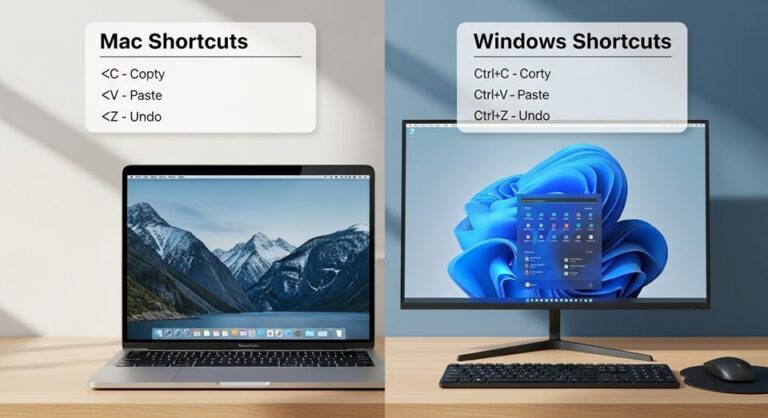
- Copy — Ctrl+C (Windows) / Cmd+C (Mac): Copies the currently selected text, file, or object to the clipboard. This is the most frequently used shortcut in computing and works across virtually every application from word processors to file explorers to web browsers.
- Paste — Ctrl+V (Windows) / Cmd+V (Mac): Pastes whatever is currently stored on the clipboard into the active location. Combine this with copy for seamless data movement between documents, apps, and folders.
- Cut — Ctrl+X (Windows) / Cmd+X (Mac): Removes the selected content and stores it on the clipboard, ready to be pasted elsewhere. Unlike copy, cut removes the original, making it ideal for moving rather than duplicating content.
- Undo — Ctrl+Z (Windows) / Cmd+Z (Mac): Reverses the last action taken. Most applications support multiple levels of undo, meaning you can press this repeatedly to step back through a history of changes. It is one of the most reassuring shortcuts in existence.
- Redo — Ctrl+Y (Windows) / Cmd+Shift+Z (Mac): Re-applies an action that was previously undone. Particularly useful when you undo too many steps and need to restore changes without retyping or re-executing them manually.
- Save — Ctrl+S (Windows) / Cmd+S (Mac): Saves the current document or file. Developing the habit of pressing this shortcut frequently is one of the most valuable practices in computing, protecting your work from crashes, power outages, and accidental closures.
- Select All — Ctrl+A (Windows) / Cmd+A (Mac): Selects all content in the active window, document, or folder. Combine with copy, cut, delete, or formatting commands for bulk operations that would take minutes to perform manually.
- Find — Ctrl+F (Windows) / Cmd+F (Mac): Opens a search bar within the current document, webpage, or application, allowing you to locate specific words, phrases, or values instantly without scrolling.
Essential Windows Keyboard Shortcuts Every User Should Know
Windows 10 and Windows 11 are packed with keyboard shortcuts that span everything from basic navigation to advanced system management. The Windows key (also called the Win key) is the cornerstone of Windows shortcuts and unlocks a vast range of system-level functions when combined with other keys.
Windows System and Navigation Shortcuts
- Win+D — Show Desktop: Instantly minimizes all open windows to reveal the desktop. Press it again to restore all windows to their previous state. This is invaluable when you need quick access to desktop files or simply want to clear visual clutter during a meeting or presentation.
- Win+E — Open File Explorer: Launches File Explorer directly, bypassing the need to search for it or click through taskbar icons. This one shortcut alone can save you several clicks dozens of times each day.
- Win+L — Lock Screen: Immediately locks your computer, prompting for a password or PIN before anyone can access your session. A critical habit for maintaining privacy in shared office environments.
- Win+Tab — Task View: Opens the Task View panel, which displays all open windows and virtual desktops in a visual overview. From here you can switch between apps, create new virtual desktops, or close windows you no longer need.
- Alt+Tab — Switch Between Open Windows: Cycles through all currently open applications. Hold Alt and press Tab repeatedly to move through the list, then release to activate the selected window. This is among the most used shortcuts by power users navigating multiple applications simultaneously.
- Win+Shift+S — Screenshot Snip Tool: Opens the Snipping Tool overlay, allowing you to capture a rectangular, freeform, window, or full-screen screenshot. The captured image is automatically copied to the clipboard and saved to your Screenshots folder.
- Win+V — Clipboard History: Opens the clipboard history panel, which stores the last 25 items you copied. This transforms your clipboard from a single-slot storage into a powerful multi-item buffer, especially useful for writers, coders, and data entry professionals.
- Ctrl+Shift+Esc — Task Manager: Opens Windows Task Manager directly, bypassing the Ctrl+Alt+Del screen. Use this to monitor system performance, end unresponsive applications, and manage startup programs.
Windows Virtual Desktop and Window Snapping Shortcuts
Windows 11 significantly enhanced virtual desktop and window management capabilities, and the keyboard shortcuts that control them are among the most productive tools available to multitaskers.
- Win+Ctrl+D — Create New Virtual Desktop: Instantly creates a new virtual desktop, giving you a clean workspace. Power users maintain separate desktops for different projects, keeping their workspace organized without closing any applications.
- Win+Ctrl+Left/Right Arrow — Switch Virtual Desktops: Moves between your virtual desktops in sequence. Combined with the shortcut above, this gives you fluid navigation across multiple organized workspaces.
- Win+Left/Right Arrow — Snap Window: Snaps the active window to either the left or right half of the screen. In Windows 11, continuing to press the arrow key after snapping cycles through quadrant positions, enabling complex multi-window layouts without dragging a single window manually.
- Win+Up Arrow — Maximize Window: Maximizes the currently active window to fill the entire screen. Pair with Win+Down Arrow to restore or minimize the window progressively.
Essential Mac Keyboard Shortcuts for macOS Users
macOS has its own rich ecosystem of Mac keyboard shortcuts that are elegantly integrated throughout the system. The Command (Cmd) key plays the same central role that the Windows key plays on PC, and many shortcuts feel intuitive once you understand the underlying logic Apple has applied consistently across its apps and system interfaces.
Core macOS System Shortcuts
- Cmd+Space — Spotlight Search: Opens Spotlight, macOS’s universal search tool. You can use it to find files, launch applications, perform calculations, look up dictionary definitions, check the weather, and much more — all without ever touching your mouse or opening a Finder window.
- Cmd+Tab — Switch Applications: Cycles through all currently open applications. Hold Cmd and press Tab to move forward through the list, or Cmd+Shift+Tab to move backward. This is the Mac equivalent of Windows’ Alt+Tab and is just as indispensable.
- Cmd+Q — Quit Application: Fully quits the active application, freeing up memory and system resources. This is distinct from simply clicking the red close button on a Mac window, which hides the window but leaves the app running in the background.
- Cmd+M — Minimize Window: Minimizes the current window to the Dock. The window remains accessible and the application stays active; only its visual footprint is removed from the screen.
- Cmd+H — Hide Application: Hides all windows of the current application without minimizing or quitting it. Unlike minimizing, hiding is instantaneous and can be reversed with a single click on the app’s Dock icon, making it faster for temporary workspace clearing.
- Cmd+Option+Esc — Force Quit: Opens the Force Quit Applications window, which allows you to terminate any application that has become unresponsive. This is the Mac equivalent of Windows’ Ctrl+Shift+Esc-based Task Manager end-task function.
- Cmd+Shift+3 — Full Screenshot: Captures a screenshot of the entire screen and saves it as a file on the Desktop. A preview thumbnail briefly appears in the corner, which you can click to annotate or share the image immediately.
- Cmd+Shift+4 — Crosshair Screenshot: Changes the cursor to a crosshair, letting you drag to select a specific area of the screen to capture. This is ideal for capturing particular windows, dialog boxes, or interface elements without unnecessary background clutter.
macOS Finder and File Management Shortcuts
The Finder is macOS’s file management system and has its own set of shortcuts that dramatically speed up file navigation, organization, and operations.
- Cmd+N — New Finder Window: Opens a new Finder window, useful when you want to browse multiple folders simultaneously or perform drag-and-drop operations between locations.
- Cmd+Delete — Move to Trash: Sends the selected file or folder directly to the Trash without a confirmation dialog. Combine with Cmd+Shift+Delete to empty the Trash in one step, though the latter requires confirmation by default.
- Cmd+I — Get Info: Opens the Get Info panel for the selected file or folder, showing its size, type, creation date, permissions, and other metadata. Essential for troubleshooting file access issues or checking file properties.
- Cmd+Shift+G — Go to Folder: Opens a text input dialog where you can type any file path directly and navigate to it instantly. This is the fastest way to jump to hidden system folders or deeply nested directories without browsing through multiple levels of Finder.
Browser Keyboard Shortcuts for Chrome, Firefox, Safari, and Edge
Web browsers are among the most used applications on any computer, and having command over browser keyboard shortcuts significantly improves the speed and comfort of everyday web use. Most major browsers — Google Chrome, Mozilla Firefox, Microsoft Edge, and Apple Safari — share a consistent set of core shortcuts.
- Ctrl+T (Windows) / Cmd+T (Mac) — New Tab: Opens a new browser tab instantly. This is among the most-used browser shortcuts in existence, relied upon constantly by anyone who browses multiple sites simultaneously.
- Ctrl+W (Windows) / Cmd+W (Mac) — Close Tab: Closes the currently active tab. If you accidentally close a tab you needed, immediately press Ctrl+Shift+T (Windows) or Cmd+Shift+T (Mac) to reopen the most recently closed tab.
- Ctrl+L (Windows) / Cmd+L (Mac) — Focus Address Bar: Instantly highlights the browser’s address bar, ready for you to type a new URL or search query. This eliminates the need to reach for the mouse just to change pages.
- Ctrl+Tab (Windows/Mac) — Cycle Through Tabs: Moves to the next tab to the right. Add Shift to cycle in the opposite direction. When working with many open tabs, this is significantly faster than clicking individual tabs.
- Ctrl+D (Windows) / Cmd+D (Mac) — Bookmark Page: Opens the bookmark dialog for the current page, allowing you to save it to a folder of your choice. Some browsers bookmark immediately without a dialog when combined with additional modifiers.
- F5 (Windows) / Cmd+R (Mac) — Refresh Page: Reloads the current webpage. Use Ctrl+Shift+R (Windows) or Cmd+Shift+R (Mac) for a hard reload, which bypasses the browser cache and fetches a completely fresh version of the page.
- Ctrl+Shift+I (Windows) / Cmd+Option+I (Mac) — Developer Tools: Opens the browser’s built-in Developer Tools panel. While primarily designed for web developers, these tools can be useful for anyone who wants to inspect page elements, check network performance, or troubleshoot display issues.
Text Editing Keyboard Shortcuts for Writers and Office Workers
Text editing shortcuts are among the highest-value keyboard commands for anyone who writes regularly — whether in Microsoft Word, Google Docs, Notion, email clients, or any other text-based application. These shortcuts work reliably across most standard text editors and word processors on both platforms.
- Ctrl+B (Windows) / Cmd+B (Mac) — Bold: Applies or removes bold formatting from selected text. In most applications, you can also activate bold mode before typing to write in bold from the start.
- Ctrl+I (Windows) / Cmd+I (Mac) — Italic: Applies or removes italic formatting, which is standard for titles, foreign words, emphasis, and other stylistic conventions in professional writing.
- Ctrl+U (Windows) / Cmd+U (Mac) — Underline: Toggles underline formatting on selected text. Underline is typically reserved for hyperlinks and certain types of formal headers in document formatting standards.
- Ctrl+Home / Ctrl+End (Windows) / Cmd+Up / Cmd+Down (Mac) — Jump to Beginning or End: Moves the cursor instantly to the very beginning or very end of a document. Indispensable when working with long documents where scrolling takes too long.
- Ctrl+Shift+Arrow Keys (Windows) / Option+Shift+Arrow Keys (Mac) — Select Word by Word: Extends text selection one word at a time in the chosen direction. Far more precise than click-and-drag selection for highlighting specific phrases or terms in dense text.
- Ctrl+Backspace (Windows) / Option+Delete (Mac) — Delete Entire Word: Deletes the entire word to the left of the cursor in one keystroke. This is dramatically faster than holding down the Backspace key when correcting mistakes in longer words or phrases.
Pro Tips for Mastering Keyboard Shortcuts Faster
Learning shortcuts effectively requires a deliberate approach. Trying to memorize hundreds of commands at once is a recipe for frustration. Instead, use the following strategies to integrate shortcuts into your workflow naturally and sustainably.
Start with just five shortcuts per week. Pick five commands relevant to your most common tasks — whether that’s copying and pasting, switching apps, or taking screenshots — and commit to using them exclusively for one week. Once those five feel effortless, add five more. This staged approach builds muscle memory without overwhelming you.
Print a cheat sheet and keep it visible. Having a physical or on-screen reference for shortcuts you are actively learning reduces the friction of having to look them up during your workflow. Many users find that even after a week with a visible cheat sheet, they have permanently internalized the most-used commands without conscious memorization effort.
Use app-specific shortcut menus. On Mac, every menu bar item shows its corresponding keyboard shortcut to the right of the menu option. Windows applications do the same in most native and Office-compatible apps. Reading these menus is one of the fastest ways to discover powerful shortcuts you did not know existed.
Enable keyboard shortcut hints in your software. Many applications — including Google Docs, Notion, and Microsoft Office — have built-in shortcut overlay modes or guides you can trigger. In Google Docs, for example, pressing Ctrl+/ (Windows) or Cmd+/ (Mac) reveals a complete list of all keyboard shortcuts available in the document.
Frequently Asked Questions About Mac and Windows Keyboard Shortcuts
Can I create my own custom keyboard shortcuts on Mac and Windows?
Yes, both operating systems support custom shortcut creation. On macOS, go to System Settings → Keyboard → Keyboard Shortcuts to assign custom shortcuts to specific menu commands in any application. On Windows, you can right-click any desktop shortcut, select Properties, and assign a keyboard shortcut in the Shortcut Key field. Third-party tools like AutoHotkey (Windows) and Keyboard Maestro (Mac) offer even more powerful customization options.
Do keyboard shortcuts work the same in all applications?
Most standard shortcuts — copy, paste, undo, save — are consistent across virtually all applications because they follow platform-wide conventions set by the operating system. However, specialized software like Adobe Premiere, Final Cut Pro, or AutoCAD may override standard shortcuts with their own custom bindings. Always check the application’s keyboard shortcut guide or preferences if a standard shortcut does not behave as expected.
What is the easiest way to remember all these shortcuts?
Repetition within real tasks is the most effective method. Rather than drilling shortcuts in isolation, force yourself to use them during actual work sessions. The slight initial inconvenience of pausing to remember a shortcut pays off rapidly — most users report that high-frequency shortcuts become reflexive within just a few days of deliberate use.
Are keyboard shortcuts available for accessibility functions on Mac and Windows?
Absolutely. Both platforms have extensive accessibility shortcut systems. On macOS, VoiceOver (the built-in screen reader) is activated with Cmd+F5. On Windows, the Ease of Access features are accessible via Win+U. Narrator, Magnifier, and High Contrast mode all have dedicated keyboard shortcuts built into Windows, while macOS offers similar controls through the Accessibility shortcuts panel in System Settings.
Can I use Mac shortcuts on a Windows keyboard or vice versa?
When using a Windows keyboard on a Mac, the Windows key typically maps to the Mac’s Command function, and the Alt key maps to Option. Most standard shortcuts will work once you understand this mapping. When using a Mac keyboard on a Windows machine, the Command key acts as the Control key in most contexts. You can also remap keys manually through system settings or third-party software on both platforms.
How many keyboard shortcuts should a beginner focus on first?
Beginners benefit most from focusing on no more than ten to fifteen shortcuts initially. The universal commands — copy, paste, undo, save, select all, find, and switch applications — provide immediate, daily value and form the foundation on which all other shortcuts build. Once these feel natural, expanding to browser and file management shortcuts is a logical next step.
Conclusion
Mastering keyboard shortcuts for Mac and Windows is one of the highest-return investments of time and effort available to any computer user. The commands covered in this guide span every major category of daily computer use — from universal copy-paste basics to advanced virtual desktop management, browser navigation, file operations, and text formatting. Each shortcut represents a small but compounding improvement to your workflow: individually they save seconds, collectively they save hours.
The key to making these shortcuts stick is consistent, deliberate practice within your actual work environment. Start with the universal shortcuts common to both platforms, then build outward into the system-specific and application-specific commands most relevant to your daily tasks. Use the Pro Tips strategies to accelerate your learning curve, and revisit the FAQ section whenever questions about compatibility or customization arise.
Whether you are a Windows power user looking to dominate your virtual desktop setup or a Mac enthusiast building a faster, more fluid Finder workflow, the shortcuts in this guide will serve you every day. The investment is minimal; the productivity gains are lasting. Start with five new shortcuts today, and within a month you will wonder how you ever worked without them.

