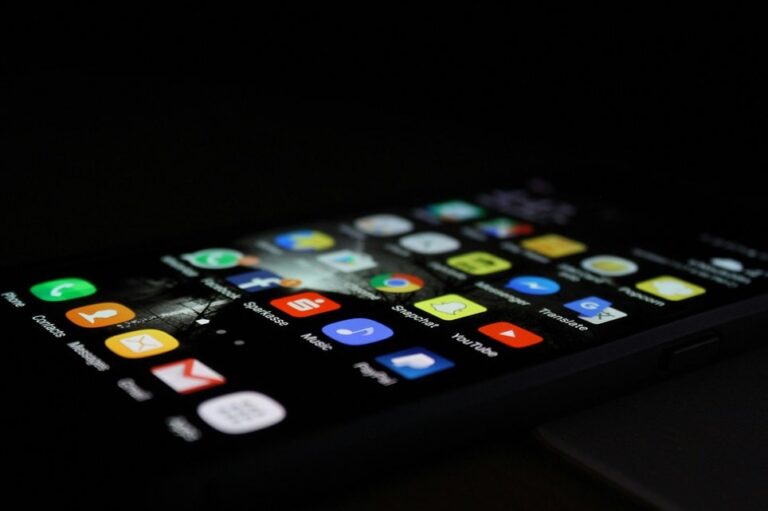
In the world of Android, the ability to personalize your device is a core feature that sets it apart. One of the most visually impactful ways to tailor your phone to your taste is by changing your app icons. This isn’t just about aesthetics; it’s about creating a user interface that feels truly yours, improves organization, and can even boost productivity by making important apps stand out. The process, however, can vary significantly depending on your phone’s manufacturer, the Android version you’re running, and how deeply you want to customize your experience. This comprehensive guide will walk you through every method available in 2025, from the simplest built-in options to advanced third-party solutions, ensuring you can transform your home screen regardless of your device.
Understanding the Basics: Launchers and Icon Packs
Before diving into the step-by-step instructions, it’s crucial to understand the two fundamental components at play: launchers and icon packs. The launcher, often called the home screen app, is the software that controls your phone’s desktop, app drawer, and overall user interface. It determines how you interact with your apps and widgets. Most Android phones come with a default launcher (like Samsung’s One UI Home, Google’s Pixel Launcher, or Xiaomi’s MIUI Launcher). An icon pack is a collection of stylistically consistent icons designed to replace the default ones for your applications. These packs are typically applied through a compatible launcher.
The method you choose to change your icons largely depends on whether your phone’s default launcher supports direct icon customization or if you need to install a third-party launcher to unlock that functionality. Manufacturers like Samsung, Google, and OnePlus have progressively added more customization features to their stock launchers, while others still maintain a more locked-down approach.
Method 1: Using Your Phone’s Built-in Theme or Icon Customizer
Many modern Android skins now include basic icon customization directly within their settings. This is often the easiest and most integrated method, as it doesn’t require installing additional apps.
For Samsung Phones (One UI)
Samsung’s One UI offers robust theming options through the “Themes” app and “Good Lock” modules. To change icons via the Themes store, open the Samsung Themes app, browse or search for icon packs, download one, and apply it. This will change icons for supported apps system-wide.
For more granular control, use the Home Up module within the Good Lock suite (available in the Galaxy Store). After installing Home Up, navigate to Home Screen > Home Screen Grid. Here, you can tap on “App Icon” to change the icon style (e.g., applying a uniform shape) or even edit individual app icons by long-pressing an app on the home screen, tapping the edit (pencil) icon, and selecting a new image from your gallery or from icon packs you’ve installed.
For Google Pixel Phones and Stock Android
Stock Android has historically been more limited, but recent versions allow for some icon customization through the built-in wallpaper & style settings. Go to Settings > Wallpaper & style. Here, you can often change the icon shape (e.g., teardrop, rounded square, circle) and apply a monochromatic theme. For more drastic changes, Pixel users typically rely on third-party launchers.
For Other Manufacturers (Oppo, Xiaomi, OnePlus, etc.)
Most other manufacturers include a “Themes” app. Open this app and look for “Icons” or “Icon Packs.” You can browse and apply downloaded packs. The availability and depth of this feature vary by brand and model year.
Method 2: Using a Third-Party Launcher for Maximum Control
If your phone’s built-in options are limited, a third-party launcher is the key to unlocking near-limitless customization. Launchers like Nova Launcher, Smart Launcher 6, and Microsoft Launcher are powerhouse tools for redesigning your entire interface, with icon customization being just one of their many features.
Step-by-Step Guide with Nova Launcher
Nova Launcher is a favorite among enthusiasts for its depth of features and reliability.
- Download and Install: Get Nova Launcher from the Google Play Store. After installation, open it and tap “Set as default” when prompted to make it your primary launcher.
- Download an Icon Pack: Browse the Play Store for icon packs (e.g., “LineX,” “Moxy,” “Delta”). Install your chosen pack. Icon packs are standalone apps that work in conjunction with supporting launchers.
- Apply the Icon Pack: Long-press on your home screen to access Nova Settings. Go to Nova Settings > Look & feel > Icon theme. A list of compatible installed icon packs will appear. Select your desired pack to apply it globally.
- Edit Individual Icons (Optional): For apps not covered by the pack or for further customization, long-press an app icon on the home screen, tap the edit (pencil) icon, then tap the current icon. You can then choose a new icon from your applied pack, from other packs, or from your gallery.
Step-by-Step Guide with Smart Launcher 6
Smart Launcher is praised for its automatic categorization and clean interface.
- Install and Set Default: Install Smart Launcher 6 from the Play Store and set it as your default launcher.
- Access Icon Settings: Open the launcher’s settings by pinching in on the home screen or long-pressing an empty area.
- Apply Global Pack: Navigate to Global appearance > Icon pack. Select your installed icon pack to apply it to all icons.
- Customize Per App: For individual changes, long-press an app icon, select “Edit,” then tap the icon to choose a new one from any available source.
Method 3: Using Dedicated Shortcut Creator Apps (No Launcher Required)
If you want to change a handful of icons without switching your entire launcher, shortcut creator apps are a perfect solution. These apps create a new home screen shortcut (with your custom icon) that links directly to the app. Note: This creates a duplicate shortcut, and you may need to hide the original app icon in your launcher’s settings.
Using the “X Icon Changer” App
- Install the App: Download an app like “X Icon Changer” from the Google Play Store.
- Select Your App: Open X Icon Changer. It will display a list of your installed apps. Select the app whose icon you want to change.
- Choose a New Icon: Tap the current icon. You can then choose an image from your gallery, from a huge built-in library, or from icon packs you have installed.
- Create the Shortcut: After customizing the icon and name (if desired), tap “Create.” The app will place a new, custom shortcut on your home screen. You can then move your original app icon to the app drawer or a hidden folder.
Method 4: Creating Completely Custom Icons from Your Gallery
For the ultimate personalized touch, you can design your own icons or use images from the web. This method typically works within third-party launchers or shortcut apps.
- Prepare Your Images: Find or create square PNG images with a transparent background for the best results. Use graphic design tools like Canva, or search for “PNG icons” online.
- Apply via Your Launcher: Using Nova or Smart Launcher, follow the steps to edit an individual app icon. When prompted to choose an icon source, select “Gallery” or “Photos” and pick your prepared image. The launcher will automatically fit it.
- Apply via a Shortcut App: In an app like X Icon Changer, the process is even more straightforward—simply select the gallery option when choosing a new icon.
Pro Tips for Advanced Customization
Moving beyond the basics can elevate your home screen from customized to exceptional.
- Mix and Match Icon Packs: Don’t feel confined to one pack. Use your launcher’s per-app icon edit feature to combine icons from multiple packs for a unique, curated look.
- Use Adaptive Icons for Consistency: In your launcher’s icon settings (Look & feel in Nova), enable “Adaptive icons.” This forces all icons, even unthemed ones, into a uniform shape, creating a cohesive grid.
- Resize Icons for Layout Dynamics: Most launchers let you adjust icon size. Making icons slightly smaller can allow for more on a screen and create a minimalist aesthetic.
- Coordinate with Widgets and Wallpaper: Your icons are part of a larger whole. Choose a wallpaper that complements your icon colors, and use widget apps like KWGT to create custom widgets that match your icon pack’s style.
- Backup Your Layout: Before making sweeping changes, use your launcher’s backup feature (e.g., Nova Settings > Backup & import) to save your current setup. This lets you experiment freely and revert if needed.
- Explore “Smart” Icon Packs: Some premium icon packs, like “Pix Material You” or “Pix Pixel,” can dynamically pull colors from your wallpaper to tint your icons, similar to Android’s Material You theming.
Frequently Asked Questions
Will changing app icons affect my phone’s performance or battery?
Using a reputable third-party launcher or icon pack has a negligible impact on performance and battery life in 2025. These apps are highly optimized. However, extremely complex live wallpaper pairings with heavy widgets and animations might contribute to slightly higher battery usage.
Do I need to root my Android phone to change icons?
Absolutely not. All methods described in this guide work on non-rooted, standard Android devices. Rooting was necessary a decade ago but is no longer required for theming.
Why do some app icons revert to default after an update?
This can happen if you’re using a shortcut-based method (like X Icon Changer) and the original app is updated, breaking the shortcut link. Using a launcher-based method with a proper icon pack is more stable. If an icon in a pack reverts, the pack developer may need to update it for the latest version of the target app.
Can I change icons for system apps like Phone or Messages?
Yes, you can. The process is identical to changing any other app’s icon using the methods above. Your launcher or shortcut app will list all applications, including system ones.
Are there any risks to downloading icon packs from the Play Store?
Stick to icon packs with high download counts, positive reviews, and reputable developers. The risk is very low, but avoid obscure packs that request unnecessary permissions, as they could be adware in disguise.
What’s the difference between an icon pack and a theme?
An icon pack changes only the app icons. A theme (or theme pack) typically changes icons, system colors, the notification shade appearance, and sometimes system fonts and sounds. Themes are often specific to a manufacturer’s skin (like Samsung Themes).
Conclusion
Changing app icons on your Android phone is a simple yet powerful way to inject personality and order into your daily digital interaction. As Android has evolved, so have the tools available to users. Whether you opt for the convenience of your manufacturer’s built-in theme store, the comprehensive control of a third-party launcher like Nova, the surgical precision of a shortcut app, or the creativity of designing your own icons, the process is more accessible than ever. By following the detailed methods outlined in this guide, you can confidently navigate the options, apply pro-level tips for a polished look, and troubleshoot common issues. Ultimately, the goal is to create a home screen that is not only visually pleasing but also functionally tailored to how you use your device, making every interaction with your phone a more personal and efficient experience.