

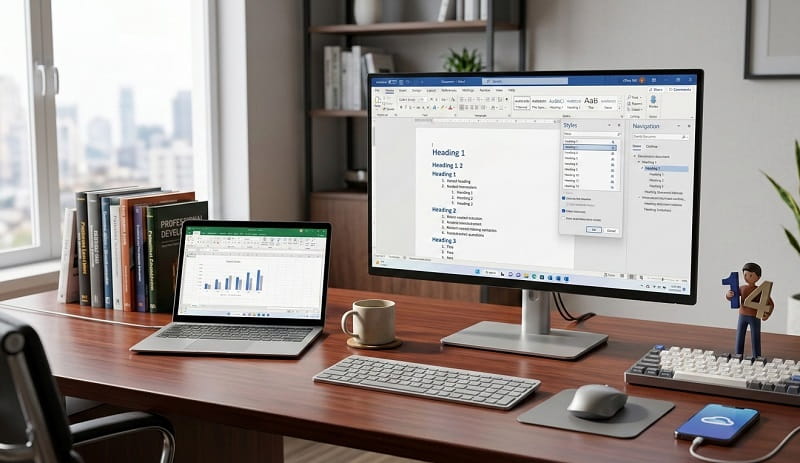
Microsoft Word is far more than a digital typewriter; it is a sophisticated engine for document engineering. For professionals in the USA and Europe, the ability to navigate this software with precision is a core competency that separates average contributors from high-output experts. While most users are familiar with basic font adjustments, the true power of the application lies in its hidden shortcuts, automation features, and structural logic. By mastering these 41 essential Microsoft Word tips, you can transform your workflow from a series of manual hurdles into a streamlined, automated process.
The modern documentation landscape demands speed without sacrificing quality. Whether you are drafting a 100-page technical manual or a high-stakes legal contract, the friction of manual formatting can derail your cognitive flow. Understanding the underlying architecture of Word—from the way it handles styles to the way it interacts with the Windows clipboard—allows you to focus entirely on your message. This guide provides the technical roadmap necessary to reclaim your time and produce documents that command professional respect.
Efficiency in 2026 is driven by a combination of legacy keyboard mastery and new AI-integrated features within Microsoft 365. By moving beyond the surface-level Ribbon commands and diving into the deep settings of the Options menu and the Quick Access Toolbar, you can create a customized environment tailored to your specific industry needs. Precision, consistency, and speed are the three pillars of this guide, designed to elevate your digital literacy to an expert level.
Advanced Navigation and Selection Shortcuts
The fastest way to navigate a document is to keep your hands on the keyboard. Mastering selection and movement shortcuts can reduce the time spent on basic editing by up to 50 percent. These techniques allow for “surgical” editing, where you can target specific blocks of text or data without disturbing the surrounding layout. Below are the first critical techniques for high-speed document handling.
- The Navigation Pane (Ctrl + F): This is the “GPS” of your document. Beyond simple searching, use the “Headings” tab to drag and drop entire sections to reorganize your document instantly.
- Vertical Text Selection (Alt + Click-and-Drag): This allows you to select a rectangular block of text. It is perfect for deleting a vertical column of bullet points or numbers without affecting the text to their right.
- Select All Instances of Similar Formatting: Right-click a piece of formatted text, go to Styles, and choose “Select All Instances.” This is a lifesaver when you need to change every sub-header that was manually formatted.
- Jump to the Last Edit (Shift + F5): Word remembers where you were typing last. Even after closing and reopening a file, this shortcut takes you directly back to your last cursor position.
- Sentence Selection (Ctrl + Click): Do not waste time dragging the mouse across a sentence. A single Ctrl+Click anywhere within the sentence highlights it perfectly from capital letter to period.
- Triple-Click Paragraph Selection: A double-click selects a word; a triple-click selects the entire paragraph. This is the fastest way to grab a block of text for moving or reformatting.
- The Spike (Ctrl + F3): Unlike the standard clipboard, the Spike allows you to “cut” multiple different pieces of text from different pages and then “paste” them all at once (Ctrl + Shift + F3) in a new location.
Structural Mastery and Layout Efficiency
A document’s visual integrity depends on its underlying structure. Many users struggle with “jumping” text or misaligned images because they use the Enter key to create space rather than utilizing the software’s layout engine. Section breaks and paragraph rules are the professional way to maintain a stable document environment, especially when working on complex reports or academic papers.
- Non-Breaking Spaces (Ctrl + Shift + Space): Use this to keep two words together on the same line. This is essential for dates, names like “Mr. Smith,” or measurements like “500 km” that should never be split.
- The “Show/Hide ¶” Button (Ctrl + *): Professional editors always work with formatting marks visible. This allows you to see hidden section breaks, tabs, and double-spaces that might be causing layout issues.
- Page Breaks vs. Section Breaks: Use Ctrl + Enter for a simple page break, but use Layout > Breaks > Section Break (Next Page) if you need different margins or orientations in the same file.
- Paragraph “Keep with Next” Rule: Found in Paragraph Settings > Line and Page Breaks. Use this to ensure a heading never sits alone at the bottom of a page without its following paragraph.
- Mirror Margins for Printing: If you are creating a book or a bound report, enable “Mirror Margins” in the Page Setup menu. This ensures the “gutter” space is correct for both left and right-facing pages.
- Quick Table Creation (+ and – keys): Type a plus sign, a series of dashes, another plus, and hit Enter. Word will instantly convert those characters into a functional table row.
- Customizing the Status Bar: Right-click the bottom bar to add a “Section” indicator or “Vertical Page Position.” This gives you real-time data on exactly where you are in a massive manuscript.
Automation and Smart Text Entry
Manual data entry is prone to error and fatigue. Word’s automation tools, such as Building Blocks and AutoCorrect, allow you to create “shorthand” for your most frequent tasks. In 2026, the focus is on reducing repetitive strain by letting the software handle boilerplate language and recurring formatting patterns automatically.
- AutoCorrect for Shorthand: Go to File > Options > Proofing. Map a short code like “USA1” to expand into “United States of America.” This is a massive time-saver for legal or technical terminology.
- Quick Parts / Building Blocks: Highlight a complex table or a legal disclaimer and save it to the “Quick Parts” gallery. You can then insert it into any future document with two clicks.
- The Format Painter “Lock”: Most people single-click this tool. Double-click it to keep the tool active, allowing you to paint the same format onto dozens of different sections without re-clicking.
- Equation Editor (Alt + =): For scientific or financial reporting, this shortcut opens the mathematical interface, allowing you to type complex formulas using LaTeX-style shorthand.
- Document Property Fields: Use Insert > Quick Parts > Document Property. If you insert the “Author” field, changing the name in the document properties will update it everywhere it appears in the text.
- Auto-Update Date and Time: Insert a date and check the “Update automatically” box. Every time you open or print the file, the date will refresh to the current day.
- The “Tell Me” Bar (Alt + Q): Instead of hunting through tabs for “Watermark” or “Track Changes,” just type the command here. It is the fastest way to execute obscure functions.
Advanced Reviewing and Collaboration Tools
Working in a team environment requires a different set of skills. Version control and “clean” metadata are the hallmarks of a professional workflow. When multiple stakeholders are involved, the Compare and Combine features prevent the nightmare of lost edits or conflicting versions. Protecting your document’s integrity during the review process is paramount.
- Combine Document Versions: Under the Review tab, use “Compare” to overlay two versions of a document. Word will highlight every single difference, even if Track Changes was not turned off.
- Lock Tracking: You can password-protect the “Track Changes” feature. This ensures that a client or colleague cannot make “silent” edits without you seeing exactly what was changed.
- The Document Inspector: Before sending a file to a client, use File > Info > Check for Issues. This scrubs the document of hidden comments, previous authors, and “invisible” text.
- Restrict Editing to Comments Only: Under the Review tab, you can allow others to add comments to your document without giving them permission to change a single word of the actual text.
- Read Aloud for Proofing: Use the “Read Aloud” feature under the Review tab. Hearing your words spoken back to you is the best way to catch missing words or awkward pacing that the eye ignores.
- Ink Annotations: If you have a touch screen or tablet, use the Draw tab to mark up documents as if you were using a red pen. These “ink” notes stay pinned to the text as it moves.
- Link to Specific Comments: You can right-click a comment and “Link to Comment,” allowing you to send a colleague a direct URL that opens the document exactly at the point of feedback.
Styling and Visual Polish
Professional documents must be visually cohesive. Relying on the Home tab’s font dropdown is a recipe for inconsistency. The Styles engine is the brain of Microsoft Word; it controls everything from the Table of Contents to the way the document reflows on mobile devices. Mastering styles is the single most important step in moving from a beginner to an expert.
- Modify “Normal” Style First: Every other style is based on “Normal.” If you want your whole document to be double-spaced, modify the Normal style instead of selecting all text.
- Style Sets for Global Changes: Under the Design tab, you can switch between “Modern,” “Formal,” or “Manuscript” style sets. This changes every font and color in the document in one click.
- Automatic Table of Contents: If you use Heading 1 and Heading 2 styles, Word can generate a clickable TOC instantly via the References tab. It updates automatically as your page numbers change.
- The Selection Pane (Alt + F10): This lists every image, shape, and text box on a page. You can hide them or rename them here, which is vital for complex layouts where items overlap.
- Embedding Fonts for Portability: Go to File > Options > Save. Check “Embed fonts in the file” so your document looks the same on your client’s computer as it does on yours.
- Customizing Themes: You can create a custom color palette and font pairing under the Design tab and save it as your “Default” theme for every new document you create.
- Removing All Formatting (Ctrl + Space): Highlight any text and hit this shortcut to strip away all manual bolding, italics, and font changes, resetting it to the base style.
Power-User Settings and Secret Features
There are features buried deep in the Word architecture that even 20-year veterans often overlook. These “Power-User” tips involve customizing the interface and using advanced search functions that mirror basic programming logic. These are the tools that allow you to handle data cleanup and massive file migrations with ease.
- Wildcard Searching: In the Find and Replace menu, check “Use wildcards.” This allows you to find patterns, such as every word that ends in “ing” or every date formatted as “MM/DD/YY.”
- Editing PDFs in Word: You can open any PDF directly in Word. The software will “Reflow” the content into an editable document, preserving tables and headings with surprising accuracy.
- Calculations in Tables: You do not need Excel for basic math. Click inside a table cell, go to Table Tools Layout > Formula, and type
=SUM(ABOVE)to add up a column of numbers. - The “Focus” Mode: Click the Focus button in the bottom status bar. It hides everything except the page and a dark background, perfect for long-form writing without distractions.
- Split View (Alt + Ctrl + S): This splits your screen into two panes of the same document. You can scroll through the appendix in the bottom pane while writing the introduction in the top.
- Customizing the Quick Access Toolbar: Move the toolbar below the Ribbon and add the “Select Similar Formatting” and “Page Setup” commands for one-click access.
Frequently Asked Questions
How can I recover an unsaved Word document after a crash?
If Word closes unexpectedly, you can often find your work by going to File > Info > Manage Document > Recover Unsaved Documents. This opens a secret folder where Word stores “.asd” files for documents that were closed without being saved. To prevent future loss, ensure your AutoRecover interval is set to 1 minute in the Options menu.
What is the difference between a Page Break and a Section Break?
A Page Break (Ctrl + Enter) simply moves your text to the next page while keeping all formatting identical. A Section Break (Layout > Breaks) creates a “new chapter” in the document’s logic, allowing you to have different headers, page numbering, or even landscape and portrait orientations within the same file.
How do I stop Word from automatically capitalizing every first letter?
This is controlled by the AutoCorrect engine. Navigate to File > Options > Proofing > AutoCorrect Options. Uncheck the box that says “Capitalize first letter of sentences.” This is particularly useful for poets, coders, or technical writers who frequently use lowercase at the start of lines or variables.
Can I use Microsoft Word as a collaborative whiteboard?
Yes, by using the “Share” button and enabling “Can Edit,” multiple users can type in the same document in real-time. You will see colored cursors for each person. For the best experience, use the “Review” tab to see threaded comments and the “Catch Up” feature to see what was changed while you were away.
How do I insert “dummy” text for layout testing?
Instead of copying and pasting from the web, type =lorem(5,10) and hit Enter. This will instantly generate five paragraphs of “Lorem Ipsum” text with ten sentences each. You can also use =rand(5,10) for actual English sentences pulled from the Word help documentation.
How do I protect my document from being edited by others?
Go to the Review tab and select “Restrict Editing.” You can choose to allow “No changes (Read only)” or only “Filling in forms.” This is the industry standard for sending out contracts or surveys where you want the recipient to interact with specific fields but not the core text.
Conclusion
The journey from a casual user to a Microsoft Word power user is marked by the transition from manual labor to automated systems. By implementing these 41 productivity tips, you are not just learning shortcuts; you are adopting a structural approach to digital communication. In a world where information density is constantly increasing, the ability to organize, format, and review documents with surgical precision is a significant competitive advantage. These techniques ensure that your technical proficiency matches the quality of your ideas.
Mastery of the “Styles” engine, the “Section Break” logic, and the “AutoCorrect” shorthand allows you to produce work that is both visually polished and technically sound. This consistency builds trust with clients and colleagues alike. When a document is easy to navigate and free of formatting “noise,” the reader can focus entirely on your message. This is the ultimate goal of professional word processing: to make the tool invisible so the content can shine.
As you move forward, start by integrating five or six of these tips into your daily workflow. You will quickly find that the time saved on small tasks—like selecting sentences or navigating to the last edit—compounds into hours of reclaimed productivity every week. Microsoft Word remains the gold standard for a reason; its depth is its strength. By mastering that depth, you position yourself as an expert in the modern digital workspace.
Would you like me to create an image prompt specifically for a featured image that visually represents these “41 Tips”?
