

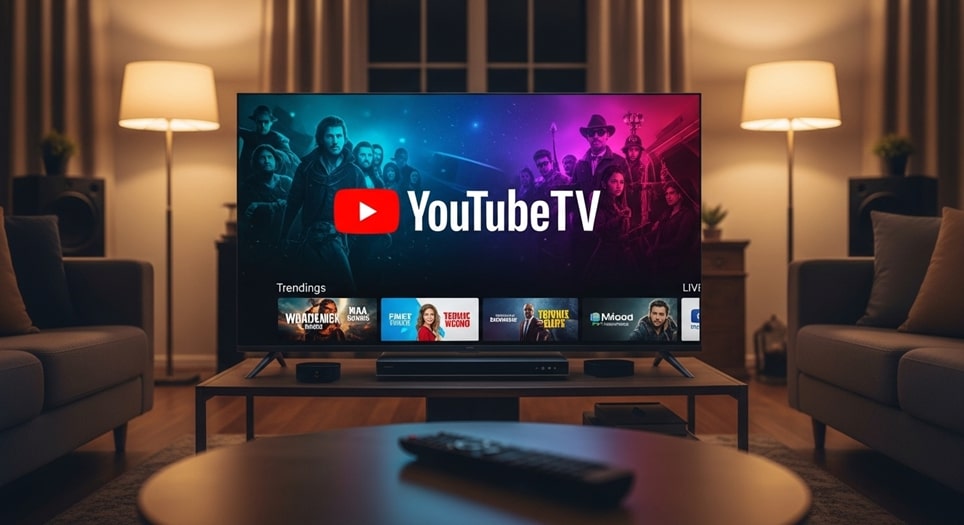
Imagine settling into your living room after a long day, firing up your favorite sports game or nature documentary, and being transported into the action with crystal-clear details that make every blade of grass or bead of sweat pop off the screen. That’s the promise of 4K streaming on YouTube TV, a feature that elevates ordinary viewing into an immersive spectacle. With the rise of ultra-high-definition content in 2025, more households are upgrading their setups to capture this level of quality, and YouTube TV’s 4K Plus add-on stands out as a gateway to that experience without the hassle of traditional cable upgrades.
This guide dives deep into everything you need to know about unlocking 4K on YouTube TV. From the nuts and bolts of the add-on itself to practical steps for setup, content discovery, and optimization, we’ll cover it all. Whether you’re a cord-cutter new to live TV streaming or a seasoned subscriber looking to enhance your package, these insights will help you make the most of your investment in high-resolution entertainment.
The appeal of 4K lies not just in sharper images but in the enhanced depth and color that bring stories to life. Sports fans can spot the texture of a football’s laces mid-flight, while movie buffs appreciate the nuanced shadows in dramatic scenes. As broadband speeds improve across the U.S., services like YouTube TV are responding by expanding their 4K libraries, making it easier than ever to access premium content right from your couch.
Understanding the 4K Plus Add-On
The 4K Plus add-on is YouTube TV’s premium upgrade designed specifically for viewers craving top-tier video quality and flexibility. At its core, this add-on unlocks Ultra High Definition playback for a curated selection of live and on-demand programs, transforming your standard subscription into a powerhouse for visual excellence. Priced at an additional $9.99 per month on top of the base plan, it represents a modest investment for those who prioritize resolution and convenience.
Beyond the resolution boost, 4K Plus bundles in practical perks that address common pain points in multi-device households. For instance, it removes the cap on simultaneous streams when you’re at home, allowing your family to watch different shows across various screens without interruption. This is particularly handy during peak times like weekend marathons or holiday gatherings, where everyone’s tastes might diverge.
Another standout feature is the offline download capability for DVR recordings, exclusive to mobile devices. This means you can queue up episodes during your commute or take them on a flight, ensuring entertainment is always at your fingertips. These elements combine to make 4K Plus more than just a visual upgrade—it’s a comprehensive enhancement to your streaming lifestyle.
Launched as part of YouTube TV’s ongoing evolution, the add-on has seen steady improvements in 2025, with broader device support and an expanding content roster. It’s available nationwide, though certain features like unlimited home streams may vary based on your internet provider and location. Subscribing is straightforward, but understanding its full scope ensures you extract maximum value.
Step-by-Step Guide to Subscribing to 4K Plus
Getting started with 4K Plus begins with a simple navigation through your YouTube TV account settings. First, open a web browser on your computer or mobile device and log into your YouTube TV profile at tv.youtube.com. This web interface is the primary hub for managing add-ons, as mobile apps have limitations for purchases.
Once logged in, click on your profile icon in the top-right corner and select “Settings” from the dropdown menu. Scroll down to the “Membership” section, where you’ll find a list of available upgrades. Locate the 4K Plus option—it’s clearly labeled with its monthly cost and a brief description of benefits. If you’re eligible for a promotional trial, such as the occasional 30-day free period offered to select users, it will be highlighted here.
Click the “Add” button next to 4K Plus to proceed to the confirmation page. Review the terms, which include details on auto-renewal and cancellation policies, then enter your payment information if prompted. Upon successful addition, you’ll receive an email confirmation, and the features should activate immediately, though it may take a few minutes for your devices to sync.
To verify activation, return to the app on your streaming device, go to Settings > Membership, and check that 4K Plus appears as active. If issues arise, such as delayed activation, refreshing the app or restarting your device often resolves them. This process typically takes less than five minutes, setting you up for seamless 4K enjoyment.
For those managing a family plan, the primary account holder must handle the add-on purchase, but all members will inherit the benefits automatically. Remember, you can cancel anytime via the same menu without penalties, giving you flexibility to test the waters.
Compatible Devices for 4K Streaming
Not all gadgets are created equal when it comes to handling 4K streams, so compatibility is key to avoiding frustration. YouTube TV supports a wide array of 4K-capable smart TVs and streaming devices, ensuring most modern setups are covered. Start with your display: any 4K UHD TV from 2019 onward, including popular brands like Sony Bravia, Samsung QLED, LG OLED, and Hisense models, will work provided they run a compatible OS.
For streaming devices, the Chromecast with Google TV (4K edition) tops the list for its seamless integration and affordability. It plugs directly into your TV’s HDMI port and supports HDR formats like Dolby Vision for even richer colors. Similarly, the Apple TV 4K (2021 or later) excels in performance, though note that some content may default to lower resolutions on this platform due to app-specific optimizations.
Gaming consoles offer robust alternatives; the PlayStation 5 and Xbox Series X handle 4K effortlessly, doubling as entertainment hubs. Roku Streaming Stick 4K provides a budget-friendly option with intuitive navigation, while the Amazon Fire TV Stick 4K (1st Gen 2018 or newer) integrates well with Alexa voice controls. Nvidia Shield TV is ideal for tech enthusiasts seeking advanced audio passthrough.
To connect these, use an HDCP 2.2-compliant HDMI cable—standard with most new purchases but worth double-checking on older setups. Once plugged in, ensure your device firmware is updated via its settings menu to unlock full 4K potential. Testing compatibility is simple: play a sample video and select “4K” from the quality menu; if unavailable, your hardware may need an upgrade.
In 2025, emerging devices like the latest Google TV Streamer expand options further, promising even faster load times. Prioritizing wired Ethernet over Wi-Fi for these connections minimizes buffering, especially during live events.
Internet and Setup Requirements
A stable, high-speed internet connection is the backbone of flawless 4K streaming, as these files demand significant bandwidth. YouTube TV recommends a minimum download speed of 25 Mbps for consistent 4K playback, but aiming for 50 Mbps or higher accounts for household fluctuations. Test your speed using built-in tools on your router or sites like speedtest.net to baseline performance.
Setup involves more than just speed; optimize your network by prioritizing your streaming device through your router’s QoS settings. This ensures video traffic takes precedence over downloads or smart home devices. For multi-room viewing, consider a mesh Wi-Fi system to eliminate dead zones, particularly in larger homes.
Power users might invest in a dedicated Ethernet connection for the streaming box, bypassing Wi-Fi variability altogether. Cable management plays a role too—secure HDMI and power lines to prevent signal interference. Once configured, monitor usage via the YouTube TV app’s data tracker to stay within your ISP’s data caps if applicable.
In regions with fiber-optic availability, upgrades to gigabit plans unlock headroom for future-proofing. Remember, upload speeds matter less for streaming but can enhance interactive features like live chats during events.
Discovering and Watching 4K Content
Finding 4K gems on YouTube TV is intuitive once you know where to look, starting with the app’s built-in filters. Navigate to the “Live” tab to see channels broadcasting upcoming 4K programs over the next 10 days—these are marked with a distinct 4K badge for easy spotting. Alternatively, use the search bar and type “4K” to pull up a dedicated playlist of available titles.
Network pages offer deeper dives; for example, head to the FX or Discovery section, where 4K episodes are highlighted in the schedule. On-demand libraries within these channels often include bonus 4K specials, like extended nature docs or behind-the-scenes sports footage. Always expand the video info panel by clicking the down arrow below the title to confirm resolution before hitting play.
During playback, access the quality selector via the gear icon to manually choose 4K if auto-detection falters. The “Stats for Nerds” overlay, toggled in settings, reveals real-time bitrate and resolution for verification. For previews without committing, some networks allow sampling 4K clips directly from the add-on trial page.
As of late 2025, the 4K library continues to grow, with seasonal pushes for major events like the Olympics or Super Bowl. User feedback influences expansions, so rating content helps shape future offerings.
Top 4K Channels and Programming Highlights
Here’s a curated list of standout channels offering consistent 4K fare, each with unique appeals for different viewers:
- Discovery Channel: Dive into breathtaking wildlife expeditions where every feather and footprint is rendered in exquisite detail, making educational content feel like a front-row safari. Programs like “Planet Earth” spin-offs run frequently in 4K, ideal for family viewing nights that spark curiosity about the natural world.
- ESPN: Sports enthusiasts rejoice with live games in ultra-sharp clarity, from NBA slam dunks to MLB curveballs that curve right into your living room. The add-on shines during playoffs, where sideline cams capture athlete expressions with lifelike precision, enhancing the thrill of victory.
- FOX Sports: Capture the roar of the crowd in NFL matchups, where field-level shots reveal turf textures and player strategies in stunning definition. This channel’s 4K slate includes college football and motorsports, perfect for tailgate parties streamed indoors.
- Fx: Elevate scripted dramas like “The Bear” with nuanced lighting and set designs that immerse you in chaotic kitchens. 4K up close on character emotions adds layers to storytelling, turning binge sessions into cinematic events.
- National Geographic: Explore remote landscapes in hyper-realism, from coral reefs teeming with color to mountain peaks piercing the sky. Documentary series here benefit immensely from 4K, offering viewers a virtual passport to untouched wonders.
- NBC Sports: Premier League soccer and golf majors come alive with grass blades swaying and ball spins visible from afar. The channel’s 4K events calendar is robust, catering to international fans seeking global competition at its finest.
- Tastemade: Culinary adventures pop with vibrant ingredients and sizzling pans in 4K, inspiring home cooks to replicate recipes. Short-form shows here make for quick, high-quality bites during meal prep.
- NBA TV: Basketball highlights in 4K showcase dribble rhythms and net swishes with unmatched fluidity. Regular-season games and analysis programs keep hoops heads engaged year-round.
These channels represent the cream of the 4K crop, but keep an eye on the app’s updates for newcomers like potential BBC additions.
Advanced Features: Unlimited Streams and Offline Downloads
One of the unsung heroes of 4K Plus is its unlimited simultaneous streams at home, freeing you from the base plan’s three-device limit. This means Dad can catch the game in the den, Mom unwinds with a series in the kitchen, and kids stream cartoons upstairs—all in glorious 4K where available. Activation is automatic upon subscription, but confirm via Settings > Screen Limits to ensure it’s enabled.
Outside the home network, the cap reverts to three streams, maintaining balance for on-the-go use. This feature leverages your Wi-Fi’s home designation, so traveling families might use a mobile hotspot workaround, though it’s not officially supported. In practice, it supports up to 10 devices in testing, though real-world loads vary by bandwidth.
Offline downloads add portability to your DVR library, letting you save select recordings for later. Access this via the Library tab in the mobile app, tapping the download icon on eligible episodes. Only one device can download at a time, and files must refresh online every 30 days to avoid expiration—plan accordingly for long trips.
Quality options range from SD to 4K for downloads, balancing file size and fidelity; lower settings speed up the process on slower connections. Storage limits depend on your phone’s capacity, with episodes averaging 5-10 GB in 4K. This feature shines for commuters or vacationers, turning dead time into prime viewing hours.
Pro tip: Set downloads to Wi-Fi only in app settings to conserve cellular data, and keep the screen active during transfers for uninterrupted progress.
Troubleshooting Common Issues
Even with a solid setup, glitches can dim your 4K dreams—starting with buffering, often tied to insufficient bandwidth. Run a speed test during peak hours and close background apps on your router to reclaim resources. If persistent, contact your ISP for line checks, as hidden throttling might be at play.
Device recognition failures, where 4K isn’t selectable, usually stem from outdated software. Head to your TV or streamer’s settings for system updates, then restart the YouTube TV app. HDMI handshake issues? Swap cables or ports, ensuring HDCP compliance—older ones cap at 1080p.
For download woes, verify storage space and app permissions; iOS users might need to toggle background refresh. If streams cut out mid-home, reset your network’s home status in YouTube TV settings by reconnecting devices sequentially. Community forums report success with VPN disables, as they can interfere with geo-locks.
Content not loading in 4K? Double-check the program’s badge and try searching directly. In rare cases, regional blackouts affect availability—patience during app-wide updates often resolves these. Logging out and back in refreshes authentication, a quick fix for many sync errors.
Armed with these steps, most hurdles clear quickly, keeping your experience smooth.
Is 4K Plus Worth It? Pros and Cons
Weighing the value of 4K Plus boils down to your viewing habits and setup. On the pro side, the visual leap is undeniable for sports and documentaries, where details matter most. The bundled unlimited streams solve family conflicts elegantly, and offline access adds rare flexibility in a streaming world.
Content volume has grown in 2025, with over a dozen channels contributing regularly, up from prior years. For $9.99, it’s competitively priced against rivals like Fubo’s Elite plan, especially sans contracts. Early adopters report heightened engagement, with longer sessions and higher satisfaction scores in user surveys.
Cons include the limited library—not every show justifies the upgrade, frustrating variety seekers. Device quirks persist on platforms like Apple TV, and the extra cost stacks on the base $82.99 fee. Casual viewers might find HD sufficient, especially if internet upgrades loom large.
Ultimately, trial periods make testing low-risk; many find the immersion tips the scales for frequent live TV users.
Conclusion
Unlocking 4K on YouTube TV through the 4K Plus add-on opens a new dimension of entertainment, blending cutting-edge visuals with user-friendly features like unlimited home streams and mobile downloads. We’ve explored the subscription process, device compatibilities, setup essentials, content discovery, and troubleshooting to equip you for success. Whether chasing the adrenaline of a live game or the serenity of a nature doc, this upgrade delivers tangible enhancements for discerning viewers.
As streaming evolves, YouTube TV’s commitment to expanding its 4K ecosystem promises even more reasons to stay tuned. By aligning your setup with these guidelines, you’ll not only access superior quality but also tailor a personalized viewing ecosystem that fits your lifestyle. Dive in, adjust as needed, and elevate your screen time to ultra-high heights—your next binge awaits in breathtaking clarity.
