

The ability to record phone calls has transitioned from a niche requirement for journalists and legal professionals into a common necessity for the general public. Whether you are conducting a business interview, keeping a record of a customer service dispute, or simply trying to preserve instructions from a doctor or contractor, having a reliable digital copy of a conversation can be invaluable. However, as mobile operating systems like Android and iOS have evolved, the methods for recording calls have become increasingly complex due to privacy regulations and security updates. This guide provides a comprehensive overview of how to navigate these challenges and successfully record calls on any modern smartphone.
Understanding the legal landscape is the first and most critical step before pressing the record button. In many jurisdictions, recording a conversation without the consent of all parties involved can lead to severe legal consequences, including criminal charges or civil lawsuits. In the United States, for instance, laws vary by state; some require “one-party consent,” meaning only one person in the conversation needs to know it is being recorded, while others require “all-party consent.” Internationally, countries like the United Kingdom and various European nations have strict GDPR regulations and privacy acts that govern the interception of communications. Always ensure you are compliant with local and international laws before proceeding with any of the methods outlined in this guide.
Technological barriers also play a significant role. Apple and Google have historically restricted call recording capabilities to protect user privacy and prevent malicious apps from eavesdropping. On iPhones, there is no native “Record” button within the Phone app for standard cellular calls. On Android, while the feature exists in the “Phone by Google” app, it is often restricted by geographic region or mobile carrier settings. This guide will explore the official methods provided by manufacturers, as well as the most reliable third-party hardware and software workarounds available in 2024 and 2025.
Native Call Recording on Android Devices
Android users generally have a more straightforward path to call recording compared to iPhone users, primarily because Google integrated a recording feature into its official dialer app. This feature is available on most Pixel devices, many Nokia phones, and various other devices that use the stock “Phone by Google” application. However, the presence of this feature depends heavily on your country of residence and your service provider. Google disables this functionality in regions where call recording laws are particularly stringent or ambiguous to avoid liability.
To use the native Android call recording feature, start by opening the Phone app and making or receiving a call. If the feature is supported on your device and in your region, you will see a “Record” icon on the ongoing call screen. Tapping this button will initiate the recording. It is important to note that Google’s system will play an audible announcement to both parties: “This call is now being recorded.” This transparency is a hard-coded security feature intended to ensure that all participants are aware of the recording, and it cannot be disabled through official settings.
Managing your recordings on Android is equally simple. Once the call ends, the audio file is stored within the Phone app’s “Recents” tab. By tapping on the specific contact or number you just spoke with, you can access the play button for the recorded segment. From here, you can listen to the audio, delete it, or share it to other apps like Google Drive or Gmail for long-term storage. If you do not see the record button, your device might be restricted, or you may need to update your Phone app via the Google Play Store to the latest version.
Recording on Samsung Galaxy Smartphones
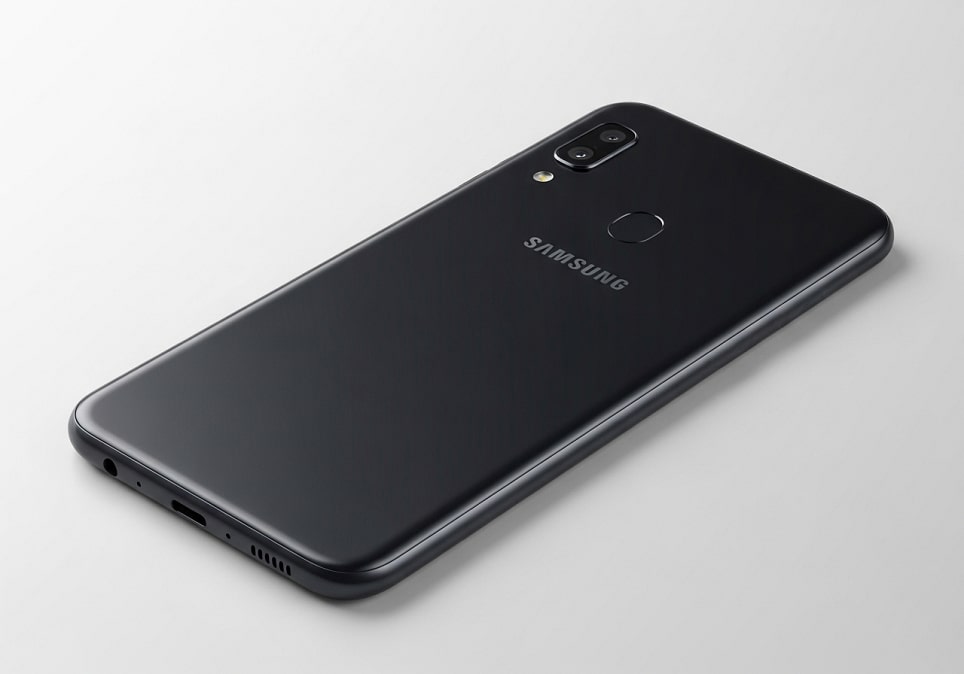
Samsung, the world’s largest Android manufacturer, uses its own proprietary “Samsung Phone” app rather than Google’s version. In many regions, including India, Brazil, and several Southeast Asian countries, Samsung includes a native call recording feature directly in the settings. To enable this, open the Phone app, tap the three-dot menu in the upper right corner, and select “Settings.” Look for the “Record calls” option. Here, you can toggle on “Auto record calls,” which allows the phone to automatically capture every conversation without manual intervention.
One major advantage of Samsung’s implementation is that it typically does not play a loud notification to the other party, though this varies by the specific regional firmware installed on the device. Users can choose to record all calls, calls from unsaved numbers, or calls from specific selected contacts. The recorded files are saved in the internal storage under a folder named “Call,” usually accessible through the “My Files” app. If you own a Samsung device in a region like the United States or the European Union, this menu option may be hidden or removed entirely due to local legal restrictions.
For Samsung users in restricted regions, “flashing” a different region’s firmware (CSC) is a common but advanced workaround used by tech enthusiasts. This process involves using software like Odin to change the phone’s software identity to a region where recording is legal. However, this is not recommended for average users as it can void warranties, break Samsung Pay/Knox security features, and potentially “brick” the device if done incorrectly. For most, third-party apps or hardware remain the safer alternatives.
How to Record Calls on iPhone (iOS)
Apple has historically been much more restrictive than Google regarding call recording. For over a decade, there was no native way to record a cellular call on an iPhone. This was a deliberate design choice by Apple to uphold its commitment to user privacy. However, with the introduction of iOS 18 and Apple Intelligence, the company finally introduced a built-in call recording and transcription feature. This is a revolutionary change for the iPhone ecosystem, though it comes with the same transparency requirements seen on Android.
To record a call on an iPhone running iOS 18 or later, you simply initiate a call as usual. On the call interface, a new “Record” icon appears in the top-left corner. When you tap it, the iPhone will announce to everyone on the line that the call is being recorded. A waveform appears on the screen to indicate that the audio is being captured. Once the call is finished, the recording is automatically saved to the Apple Notes app. A significant benefit of this system is that Apple Intelligence can provide a full text transcript of the call, making it easy to search for specific keywords or summaries later.
For users who are not using iOS 18 or who prefer not to use the automated announcement, the “Three-Way Merge” method remains the standard workaround. This involves using a third-party service or a specialized recording app like TapeACall or Rev Call Recorder. These apps work by creating a conference call between you, the person you are calling, and the app’s recording server. You must dial the app’s access number, then “Add Call” to dial your recipient, and finally “Merge Calls” to link them all together. The server then records the combined audio stream and provides a download link after the call ends.
Using Google Voice as a Cross-Platform Solution
Google Voice provides a unique, free way to record incoming calls on both Android and iPhone without needing specialized hardware. This service gives you a secondary phone number that routes calls to your mobile device. Because the call passes through Google’s servers before reaching your phone, Google can intercept and record the audio stream directly at the server level, ensuring high-quality audio that doesn’t rely on your phone’s internal microphone or software permissions.
To enable this, you must go to the Google Voice settings (on the web or in the app) and toggle on “Incoming call options.” Once enabled, when you receive a call on your Google Voice number, you can press the number “4” on your keypad at any time during the conversation. An automated voice will announce, “This call is now being recorded.” To stop recording, press “4” again or hang up. The recording is then emailed to you and stored in the Google Voice app’s “Voicemail” or “Calls” tab.
The primary limitation of Google Voice is that it only supports recording for incoming calls. You cannot record an outgoing call that you initiate using this native feature. Additionally, Google Voice is currently only available for personal accounts in the United States, though Google Workspace users in other regions may have access to similar features through their enterprise configurations. Despite these limitations, it remains one of the most reliable and highest-quality methods for capturing interviews and professional consultations.
Third-Party Recording Applications
When native options fail, many users turn to the Google Play Store or Apple App Store. However, the reliability of these apps has decreased significantly in recent years. In 2022, Google implemented a policy change that blocked third-party apps from using the “Accessibility API” to record call audio. This move was intended to close a loophole that apps were using to bypass Android’s security sandbox. Consequently, many popular apps like ACR (Another Call Recorder) now require users to download a “helper” app from outside the Play Store to function correctly.
Despite these hurdles, several apps still offer high-quality service by using creative methods. Some top-rated applications include:
- Cube ACR: This is one of the most versatile apps for Android, capable of recording not just cellular calls but also VoIP conversations on WhatsApp, Telegram, and Signal. It offers a “force-in-call” mode for devices that have software blocks, though it may require specific configuration.
- Truecaller: Widely known for caller ID, Truecaller has integrated a call recording feature for its premium users on Android. It integrates seamlessly with the dialer and provides cloud backup for recordings.
- TapeACall Pro: A leading choice for iPhone users, this app relies on the three-way calling method. It is highly reliable for professional use and offers unlimited recording length and easy export options to Dropbox or Evernote.
- Rev Call Recorder: Specifically for iPhone, this app is unique because it is completely free to record calls. Rev makes its money by offering optional paid human transcription services, making it a favorite for journalists.
- Call Recorder – IntCall: This app uses a VOIP server to place the call, meaning it doesn’t use your cellular line to transmit the audio. Instead, it places the call over the internet, records it on the server, and charges you per minute.
When selecting a third-party app, always check the recent reviews. Because mobile OS updates frequently break recording functionality, an app that worked perfectly last month might be useless today. Furthermore, be wary of apps that request excessive permissions. A call recorder needs access to your microphone and contacts, but it rarely needs access to your location or your entire photo gallery. Always prioritize apps with a clear privacy policy and a proven track record.
External Hardware Solutions
For those who require 100% reliability without software glitches, announcements, or OS restrictions, hardware solutions are the gold standard. These methods work by capturing the audio signal after it has already left the phone’s software environment, making them impossible for Apple or Google to block. Hardware recording is often the preferred choice for legal professionals and investigators who cannot afford a software failure during a critical conversation.
The simplest hardware method is the “In-Ear Microphone.” This is a specialized earbud (like the Olympus TP-8) that contains a high-sensitivity microphone on the outside of the earpiece. You place the earbud in your ear and then hold your smartphone against that same ear. The microphone captures the voice of the person on the other end of the line directly from the phone’s speaker, while also picking up your own voice via bone conduction and proximity. The earbud is plugged into a standard digital voice recorder, which saves the conversation as an MP3 or WAV file.
Another popular hardware option is a Bluetooth call recorder. Devices like the Waytronic Bluetooth Call Recorder pair with your smartphone as a headset. When you make or receive a call, you speak through the device (or its attached headphones), and the device records the digital audio stream directly to an internal SD card. Because the recording happens on the external device rather than the phone, there are no software announcements or permission issues. These devices are compact, rechargeable, and offer the highest fidelity audio available.
Pro Tips for High-Quality Call Recording
To ensure your recorded conversations are clear and usable, follow these expert recommendations:
- Use Speakerphone in a Quiet Room: If you are using a secondary device (like a separate voice recorder) to capture the call, putting your phone on speakerphone is the easiest method. Ensure you are in a carpeted room with minimal echo to prevent the “hollow” sound often associated with speakerphone recordings.
- Always Perform a Test Call: Before an important interview, record a 30-second test call with a friend or your own voicemail. This ensures that both sides of the conversation are being captured at an equal volume level, as some software only records the microphone and not the internal system audio.
- Stabilize Your Internet Connection: If you are using VoIP-based recording apps (like WhatsApp or Google Voice), a weak Wi-Fi or LTE signal will result in digital artifacts and “jitter” in your recording. Use a stable, high-speed connection whenever possible.
- Announce the Recording Manually: Even if your app doesn’t do it automatically, it is best practice (and often a legal requirement) to state at the beginning of the call: “I would like to record this call for my records; is that alright with you?” Having this verbal consent on the recording itself provides significant legal protection.
- Organize Your Files Immediately: Call recordings are often saved with generic filenames like “Call_20240110_1151.mp4.” Rename these files immediately after the call to include the contact name and the topic discussed to avoid confusion later.
Frequently Asked Questions
Is it legal to record a call without telling the other person?
This depends entirely on your location. In “one-party consent” jurisdictions, it is legal as long as you are part of the conversation. In “all-party consent” areas, it is illegal unless everyone agrees. Recording calls you are not a part of (wiretapping) is almost universally illegal without a warrant.
Why is there no record button on my Android phone?
This is usually because your mobile carrier or your country’s government has requested that Google disable the feature. Users in the US, UK, and most of Europe often find the native button missing in the standard Phone app.
Can I record WhatsApp or Zoom calls on my phone?
Yes, but standard phone recorders usually won’t work. On Android, apps like Cube ACR can capture VoIP audio. On iPhone, you can use the built-in Screen Recording feature (accessible via Control Center), though you must ensure the “Microphone” is toggled on by long-pressing the record icon.
Will the other person know I am recording?
If you use the native recording features in iOS 18 or the Google Phone app, the system will play an automated announcement. If you use hardware solutions or certain third-party apps, there is no automated notification, but you should still provide a verbal disclosure for legal reasons.
Where are my call recordings saved?
On Android, they are usually in the Phone app under “Recents” or in a “Call” folder in your internal storage. On iPhone (iOS 18), they are saved in the Notes app. Third-party apps typically have their own internal gallery where files are stored.
Conclusion
Recording a phone call on a modern smartphone requires a balance of technical knowledge and legal awareness. While Apple and Google have made strides in providing native tools like the iOS 18 recording feature and the Google Phone app’s recording button, these tools are built with strict privacy safeguards, such as mandatory audible announcements. For users who need more flexibility or who live in regions where these features are blocked, third-party apps and external hardware remain essential alternatives. Regardless of the method you choose—be it a sophisticated Bluetooth recorder, a “three-way merge” app, or a simple speakerphone setup—the priority should always be clarity of audio and adherence to privacy laws. By following the steps and tips outlined in this guide, you can ensure that your important conversations are preserved accurately and legally for future reference.

Loading comments…