

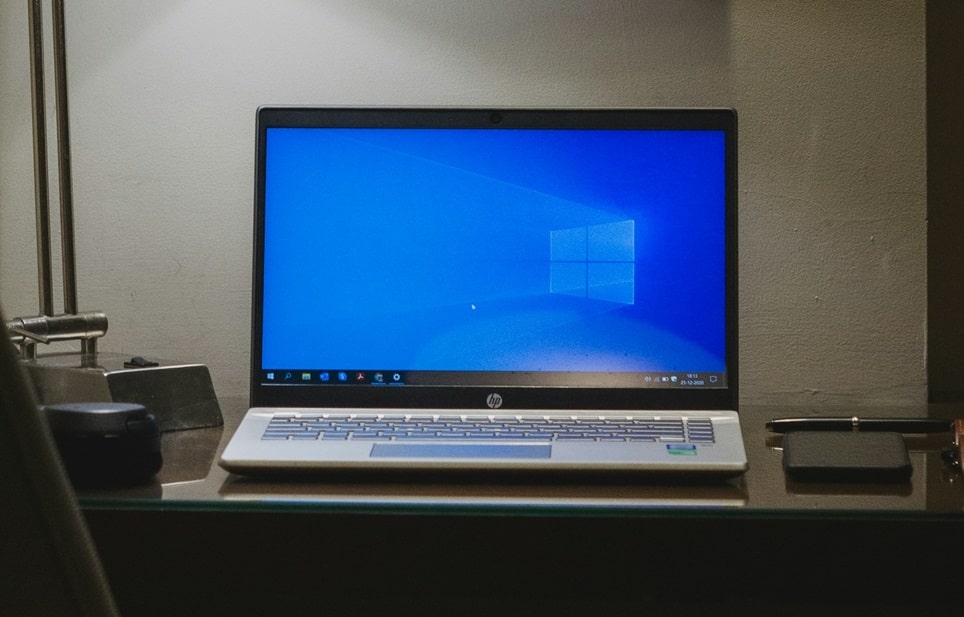
Windows 10 reached the end of its free support period in October 2025, meaning Microsoft no longer releases regular security updates or provides technical assistance for most users. Many people continue using the operating system due to hardware limitations or personal preference, and login difficulties remain a frequent complaint. These issues range from forgotten passwords and keyboard malfunctions to corrupted user profiles and system file errors that prevent access to the desktop.
This guide covers proven troubleshooting methods to resolve the most common Windows 10 sign-in problems. The steps draw from standard recovery options built into the system, helping you regain access without needing external software in most cases. Always start with the simplest checks before moving to advanced repairs that might require a recovery drive or installation media.
Before beginning any fixes, connect an external keyboard if possible to rule out hardware faults, and ensure your device has a stable power source. If you use a Microsoft account, verify your internet connection, as some recovery options require online access.
Identifying Common Windows 10 Login Problems
Understanding the specific symptom helps narrow down the appropriate solution. Here are the most frequently reported sign-in issues:
- Incorrect Password or PIN Errors: The system rejects credentials even when entered correctly, often due to Caps Lock being enabled, wrong keyboard layout, or synchronization issues with a Microsoft account. This prevents progression past the login screen and displays an error message immediately after input.
- No Login Screen Appears: The device boots to a black screen, blank display, or stuck welcome animation without prompting for credentials. Display driver conflicts or corrupted startup files commonly cause this behavior.
- Stuck in Login Loop: After entering credentials, the system briefly loads then returns to the login screen. A damaged user profile or conflicting third-party software typically triggers this cycle.
- User Profile Service Failed: A specific error states that the user profile cannot load, usually from registry corruption or file permission problems in the profile folder.
- Keyboard or Input Not Responding: Users cannot type passwords or PINs at the login screen due to driver issues or hardware faults.
- Automatic Repair or Startup Failures: The device enters a repair loop or fails to reach the login screen after updates or crashes.
- Frozen Login Screen: The screen becomes unresponsive after entering credentials, preventing desktop access.
- Microsoft Account Lockout: Temporary account locks occur after multiple failed attempts, requiring online verification to unlock.
Basic Troubleshooting Steps to Try First
Many login issues resolve with simple checks that take only minutes.
Perform a Full Restart
Hold the power button for 10 seconds to force shutdown, wait 30 seconds, then power on again. This clears temporary glitches in memory and services that interfere with authentication.
If the device allows, select Restart from the power options icon in the bottom-right corner of the login screen instead of shutting down completely.
Check Keyboard and Input Settings
Verify Caps Lock and Num Lock indicators. Press the ease-of-access icon (clock-like symbol) at the bottom-left of the login screen and enable the On-Screen Keyboard to test input.
Switch keyboard layouts by clicking the language abbreviation next to the clock and selecting the correct one. Connect a USB keyboard to test if the built-in one has failed.
Reset Microsoft Account Password Online
If using a Microsoft account and you remember alternate recovery details, go to another device, visit account.live.com/password/reset, and follow the prompts to set a new password. The change synchronizes to your Windows 10 device on next login attempt with internet connected.
Disable Internet Connection Temporarily
For local accounts experiencing sync issues, disconnect Wi-Fi or Ethernet at the login screen (using the network icon) and try signing in offline. Reconnect after reaching the desktop if needed.
Accessing Advanced Startup Options
Many deeper fixes require booting into the Windows Recovery Environment (WinRE). To reach it:
- Force restart the device three times by holding the power button during boot to trigger Automatic Repair.
- From the login screen, hold Shift while clicking Restart from the power menu.
- If those fail, create a Windows 10 recovery USB on another computer using Microsoft’s media creation tool and boot from it.
Once in the blue recovery screen, navigate to Troubleshoot > Advanced options.
Running Startup Repair and System Scans
Use Startup Repair
From Advanced options, select Startup Repair. Windows scans for and fixes issues preventing normal boot, including those affecting the login process. This runs automatically and may take 15-30 minutes.
Scan System Files with SFC and DISM
Select Command Prompt from Advanced options. Run these commands in order:
sfc /scannow
This scans and repairs protected system files.
DISM /Online /Cleanup-Image /RestoreHealth
This repairs the Windows image if SFC finds unfixable corruption. An internet connection helps pull clean files from Microsoft servers.
Restart after completion and test login.
Check Disk for Errors
In Command Prompt, run:
chkdsk C: /f /r
Confirm scheduling for next restart if prompted. This scans the drive for bad sectors and file system errors that can corrupt login components.
Fixing User Profile and Account Issues
Boot into Safe Mode
From Advanced options, go to Startup Settings > Restart > press 4 or 5 for Safe Mode. In Safe Mode, third-party software disables, allowing isolation of conflicts.
Once in Safe Mode, create a new local administrator account via Settings > Accounts > Family & other users > Add account.
Log in to the new account to test if the issue is profile-specific.
Repair Corrupted User Profile
In Safe Mode with an working account, open File Explorer and navigate to C:\Users. Rename the problematic profile folder (add .old). Restart and Windows creates a fresh profile on next login.
Copy files from the old profile’s Desktop, Documents, etc., to the new one, avoiding Ntuser.dat files.
Enable Built-in Administrator Account
From recovery Command Prompt, run:
net user Administrator /active:yes
Restart and log in as Administrator (no password by default). Use this to fix or back up the main account.
Disable afterward with /active:no for security.
Additional Advanced Solutions
Perform System Restore
From Advanced options > System Restore, select a restore point before the login issue began. This reverts system changes while preserving personal files.
Disable Fast Startup
In Safe Mode, search for Power Options > Choose what the power buttons do > Change settings currently unavailable > uncheck Turn on fast startup. This prevents hybrid boot issues affecting login.
Reset Windows 10
As a last resort from Advanced options > Reset this PC, choose Keep my files to reinstall Windows while preserving data. This resolves deep corruption but removes apps.
Pro Tips for Preventing Future Login Problems
- Create Regular Backups: Use File History or third-party tools to back up important data to external drives or cloud storage. This ensures recovery if profile corruption forces a new account.
- Use a Local Account: Switch from Microsoft account to local for fewer sync-related issues, especially post-end-of-support.
- Prepare Recovery Media: Download the Windows 10 media creation tool on a working PC to create a bootable USB in advance.
- Keep Drivers Updated: Before end-of-support, install latest drivers from manufacturers to avoid display or input conflicts.
- Enable PIN or Windows Hello: If possible, set up alternative sign-in methods for redundancy when passwords fail.
- Monitor Disk Health: Regularly run chkdsk or use tools like CrystalDiskInfo to catch drive issues early.
- Consider Upgrading: With no more free updates, transitioning to Windows 11 (if compatible) or a supported alternative provides better security and stability.
Frequently Asked Questions
What if I forgot my Windows 10 password completely?
Use the password reset link on the login screen if a local account with reset disk, or account.live.com/password/reset for Microsoft accounts. Otherwise, use recovery options to enable the built-in Administrator and reset from there.
Why does my computer show a black screen after login?
This often stems from graphics driver corruption. Boot to Safe Mode, uninstall the display driver via Device Manager, and restart for Windows to reinstall a basic driver.
Can I still fix login issues without internet?
Yes, many recovery tools work offline. Offline password reset requires prior setup, but Safe Mode, SFC, and System Restore function without connection.
Is it safe to continue using Windows 10 in 2025?
Functionally yes for login fixes, but security risks increase without updates. Consider paid Extended Security Updates if available through your organization.
How do I access Command Prompt if stuck at login?
Force Automatic Repair or boot from recovery media to reach Advanced options and open Command Prompt directly.
Will these fixes delete my files?
Most preserve data. Always back up first when possible, especially before Reset or profile renaming.
Conclusion
Windows 10 login problems arise from various causes including simple input errors, corrupted profiles, system file damage, and driver conflicts. Starting with basic checks like restarting, verifying keyboard function, and resetting passwords online resolves many issues quickly. For persistent problems, Advanced Startup options provide powerful tools such as Safe Mode, Startup Repair, SFC scans, and System Restore to restore access without data loss in most cases.
Following the step-by-step methods outlined here systematically increases success chances. Preventive measures like regular backups, using local accounts, and preparing recovery media help avoid future disruptions. While these fixes remain effective in 2025, the end of mainstream support highlights the long-term benefits of upgrading to a supported operating system when feasible.
