

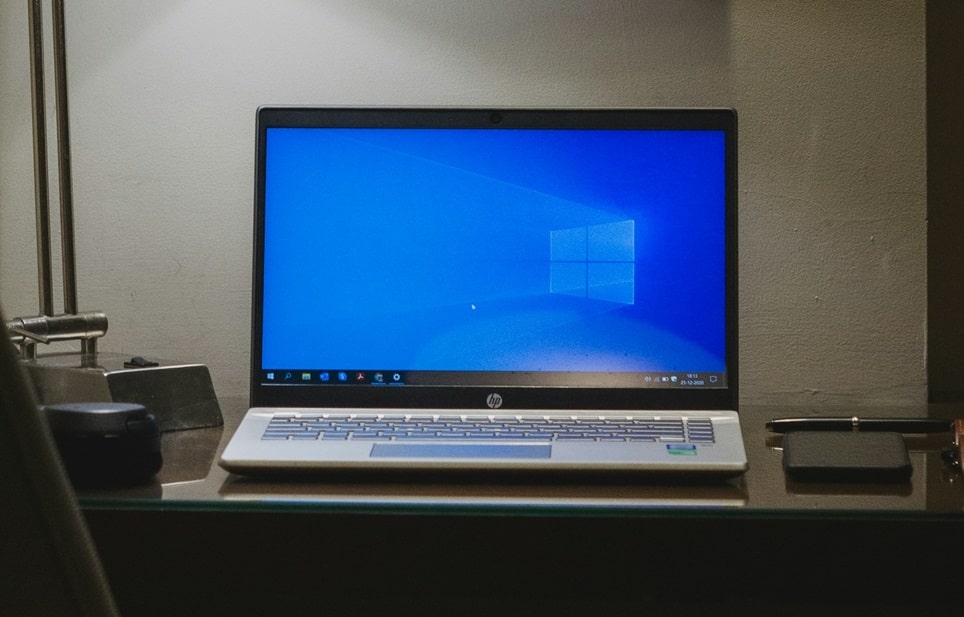
Windows 10 includes a surprisingly rich collection of built-in wallpapers that many users enjoy but never fully explore. These images are not only used for the desktop background but also for lock screens, themes, and dynamic experiences such as Windows Spotlight. Understanding exactly where these files are stored and how Windows manages them gives you far more control over personalization, backups, and reuse across devices.
This guide explains, in a clear and practical way, every official location where Windows 10 stores its default wallpapers. It also walks through safe methods to access, copy, customize, and preserve these images without affecting system stability. The instructions apply to all standard editions of Windows 10 and are written for both casual users and advanced enthusiasts.
Beyond simply locating image folders, the article also explores how Windows dynamically delivers certain backgrounds, why some images are hidden by default, and how you can make the most of high-resolution wallpaper assets already on your system.
Understanding How Windows 10 Manages Wallpapers
Windows 10 uses a layered system to manage background images. Some wallpapers are static and shipped with the operating system, while others are downloaded dynamically or generated as part of user-created themes. This structure helps Windows optimize performance while offering flexibility in appearance.
At the core of this system is a set of protected directories inside the Windows installation folder. These locations contain official Microsoft-provided images that are used for desktop backgrounds, lock screens, and sign-in screens. Because these folders are part of the operating system, they are protected by default and require appropriate permissions to modify.
In addition to system folders, Windows also maintains user-specific directories that store customized backgrounds, cached images, and theme resources. These user folders change over time as you switch backgrounds, enable Spotlight, or install new themes.
Main System Folder for Default Desktop Wallpapers
The Primary Wallpaper Directory
The main location for Windows 10’s default desktop wallpapers is inside the Windows directory itself. This folder contains the classic blue Windows logo image along with several themed subfolders.
The standard path is:
C:\Windows\Web\Wallpaper
Inside this directory, you will typically find multiple subfolders named according to theme categories such as Windows, Flowers, or Landscapes. Each folder contains high-quality JPEG images designed for a wide range of screen resolutions.
These files are safe to copy and reuse, but they should not be edited or deleted directly from this location. Modifying system files can cause display issues or prevent themes from loading correctly.
High-Resolution and 4K Variants
Many Windows 10 wallpapers are available in ultra-high resolution formats that are not immediately visible through the Settings app. Microsoft includes these files to ensure crisp visuals on large or high-DPI displays.
These images are stored in a dedicated subfolder:
C:\Windows\Web\4K\Wallpaper
Within this directory, wallpapers are organized by theme and resolution. You can safely copy these files to another folder and set them as custom backgrounds for multi-monitor or 4K setups.
Lock Screen and Sign-In Screen Images
Default Lock Screen Backgrounds
Windows 10 uses a separate set of images for the lock screen and sign-in screen. These backgrounds are distinct from desktop wallpapers and are optimized for portrait and landscape orientations.
The default lock screen images are stored here:
C:\Windows\Web\Screen
This folder contains a small but carefully curated selection of images designed to work well with text overlays, clocks, and notifications.
Windows Spotlight Assets
When Windows Spotlight is enabled, the operating system periodically downloads new lock screen images from Microsoft’s servers. These files are cached locally but are not labeled or organized in a user-friendly way.
The Spotlight image cache can be found at:
%LocalAppData%\Packages\Microsoft.Windows.ContentDeliveryManager_cw5n1h2txyewy\LocalState\Assets
Files in this folder have no extensions by default. Copying them to another location and renaming them with a .jpg extension allows you to view and reuse them.
User-Specific Wallpaper and Theme Storage
Cached Desktop Backgrounds
Whenever you select a new desktop background, Windows creates cached versions of the image to improve performance. These cached files are stored in your user profile.
The primary location is:
%AppData%\Microsoft\Windows\Themes
This folder includes the current wallpaper, transcoded image files, and theme configuration data. These images reflect your most recent background choices rather than the original system defaults.
Custom Theme Assets
If you create or install themes, Windows stores related images in the same Themes directory. This allows quick switching between themes without reprocessing large image files.
Backing up this folder is a simple way to preserve your personalized wallpaper setup before reinstalling Windows or moving to a new computer.
How to Safely Copy and Reuse Default Wallpapers
Microsoft allows users to copy and reuse default wallpapers for personal use. However, best practices help ensure system stability and image quality.
- Always copy, never move, system images.System wallpaper folders are protected for a reason. Copying images to a personal folder prevents accidental deletion or corruption that could affect themes or updates.
- Use the highest available resolution.Selecting 4K or ultra-high-resolution versions ensures better clarity on modern displays, especially on large monitors or multi-screen setups.
- Rename Spotlight images immediately.Spotlight assets lack filenames and extensions. Renaming them after copying helps prevent confusion and makes organization easier.
- Keep a dedicated wallpaper library.Storing copied images in a personal Pictures subfolder simplifies backups and future reuse across devices.
- Avoid editing originals.If you want to crop or adjust a wallpaper, always work on a copied version to preserve the original file.
Pro Tips for Managing Windows 10 Wallpapers
Advanced users can get even more value from Windows 10’s built-in images by applying a few expert techniques.
Creating a slideshow from copied default wallpapers allows you to rotate backgrounds automatically without relying on third-party software. Using the highest-resolution images also reduces scaling artifacts on high-DPI displays.
If you frequently reinstall Windows, consider exporting your favorite wallpapers to cloud storage. This ensures instant access regardless of device. For Spotlight enthusiasts, periodically checking the Assets folder lets you build a personal collection of professionally shot images.
Frequently Asked Questions
Can I delete default Windows 10 wallpapers?
It is not recommended to delete files from system wallpaper folders. While deletion may not immediately break Windows, it can cause issues with themes, updates, or future personalization features.
Why can’t I see some wallpaper folders?
Some directories are hidden or protected by default. Enabling the option to show hidden files in File Explorer allows access, but caution is advised when browsing system folders.
Are Spotlight images free to use?
Spotlight images can be used for personal desktop backgrounds. They should not be redistributed commercially, as usage rights remain with the original photographers and Microsoft.
Do these locations change with Windows updates?
The core directories have remained consistent across Windows 10 versions. Minor changes may occur, but the primary paths are stable.
Conclusion
Windows 10 stores its default wallpapers across a structured set of system and user-specific directories, each serving a distinct purpose. From classic desktop backgrounds and ultra-high-resolution images to dynamic Spotlight assets and cached user selections, every wallpaper type has a clearly defined home.
By understanding these locations and following safe handling practices, users can fully leverage the high-quality visuals included with Windows 10. Whether you want to back up favorites, customize themes, or simply explore what is already available, knowing where these images live unlocks greater control over your desktop experience.

Loading comments…